
Changing the Windows VPS Administrator password is a common Windows Server administration task. You may need to change it after receiving a new VPS, when credentials have been shared or exposed, when an administrator changes, or when your organization’s security policy requires it.
If you can currently access your Windows VPS, you can change the password through Remote Desktop (RDP) or PowerShell.
Important: This guide covers changing a password when you can still access the Windows VPS. If you have completely forgotten the password and cannot sign in, you need a password reset or recovery method instead.
Quick Answer
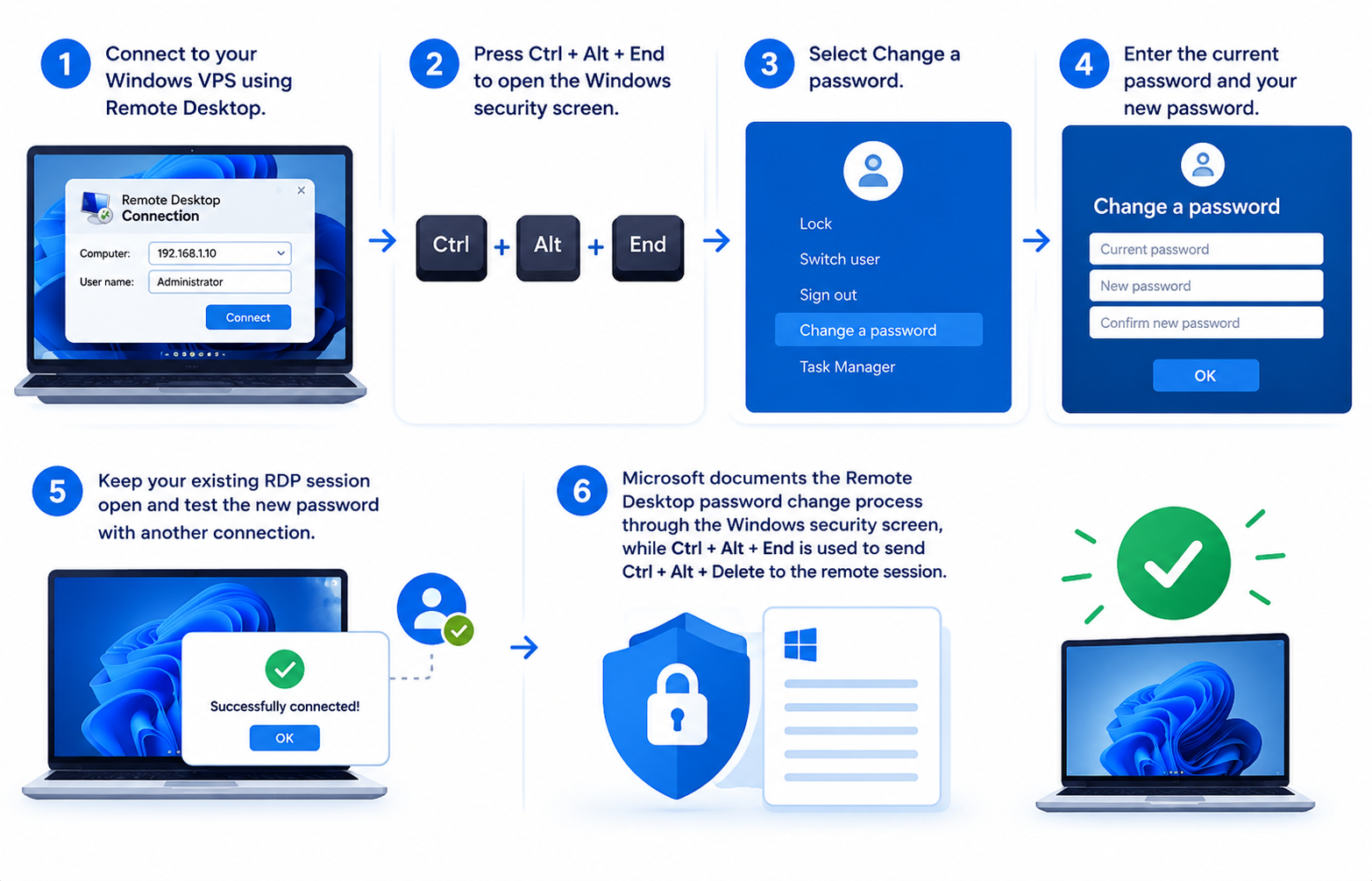
To change the Administrator password through an RDP session:
- Connect to your Windows VPS using Remote Desktop.
- Press Ctrl + Alt + End to send the Windows security command to the remote server.
- Select Change a password.
- Enter the current password and your new password.
- Confirm the change.
- Keep your existing RDP session open and test the new password with another connection.
Microsoft documents the Remote Desktop password-change process through the Windows security screen, while Ctrl + Alt + End is used to send Ctrl + Alt + Delete to the remote session.
Before You Change the Windows VPS Administrator Password
Before changing the password, check the following:
- You can currently log in to the Windows VPS.
- You know the current password if you are performing a normal password change.
- You have administrative access to the server.
- You have a secure place to store the new password.
- You know whether the account is a local Windows account or an Active Directory account.
- You can keep your current RDP session open until the new credentials have been tested.
Administrator tip: Do not close your only working RDP session immediately after changing the password. Verify the new credentials first.
Method 1: Change the Windows VPS Administrator Password Through RDP
For a typical standalone Windows VPS, changing the password through the Remote Desktop session is the easiest method.
Step 1: Connect to Your Windows VPS
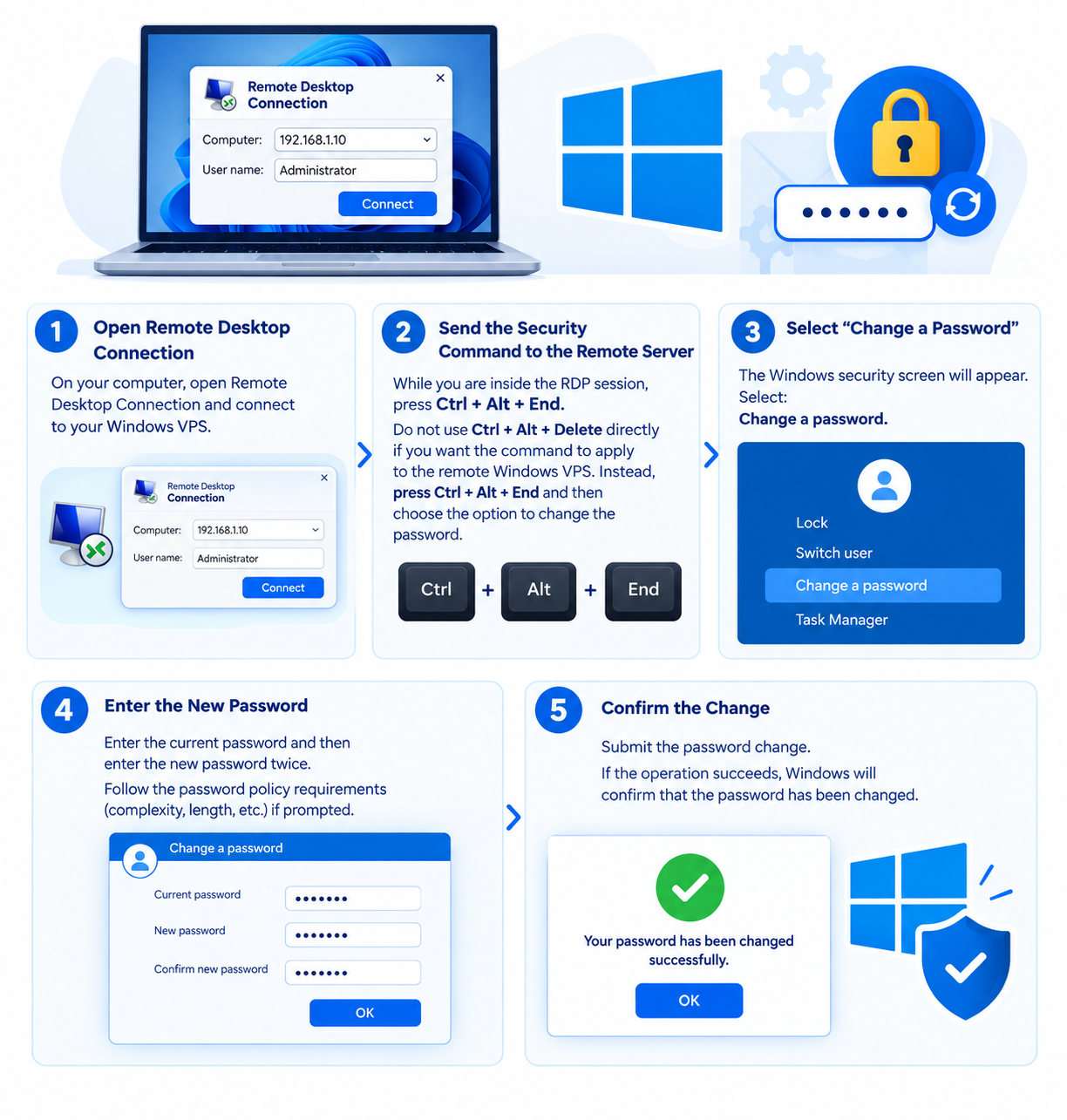
Open Remote Desktop Connection on your computer and connect to your Windows VPS.
Sign in with the account whose password you want to change.
For many Windows VPS installations, this will be the built-in:
Administrator
However, the administrative account may have a different name.
Step 2: Send the Security Command to the Remote Server
While you are inside the RDP session, press:
Ctrl + Alt + End
Do not use Ctrl + Alt + Delete directly if you want the command to apply to the remote Windows VPS. Ctrl + Alt + End is the Remote Desktop shortcut that injects Ctrl + Alt + Delete into the remote session.
Step 3: Select “Change a Password”
The Windows security screen will appear.
Select:
Change a password
You should then see fields for:
- Current password
- New password
- Confirm new password
Microsoft documents this same password-change workflow for remote Windows sessions.
Step 4: Enter the New Password
Enter the current password and then enter the new password twice.
Your new password must comply with the password policy configured on the Windows Server or domain.
If Windows rejects the password, try a stronger password that satisfies the server’s configured requirements.
Step 5: Confirm the Change
Submit the password change.
If the operation succeeds, Windows will confirm that the password has been changed.
Do not close your current RDP session yet.
Method 2: Change a Local Windows VPS Password Using PowerShell
PowerShell is useful if you prefer command-line administration or need to change a local Windows account password without using the graphical security screen.
Microsoft’s Set-LocalUser cmdlet can modify local Windows user accounts and supports changing their passwords.
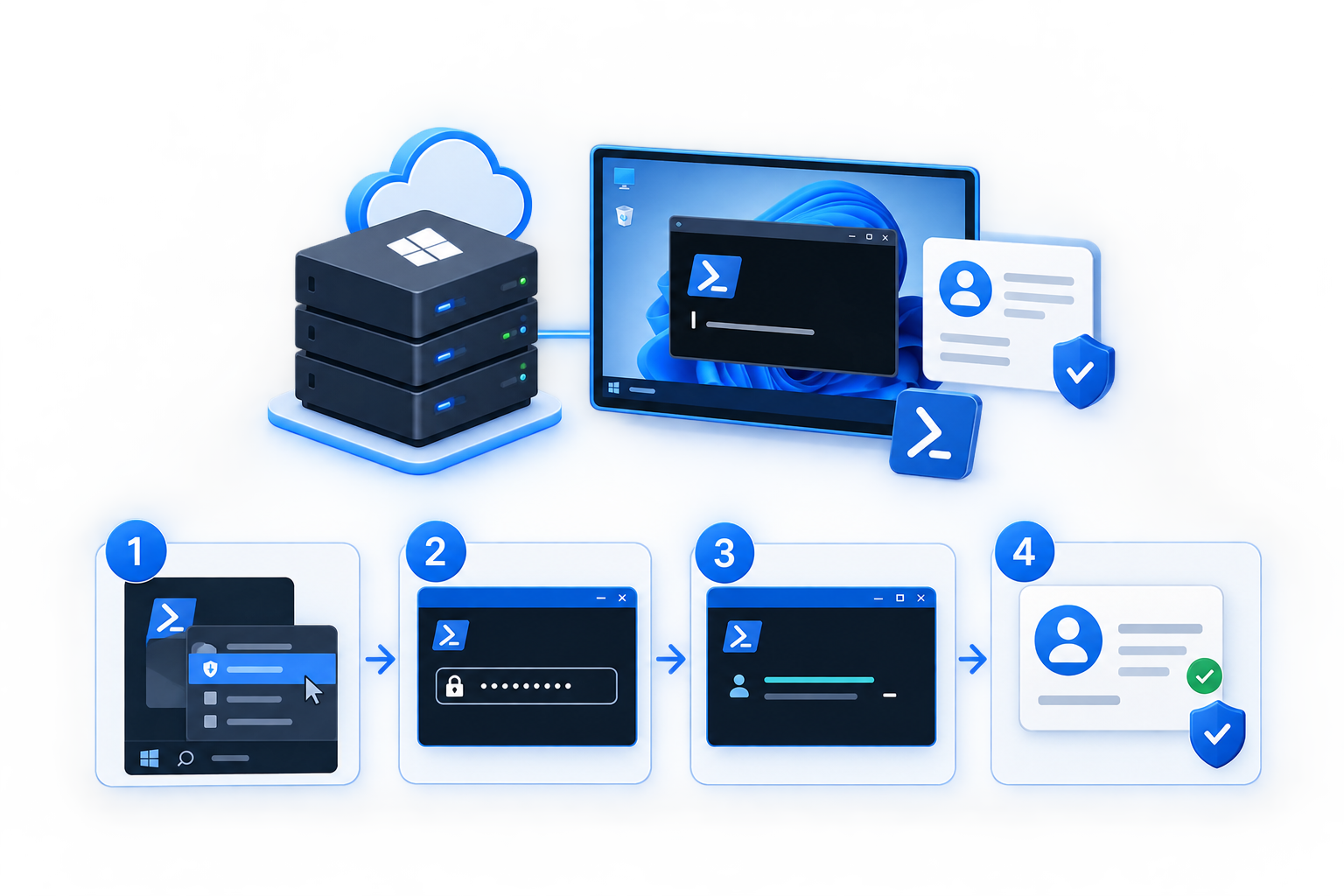
Step 1: Open PowerShell as Administrator
Inside your Windows VPS:
- Open the Start menu.
- Search for PowerShell.
- Right-click Windows PowerShell.
- Select Run as administrator.
Step 2: Change the Password
For a local account named Administrator, run:
$Password = Read-Host -AsSecureString
Set-LocalUser -Name “Administrator” -Password $Password
PowerShell will prompt you for the new password.
The password is entered as a SecureString rather than being written directly into the command. Microsoft documents this approach for Set-LocalUser.
If Your Account Has a Different Name
First list the local accounts:
Get-LocalUser
You may see accounts such as:
Administrator
Guest
AdminUser
Then use the appropriate account name:
$Password = Read-Host -AsSecureString
Set-LocalUser -Name “AdminUser” -Password $Password
This is useful if the default Administrator account has been renamed.
Important: Set-LocalUser is for local Windows accounts. It should not be used as a replacement for Active Directory password management.
How to Verify the New Windows VPS Password
Verifying the new password before ending your existing session is one of the most important steps.
Follow this process:
- Leave your current RDP session connected.
- Open a second Remote Desktop Connection window.
- Enter the same Windows VPS address.
- Sign in using the account whose password you just changed.
- Enter the new password.
- Confirm that the second session connects successfully.
- Only then close the original session.
Why test with a second connection?
If the new password was entered incorrectly or the account has another authentication problem, your original session gives you a way to investigate without immediately locking yourself out of the server.
What If You Forgot the Windows VPS Administrator Password?
Changing a password and resetting a password are different situations.
If you know the current password
Use the normal Change a password process described above.
If you do not know the current password
You need a password reset or account recovery procedure.
Depending on your Windows VPS environment, recovery may require:
- Another administrator account
- A provider-provided VPS console
- Windows Server recovery tools
- Your hosting provider’s password-reset facility
If you have lost access to the only administrative account, contact your VPS provider or use the documented recovery mechanism available for your server.
Do not attempt undocumented authentication bypass methods.
Local Administrator vs Active Directory Account
Before using PowerShell, determine where the account is managed.
Local Windows account
A standalone Windows VPS commonly uses local accounts. For these accounts, Get-LocalUser and Set-LocalUser are appropriate PowerShell tools.
Active Directory account
If the Windows VPS is joined to an Active Directory domain, the account may be managed by the domain instead of the local server.
Microsoft provides the Set-ADAccountPassword cmdlet for Active Directory accounts. It supports both normal password changes using the old and new password and password resets using the appropriate parameters.
For example, an authorized administrator can perform a password change with:
Set-ADAccountPassword -Identity “username”
The cmdlet can prompt for the current and desired passwords.
For an Active Directory reset, where the old password is not available, -Reset can be used with a new password:
$NewPassword = Read-Host -AsSecureString
Set-ADAccountPassword -Identity “username” -NewPassword $NewPassword -Reset
Use this only when the account is actually managed by Active Directory and you have the required permissions.
For a normal standalone Windows VPS, you generally do not need this section.
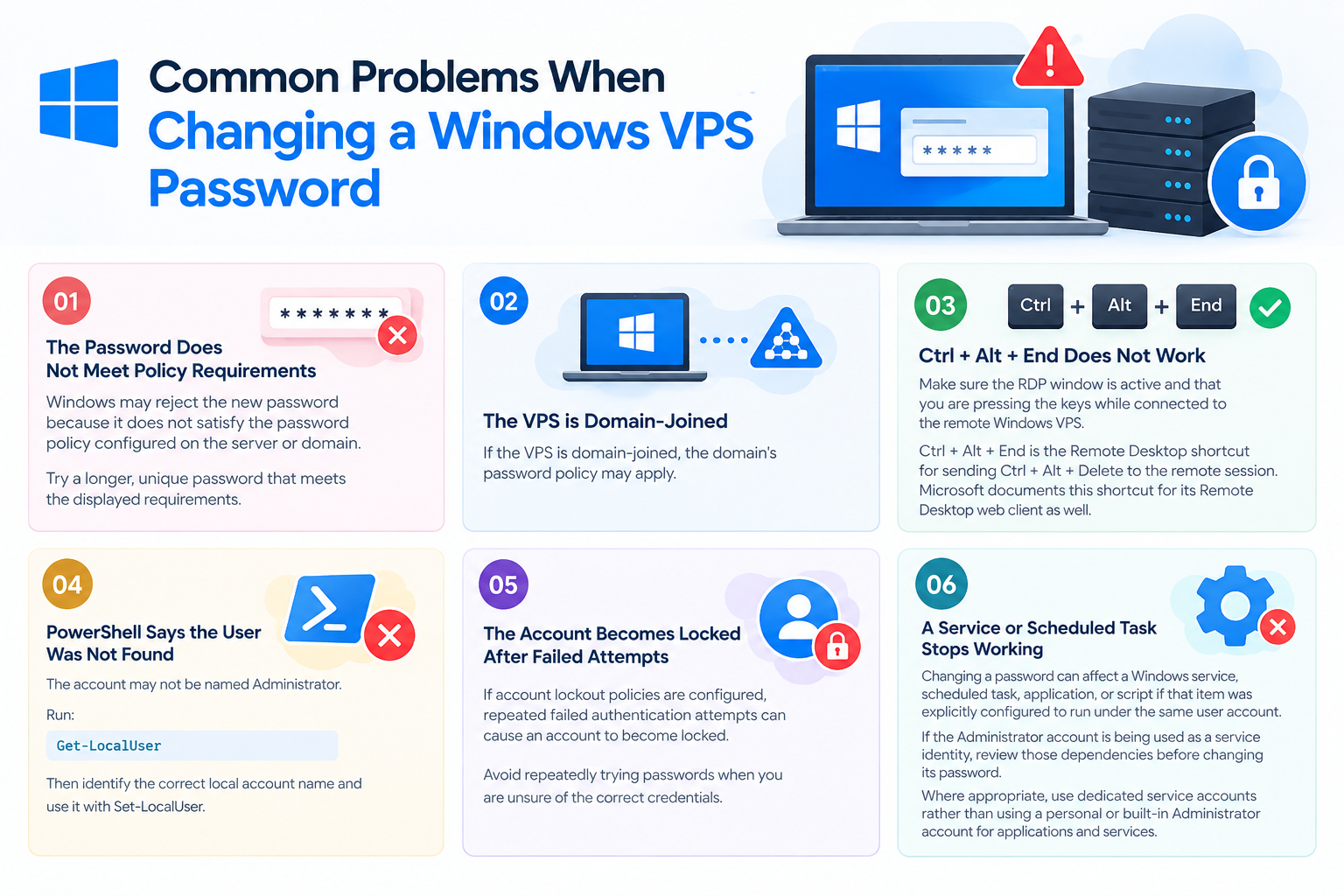
Common Problems When Changing a Windows VPS Password
“The password does not meet the password policy requirements”
Windows may reject the new password because it does not satisfy the password policy configured on the server or domain.
Try a longer, unique password that meets the displayed requirements.
If the VPS is domain-joined, the domain’s password policy may apply.
Ctrl + Alt + End Does Not Work
Make sure the RDP window is active and that you are pressing the keys while connected to the remote Windows VPS.
Ctrl + Alt + End is the Remote Desktop shortcut for sending Ctrl + Alt + Delete to the remote session. Microsoft documents this shortcut for its Remote Desktop web client as well.
If your RDP client handles keyboard combinations differently, use the PowerShell method for a local account.
PowerShell Says the User Was Not Found
The account may not be named Administrator.
Run:
Get-LocalUser
Then identify the correct local account name and use it with Set-LocalUser.
If the account is domain-managed, Get-LocalUser is not the correct tool for managing the domain account.
The Account Becomes Locked After Failed Attempts
If account lockout policies are configured, repeated failed authentication attempts can cause an account to become locked.
Avoid repeatedly trying passwords when you are unsure of the correct credentials.
If the account becomes locked, use the appropriate Windows or domain administrator procedure to unlock it.
A Service or Scheduled Task Stops Working
Changing a password can affect a Windows service, scheduled task, application, or script if that item was explicitly configured to run under the same user account.
If the Administrator account is being used as a service identity, review those dependencies before changing its password.
Where appropriate, use dedicated service accounts rather than using a personal or built-in Administrator account for applications and services.
Best Practices for a Windows VPS Administrator Password
A strong password is important, but it should also be managed correctly.
Use a unique password
Do not reuse the Windows VPS Administrator password for your email, hosting panel, website, or other services.
Store it securely
Use a reputable password manager rather than keeping the password in an unprotected text file.
Don’t put passwords directly into scripts
Avoid commands such as:
$password = “MyPassword123”
because the password becomes visible in the script itself.
Using Read-Host -AsSecureString is a better approach for interactive PowerShell password entry. Microsoft documents SecureString as an accepted input for Set-LocalUser.
Keep a recovery option available
Before making significant account changes, know how you would regain administrative access if RDP authentication fails.
For a hosted Windows VPS, understand what recovery or console options your hosting provider makes available.
Change the password when there is a reason
Password changes can be appropriate when credentials have been exposed, shared with someone who should no longer have access, transferred between administrators, or when your organization’s security policy requires a change.
There is no need to turn this article into a general password-rotation policy guide; the important point is to maintain secure, controlled administrative credentials.
Frequently Asked Questions
