
Windows VPS hosting works by running a Windows Server operating system inside a virtual machine on physical server infrastructure. A virtualization platform presents the virtual machine with resources such as CPU, memory, storage, and networking, while keeping the virtual environment separated from other virtual machines.
Inside the Windows VPS, you can run services and applications such as IIS, ASP.NET, .NET applications, Microsoft SQL Server, and Windows Services. You can manage the environment remotely using tools such as Remote Desktop Protocol (RDP) and PowerShell.
The easiest way to understand how Windows VPS hosting works is to look at the different layers involved and how they work together.
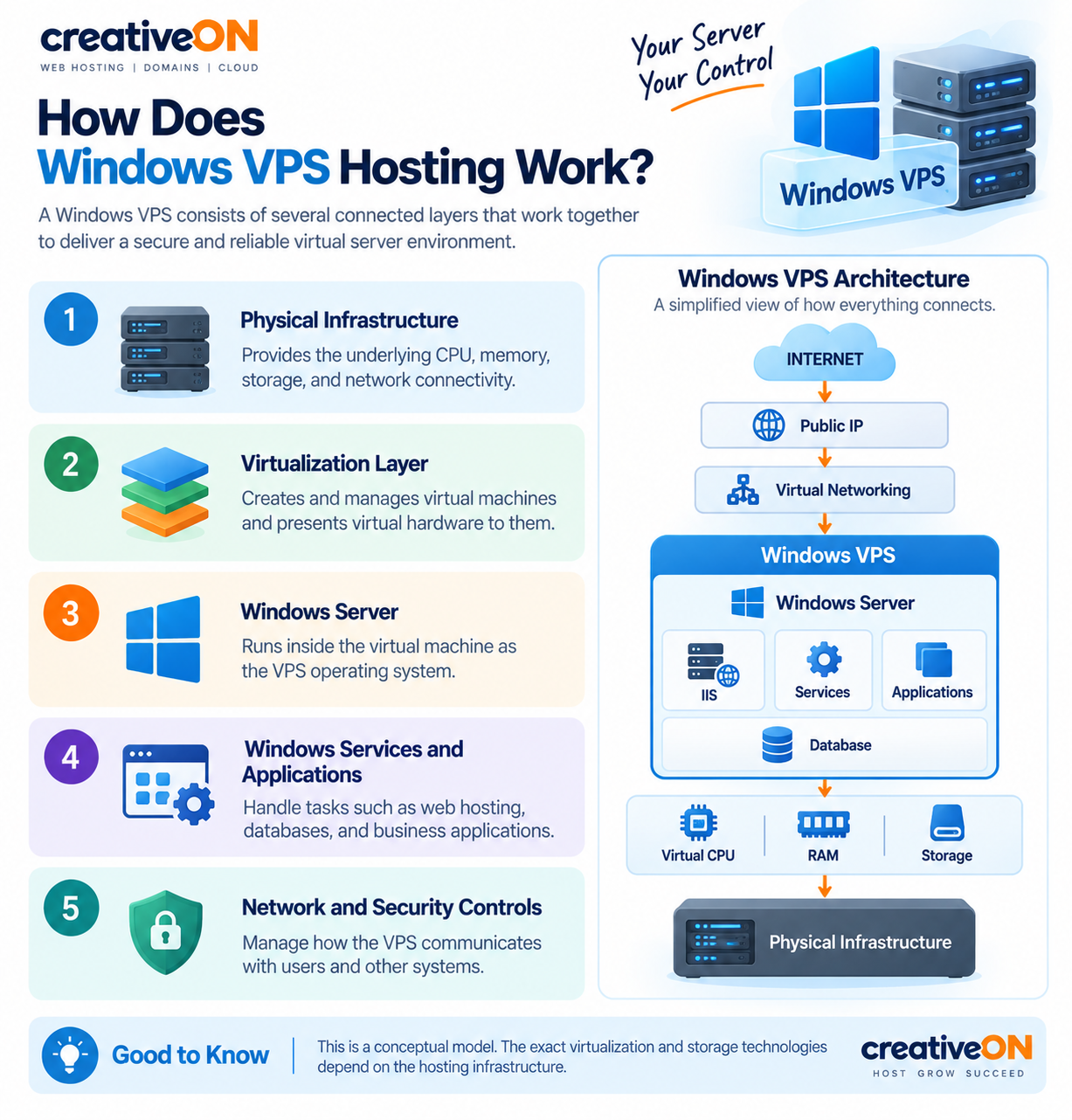
How Does Windows VPS Hosting Work?
A Windows VPS consists of several connected layers:
- Physical infrastructure – Provides the underlying CPU, memory, storage, and network connectivity.
- Virtualization layer – Creates and manages virtual machines and presents virtual hardware to them.
- Windows Server – Runs inside the virtual machine as the VPS operating system.
- Windows services and applications – Handle tasks such as web hosting, databases, and business applications.
- Network and security controls – Manage how the VPS communicates with users and other systems.
A simplified architecture looks like this:
INTERNET
│
▼
Public IP
│
▼
Virtual Networking
│
▼
┌─────────────────┐
│ Windows VPS │
│ │
│ Windows Server │
│ │ │
│ ┌───┴────┐ │
│ │ │ │
│ IIS Services │
│ │ │
│ Applications │
│ │ │
│ Database │
└─────────────────┘
│
Virtual CPU / RAM / Storage
│
▼
Physical Infrastructure
This is a conceptual model. The exact virtualization and storage technologies depend on the hosting infrastructure.
How Virtualization Creates a Windows VPS
The physical server runs a hypervisor or virtualization platform that can create and manage virtual machines.
Instead of giving each customer a separate physical server, the infrastructure can host multiple virtual machines on the same physical hardware. Each virtual machine receives virtualized computing resources and its own operating system.
Microsoft’s Hyper-V is one example of this approach. Microsoft describes Hyper-V as a type-1 hypervisor that provides hardware virtualization and allows virtual machines to run on Windows Server infrastructure.
The important point is that Windows VPS does not necessarily mean Hyper-V. Hosting providers can use different virtualization technologies. What matters from the VPS user’s perspective is that the virtual machine receives an independent Windows Server environment.
What Happens When a Windows VPS Is Created?
When a provider provisions a Windows VPS, the virtualization platform creates a virtual machine and assigns its virtual hardware.
This can include:
- Virtual CPU resources
- Allocated or configured memory
- Virtual storage
- A virtual network adapter
- A virtual disk containing the Windows Server installation
The operating system then boots inside that virtual machine.
Windows Server sees the virtual hardware presented to it rather than directly managing the physical host hardware.
This separation allows the VPS to be administered as an individual Windows Server environment.
How Windows Server Runs Inside the VPS
Once the virtual machine starts, Windows Server boots from its virtual storage and loads the operating system and configured services.
The server can then run applications according to its intended workload.
For example, a Windows VPS might run:
- IIS for web hosting
- ASP.NET applications
- .NET applications
- Microsoft SQL Server
- Windows Services
- Scheduled tasks
- Business applications
Windows Server also provides administration and monitoring tools that allow administrators to manage these services and applications.
This is what gives a Windows VPS its Windows-specific functionality rather than simply being a generic virtual server.
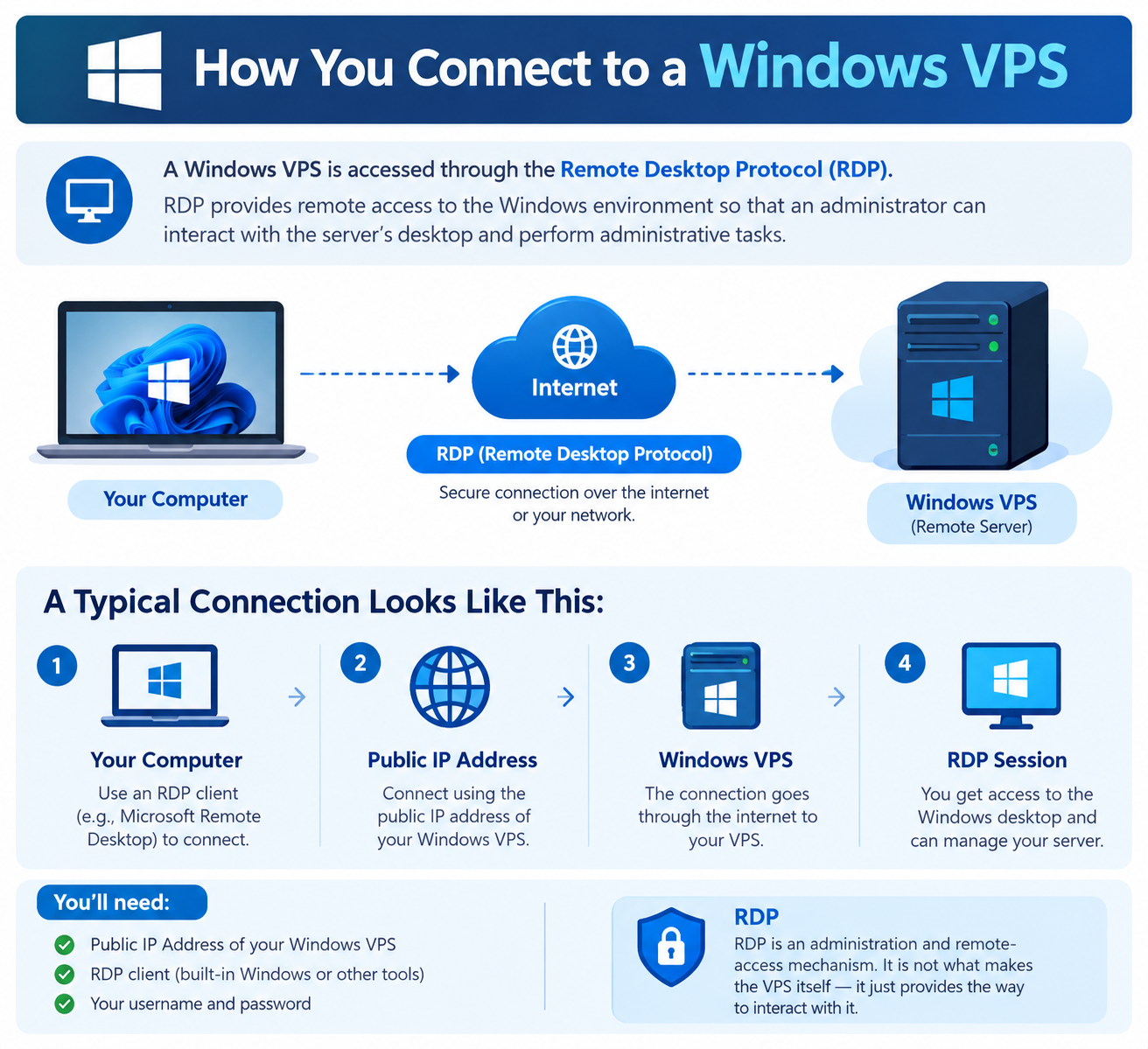
How You Connect to a Windows VPS
One of the most common ways to manage a Windows VPS is through Remote Desktop Protocol (RDP).
RDP provides remote access to the Windows environment so that an administrator can interact with the server’s desktop and perform administrative tasks.
A typical connection looks like this:
Your Computer
│
│ RDP
▼
Public IP Address
│
▼
Windows VPS
│
├── Windows Server
├── IIS
├── Applications
└── Management Tools
RDP is an administration and remote-access mechanism. It is not what makes the VPS itself run. Windows Server, its services, and its applications continue operating independently of your RDP session.
For command-line administration and automation, PowerShell can also be used.
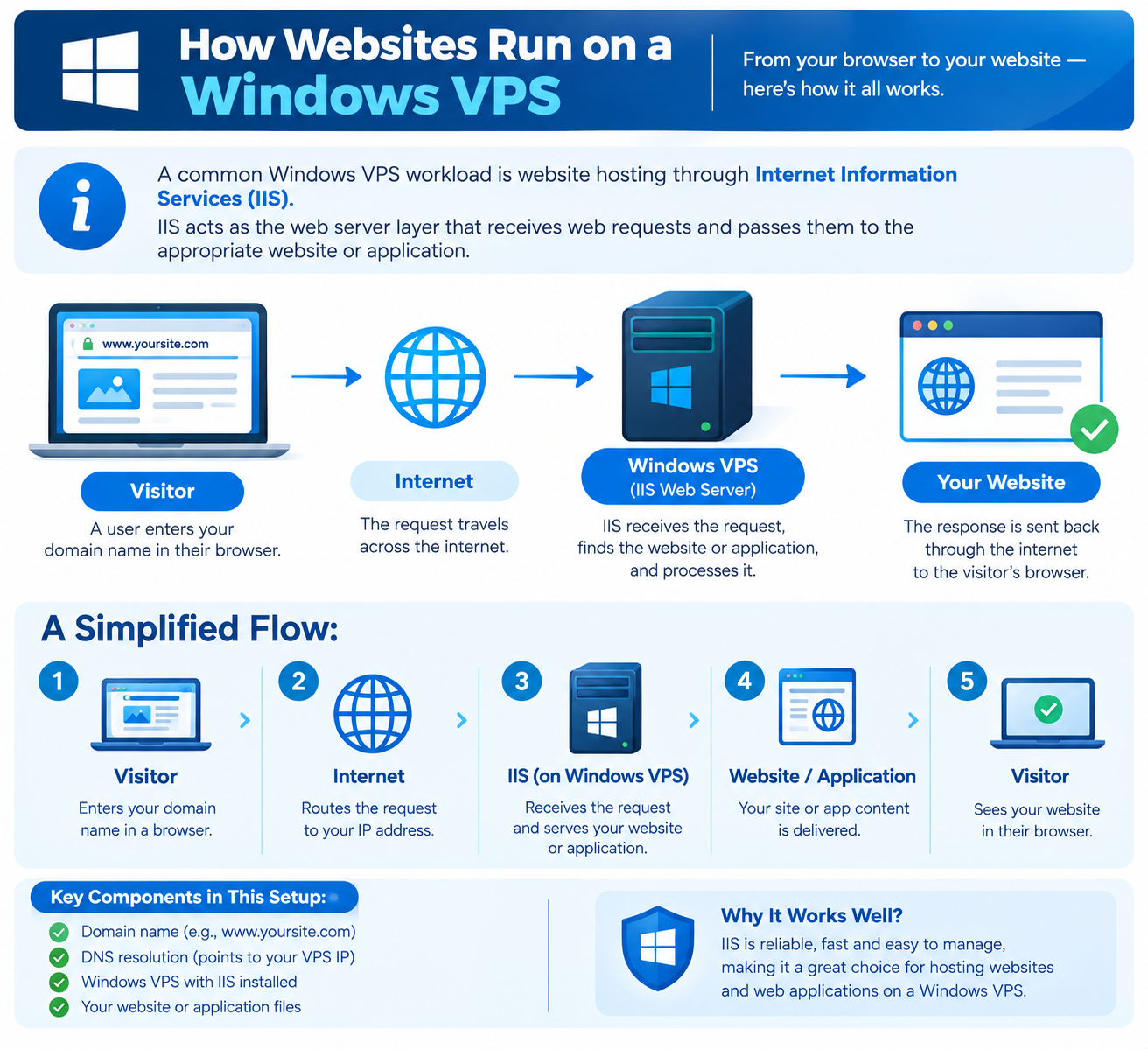
How Websites Run on a Windows VPS
A common Windows VPS workload is website hosting through Internet Information Services (IIS).
IIS acts as the web server layer that receives web requests and passes them to the appropriate website or application.
A simplified request looks like this:
Visitor
│
▼
Domain Name
│
▼
DNS Resolution
│
▼
IP Address
│
▼
Windows VPS
│
▼
IIS
│
▼
Website / Application
│
▼
Response
│
▼
Visitor
DNS does not itself send the visitor to the VPS. Instead, DNS resolves the domain name to an IP address. The visitor’s browser can then establish a connection to that address.
Once the request reaches the Windows VPS, IIS can determine which website or application should handle it.
For example, a Windows VPS may host an ASP.NET or .NET application behind IIS.
This is one reason Windows VPS hosting is useful for applications built around Microsoft’s web technology stack.
How Windows VPS CPU and RAM Are Used
The virtual machine receives access to computing resources provided by the virtualization platform.
CPU is used when Windows Server and applications perform processing tasks. Web requests, database operations, application code, background services, and other workloads can consume CPU resources.
RAM is used by Windows Server and the applications running inside the VPS.
For example:
- IIS may use memory for web applications.
- A .NET application may consume memory while processing requests.
- A database may require memory for queries and caching.
- Windows Server itself requires memory for its operating environment and services.
If an application consistently consumes excessive resources, you may notice slower response times or reduced server responsiveness.
Windows Server tools such as Task Manager, Resource Monitor, and Performance Monitor can help identify resource-intensive processes.
How Storage Works on a Windows VPS
Windows Server sees virtualized storage presented by the virtualization platform.
The operating system can use this storage for:
- Windows Server system files
- Website files
- Application files
- Databases
- Logs
- Temporary files
The physical storage exists somewhere within the underlying hosting infrastructure, but Windows Server interacts with the virtual storage presented to the VPS.
Storage performance can matter for workloads that perform frequent read and write operations, particularly databases and applications that generate substantial amounts of data.
Available storage and its performance characteristics depend on the VPS infrastructure and configuration.
How Networking Works on a Windows VPS
A Windows VPS uses virtual networking to communicate with external networks.
In a virtualization environment, the virtual machine can have a virtual network adapter connected to a virtual networking layer. In Microsoft’s Hyper-V architecture, for example, a virtual network adapter connects a VM to a virtual switch, which can provide connectivity to external networks.
A simplified model is:
Internet
│
▼
Physical Network
│
▼
Virtual Networking
│
▼
Virtual Network Adapter
│
▼
Windows Server
│
▼
Application / IIS
The exact network architecture depends on the hosting provider and virtualization platform.
Inside Windows Server, network configuration and firewall rules determine how services communicate with the network.
How Windows Services and Applications Work Together
Windows Server runs many background services that support the operating system and installed applications.
A website or application can therefore depend on more than one component.
For example:
Windows Server
│
├── Windows Services
│
├── IIS
│
├── .NET / ASP.NET Application
│
└── Database
If a required service stops or an application fails, the VPS itself may still be online even though the website or application is unavailable.
This distinction is useful when troubleshooting Windows VPS problems: a running VPS does not automatically mean every service running inside it is healthy.
Windows tools such as Services, Event Viewer, Task Manager, and IIS Manager can help identify problems at the operating-system and application layers.
How Windows VPS Security Fits Into the Architecture
Security applies across several layers of a Windows VPS.
The virtualization platform provides separation between virtual machines, while Windows Server provides security controls inside the VPS.
Important areas include:
- Windows Server updates
- User accounts and permissions
- Windows Firewall
- RDP security
- Application security
- Unnecessary services
- Network exposure
- Event and security logs
For example, a website may need HTTP or HTTPS access, while RDP is normally required only for administration. Network access should therefore be limited to the services the server actually needs.
Detailed configuration of Windows Firewall, RDP security, and Windows Server hardening should be handled in dedicated security guides rather than reproduced here.
What Happens When a Windows VPS Restarts?
When you restart a Windows VPS, Windows Server shuts down its operating system and running services before the virtual machine boots again.
During startup, Windows Server loads its operating system components and configured services.
For a web server, IIS and the required application services must start successfully before the website can begin serving requests again.
A restart can be appropriate after certain system changes or updates, but it is not a universal solution for performance or application problems.
If a problem returns after every restart, the underlying service, application, configuration, or resource issue should be investigated.
Common Windows VPS Problems
Because a Windows VPS consists of several interconnected layers, the visible problem does not always identify the actual cause.
|
Problem |
Areas to investigate |
|
Website unavailable |
IIS, application, DNS, firewall, networking |
|
RDP unavailable |
RDP service, firewall, networking, server state |
|
High CPU usage |
Windows process, application, database |
|
High memory usage |
Windows process, application, database |
|
Website errors |
IIS or application configuration |
|
Low disk space |
Website files, logs, database, Windows files |
|
Application not responding |
Application service, Windows Service, IIS, resource usage |
Windows Server’s built-in administration and monitoring tools can help narrow the problem down to the relevant layer.
For example, Task Manager can identify resource-heavy processes, Event Viewer can reveal relevant system or application events, and IIS Manager can help investigate web-server configuration.
When Is Windows VPS Hosting Appropriate?
Windows VPS hosting is particularly relevant when an application depends on Windows Server technologies.
Common examples include:
- ASP.NET applications
- .NET applications
- IIS-based websites
- Microsoft SQL Server workloads
- Windows-specific business applications
- Applications requiring Windows Server functionality
The decision should therefore be based primarily on the application’s technical requirements.
If an application specifically depends on the Microsoft Windows ecosystem, a Windows VPS can provide the environment required to run and manage it.
Frequently Asked Questions
