
Running a medical practice involves much more than seeing patients. Doctors and their teams also manage emails, appointments, staff schedules, documents, meetings, suppliers, and other daily administrative tasks.
Google Workspace can bring many of these activities into one connected environment. A clinic in Pakistan or the UAE can use Gmail, Google Calendar, Google Drive, Google Docs, Google Sheets, and Google Meet to manage everyday communication and collaboration.
However, Google Workspace should be viewed as a productivity and collaboration platform, not automatically as a replacement for dedicated medical practice or electronic medical record software.
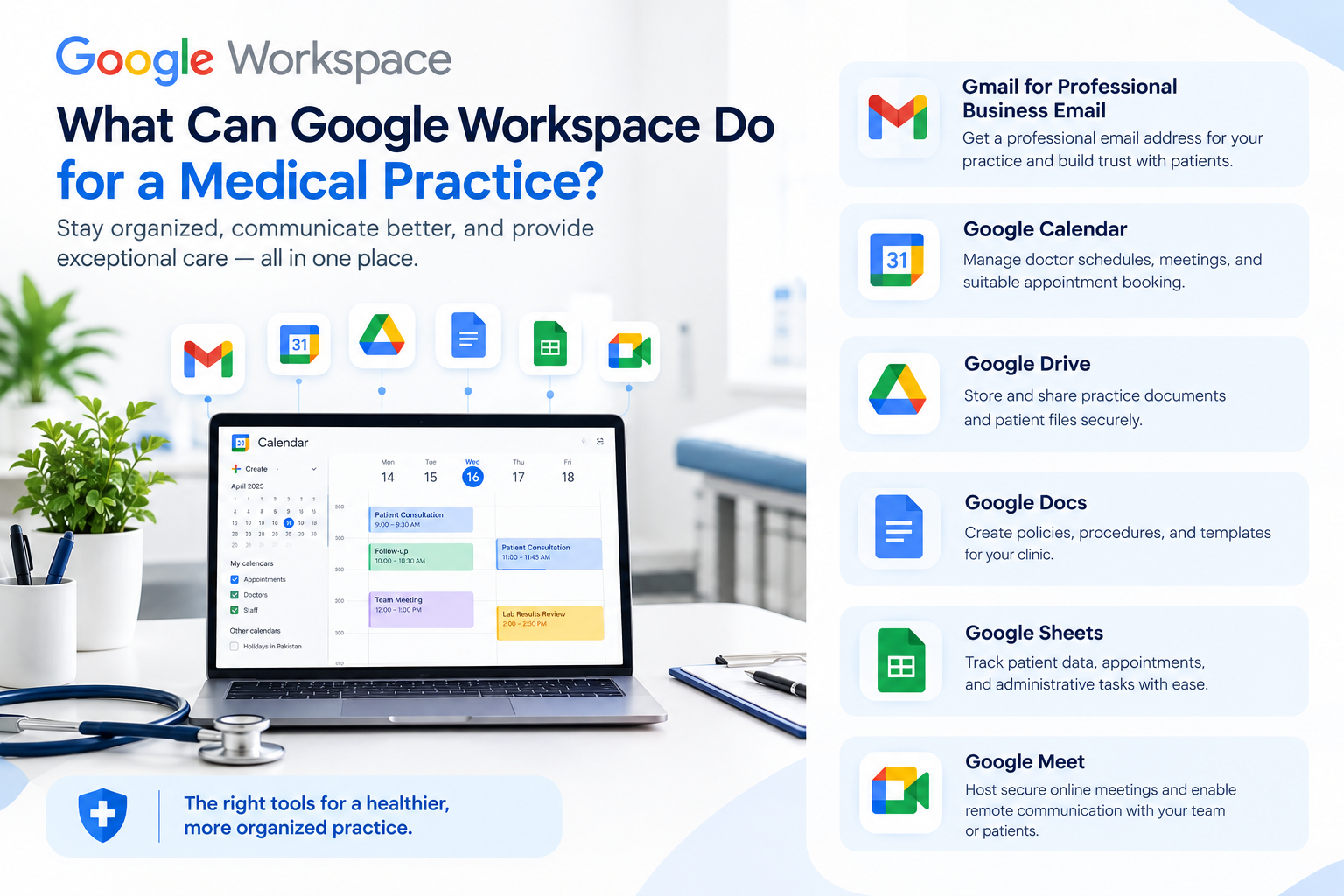
What Can Google Workspace Do for a Medical Practice?
Google Workspace can help organize the administrative side of a clinic or medical practice.
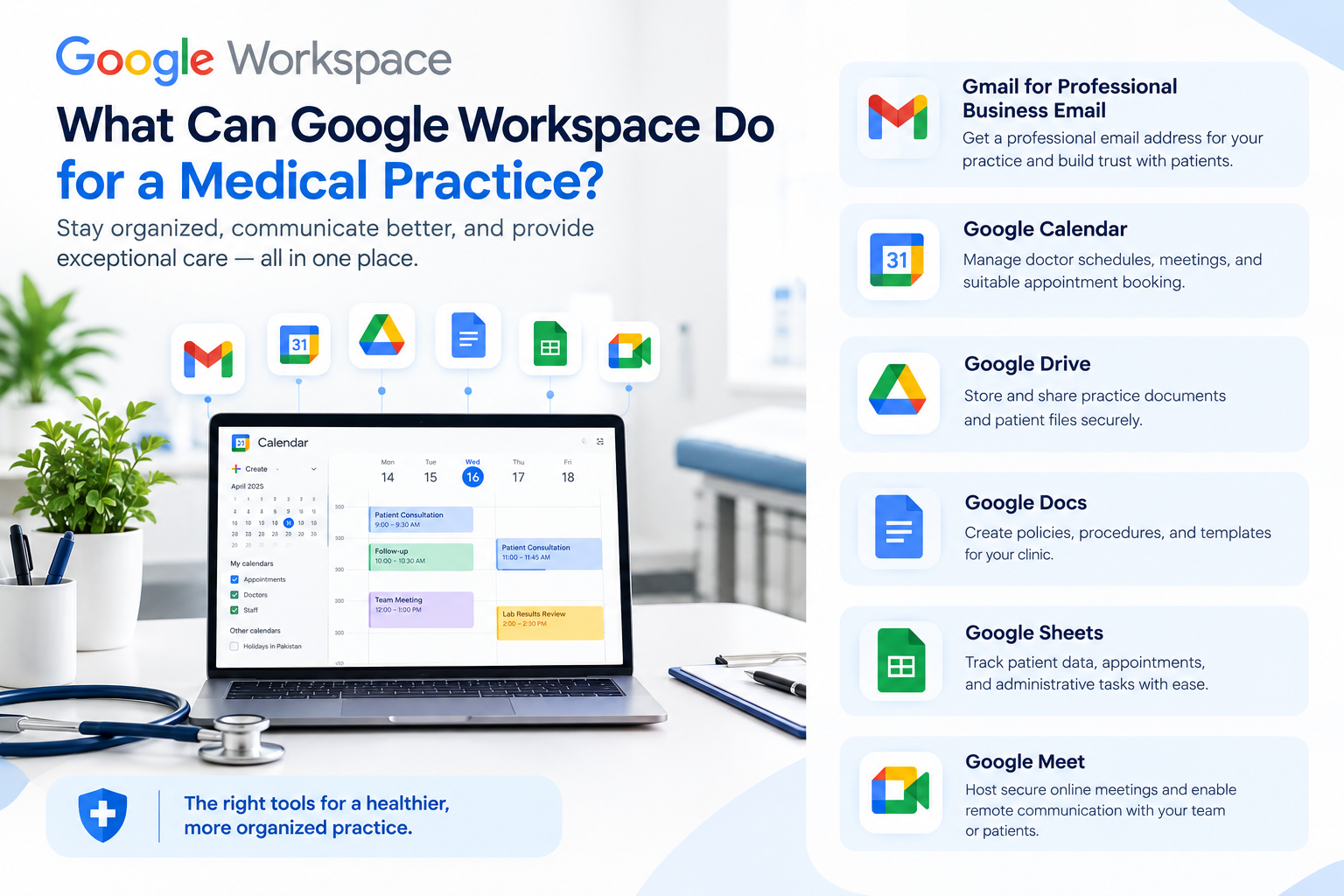
For example, a practice can use:
- Gmail for professional business email
- Google Calendar for doctor schedules, meetings, and suitable appointment booking
- Google Drive for practice documents and shared files
- Google Docs for policies, procedures, and templates
- Google Sheets for selected administrative tracking
- Google Meet for appropriate online meetings and remote communication
The goal is not to put every part of a medical practice into Google Workspace. Instead, use the right tool for each administrative task and keep access organized.
A Simple Google Workspace Setup for a Clinic
A small clinic does not need a complicated setup. Start with the people, calendars, and documents the practice actually uses.
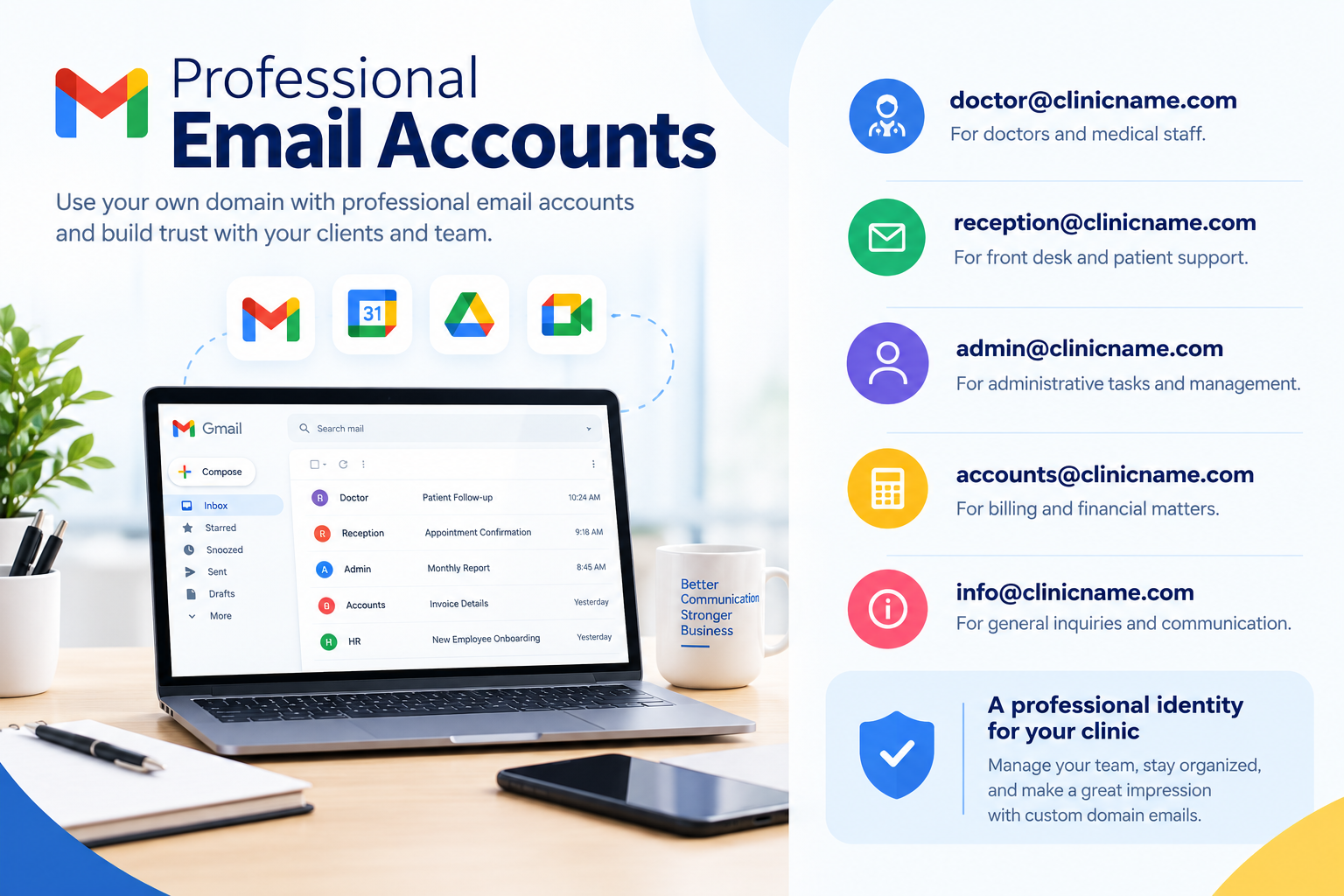
Professional Email Accounts
Instead of using personal email accounts, create business addresses using the clinic’s domain.
For example:
This gives the practice a professional identity and makes it easier to manage employee accounts centrally.
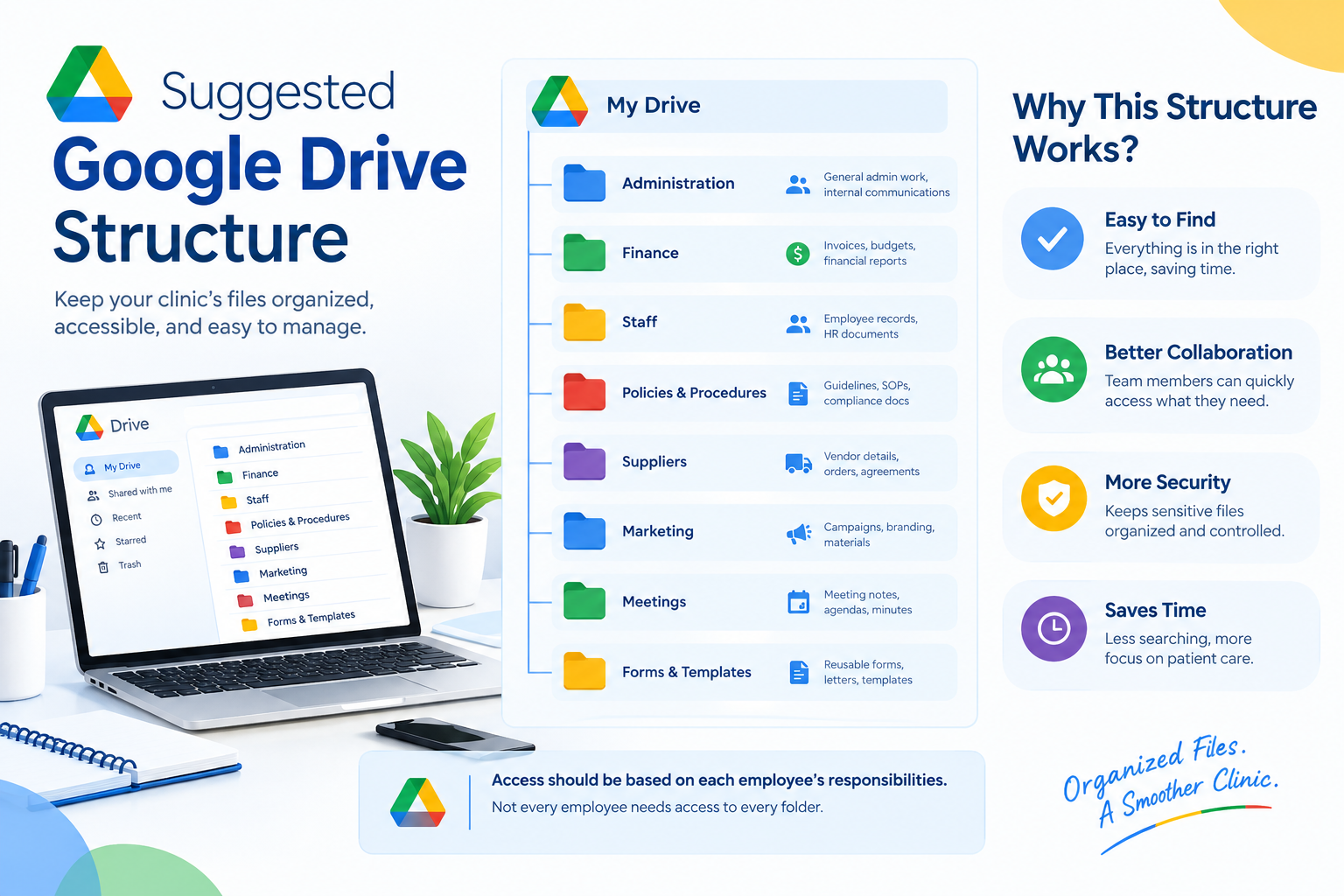
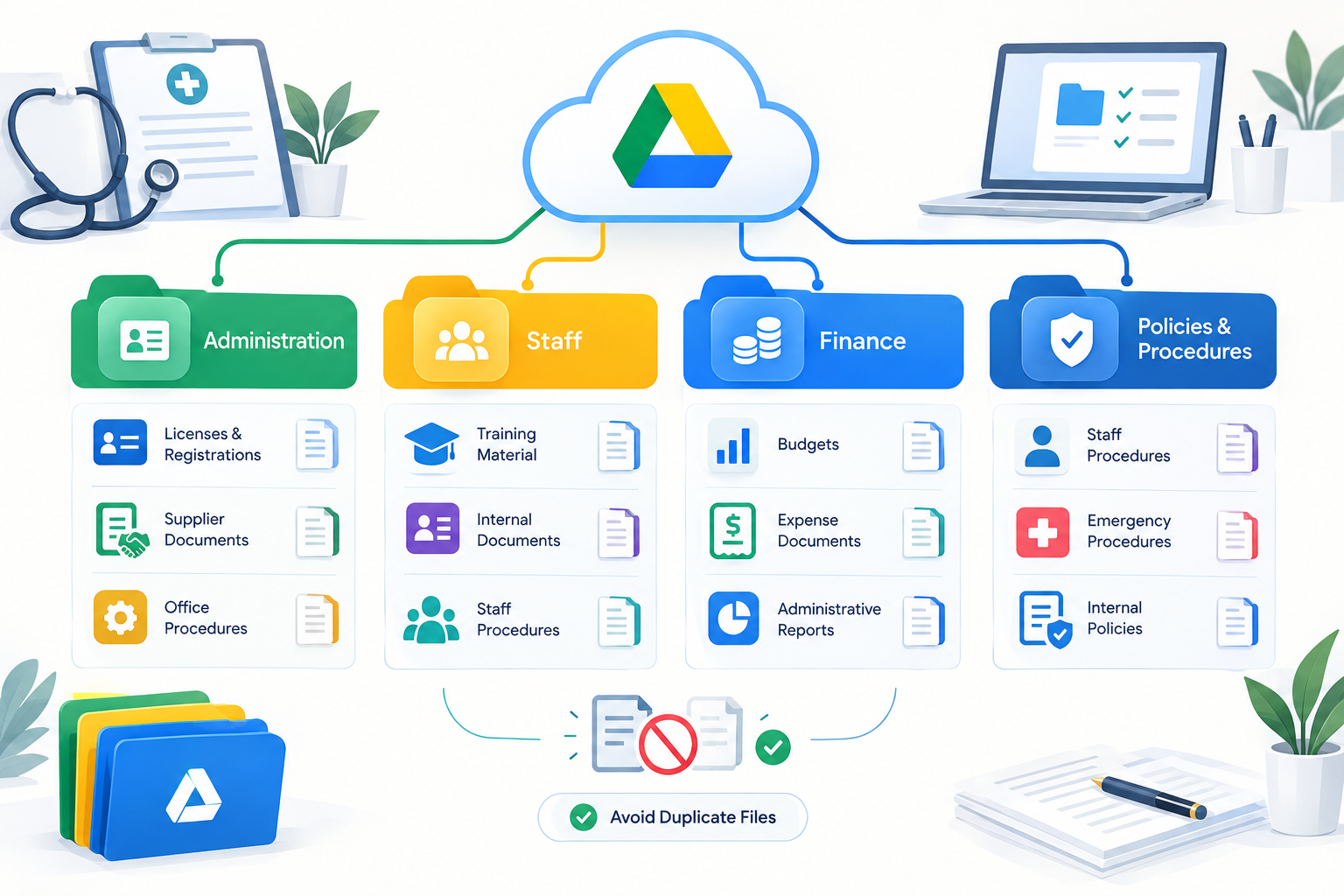
Suggested Google Drive Structure
A clinic could organize its business files like this:
Medical Practice
- Administration
- Finance
- Staff
- Policies & Procedures
- Suppliers
- Marketing
- Meetings
- Forms & Templates
Access should be based on each employee’s responsibilities. Not every employee needs access to every folder.
For team-owned business files, a Shared drive, where available with the organization’s Workspace edition, can also be considered so important files are not dependent on one employee’s personal Drive.
How Doctors Can Use Google Workspace
1. Use Gmail for Professional Business Email
Gmail for Business can give doctors and staff a familiar email system while allowing them to communicate using the clinic’s own domain.
For example, a receptionist can manage general inquiries through [email protected], while administrative messages can go to [email protected].
Separate accounts are preferable to sharing one account between multiple employees because each user can have their own login and access permissions.
2. Manage Schedules With Google Calendar
Google Calendar can help doctors and staff manage working hours, meetings, staff events, and suitable appointment schedules.
For example, a doctor who sees patients from 5 PM to 9 PM could create an appointment schedule around those available hours.
Depending on the Workspace plan and configuration, appointment schedules can provide a booking page, appointment duration settings, availability, and calendar conflict checking.
A practice can also maintain separate calendars for:
- Individual doctors
- Staff meetings
- Clinic events
- Training
- Rooms or other shared resources
A dedicated medical appointment system may still be more appropriate when the clinic needs advanced scheduling, billing, patient records, or other clinical functions.
3. Organize Practice Documents With Google Drive
Google Drive can provide a central place for the clinic’s administrative files.
For example:
Administration
- Licenses and registrations
- Supplier documents
- Office procedures
Staff
- Training material
- Internal documents
- Staff procedures
Finance
- Budgets
- Expense documents
- Administrative reports
Policies & Procedures
- Staff procedures
- Emergency procedures
- Internal policies
Use clear folder names and avoid creating unnecessary duplicate copies of the same document.
4. Create Internal Procedures With Google Docs
Doctors and practice managers often need documents that explain how the clinic operates.
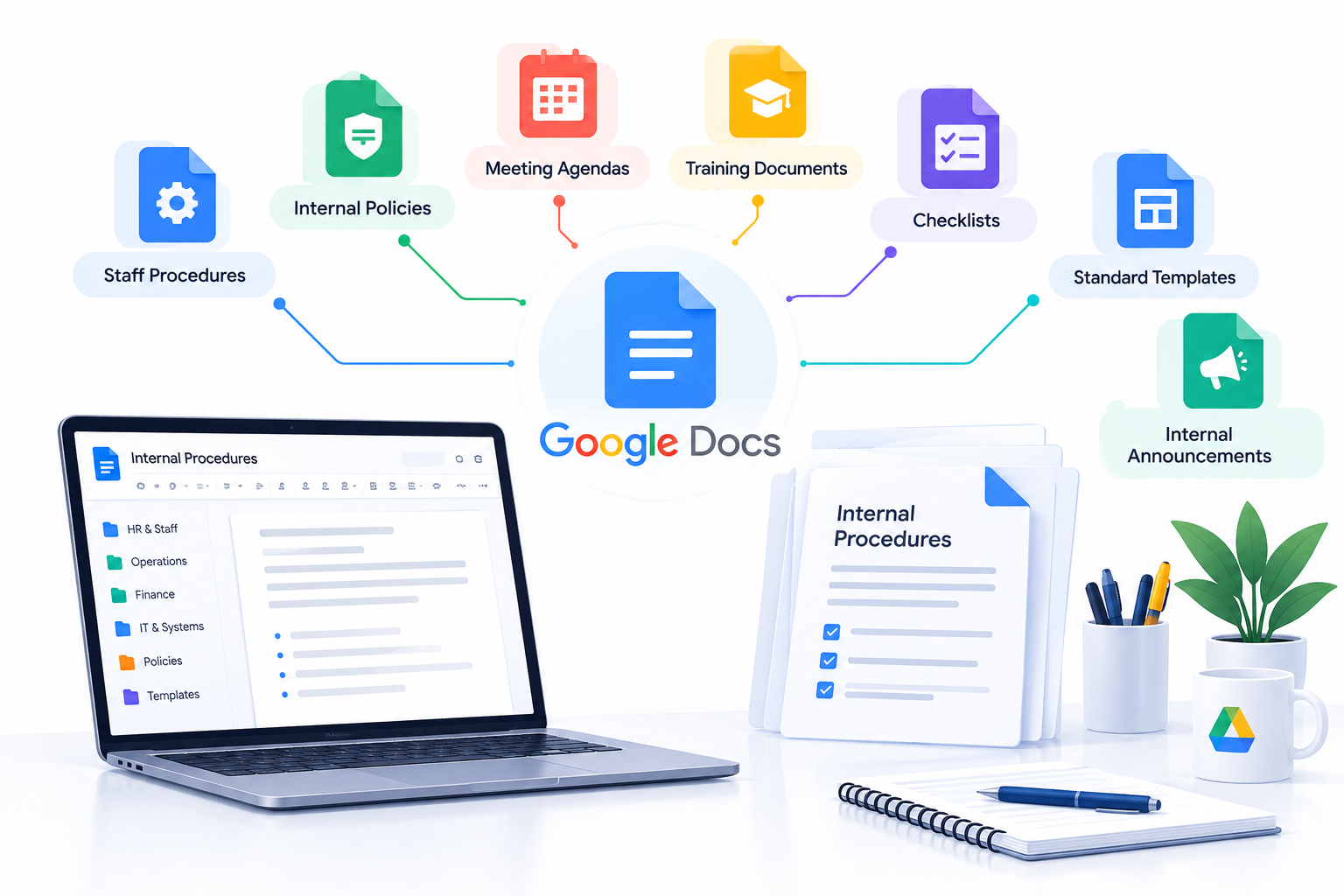
Google Docs can be used for:
- Staff procedures
- Internal policies
- Meeting agendas
- Training documents
- Checklists
- Standard templates
- Internal announcements
For example, instead of keeping a reception procedure on one employee’s computer, the practice can maintain a shared document that authorized staff can access and update.
5. Track Administrative Work With Google Sheets
Google Sheets can be useful for selected administrative tasks.
Examples include:
- Office supply tracking
- Expense tracking
- Staff schedules
- Supplier lists
- Marketing activity
- Administrative task lists
However, clinics should be careful about putting patient or clinical information into spreadsheets. Before doing so, they should assess their legal, privacy, security, and healthcare requirements and determine whether a dedicated medical system is more appropriate.
6. Use Google Meet for Appropriate Remote Meetings
Google Meet can be useful for:
- Internal staff meetings
- Training sessions
- Meetings with suppliers
- Administrative discussions
- Appropriate remote healthcare communication
If a practice uses online consultations, it should make sure its Workspace configuration, processes, and telemedicine practices meet the healthcare and privacy requirements that apply to the organization.
Example: A Google Workspace Setup for a 3-Doctor Clinic
Imagine a clinic with:
- 3 doctors
- 2 receptionists
- 1 practice manager
- 1 accounts employee
The clinic could create these accounts:
- [email protected]
- [email protected]
- [email protected]
- [email protected]
- [email protected]
- [email protected]
It could then create calendars for:
- Doctor 1
- Doctor 2
- Doctor 3
- Staff meetings
- Clinic events
The Drive structure could include:
- Administration
- Finance
- HR & Staff
- Policies
- Suppliers
- Marketing
- Templates
The practice manager might have access to most administrative folders, while reception staff could receive access only to the documents and calendars required for their work.
This simple structure can make it easier for staff to know where information belongs and who should have access to it.
Give Staff Access Based on Their Role
One of the most important parts of setting up Google Workspace is controlling access.
For example:
| Role | Typical Workspace Access |
| Doctor | Relevant practice documents, calendars, and communication |
| Receptionist | Reception email, appointment calendars, selected administrative files |
| Accounts staff | Finance-related documents and email |
| Practice manager | Relevant administrative and operational information |
| Temporary staff | Only the information required for their assigned work |
The principle is simple:
Give each person access to what they need for their job rather than giving everyone access to everything.
Calendar sharing and Drive permissions should be reviewed regularly, particularly when employees change roles or leave the practice.
Google Workspace Security Checklist for Medical Practices
A good Workspace setup should include basic security practices from the beginning.
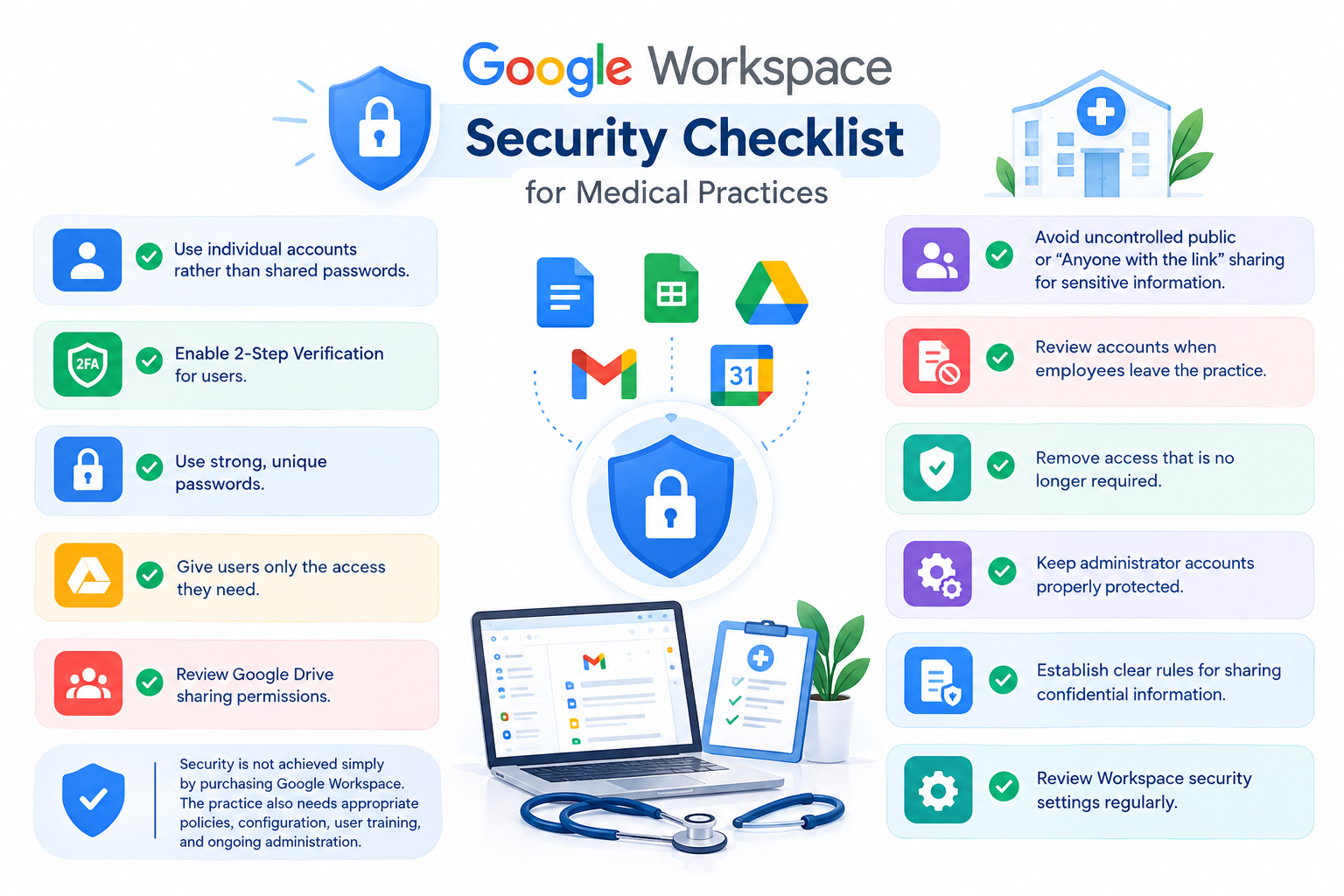
Security checklist
- Use individual accounts rather than shared passwords.
- Enable 2-Step Verification for users.
- Use strong, unique passwords.
- Give users only the access they need.
- Review Google Drive sharing permissions.
- Avoid uncontrolled public or “Anyone with the link” sharing for sensitive information.
- Review accounts when employees leave the practice.
- Remove access that is no longer required.
- Keep administrator accounts properly protected.
- Establish clear rules for sharing confidential information.
- Review Workspace security settings regularly.
Security is not achieved simply by purchasing Google Workspace. The practice also needs appropriate policies, configuration, user training, and ongoing administration.
Common Mistakes Doctors Should Avoid
A few simple mistakes can create unnecessary security and management problems.
Avoid sharing one account
Do not create one Gmail account and give its password to several employees. Individual accounts provide better accountability and access management.
Avoid giving everyone full Drive access
A receptionist may not need access to financial documents, while accounts staff may not need access to every administrative folder.
Avoid using personal email accounts for clinic work
Business communication should generally be managed through controlled business accounts rather than employees’ personal email addresses.
Avoid assuming Google Workspace is a medical records system
Google Workspace provides productivity and collaboration tools. It does not automatically replace an electronic medical record, clinical management, billing, or specialized healthcare system.
Avoid assuming Workspace automatically makes the practice compliant
Compliance depends on the laws, regulations, contracts, services, configuration, and processes applicable to the practice.
What About Patient Information?
This requires special care.
A medical practice may handle sensitive information that is subject to healthcare, privacy, and data-protection requirements. Whether a particular type of patient information can be stored or shared through Google Workspace depends on the requirements that apply to the practice and the Workspace services being used.
For organizations subject to specific healthcare regulations, additional contractual and configuration requirements may apply.
For example, Google provides specific guidance for organizations subject to HIPAA, including requirements relating to applicable Google services and a Business Associate Amendment.
Therefore, a clinic should not assume:
“We use Google Workspace, so all patient information is automatically compliant.”
Instead, the practice should identify its legal and regulatory requirements and configure its systems accordingly. Where necessary, professional legal, compliance, or healthcare IT advice should be obtained.
Can Google Workspace Replace Medical Practice Software?
Usually, it should not be viewed as a direct replacement for specialized medical software.
Google Workspace is primarily designed for:
- Communication
- Collaboration
- Scheduling
- Documents
- Cloud file management
- General business productivity
A medical practice may still need dedicated software for functions such as:
- Electronic medical records
- Clinical documentation
- Medical billing
- Prescription management
- Laboratory integration
- Insurance workflows
- Specialized patient management
- Advanced medical appointment management
The two types of systems can serve different purposes.
Google Workspace for Medical Practices in Pakistan and UAE
Medical practices in Pakistan and the UAE can use Google Workspace for their business communication and administrative workflows.
For example, a clinic in Lahore may use domain-based Gmail accounts, shared calendars, and Drive for its administrative team. A medical center in Dubai or Abu Dhabi may use a similar setup while also considering the privacy, healthcare, and data requirements applicable to its organization.
When selecting Google Workspace in Pakistan or Google Workspace in UAE, consider:
- Number of users
- Required storage
- Security requirements
- Existing email system
- Domain ownership
- Migration requirements
- Administrative support
- Applicable healthcare and privacy requirements
For current Google Workspace pricing in Pakistan and UAE, compare the available plans based on the features and number of users your practice actually needs rather than choosing a plan only because it has more features.
Why Choose CreativeON for Google Workspace?
CreativeON is an official Google Workspace Partner and Reseller, serving businesses and organizations in Pakistan and the UAE.
For a medical practice, CreativeON can help with areas such as:
- Google Workspace setup
- Business email configuration
- Domain and DNS configuration
- User account creation
- Email migration
- Gmail configuration
- Google Workspace administration
- Basic Workspace support
If your clinic already has a domain, you can use it with Google Workspace to create professional business email addresses for doctors and staff.
The right setup depends on the size of your practice, the number of users, your existing email system, and the type of information your team needs to manage.
Summary
Google Workspace can help doctors organize the business and administrative side of their medical practice.
- Use Gmail for professional clinic email.
- Use Google Calendar for schedules, meetings, and suitable appointment booking.
- Use Google Drive and Shared drives for organized business documents.
- Use Docs and Sheets for internal and administrative work.
- Give staff access according to their roles.
- Use strong security practices such as 2-Step Verification.
- Do not assume Google Workspace replaces specialized medical software.
- Assess healthcare, privacy, and data-protection requirements before handling patient information.
A simple, well-organized Workspace setup can make everyday communication and administration easier without forcing the entire medical practice into one platform.
