

If your MySQL service failed to start, your website, application, or another database-driven service may be unavailable — and every minute matters. The good news is that this is one of the most common VPS issues, and in most cases, it can be resolved quickly once you know where to look.
This guide walks you through the real reasons MySQL refuses to start, how to diagnose the exact cause on your server, and the steps to get it running again safely.
Signs Your MySQL Service Isn’t Starting
Before jumping into fixes, it helps to confirm what’s actually happening. Common symptoms include:
- Websites or apps showing a “database connection error”
- Running systemctl start mysql (or mysqld) returns a failure message
- The MySQL process appears in your service list as “failed” or “inactive”
- Attempts to connect via mysql -u root -p are refused
- The server was recently rebooted, and MySQL never came back online
If any of these match your situation, the troubleshooting steps below will help you pinpoint the cause.
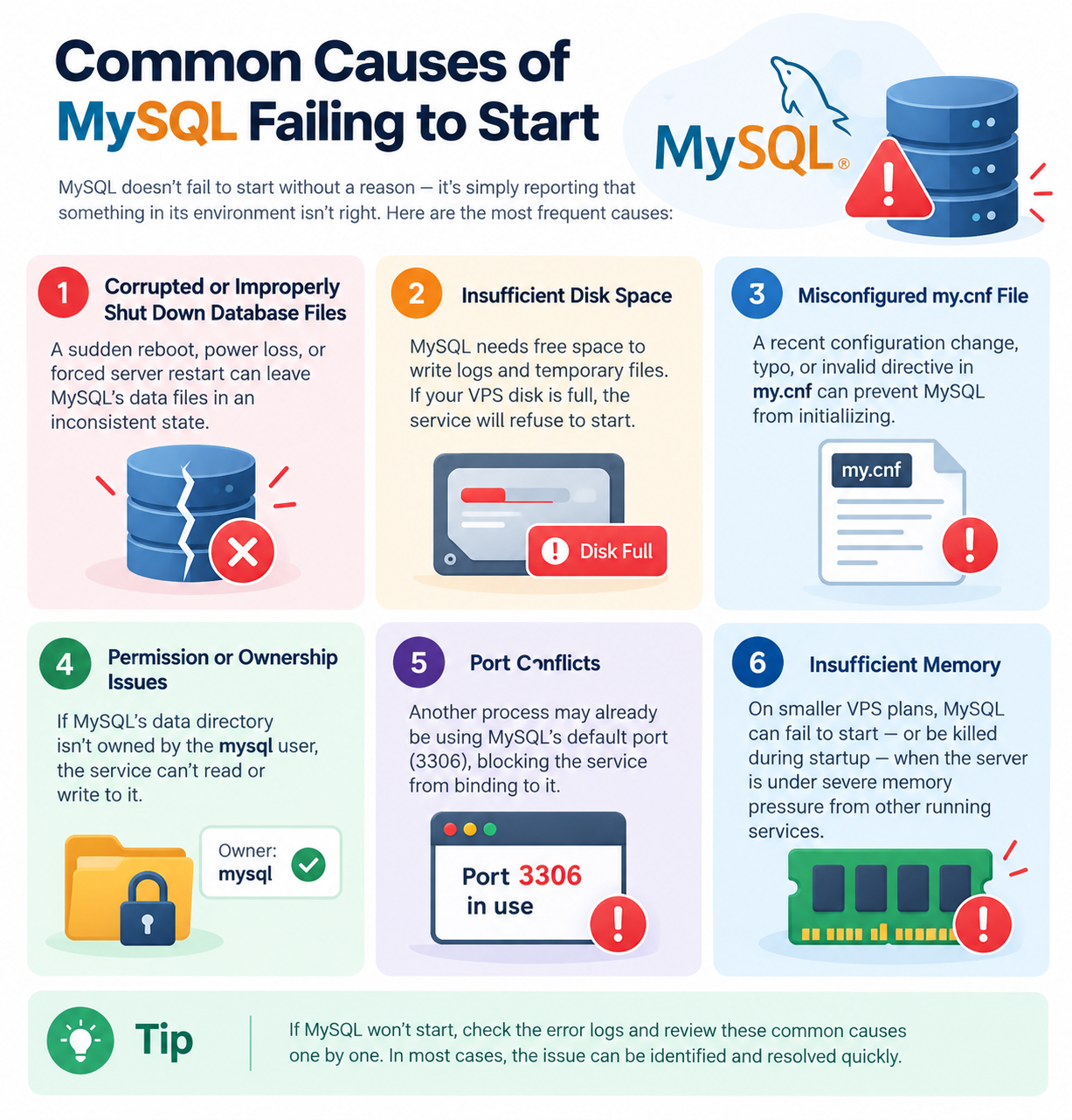
Common Causes of MySQL Failing to Start
MySQL doesn’t fail to start without a reason — it’s simply reporting that something in its environment isn’t right. The most frequent causes are:
- Corrupted or improperly shut down database files A sudden reboot, power loss, or forced server restart can leave MySQL’s data files in an inconsistent state.
- Insufficient disk space MySQL needs free space to write logs and temporary files. If your VPS disk is full, the service will refuse to start.
- Misconfigured my.cnf file A recent configuration change, typo, or invalid directive in my.cnf can prevent MySQL from initializing.
- Permission or ownership issues If MySQL’s data directory isn’t owned by the mysql user, the service can’t read or write to it.
- Port conflicts Another process may already be using MySQL’s default port (3306), blocking the service from binding to it.
- Insufficient memory On smaller VPS plans, MySQL can fail to start — or be killed during startup — when the server is under severe memory pressure from other running services.
How to Diagnose the Exact Cause
Rather than guessing, check the logs first — they almost always tell you exactly what went wrong.
Step 1: Check the service status
sudo systemctl status mysql
This gives a quick summary of why the service failed.
Step 2: Review the logs
sudo journalctl -u mysql –no-pager -n 100
This works reliably across systemd-based Linux distributions. Depending on your installation, MySQL may also write to a dedicated error log such as /var/log/mysql/error.log — worth checking as a second source if the journal output isn’t conclusive.
Look for lines mentioning “InnoDB,” “permission denied,” “disk full,” or “port already in use.” The wording here usually points directly to the fix you need.
Step 3: Check available disk space
df -h
If your root or data partition shows 100% usage, freeing up space should be your first priority.
Step 4: Check memory usage
free -h
Low available memory, especially with no swap configured, can prevent MySQL from starting cleanly.
Step 5: Check for a port conflict
sudo lsof -i :3306
If another process already holds port 3306, MySQL won’t be able to bind to it on startup.
Step 6: Review recent configuration changes If you or another admin recently edited my.cnf or any file under mysql.conf.d/, treat that as a prime suspect before looking elsewhere.
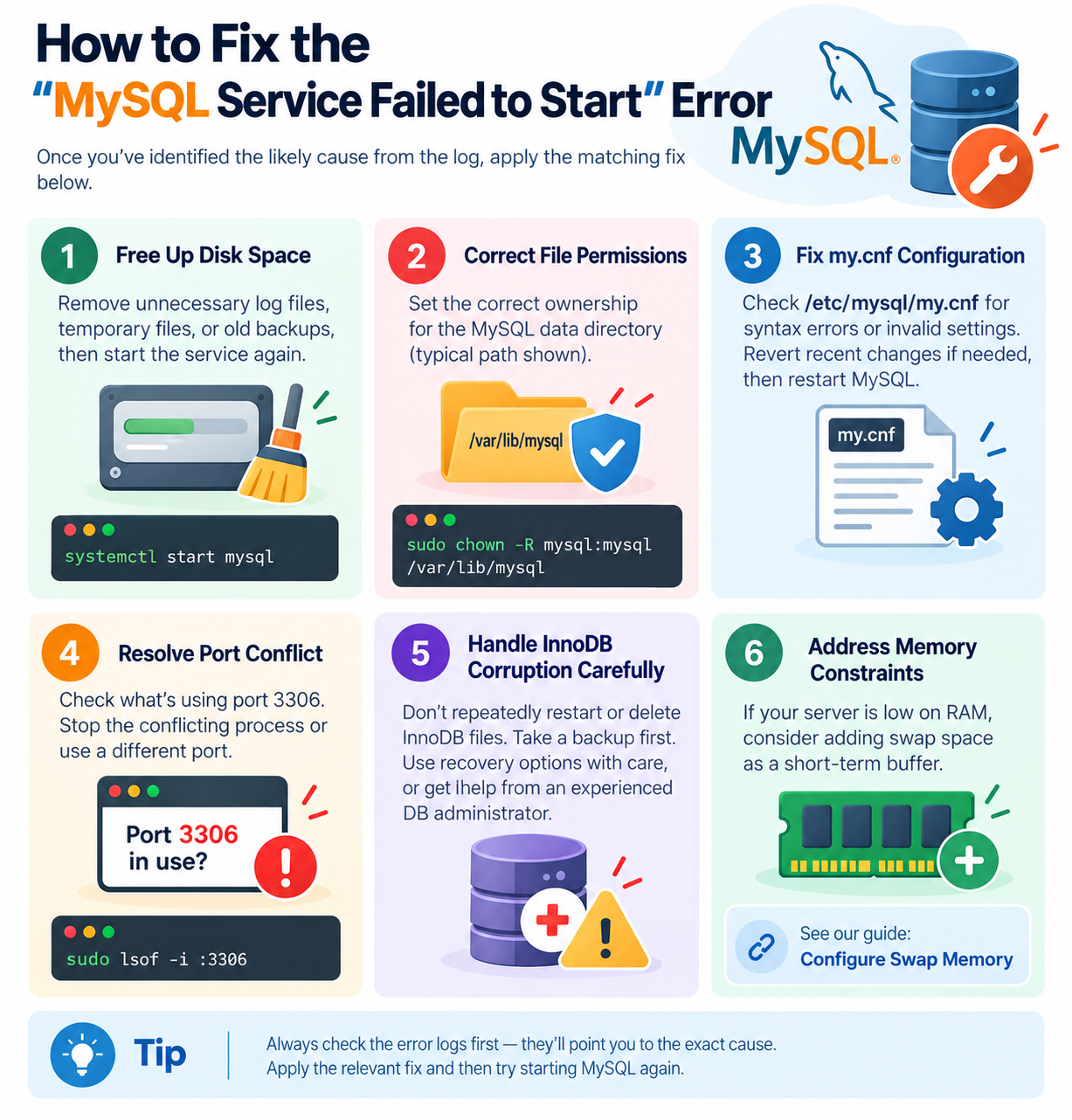
How to Fix the “MySQL Service Failed to Start” Error
Once you’ve identified the likely cause from the log, apply the matching fix below.
Fix 1: Free Up Disk Space
If disk space is the issue, remove unnecessary log files, temporary files, or old backups, then try starting the service again:
systemctl start mysql
Fix 2: Correct File and Directory Permissions
If the logs point to a permissions or ownership problem, first confirm the actual data directory and service account for your installation — these can vary on non-standard setups. On a typical installation, where /var/lib/mysql is the data directory and mysql is the service user, ownership can be corrected with:
sudo chown -R mysql:mysql /var/lib/mysql
Then restart the service.
Fix 3: Fix a Misconfigured my.cnf File
If you recently edited /etc/mysql/my.cnf (or a file inside /etc/mysql/mysql.conf.d/), check for syntax errors or invalid parameters. Reverting your last change and restarting is often the fastest way to confirm whether the config file is the cause.
Fix 4: Resolve a Port Conflict
Check what’s using port 3306:
sudo lsof -i :3306
If another process is occupying the port, stop it or reconfigure MySQL to use a different port.
Fix 5: Handle InnoDB Corruption Carefully
If the logs point to InnoDB corruption, don’t repeatedly restart the service or delete InnoDB files — this can make things worse. Treat it as a data-recovery situation rather than a routine startup fix.
If the server holds important data, take a backup or filesystem snapshot of the data directory before changing anything. From there, InnoDB does support a recovery mode (via the innodb_force_recovery setting), but it’s a specialized procedure with real risk of further data loss if used incorrectly, and it’s outside the scope of this guide. If you’re not confident handling InnoDB recovery yourself, this is a good point to bring in an experienced database administrator or your hosting provider’s support team.
Fix 6: Address Memory Constraints
If your server is low on RAM, consider adding swap space as a short-term buffer. For a complete walkthrough, see our dedicated guide: Configure Swap Memory.
Verifying MySQL Is Running Correctly
After applying a fix, confirm the service is stable rather than just “started”:
systemctl status mysql
mysql -u root -p -e “SELECT 1;”
If the status shows “active (running)” and the test query returns a result, MySQL has started successfully. It’s also worth checking your application or website to confirm the database connection is fully restored, not just the service itself.
Preventing Future MySQL Startup Failures
A few ongoing habits significantly reduce the chances of this happening again:
- Monitor disk space regularly so you’re never caught off guard by a full partition. Our VPS Monitoring Guide covers how to set this up properly.
- Keep backups current and tested, so a corrupted database isn’t a worst-case scenario. See our VPS Backup Verification guide for best practices.
- Avoid force-rebooting your VPS whenever possible, since abrupt shutdowns can contribute to database recovery problems or corruption.
- Review configuration changes carefully before applying them to a production server, and keep a backup of my.cnf before editing it.
- Watch memory and resource usage over time, not just at the moment of failure, so you can catch pressure building up before it takes MySQL down. If you’re on a smaller plan, our Configure Swap Memory guide can also help absorb short spikes.
Conclusion
A MySQL service that won’t start is almost always caused by one of a handful of predictable issues — disk space, permissions, configuration errors, port conflicts, or corrupted files. By checking the error log first, you can usually identify the cause within minutes and apply a targeted fix rather than troubleshooting blindly.
If MySQL failures are becoming a recurring issue on your VPS, it may be a sign that your server needs better resource monitoring, more consistent backups, or additional capacity. CreativeON’s VPS hosting and support resources are built to help you keep critical services like MySQL stable and running reliably.
Frequently Asked Questions
