

If your VPS database changes regularly, manually creating backups can quickly become unreliable. Automating database backups with scheduled scripts lets your server create backups at defined intervals without requiring manual intervention — reducing the risk of data loss from accidental deletion, corruption, or application errors.
This guide focuses specifically on automating database backups (MySQL, MariaDB, and PostgreSQL) on a Linux VPS using command-line tools and cron. It does not cover full-server backups, disaster recovery, or backup verification in depth — those are separate topics with their own dedicated guides linked throughout.

Why Automate Database Backups on a VPS?
Manual backups are easy to forget, especially when a database changes frequently. An automated VPS database backup runs on a predefined schedule — hourly, daily, or weekly — without requiring you to remember to run a command.
Automation helps you:
- Create backups consistently, without relying on memory.
- Protect recently updated data.
- Make recovery faster and more predictable.
- Reduce administrative overhead.
- Build a history of restore points when combined with a retention policy.
For frequently changing databases, automation matters even more: an old, manually-created backup may not reflect recent orders, user accounts, or content changes.
Note: database backups and database replication solve different problems. Replication improves availability and can provide a live standby copy, but it is not a substitute for independent backups — unwanted changes or accidental deletions are typically replicated too. Backups give you a point-in-time copy you can roll back to; replication does not.
How Automated VPS Database Backups Work
An automated database backup generally follows the same cycle regardless of database engine:
- A scheduled job (usually cron) triggers a backup script.
- The script connects to the database and exports it to a file.
- The backup file is saved to a designated location, ideally compressed.
- Old backups are removed according to a retention policy.
- The job logs its result (success or failure) so problems can be caught.
- The process repeats at the next scheduled time.
The exact schedule should reflect how often your data changes and how much data loss your application can tolerate — a concept covered in more detail below.
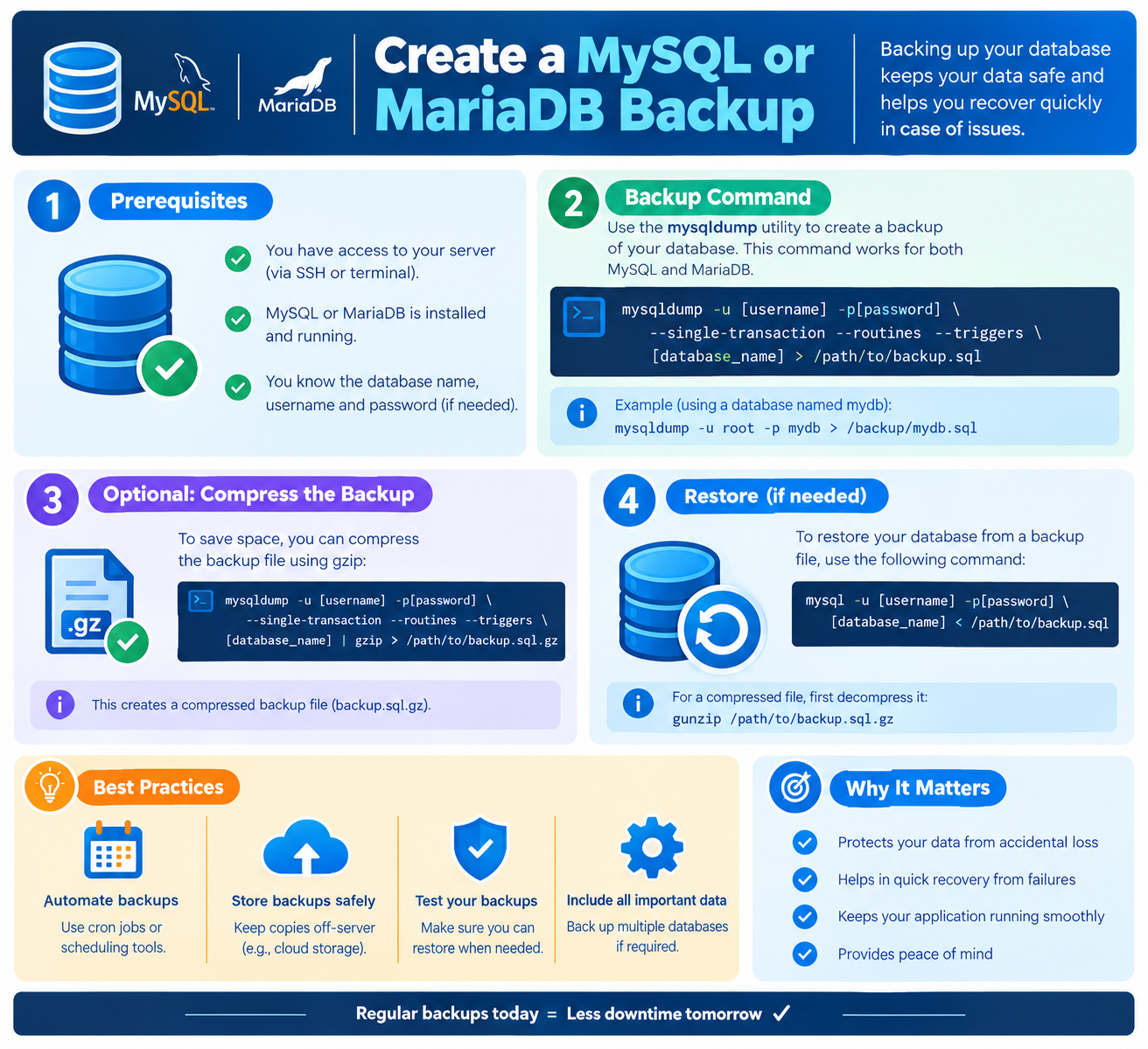
Create a MySQL or MariaDB Backup
MySQL and MariaDB include mysqldump, a command-line utility that exports a database as a set of SQL statements capable of recreating it.
Create the Backup Command
A basic manual command looks like this:
mysqldump -u USERNAME -p DATABASE_NAME > database-backup.sql
This works fine when run by hand, but it isn’t suitable for unattended automation as written: the -p flag prompts interactively for a password, which a cron job cannot answer.
Use Secure Database Credentials
For automation, avoid typing the password into the script or the cron command itself. Instead, use a protected MySQL option file so mysqldump can authenticate without a password appearing in plain text on the command line or in your shell history:
# ~/.my.cnf (permissions set to 600, owner-readable only)
[client]
user=USERNAME
password=YOUR_PASSWORD
chmod 600 ~/.my.cnf
With this file in place, mysqldump picks up the credentials automatically:
mysqldump DATABASE_NAME > database-backup.sql
A More Complete Backup Script
A production-ready script should do more than export data — it should also detect failures, compress output, and clean up old files. Here’s a more complete example:
#!/bin/bash
set -euo pipefail
BACKUP_DIR=”/var/backups/mysql”
DATE=$(date +%Y-%m-%d-%H%M)
DATABASE=”example_database”
RETENTION_DAYS=7
LOG_FILE=”/var/log/mysql-backup.log”
mkdir -p “$BACKUP_DIR”
if mysqldump “$DATABASE” | gzip > “$BACKUP_DIR/${DATABASE}-${DATE}.sql.gz”; then
echo “$(date): Backup succeeded: ${DATABASE}-${DATE}.sql.gz” >> “$LOG_FILE”
else
echo “$(date): Backup FAILED for $DATABASE” >> “$LOG_FILE”
exit 1
fi
find “$BACKUP_DIR” -name “${DATABASE}-*.sql.gz” -mtime +”$RETENTION_DAYS” -delete
This version:
- Uses set -euo pipefail so the script stops and reports failure if any command errors.
- Relies on the ~/.my.cnf file instead of a hard-coded password.
- Compresses the dump with gzip in the same step.
- Logs success or failure so problems are visible.
- Removes backups older than the retention period automatically.
- Returns a non-zero exit status on failure, so cron or a monitoring system can detect the problem.
Create a PostgreSQL Backup
PostgreSQL provides pg_dump for creating consistent database backups, even while the database is actively being used:
pg_dump -U USERNAME DATABASE_NAME > database-backup.sql
pg_dump backs up a single database. If you also need cluster-wide objects such as roles and tablespaces, PostgreSQL provides pg_dumpall for that purpose.
As with MySQL, avoid interactive password prompts in automated jobs. A .pgpass file (with 600 permissions) lets pg_dump authenticate without exposing the password in the script:
# ~/.pgpass — format: hostname:port:database:username:password
localhost:5432:example_database:USERNAME:YOUR_PASSWORD
chmod 600 ~/.pgpass
The same script pattern used for MySQL — compression, logging, exit-status checking, retention cleanup — applies equally to PostgreSQL backups.
Schedule Database Backups with Cron
Cron is the standard Linux tool for running commands at scheduled times, and it’s a natural fit for automating recurring backups.
A typical cron entry:
0 2 * * * /usr/local/bin/database-backup.sh
This runs the backup script every day at 2:00 AM.
Choose a Backup Schedule
Your backup frequency should reflect your recovery point objective (RPO) — how much recent data you can afford to lose if something goes wrong:
|
Backup Frequency |
Potential Data Loss |
|
Daily |
Up to a day’s changes |
|
Every 6 hours |
Up to several hours |
|
Hourly |
Up to about an hour |
There’s no universal schedule. A low-traffic site may only need daily backups; a transactional application processing orders around the clock may need hourly backups or a dedicated backup system.
Test the Cron Job
After adding a cron entry, don’t assume it works. Check that:
- The script has execute permissions (chmod +x).
- Cron’s environment has access to the same paths and tools the script needs (cron runs with a minimal environment, unlike an interactive shell).
- A test run produces a backup file and a success entry in the log.
Add Backup Retention
Keeping backups indefinitely will eventually fill your disk. A retention policy defines how long backups are kept before being removed.
A common example:
- The latest 7 daily backups
- A few weekly backups
- One longer-term monthly backup
This is only an example — the right retention period depends on your available storage and recovery requirements, not a universal standard. Automated cleanup (as shown in the script above) can enforce this, but double-check the logic so it never deletes your only remaining backup.
Store Backups Securely
Database dumps often contain sensitive data — usernames, email addresses, customer records, and sometimes password hashes. Treat backup files with the same care as production credentials:
- Never store dumps inside a publicly accessible website directory.
- Restrict filesystem permissions so only the backup process and authorized users can read them.
- Encrypt backups when they contain especially sensitive data.
- Keep a copy outside the VPS — in object storage, another server, or a managed backup service. If the VPS itself becomes unavailable, a local-only backup is unavailable too.
This last point reflects a core backup principle: don’t rely on a single copy of important data. For a fuller discussion of where and how to store copies of your entire server, see our VPS Backup and Disaster Recovery guide (replace with actual URL).
Verify Automated Database Backups
A backup job finishing without an error doesn’t guarantee a usable backup. At minimum, regularly confirm:
- The scheduled job is actually running.
- A new backup file is created each time.
- The backup command completes successfully (check exit status, not just file size — a small compressed file from a large database is normal and not itself a red flag).
- Old backups are being cleaned up as expected.
The only way to fully confirm a backup works is to restore it. Periodically restore a backup to a staging database to confirm it’s complete and usable. For a deeper walkthrough of verification and restore testing, see our VPS Backup Verification Guide (replace with actual URL).
Common Automation Mistakes to Avoid
Backing up to the same server only. A local copy helps with quick recovery but won’t survive a VPS-level failure. Keep an additional copy elsewhere.
Never testing restoration. A backup that’s never been restored isn’t proven to work.
Keeping backups indefinitely. Unlimited retention will eventually exhaust disk space. Define and monitor a retention policy.
Ignoring failed jobs. A cron job can keep “running” long after the underlying backup command starts failing — due to expired credentials, low disk space, or permission issues. Make sure your script returns a failure exit status on error, and check logs regularly.
Exposing backup files. Never place SQL dumps in a public web directory.
Ignoring server load. Large database exports can spike CPU, memory, and I/O usage. Schedule backups during lower-traffic periods when possible.
How Often Should You Back Up a VPS Database?
There’s no single correct schedule for every VPS. The right frequency depends on how often your data changes and how much of it you can afford to lose — your RPO, as discussed above.
A site updated once or twice a day may only need daily backups. An application processing transactions continuously may need backups every hour, or a dedicated backup solution. Choose a schedule that matches the business value of the data, not just convenience.
FAQ
