

A VPS performance checklist helps you identify resource bottlenecks, detect early signs of server problems, and maintain reliable application performance. Whether you host a business website, online store, database, or web application, regular VPS health checks can help you identify issues before they cause significant slowdowns or downtime.
A virtual private server can become slow because of high CPU usage, memory pressure, storage delays, network problems, or an overloaded application. Checking these areas systematically helps you identify the likely cause before changing configurations or upgrading your hosting plan.
This VPS performance checklist covers ten essential areas to inspect, the Linux commands you can use, and the warning signs that may require further investigation.
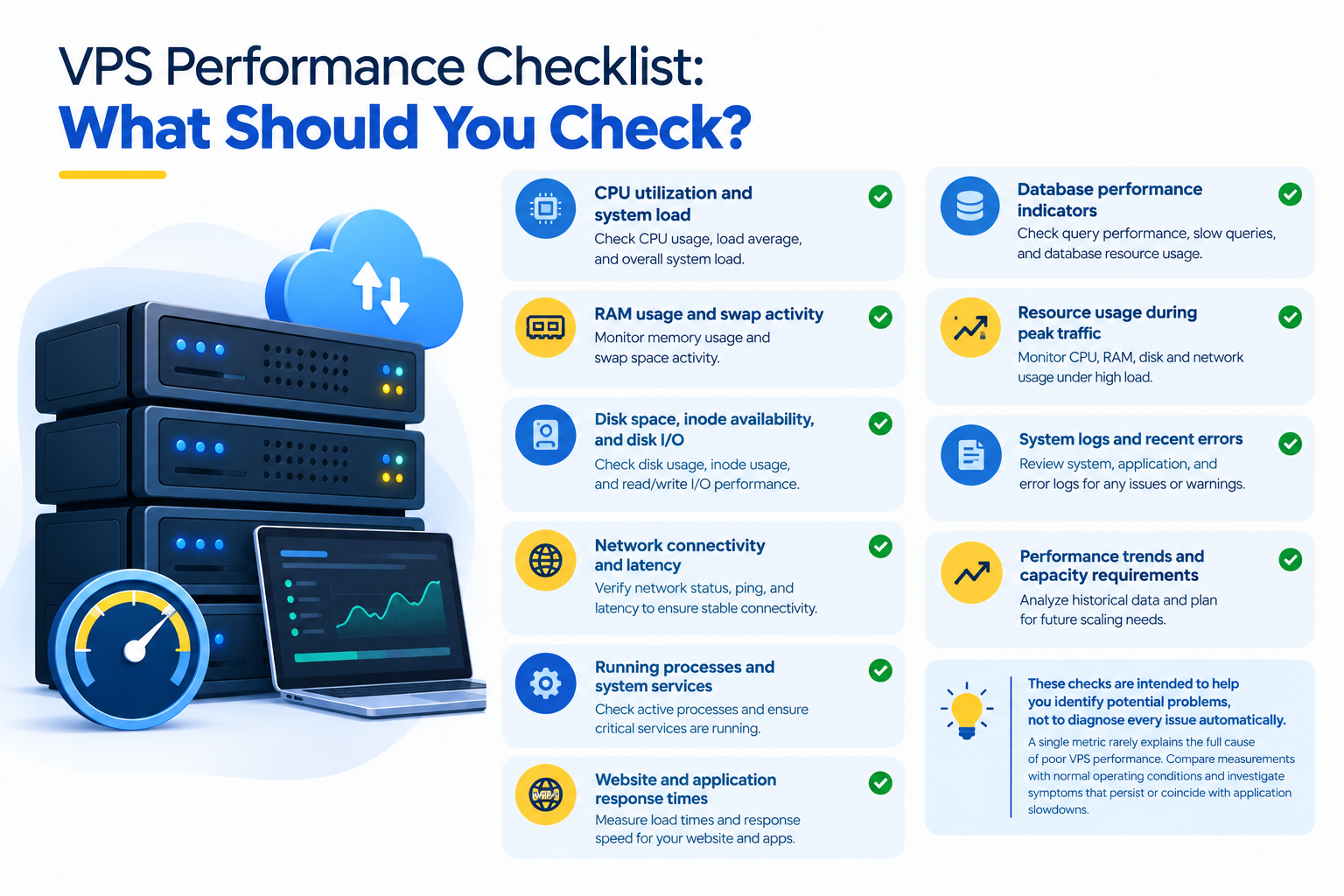
VPS Performance Checklist: What Should You Check?
Use this checklist to review the health and performance of your VPS.
- CPU utilization and system load
- RAM usage and swap activity
- Disk space, inode availability, and disk I/O
- Network connectivity and latency
- Running processes and system services
- Website and application response times
- Database performance indicators
- Resource usage during peak traffic
- System logs and recent errors
- Performance trends and capacity requirements
These checks are intended to help you identify potential problems, not to diagnose every issue automatically. A single metric rarely explains the full cause of poor VPS performance. Compare measurements with normal operating conditions and investigate symptoms that persist or coincide with application slowdowns.
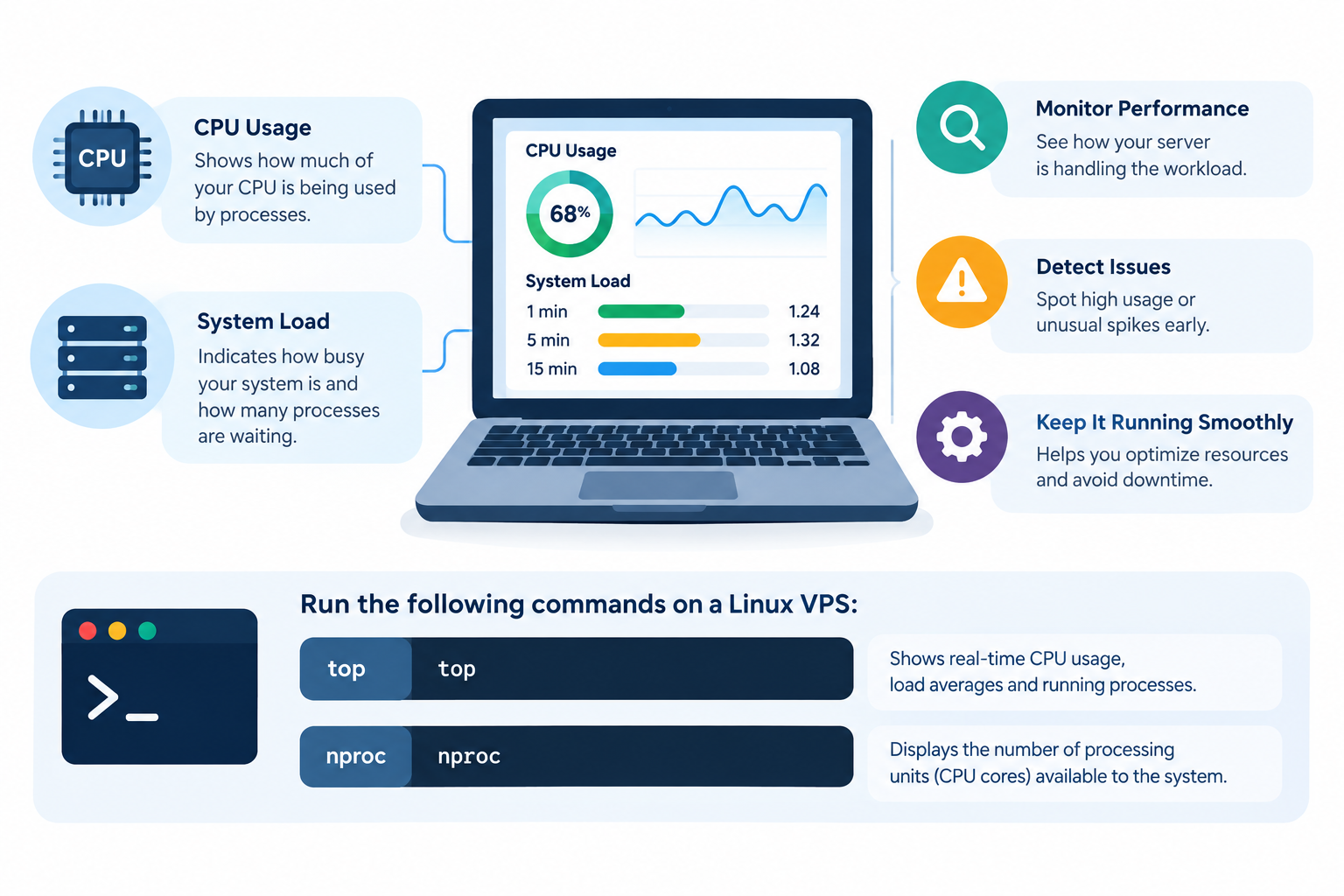
1. Check CPU Usage and System Load
The CPU handles application requests, database operations, background jobs, and other server tasks. Sustained CPU saturation can increase response times and reduce the number of requests your VPS can process.
What to check:
- CPU utilization and whether it remains high.
- Processes consuming the most CPU resources.
- One-, five-, and fifteen-minute load averages.
- CPU usage during traffic peaks or scheduled tasks.
Run the following commands on a Linux VPS:
top
To check load averages and the number of processing units available to the command, use:
uptime
nproc
You can also use htop for a more detailed interactive view if it is installed.
How to interpret the results
High CPU usage for a short period is not necessarily a problem. Traffic spikes, software updates, backups, and scheduled jobs can temporarily increase demand.
A sustained high CPU load combined with slow application response times is a stronger reason to investigate. Load average should be interpreted relative to available CPU capacity and the processes waiting for resources.
Recommended action: Identify the process consuming CPU and determine whether it is performing expected work before restarting services or changing configurations.
For detailed troubleshooting, see the Fix High CPU Usage on VPS guide.
2. Check RAM Usage and Swap Activity
RAM stores application data and running processes that the operating system needs to access quickly. When available memory becomes insufficient, Linux may move memory pages to swap space, potentially increasing latency.
What to check:
- Available memory and overall memory consumption.
- Applications using unusually large amounts of RAM.
- Swap activity and whether it is increasing.
- Signs of memory pressure or processes terminated by the operating system.
Run:
free -h
To inspect running processes and their memory consumption, use:
top
How to interpret the results
Linux uses available memory for caching, so low free memory does not automatically indicate a problem. Pay more attention to available memory, sustained swap activity, application behavior, and signs of memory pressure.
Swap usage alone does not prove that a VPS needs more RAM. Persistent swap activity combined with slow applications or insufficient available memory deserves further investigation.
Recommended action: Identify memory-intensive applications and check whether their consumption is expected. If the VPS consistently lacks sufficient memory for its workload, consider application optimization or a suitable RAM upgrade.
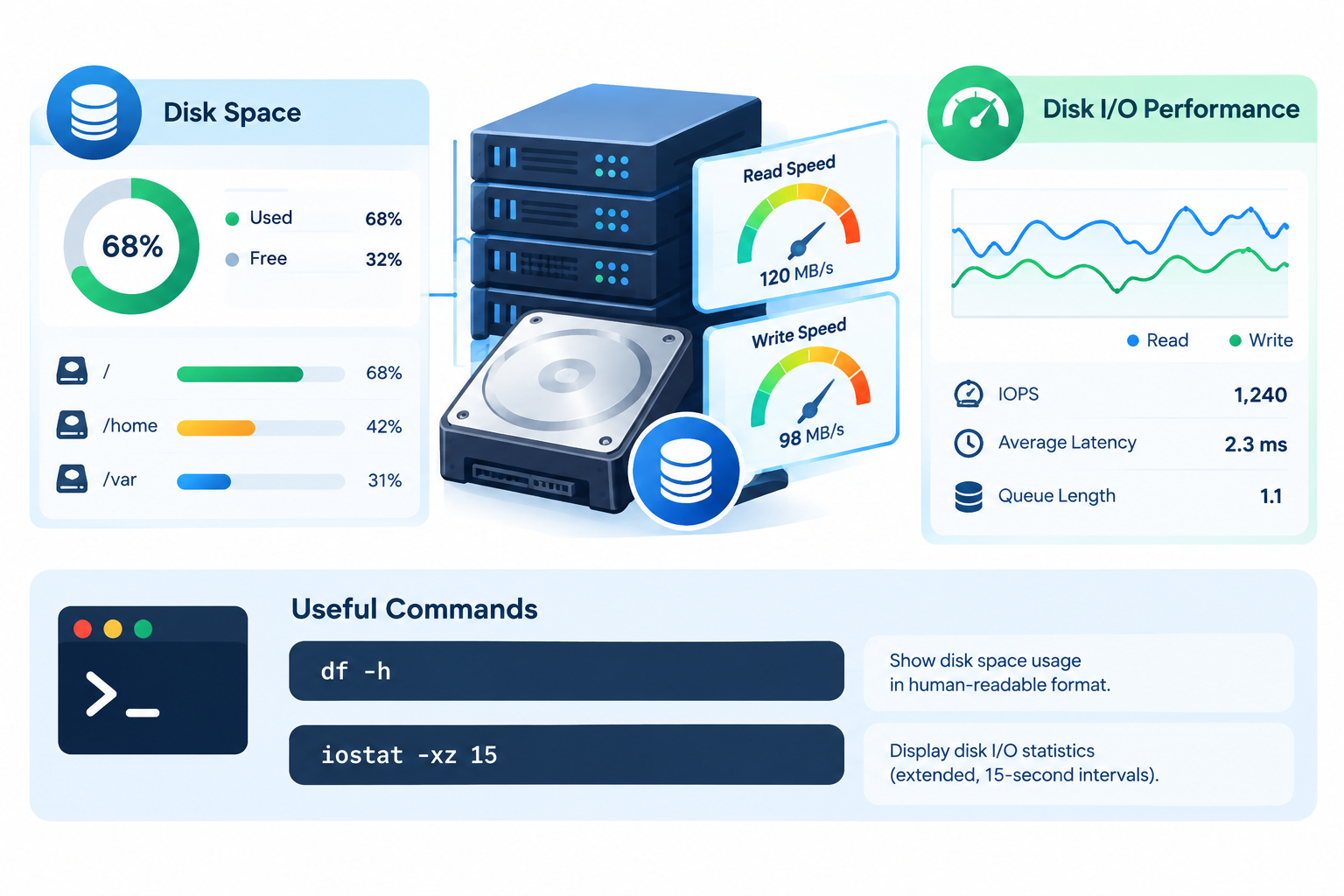
3. Check Disk Space and Disk I/O Performance
Storage problems can affect website files, database operations, logs, uploads, and temporary files. A full filesystem may prevent applications from writing data, while slow storage operations can delay database queries and other tasks.
What to check:
- Available disk space on important filesystems.
- Inode availability.
- Disk read and write activity.
- I/O wait and storage latency.
- Unexpected growth in logs or application data.
Check available disk space:
df -h
Check inode availability:
df -i
If iostat is available, inspect disk activity with:
iostat -xz 1 5
This command is commonly provided by the sysstat package.
How to interpret the results
A filesystem approaching capacity needs attention, particularly when applications require space for uploads, logs, database files, or temporary data. The appropriate free-space margin depends on the workload and how quickly storage usage grows.
In iostat output, await helps indicate average I/O request time, while %util describes device utilization. Neither metric alone proves that storage is the bottleneck, especially with modern parallel storage devices.
Recommended action: Investigate what is consuming space and whether storage latency coincides with slow application performance. Do not delete system files, database files, or logs without confirming their purpose.
4. Check Network Connectivity and Latency
Network problems can make a VPS appear slow even when CPU and memory usage look normal. Delays may occur between the server and website visitors, databases, external APIs, or other services.
What to check:
- Network latency to relevant destinations.
- Packet loss and intermittent connectivity.
- Unexpected bandwidth consumption.
- Network interface errors or dropped packets.
- Whether the problem affects one destination or several.
Test basic connectivity with:
ping -c 5 example.com
Replace example.com with a relevant hostname or IP address.
How to interpret the results
Consistently high latency or packet loss may indicate network congestion, routing issues, or a problem at the destination. However, some servers block ICMP traffic, so a failed ping does not necessarily mean the service is unavailable.
A successful ping also does not guarantee that a website or application is responding correctly.
Recommended action: Compare results across relevant destinations and test the actual application service. Determine whether the delay originates within the VPS, along the network path, or at a remote service before changing network settings.
For deeper investigation, see the Network Latency Troubleshooting Guide.
5. Review Running Processes and System Services
Unnecessary or misbehaving processes can consume CPU, RAM, storage, and network resources. Background jobs may also cause performance problems when they overlap with busy periods.
What to check:
- Processes consuming unusually high resources.
- Failed or repeatedly restarting services.
- Unexpected background jobs.
- Scheduled tasks running more frequently than intended.
- Services that may no longer be required.
List running processes:
ps aux
On Linux systems using systemd, check for failed services:
systemctl –failed
How to interpret the results
An unfamiliar process is not automatically unnecessary or malicious. System services, monitoring agents, and application workers may be essential even when they consume resources.
Repeated service failures, unexpected resource spikes, or jobs running at the wrong time warrant further investigation.
Recommended action: Confirm a process or service’s purpose before stopping it. Review relevant logs and recent configuration changes to understand why it is consuming resources or failing.
6. Measure Website and Application Response Times
Server resource measurements are only part of a VPS performance review. A server may have available CPU and RAM while a website remains slow because of application code, database queries, network conditions, or external dependencies.
What to check:
- Response times for important pages and API endpoints.
- Time to first byte (TTFB), where measurable.
- Response times for critical operations such as login or checkout.
- HTTP errors and intermittent timeouts.
- Differences between normal traffic and peak periods.
For a basic HTTP response-time test, run:
curl -o /dev/null -sS \
-w ‘HTTP status: %{http_code}\nTTFB: %{time_starttransfer}s\nTotal: %{time_total}s\n’ \
Replace the URL with your website or application endpoint.
How to interpret the results
The command reports the HTTP status, time to first byte, and total request time.
TTFB includes the time required for the request to reach the server and for the first response byte to arrive. It is not a pure measurement of server processing time. Total request time can also be influenced by DNS resolution, TLS negotiation, network conditions, redirects, and caching.
Run several tests under similar conditions rather than relying on one measurement.
Recommended action: If response times remain slow, investigate whether the delay is associated with the web server, application, database, or an external dependency.
7. Review Database Performance Indicators
Database activity can affect websites, online stores, content management systems, and business applications. Slow queries, locking, connection limits, and resource-intensive operations may delay otherwise healthy applications.
What to check:
- Slow or frequently repeated queries.
- Database CPU and memory consumption.
- Connection usage and connection errors.
- Query delays or locking during busy periods.
- Database response times when the application slows down.
How to interpret the results
If application response times increase alongside database delays, the database may be contributing to the bottleneck. However, this relationship does not prove the database is the root cause. Application behavior, storage performance, and resource limits may also contribute.
Recommended action: Record database symptoms during the same period as the application slowdown. Investigate relevant queries, connection errors, and database activity before changing configuration settings.
For query tuning and indexing, see the Database Optimization for VPS guide.
8. Check VPS Performance During Peak Traffic
A VPS may perform well during quiet periods but struggle when many visitors and background tasks compete for resources.
What to check:
- CPU and memory usage during busy periods.
- Disk activity and application response times.
- Concurrent connections and application worker capacity.
- Scheduled backups, updates, and maintenance jobs.
- Error rates and timeouts as demand increases.
How to interpret the results
A resource spike that coincides with slower response times can help identify a bottleneck. For example, a scheduled import may compete with website traffic, or database activity may increase when backups run.
Recommended action: Compare performance measurements with traffic patterns and scheduled tasks. If the VPS regularly reaches its practical resource limits, consider application improvements, workload scheduling, or additional resources.
An upgrade is appropriate when the evidence shows that the workload needs more capacity—not simply because one metric briefly increases.
9. Review System Logs and Recent Changes
Performance issues can begin after a software update, application deployment, configuration change, traffic increase, or new scheduled task.
What to check:
- Recent application and web server errors.
- Failed services and repeated restarts.
- Software or configuration changes.
- Unexpected growth in logs or temporary files.
- Whether the problem began at a specific time.
On a Linux system using systemd, review recent warnings and more severe messages with:
journalctl -p warning –since “1 hour ago”
The command displays matching messages recorded during the selected period. Its results depend on the system’s logging configuration.
How to interpret the results
A warning does not necessarily indicate a fault. Look for repeated errors, relevant timestamps, and patterns that coincide with performance changes.
Recommended action: Correlate logs with observed symptoms and recent changes. Preserve relevant logs before clearing files or restarting services.
10. Establish a Repeatable VPS Performance Review
A VPS performance checklist becomes more useful when you can compare current measurements with normal operating conditions.
| Frequency | Recommended checks |
| Daily or automated | Availability, important error alerts, and unusual resource spikes |
| Weekly | CPU, memory, disk space, storage activity, and response-time trends |
| Monthly | Resource growth, recurring bottlenecks, workload changes, and capacity planning |
| After major changes | Application response times, service health, errors, and resource consumption |
This is a starting schedule, not a universal standard. Business-critical applications may require continuous monitoring, automated alerts, and more frequent reviews.
Record baseline measurements for CPU utilization, available memory, disk usage, and application response times. Compare results under similar conditions and investigate sustained changes rather than reacting to every temporary spike.
For ongoing metrics, dashboards, and alerts, see the VPS Monitoring and Logging Systems guide.
VPS Performance Troubleshooting: What Should You Check First?
When your VPS becomes slow, use the observed symptoms to decide what to investigate next.
| Observed symptom | What to investigate |
| Slow applications with sustained high CPU | CPU-intensive processes and application workload |
| Slow applications with memory pressure | Memory consumption, swap activity, and application processes |
| Slow applications with elevated I/O wait | Storage latency and disk activity |
| Normal server metrics but a slow website | DNS, network path, application code, database queries, and external dependencies |
| Performance declines during traffic peaks | Concurrent requests, worker capacity, resource contention, and workload patterns |
| Errors following a deployment | Application logs, service status, and recent configuration changes |
These are diagnostic clues, not definitive diagnoses. Multiple bottlenecks can occur at the same time.
Before stopping services, killing processes, deleting files, or changing server settings, confirm the likely cause and consider the potential impact on running applications. If you cannot identify the cause, preserve the relevant measurements and logs for further investigation.
Frequently Asked Questions
