
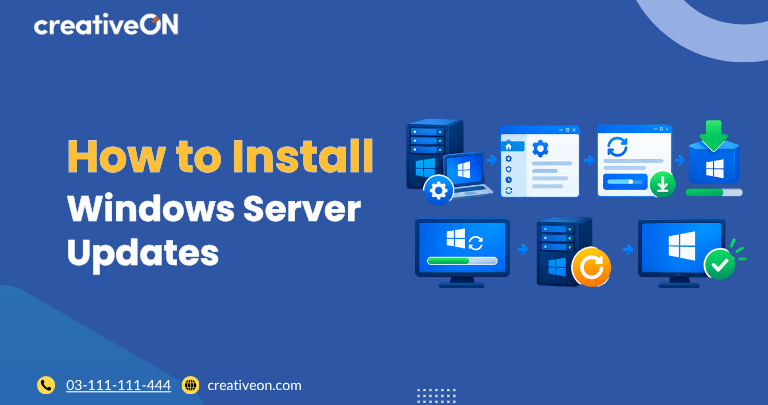
Keeping Windows Server updated is an important part of maintaining a secure and reliable Windows VPS. Microsoft regularly releases quality updates that can include security fixes, reliability improvements, and other changes.
The update process can vary depending on the Windows Server version and installation type. Servers with Desktop Experience can generally use the Windows Update interface, while Server Core can use tools such as SConfig.
This guide explains how to install Windows Server updates, verify installed updates, and handle a few common update issues without turning the process into a broader Windows Server administration guide.
Before Installing Windows Server Updates
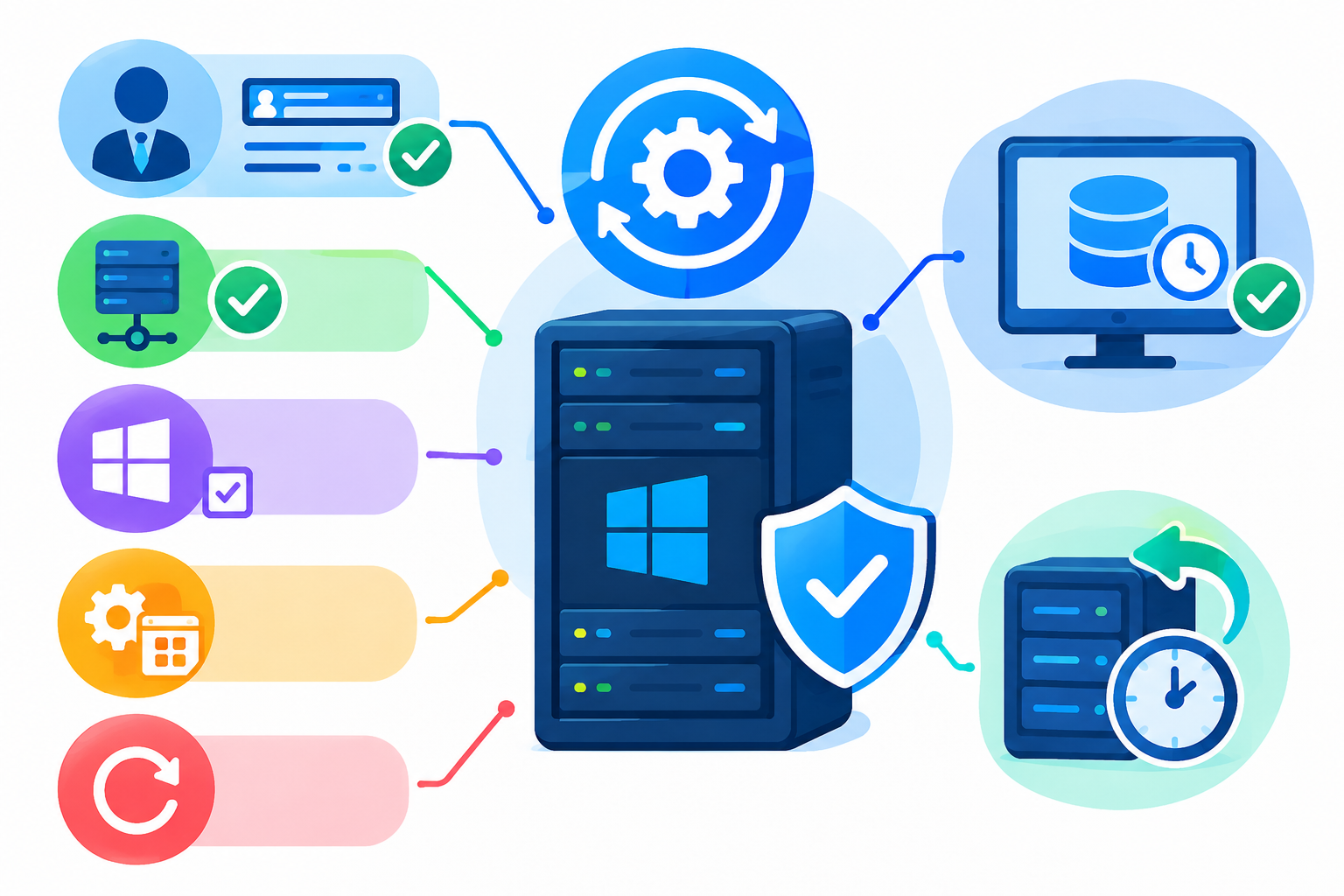
Before installing updates on a production Windows VPS, check a few basic things.
- Make sure you have an administrator account.
- Confirm that the server has network connectivity.
- Identify the Windows Server version and build.
- Check whether important applications or services are currently running.
- Plan for a possible server restart.
- If appropriate, take a recent backup or VPS snapshot before maintenance.
Some updates require a restart before installation is completely finished. For production systems, choose a maintenance window that minimizes disruption.
Check Your Windows Server Version
Knowing the Windows Server version is useful because the Windows Update interface and available options can differ between releases.
You can use PowerShell to check basic operating-system information:
Get-ComputerInfo -Property WindowsProductName, WindowsVersion, OsBuildNumber
On systems with a graphical interface, you can also run:
winver
You do not need to memorize the build number, but knowing whether the server is running Windows Server 2019, 2022, 2025, or another release can help when troubleshooting an update problem.
How to Install Windows Server Updates Using Windows Update
If your Windows Server installation includes Desktop Experience, you can generally use the Windows Update interface.
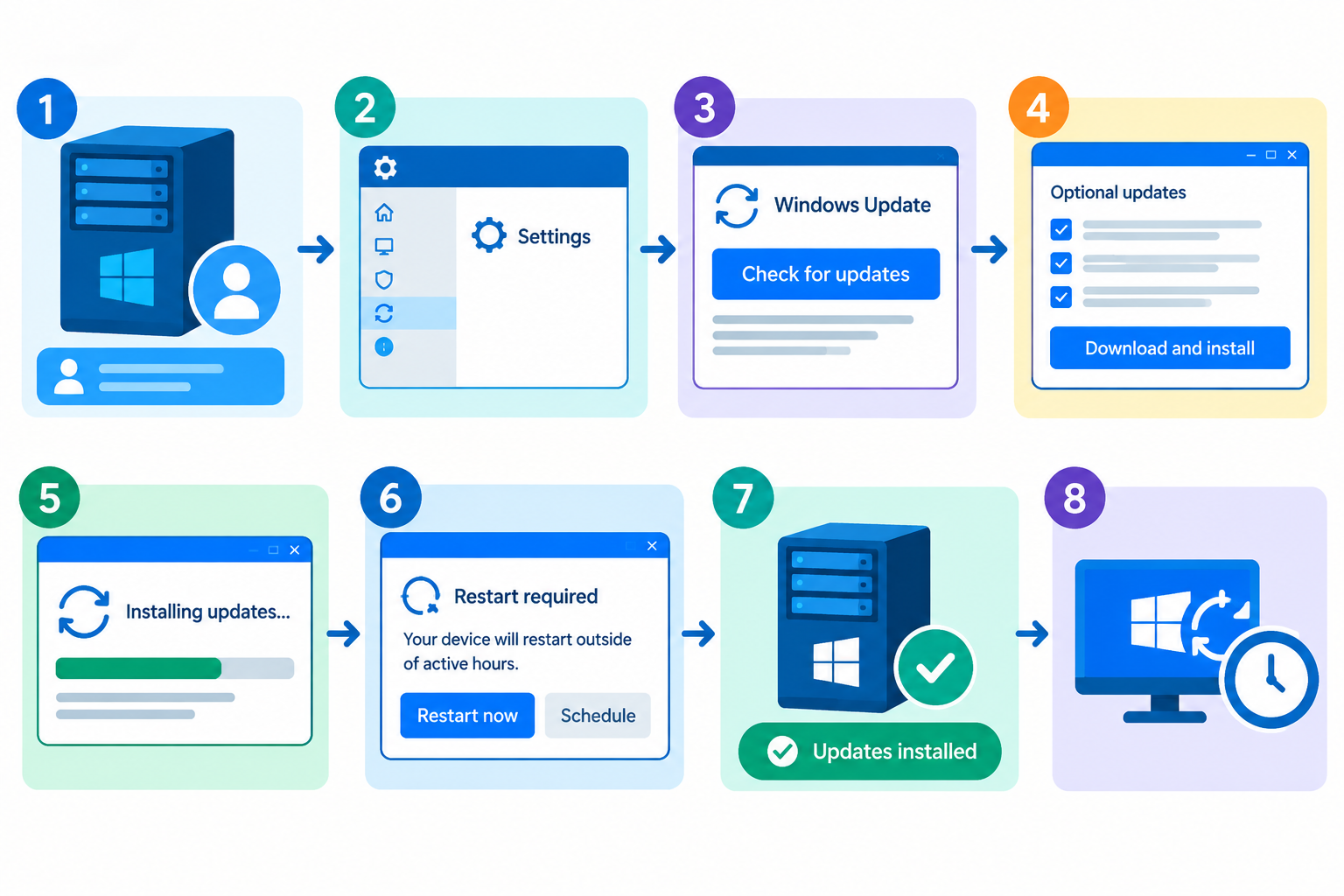
The exact menu names can vary between Windows Server versions, but the process is usually:
- Sign in to your Windows VPS using an administrator account.
- Open Settings.
- Open Windows Update. On some Windows Server versions, the location may differ slightly.
- Select Check for updates.
- Allow Windows to search for applicable updates.
- Review the available updates.
- Download and install the applicable updates.
- Restart the server if Windows requires it.
After the installation completes, return to Windows Update and check whether additional updates are available or whether Windows indicates that the server is up to date.
If a restart is pending, complete the restart before considering the update process finished.
How to Install Windows Server Updates Using SConfig
SConfig provides a command-line menu for configuring Windows Server and is particularly useful when managing Server Core, where the normal graphical interface is not available.
To open SConfig, sign in to the server and run:
sconfig
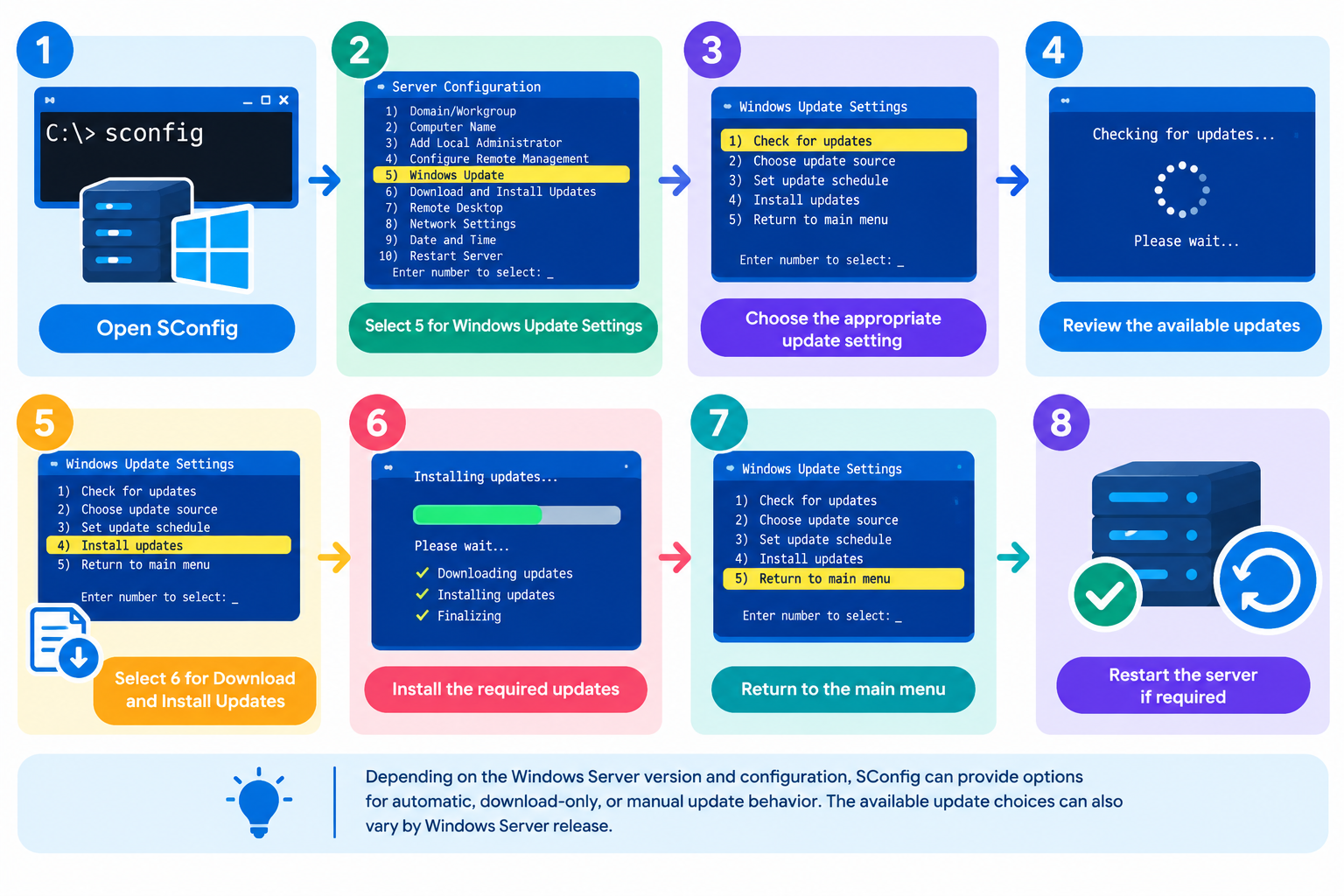
From the SConfig menu:
- Select 5 for Windows Update Settings.
- Choose the appropriate update setting.
- Return to the main SConfig menu.
- Select 6 for Download and Install Updates.
- Choose the appropriate update category.
- Review the available updates.
- Install the required updates.
- Restart the server if required.
Depending on the Windows Server version and configuration, SConfig can provide options for automatic, download-only, or manual update behavior. The available update choices can also vary by Windows Server release.
For Server Core administrators, SConfig provides a practical way to manage Windows updates without requiring the full Windows desktop interface.
How to Check Installed Windows Server Updates
After installing updates, you can use PowerShell to review installed hotfixes.
Open PowerShell as Administrator and run:
Get-HotFix | Sort-Object InstalledOn
This displays installed hotfixes and their installation dates.
You can also retrieve operating-system hotfix information with:
Get-ComputerInfo -Property OsHotFixes
These commands are useful for quickly checking whether updates or hotfixes have been installed, particularly when managing Windows Server through PowerShell or Server Core.
Quality Updates vs Feature Updates
Not every Windows Server update represents the same type of change.
Quality Updates
Quality updates are routine Windows updates that can include security, reliability, and other fixes. Windows quality updates are cumulative, meaning the latest applicable cumulative update generally includes previous fixes for that release.
For routine Windows Server maintenance, these are the updates administrators commonly install to keep the operating system current.
Feature Updates
A feature update is different from a normal quality update. It can involve upgrading the Windows Server operating-system release and therefore requires more planning than routine monthly patching.
Depending on the Windows Server version and supported upgrade path, feature updates may be offered through supported Windows update mechanisms.
Do not treat a feature update exactly like a routine security patch. Before performing a feature upgrade on a production Windows VPS, check the supported upgrade path, application compatibility, backup status, and expected downtime.
For this reason, this article focuses primarily on installing routine Windows Server updates rather than providing a complete Windows Server upgrade guide.
What to Do After Installing Windows Server Updates
Installing an update is only part of the process. After the installation and any required restart, verify that the server is working normally.
Check:
- Windows Update status
- Whether another restart is required
- RDP connectivity
- Important Windows services
- Hosted websites or applications
- IIS websites, if IIS is installed
- Database services, if applicable
- Event Viewer for unexpected errors
For example, if your Windows VPS hosts an IIS website, open the website after the restart and confirm that it is responding normally.
The goal is to confirm not only that the update was installed, but also that the server and its important workloads returned to normal operation.
Common Problems When Installing Windows Server Updates
Windows Update Is Not Finding Updates
First check the server’s network connectivity and update configuration.
If the server is managed through WSUS or another centralized update-management system, it may receive updates from the configured internal update source rather than directly from Microsoft.
In that situation, update availability and approval may be controlled centrally.
The Update Requires a Restart
Some updates cannot complete until Windows Server restarts.
Before restarting a production VPS:
- Check whether important applications are running.
- Confirm that a maintenance window is appropriate.
- Make sure you have the necessary administrator access.
- Restart the server when it is safe to do so.
After the restart, check Windows Update again and verify the installed update.
An Update Fails to Install
If an update repeatedly fails, avoid making random changes to Windows Update components or deleting system files without understanding the cause.
Start by checking:
- The Windows Update error code
- Event Viewer
- Available disk space
- Whether a restart is pending
- Windows servicing information
For deeper servicing problems, the Windows component-based servicing log can also provide useful diagnostic information:
C:\Windows\Logs\CBS\CBS.log
If the problem requires more extensive troubleshooting, it is better to use a dedicated Windows Server update troubleshooting guide rather than performing unrelated repair procedures from this article.
Windows Server Update Best Practices
A few practical habits can make Windows Server maintenance safer:
- Plan a maintenance window: Avoid unexpected restarts during critical workloads.
- Keep security and quality updates current: Do not unnecessarily leave important updates pending.
- Maintain a recent backup: For production systems, have a suitable recovery option before significant maintenance.
- Verify after restarting: Check RDP, applications, websites, and important services after the update.
- Record important maintenance: Keeping track of installed updates can help when troubleshooting future problems.
For environments with many Windows Server systems, centralized update-management solutions can provide additional control over update deployment. That topic is outside the scope of this focused guide.
Frequently Asked Questions
