
Connecting to a Windows VPS is usually straightforward. Most Windows VPS environments are accessed remotely using Remote Desktop Protocol (RDP), which lets you interact with the Windows Server desktop from your own computer.
To connect, you generally need your VPS IP address or hostname, Windows login credentials, and a compatible Remote Desktop client.
This guide explains how to connect to a Windows VPS, what you need before starting, and what to check if the connection does not work.
What You Need Before Connecting to a Windows VPS
Have the following information ready before starting:
| Information | Example |
| VPS IP address | 203.0.113.10 |
| Username | Administrator |
| Password | Your Windows VPS password |
| RDP port | 3389 by default |
| Connection software | Remote Desktop Connection or Windows App |
Your hosting provider normally supplies the VPS IP address and initial login credentials when the Windows VPS is provisioned.
The exact username and connection details can vary depending on the server configuration.
How to Connect to a Windows VPS
On a Windows computer, you can use the built-in Remote Desktop Connection client. Microsoft also provides Windows App for supported Remote Desktop scenarios.
For a straightforward Windows-to-Windows VPS connection, Remote Desktop Connection remains a practical option.
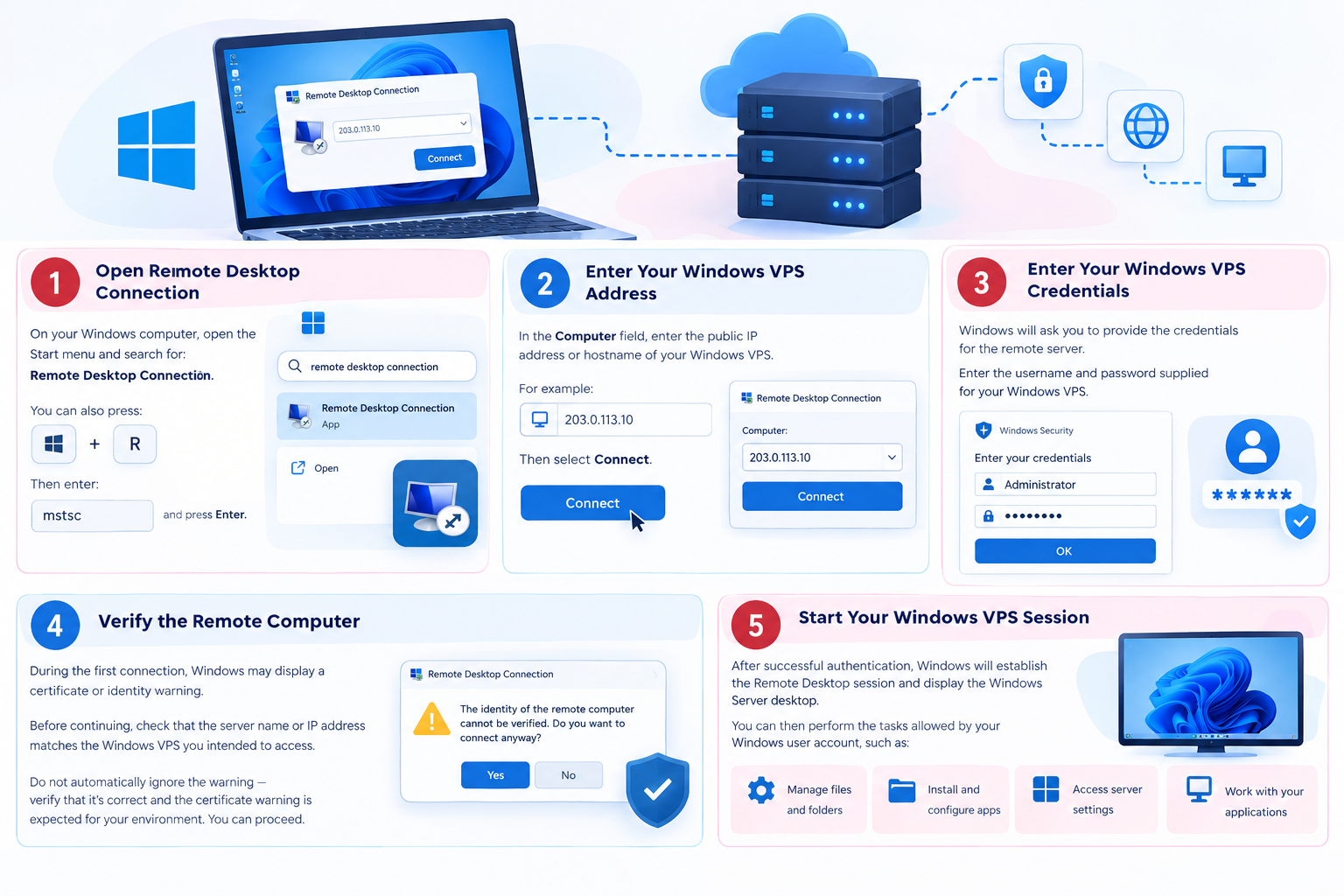
Step 1: Open Remote Desktop Connection
On your local Windows computer, open the Start menu and search for:
Remote Desktop Connection
You can also press:
Windows Key + R
Then enter:
mstsc
and press Enter.
The Remote Desktop Connection window will open.
Step 2: Enter Your Windows VPS Address
In the Computer field, enter the public IP address or hostname of your Windows VPS.
For example:
203.0.113.10
Then select Connect.
If your VPS has been configured to use a non-default RDP port, enter the address with the port when supported by the client:
203.0.113.10:3390
If the server uses the default RDP configuration, entering the IP address alone is normally sufficient.
Step 3: Enter Your Windows VPS Credentials
Windows will ask you to provide the credentials for the remote server.
Enter the username and password supplied for your Windows VPS.
For example:
Username: Administrator
Password: Your VPS password
Be careful not to confuse your hosting account password with your Windows Server password. They may be different credentials.
If your provider created another Windows user for you, use that account instead.
Step 4: Verify the Remote Computer
During the first connection, Windows may display a certificate or identity warning.
Before continuing, check that the server name or IP address matches the Windows VPS you intended to access.
Do not automatically ignore the warning simply because it is your first connection.
If the server identity is correct and the certificate warning is expected for your environment, you can proceed.
Step 5: Start Your Windows VPS Session
After successful authentication, Windows will establish the Remote Desktop session and display the Windows Server desktop.
You can then perform the tasks allowed by your Windows user account, such as:
- Managing files and folders
- Installing applications
- Configuring websites
- Managing Windows services
- Working with IIS
- Installing server software
- Managing users
- Monitoring server resources
The exact options available depend on your Windows Server version, user permissions, and installed software.
Can You Connect Using Windows App?
Yes. Microsoft provides Windows App as a newer client for supported Remote Desktop scenarios.
Microsoft currently recommends using Windows App where possible, although the traditional Remote Desktop client is still relevant on supported platforms and situations.
For a Windows computer connecting directly to a Windows VPS, Remote Desktop Connection (mstsc) remains a simple option.
If you are connecting from macOS, iPhone, iPad, Android, or another supported platform, the available Remote Desktop client can differ.
You do not need to cover those platforms in detail here unless your VPS provider specifically supports them.
How to Check Whether Your Windows VPS Can Be Reached
If Remote Desktop does not connect, first determine whether the RDP port is reachable.
From PowerShell on your local Windows computer, you can test the standard RDP port:
Test-NetConnection -ComputerName 203.0.113.10 -Port 3389
Look for:
TcpTestSucceeded : True
A successful result indicates that the tested port is reachable from your computer.
If the test fails, the problem may involve the VPS being offline, the RDP port, firewall rules, network access, or a different RDP port configured on the server.
This test does not diagnose every RDP problem. It simply provides a useful first check before changing Windows Server settings.
Why Can’t I Connect to My Windows VPS?
A failed RDP connection can have several causes. Check the basic items first.
Check the VPS IP Address
Make sure you are connecting to the correct public IP address or hostname.
An incorrect address will prevent the RDP client from reaching the intended server.
Check Whether the VPS Is Running
If the VPS is stopped, restarting, or unavailable, an RDP connection cannot be established.
Check your hosting provider’s VPS management panel if one is available.
Check the RDP Port
RDP commonly uses port 3389 by default.
If your VPS uses a different RDP port, make sure you are using the port configured for that server.
Check Your Credentials
If the server is reachable but Windows rejects the login, verify the username and password.
Also check whether the account is permitted to connect through Remote Desktop.
Check Firewall or Network Restrictions
Windows Firewall or another network firewall can prevent RDP traffic from reaching the server.
Do not disable the entire Windows Firewall simply to test an RDP connection. First determine whether the relevant RDP traffic is being allowed.
Check Network Level Authentication
Modern Windows Server environments commonly use Network Level Authentication (NLA).
NLA requires authentication before the full remote desktop session is established and provides an additional layer of protection.
For most environments, NLA should remain enabled. If you encounter an authentication or compatibility problem, NLA configuration may need to be checked.
Detailed RDP troubleshooting, firewall diagnosis, and NLA configuration are separate administration topics and are better handled in dedicated Windows VPS support articles.
What Port Does Windows VPS RDP Use?
The default Remote Desktop port is:
3389
A Windows Server administrator can configure Remote Desktop to use a different port.
If your VPS provider gives you a specific RDP port, use the port they provide.
Changing the RDP port should not be considered a complete security solution. Strong passwords, appropriate firewall restrictions, Windows updates, access controls, and other security measures remain important.
How to Keep Your Windows VPS Connection Secure
Remote Desktop provides direct access to your Windows Server, so protect the accounts and network access used for RDP.
Good basic practices include:
- Use a strong, unique Windows password.
- Do not share administrator credentials.
- Keep Windows Server updated.
- Keep Network Level Authentication enabled where appropriate.
- Restrict unnecessary RDP access through firewall or network controls.
- Use separate user accounts when different users need server access.
- Give users only the permissions they require.
For a public-facing Windows VPS, avoid treating RDP security as an afterthought.
Common Mistakes When Connecting to a Windows VPS
Using the Hosting Panel Password
Your hosting account and Windows Server may use different passwords.
Use the Windows credentials associated with the VPS.
Entering the Wrong IP Address
Make sure you are using the public IP address assigned to the correct VPS.
Adding the Wrong RDP Port
If the server uses the default RDP port, you normally do not need to add :3389.
If a custom port has been configured, use the correct port supplied by your provider or server administrator.
Disabling Security Features to Make RDP Work
Avoid disabling Windows Firewall or Network Level Authentication simply because the connection fails.
Identify the actual cause first.
Changing Several Settings at Once
Make one relevant change at a time and test the connection. This makes it easier to identify what is actually causing the problem.
Frequently Asked Questions
