
A monthly VPS maintenance checklist helps you keep your virtual private server secure, stable, and ready to handle your workload. Regular checks can reveal growing disk usage, outdated software, failed backups, security concerns, and performance issues before they affect your website or business applications.
Whether you manage a Linux VPS or a Windows VPS, a structured maintenance routine helps you identify problems, verify essential services, and plan improvements.
This guide covers the essential monthly VPS maintenance tasks, what to check, and what to do when something needs attention.

Why Is Monthly VPS Maintenance Important?
A VPS can develop problems even when websites and applications appear to work normally. Log files grow, software updates become available, backup jobs fail, and resource requirements change over time.
Regular VPS maintenance helps you:
- Identify resource shortages before they cause service interruptions.
- Review security updates and administrative access.
- Verify that backups are available and recovery procedures work.
- Detect disk space and application performance problems.
- Confirm that essential services and scheduled tasks are working.
- Maintain a record of changes and outstanding issues.
Important: Monthly maintenance complements ongoing monitoring. Critical security updates, failed backups, and service outages should be investigated promptly rather than left until the next monthly review.
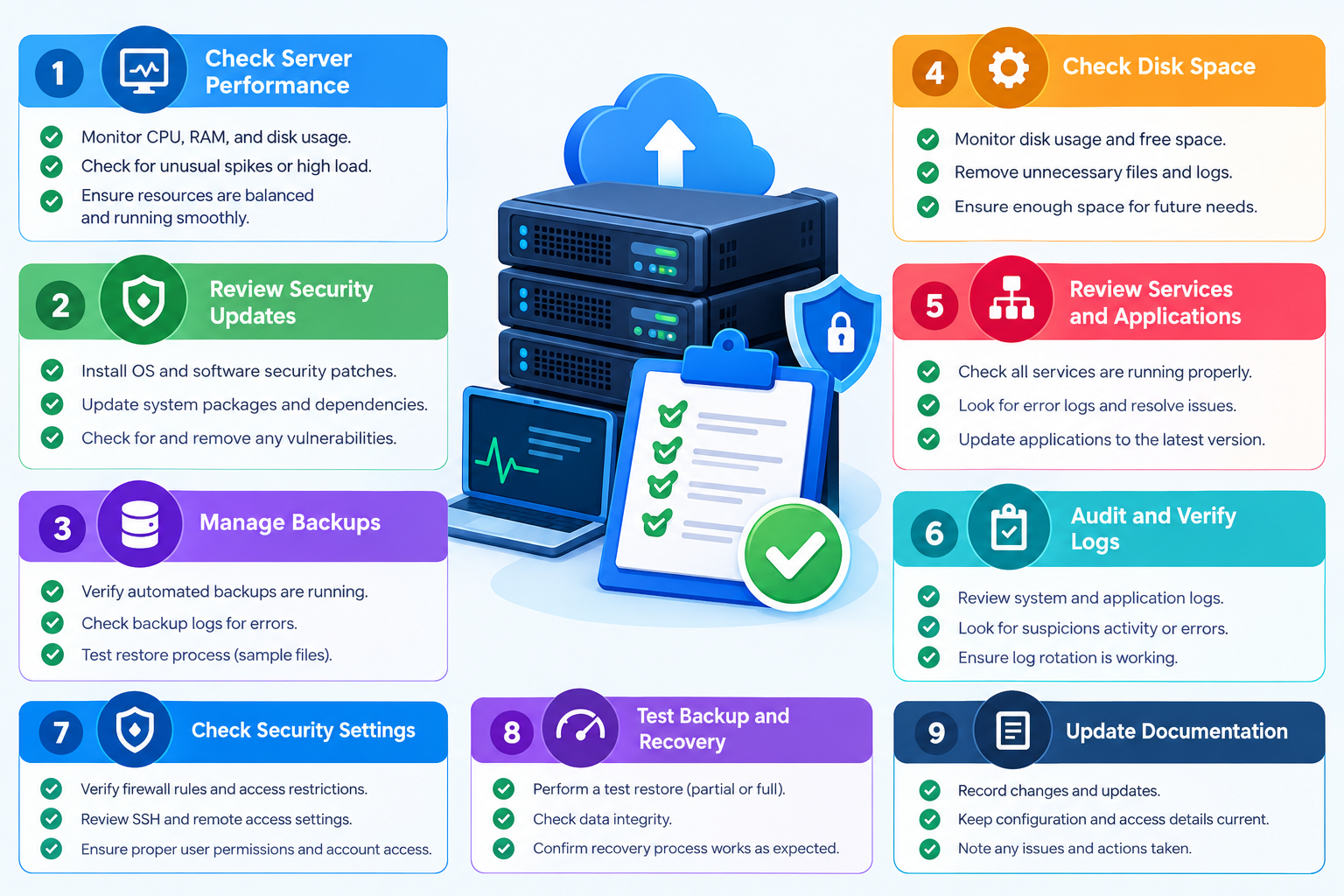
Monthly VPS Maintenance Checklist
Work through the following tasks during each maintenance review. Record your findings, investigate unusual changes, and assign follow-up actions where necessary.
1. Review VPS Resource Usage
Check whether your VPS has enough CPU, memory, storage, and network capacity for its current workload.
Review:
- CPU utilization and unusual increases in system load.
- Available memory and excessive swap activity.
- Disk space on important filesystems.
- Network traffic and unexpected traffic spikes.
- Historical usage trends compared with previous weeks.
On many Linux distributions, these commands provide a useful starting point:
uptime
free -h
df -h
top
They show system load, memory usage, filesystem capacity, and running processes.
What to do if you find a problem: Investigate sustained high usage before upgrading your VPS. An application issue, inefficient database query, increased traffic, or scheduled job may be responsible.
2. Check Operating System and Software Updates
Outdated software can expose your VPS to security vulnerabilities and compatibility problems.
During your monthly review:
- Check for operating system security updates.
- Review available application and dependency updates.
- Check whether your control panel and installed components remain supported.
- Identify updates that require a service restart or system reboot.
- Review unresolved update failures.
For Debian and Ubuntu systems, you can check package information and available updates with:
sudo apt update
apt list –upgradable
On systems using DNF, you can check available updates with:
sudo dnf check-update
These commands help identify available updates; they do not complete the entire update process.
Before making significant changes, confirm that a suitable backup exists and that you have a recovery plan. Follow the software vendor’s instructions and test essential services after updating.
Do not wait for the monthly review to apply critical security patches. Handle urgent updates according to their severity and operational requirements.
3. Verify VPS Backups and Recovery Readiness
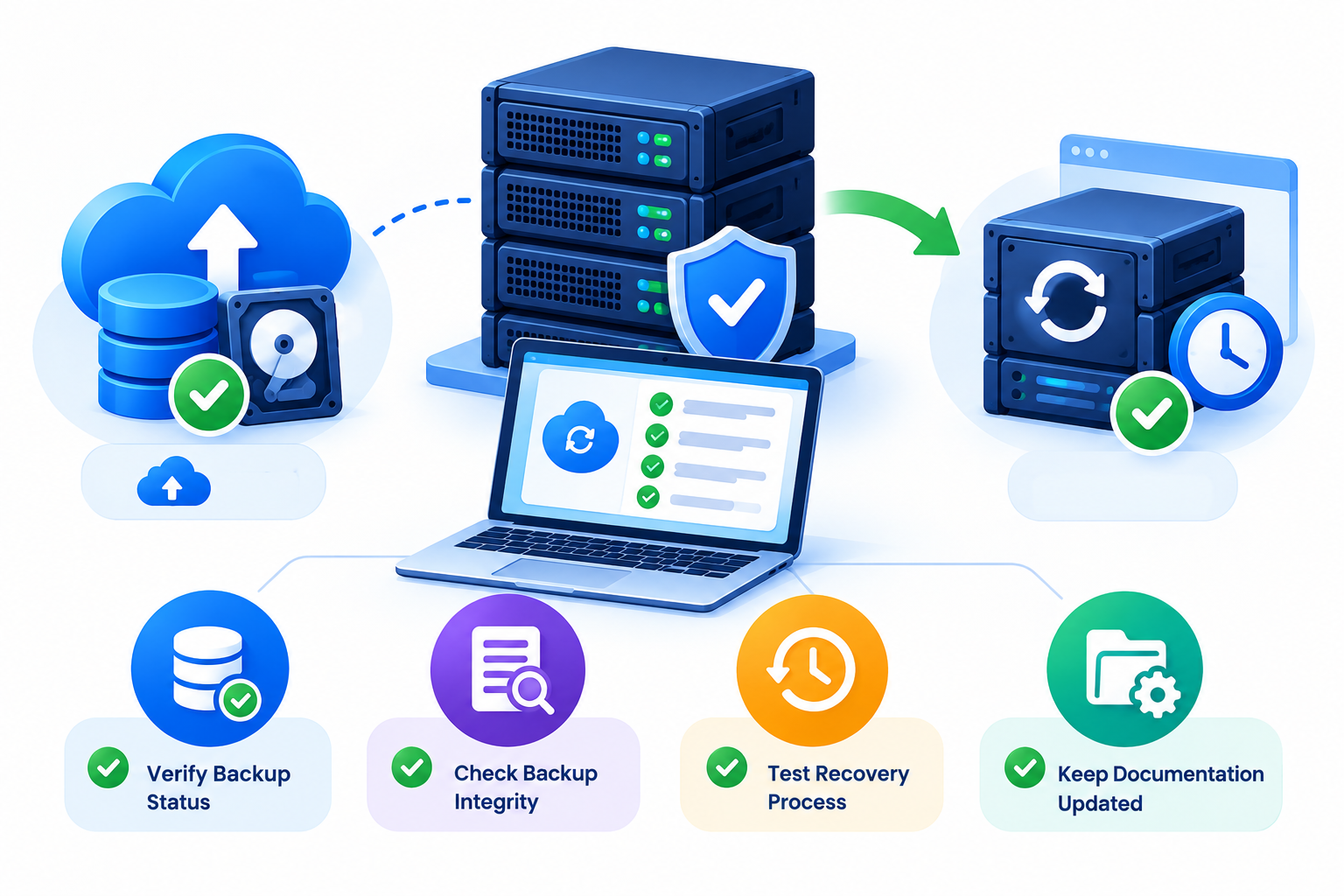
A successful backup notification does not necessarily prove that your data can be restored correctly.
Review the following:
- Confirm that scheduled backup jobs completed successfully.
- Check that backup files are accessible and appear complete.
- Review backup retention settings.
- Confirm that important data and configuration files are included.
- Check that backup access is protected and encryption is used where appropriate.
- Verify that backup copies are stored separately from the VPS when possible.
For critical websites and applications, perform a test restoration in an isolated environment. Check that restored files are readable and that databases and applications function correctly.
Your backup frequency should reflect how much data your business can afford to lose. Your recovery plan should also account for how quickly essential services need to return.
For detailed instructions, refer to CreativeON’s VPS Backup Verification Guide and Offsite VPS Backups Guide, where available.
4. Review VPS Security and Administrative Access
Monthly security checks help you identify unnecessary access, configuration changes, and suspicious activity.
Review:
- SSH or remote desktop access permissions.
- Administrator and privileged user accounts.
- Authentication settings and access keys.
- Firewall rules and exposed ports.
- Unnecessary services and installed software.
- Authentication failures and relevant security alerts.
On many Linux systems using systemd, you can review recent SSH service logs with:
sudo journalctl -u ssh –since “30 days ago”
Some distributions use sshd instead of ssh as the service name, and logging configurations vary.
Repeated failed login attempts do not automatically mean your VPS has been compromised. Investigate unusual activity and compare it with other available logs.
If you find evidence of unauthorized access, follow an incident-response process rather than treating the problem as routine maintenance.
For detailed security configuration, use a dedicated VPS Server Hardening Checklist or VPS Firewall Setup Guide.
5. Check Disk Space, Logs, and Temporary Files
Disk usage can increase gradually as websites grow, databases expand, and applications generate logs.
Check:
- Filesystem capacity and available space.
- Website and application directory growth.
- Large or rapidly growing log files.
- Database storage consumption.
- Old temporary files and obsolete backups.
- Log rotation and retention settings.
Use this command to review filesystem usage:
df -h
To check the total size of the system log directory on a typical Linux installation, use:
du -sh /var/log
These commands provide an overview but do not identify every possible cause of disk consumption.
Do not delete files just because they are large or old. Logs may be needed for investigations, and backups may be essential for recovery. Confirm that a file is safe to remove before cleaning it up.
For a Windows VPS, review the system drive, application directories, temporary storage, event logs, and backup locations using the appropriate Windows administration tools.
6. Verify Websites, Applications, and Essential Services
A VPS may be running normally at the operating-system level while an important website or application is failing.
Check the services relevant to your server, such as:
- Web servers, including Apache, Nginx, and LiteSpeed.
- Database services, including MySQL and MariaDB.
- PHP-FPM or other application runtimes.
- Email services, if hosted on the VPS.
- Application background workers.
- DNS services, if operated on the server.
Test important websites and applications from outside the server where possible. Confirm that pages load, forms work, databases respond, and essential integrations remain operational.
Review service logs for recurring errors, unexpected restarts, and warnings that have increased since the previous maintenance review.
If a service fails, investigate the cause before repeatedly restarting it. A restart may temporarily restore service without resolving the underlying problem.
7. Check SSL Certificates, Domains, and DNS
Expired SSL/TLS certificates, overlooked domain renewals, and unexpected DNS changes can interrupt website access.
Review:
- SSL/TLS certificate expiration dates.
- Automated certificate renewal.
- Domain registration renewal dates.
- DNS records for unexpected changes.
- Website resolution and HTTPS access.
- Redirect behavior and certificate warnings.
You can inspect a website’s presented certificate dates with OpenSSL:
openssl s_client -connect example.com:443 \
-servername example.com </dev/null 2>/dev/null |
openssl x509 -noout -dates
Replace example.com with your actual domain.
This command checks the certificate presented by the endpoint you connect to. If your website uses a CDN, reverse proxy, or load balancer, the externally presented certificate may differ from the one installed on your VPS.
If automated renewal is configured, verify that the renewal process works rather than assuming that the certificate will renew successfully.
8. Review Performance Trends and Application Errors
Compare current server performance with historical data to identify recurring problems.
Look for:
- Sustained CPU or memory pressure.
- Increasing database response times.
- Slow website requests.
- Repeated application errors.
- Unusual network traffic.
- Growing resource consumption without a corresponding workload increase.
Use available monitoring dashboards, application logs, database reports, and web server logs to investigate changes.
If performance has deteriorated, identify the likely cause before making changes. Increasing CPU or memory will not necessarily fix inefficient application code or a database bottleneck.
For deeper analysis, refer to CreativeON’s VPS Monitoring Guide or Fix High CPU Usage on a VPS guide, where available.
9. Verify Scheduled Tasks and Automation
Scheduled tasks may fail after software updates, configuration changes, or permission changes.
Review the status of:
- Automated backup jobs.
- Cron jobs and other scheduled tasks.
- SSL certificate renewal jobs.
- Database maintenance tasks.
- Log rotation.
- Monitoring and alert delivery.
- Application-specific background jobs.
On Linux, this command lists scheduled jobs for the current user:
crontab -l
It does not show every scheduled task on the server. Other users’ crontabs, system-wide cron entries, and systemd timers may also need to be reviewed.
Check logs or expected output to confirm that important tasks have run successfully. For Windows VPS environments, review Task Scheduler and the relevant job history.
10. Review Documentation and Plan Follow-Up Work
Finish the monthly review by confirming that your administrative setup remains appropriate for your business.
Check that:
- Authorized administrators can access the VPS.
- Unnecessary accounts and permissions have been removed.
- Recovery and emergency access instructions are available.
- Significant configuration changes are documented.
- Recurring problems have assigned follow-up actions.
- Resource capacity remains suitable for expected growth.
If your VPS frequently approaches its limits, investigate the workload and plan improvements before instability develops. Depending on the cause, you may need application optimization, database tuning, additional storage, or a larger VPS plan.
Keep a record of maintenance findings so you can compare them with future reviews.
Monthly VPS Maintenance Checklist at a Glance
Use this summary to track your monthly maintenance work.
| Task | What to verify | Status |
| Resource usage | CPU, memory, disk, and network trends | Pass / Action required / N/A |
| Software updates | Available patches and supported versions | Pass / Action required / N/A |
| Backups | Successful jobs, accessible copies, and recovery readiness | Pass / Action required / N/A |
| Security | Accounts, authentication, firewall, and alerts | Pass / Action required / N/A |
| Disk management | Capacity, logs, and unnecessary files | Pass / Action required / N/A |
| Essential services | Websites, databases, and applications | Pass / Action required / N/A |
| SSL and DNS | Certificate validity, renewal, and domain status | Pass / Action required / N/A |
| Performance | Historical trends and application errors | Pass / Action required / N/A |
| Scheduled tasks | Automation, execution results, and alerts | Pass / Action required / N/A |
| Documentation | Access records, recovery instructions, and follow-up work | Pass / Action required / N/A |
Record the maintenance date, findings, corrective actions, and any outstanding issues. Mark a task as not applicable only when the relevant service or feature is not used.
Common VPS Maintenance Mistakes to Avoid
A maintenance routine is useful only when it is performed carefully. Avoid these common mistakes:
- Delaying urgent fixes: Critical vulnerabilities and failed services should not wait until the next monthly review.
- Updating without preparation: Significant changes should follow an appropriate backup and recovery plan.
- Deleting files blindly: Removing logs or backups without checking their purpose can create additional problems.
- Assuming backups are recoverable: Verify restoration, not just backup job completion.
- Ignoring recurring warnings: Repeated errors may indicate a developing issue even when the server is still running.
- Making unverified changes: Test essential websites, databases, and services after maintenance.
- Skipping documentation: Unrecorded changes make future troubleshooting more difficult.
Frequently Asked Questions
