
A VPS backup is only as good as your ability to reach it when something goes wrong. If the only copy of your data lives on the same server — or the same physical infrastructure — as the original, a single hardware failure, storage fault, accidental deletion, or security incident can take out your live data and your safety net at the same time.
An offsite VPS backup solves this by storing a separate copy of your VPS data outside the primary server environment, ideally on independent infrastructure with its own access controls. Done well, it adds real redundancy to your VPS backup strategy without changing how your VPS itself runs day to day.
What Is an Offsite VPS Backup?
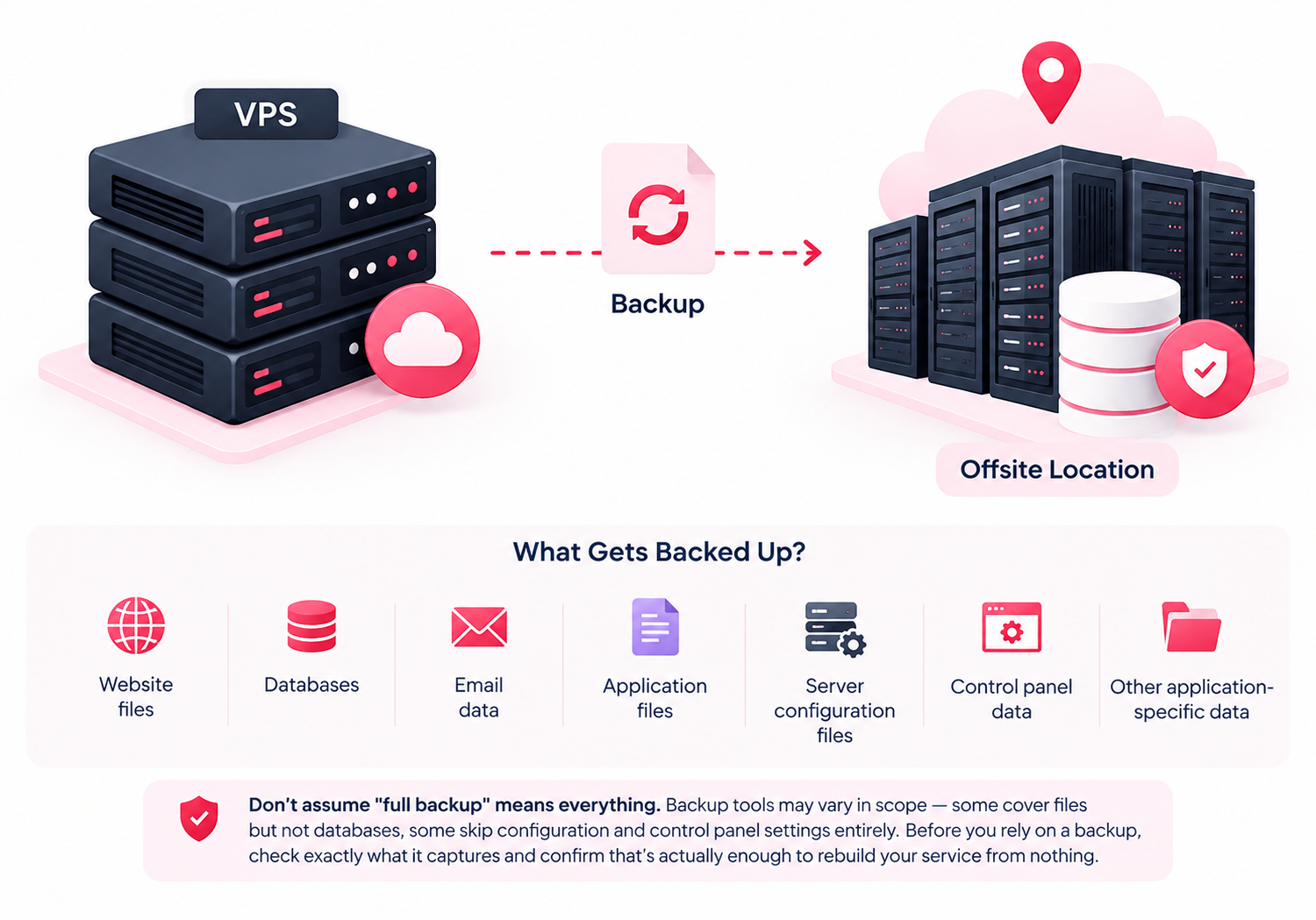
An offsite VPS backup is a copy of your VPS data stored outside the environment where the VPS itself runs — and, depending on the setup, in a different physical location entirely.
VPS → Remote Backup Storage
The VPS keeps running normally while a copy of its data is written to a separate destination.
Depending on the backup system, that copy may include:
- Website files
- Databases
- Email data
- Application files
- Server configuration files
- Control panel data
- Other application-specific data
Don’t assume “full backup” means everything. Backup tools vary widely in scope — some cover files but not databases, some skip configuration and control panel settings entirely. Before you rely on a backup, check exactly what it captures and confirm that’s actually enough to rebuild your service from nothing.
Why Offsite Backups Matter
Picture a VPS running a website and its database. A backup runs on schedule — but it’s stored on the same disk, or the same storage cluster, as the live site. If that storage fails, both copies can go down together.
An offsite copy breaks that dependency. It protects against:
- VPS or hardware failure
- Storage failure
- Accidental deletion
- File-system corruption
- Server misconfiguration
- Ransomware and other security incidents
- Broader infrastructure outages
Offsite storage doesn’t eliminate every risk — a compromised admin account or a botched retention policy can still cause data loss — but it removes the single biggest one: one incident taking out everything at once.
Offsite vs. Local Backups
|
Backup Type |
Storage Location |
Trade-off |
|
Local backup |
Same server or infrastructure |
Fast to restore, but shares fate with the original |
|
Offsite backup |
Separate remote infrastructure |
Better isolation, slightly slower to restore |
|
Multiple offsite copies |
Separate locations/providers |
Greater redundancy, with more management and storage cost |
Local backups still have a place — they’re the fastest way to undo a small mistake. Using both local and offsite backups can provide a balance between faster recovery and protection from infrastructure-level failures.
How Offsite Backups Work
- The backup runs. On a defined schedule, the backup system creates a copy or snapshot of the selected data — how often depends on how fast your data changes and how much loss you can tolerate.
- It’s transferred off the server. The backup (or a snapshot/recovery point) moves automatically to remote storage — a different host, provider, or data center from the VPS itself.
- It’s retained under a policy. The remote system keeps a defined number of past backups rather than just the latest one, based on your retention settings.
- It’s restored when needed. If the original data is lost or corrupted, you restore from the remote copy. The exact steps depend on your provider and backup tooling.
Two settings do most of the work here: backup frequency controls how often new recovery points are created; retention controls how long you can go back if the newest one turns out to be bad.
How Often Should You Back Up?
There’s no universal answer — it comes down to your recovery point objective (RPO): how much data you can afford to lose if the VPS fails right before the next scheduled backup.
Rough guidance:
- A rarely updated brochure site: daily or even weekly backups may be enough.
- An e-commerce store or transaction-heavy application: may need hourly or more frequent backups, depending on its RPO.
- A database-driven app with frequent writes: frequent, database-aware backups (not just file snapshots) matter more than frequency alone.
If losing the last 24 hours of orders would hurt your business, a once-a-day backup schedule isn’t protecting you as much as it feels like it is.
How Many Copies Should You Keep?
One offsite copy beats zero, but a single copy is still a single point of failure if it’s corrupted, incomplete, or silently broken. A reasonable retention approach considers:
- Number of copies retained
- How far back you can restore
- Where each copy is stored
- How often new copies are made
- Whether copies are actually verified as restorable
Keeping several recovery points — not just the latest — means a bad backup (corrupted, incomplete, or hit by ransomware) doesn’t wipe out your only fallback.
Securing Offsite Backups
An offsite backup holds the same sensitive data as your live server, so it deserves the same level of protection.
Encrypt it. Confirm how your provider handles encryption both in transit and at rest — don’t assume it’s covered by default.
Restrict access. Only people and services that need it should be able to reach the backup system. Avoid reusing broad admin permissions here.
Use separate credentials. Backup storage shouldn’t share logins with the VPS itself. If the VPS is compromised, you don’t want the attacker to walk straight into the backups too.
Plan for ransomware specifically. Attackers who gain access to a server may also attempt to access connected backups. Keeping backup infrastructure genuinely separate — and limiting who can delete or overwrite backup data — closes that door. For critical systems, look for immutable or write-once backup storage, which blocks modification or deletion for a set retention window even if credentials are compromised.
Remember: offsite ≠ immune. Moving a backup off the primary server protects it from local failures, but it’s not automatically ransomware-proof or breach-proof. Access controls, monitoring, and immutability are what actually provide that protection — the offsite part alone doesn’t.
A Completed Backup Isn’t Automatically a Usable One
This is the mistake that hurts the most in practice: a backup job reporting “success” tells you the job ran — not that the data can actually be restored.
Check periodically that:
- Backup files or recovery points exist and are reachable
- Jobs are completing on schedule, not silently failing
- Backup sizes look right (a sudden drop usually means something’s missing)
- Files restore cleanly
- Databases restore and are queryable, not just present as a file
For anything business-critical, actually run a test restore — not just a status check — on a regular schedule.
Common Mistakes
Keeping every copy in one place. If all your backups live in the same data center as production, one infrastructure-wide event can still take out everything.
Keeping only the latest backup. If that one copy is corrupted or contains a mistake you didn’t catch in time, there’s nothing to fall back on.
Never testing a restore. A backup you’ve never restored is a theory, not a plan.
Weak access controls on the backup itself. Remote storage still holds sensitive data — treat it with the same security posture as production, not as an afterthought.
Treating backups as a substitute for security. Backups help you recover after something goes wrong. They don’t prevent it. Hardening your server is a separate, necessary layer.
RPO and RTO: The Two Numbers That Matter
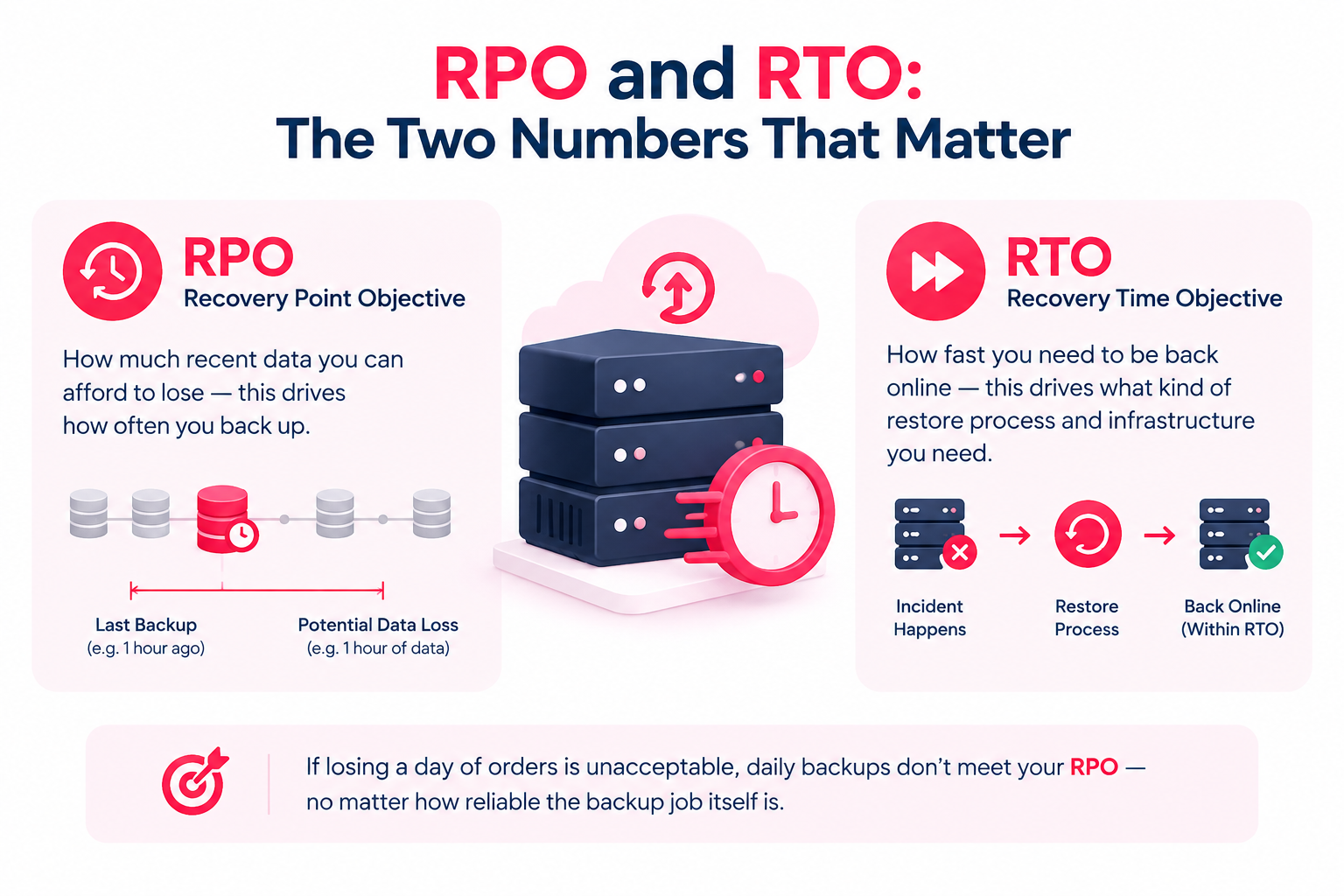
- Recovery Point Objective (RPO): how much recent data you can afford to lose — this drives how often you back up.
- Recovery Time Objective (RTO): how fast you need to be back online — this drives what kind of restore process and infrastructure you need.
If losing a day of orders is unacceptable, daily backups don’t meet your RPO — no matter how reliable the backup job itself is.
Offsite VPS Backup Checklist
- [ ] Backups are stored outside the primary VPS environment
- [ ] Backup frequency matches how fast your data changes
- [ ] Multiple recovery points are retained, not just the latest
- [ ] Backup storage has its own access controls and credentials
- [ ] Backup data is encrypted in transit and at rest
- [ ] Backup jobs are monitored for silent failures
- [ ] Backup integrity is checked, not just job status
- [ ] Restore tests happen on a regular schedule
- [ ] Retention policy is documented and enforced
- [ ] The restore process itself is written down somewhere your team can find it
When Offsite Backups Are Worth Prioritizing
They matter most when your VPS holds data that would be slow, expensive, or impossible to recreate:
- Business websites and e-commerce stores
- Customer or transaction databases
- WordPress sites with significant content or user data
- Web applications with user-generated data
- Development environments holding work that isn’t stored anywhere else
The more that data is worth, the more it’s worth asking not just “do I have a backup?” but “where does it live, and have I actually proven I can restore it?”
Conclusion
An offsite VPS backup adds a meaningful layer of protection by keeping a recovery copy separate from the infrastructure running your production VPS. But location alone isn’t the whole story — frequency, retention, encryption, access control, and tested restores all determine whether that backup actually saves you when you need it.
If you’re hosting on CreativeON, it’s worth reviewing where your backup destination sits, how retention is configured, and whether restores have actually been tested — as part of a broader VPS backup strategy, not a one-time setup step. For related topics, see our guides on VPS Backup Verification, VPS Server Hardening, and VPS Backup & Disaster Recovery.
FAQ
