
A virtual private server (VPS) needs regular monitoring and maintenance to remain secure, stable, and reliable. Daily VPS administration tasks help you identify performance problems, review security alerts, confirm that essential services are running, and detect backup failures before they become serious issues.
You do not need to make major changes to your server every day. A consistent routine of checking server health, disk space, application availability, security events, and backup status can help you identify problems early and respond before they cause unnecessary downtime.
This guide explains the daily tasks Linux VPS administrators should perform, the commands they can use, how to interpret common results, and what to investigate when something looks wrong.
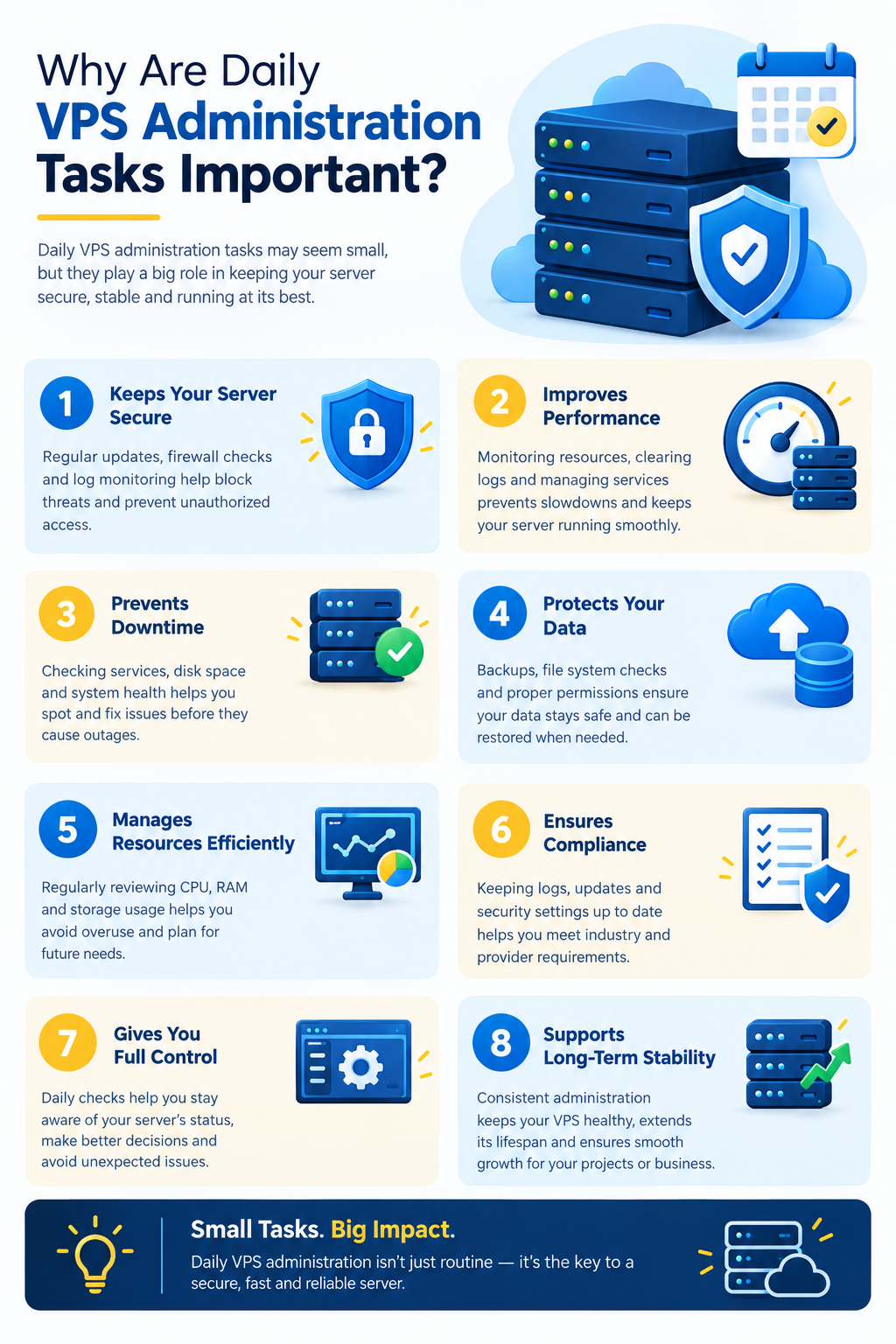
Why Are Daily VPS Administration Tasks Important?
A VPS runs an operating system, applications, web servers, databases, and other services. A problem in any of these components can affect website availability, application performance, or data security.
Regular administration helps you:
- Detect performance problems: Identify unusual CPU usage, memory pressure, and low disk space.
- Maintain server security: Review login activity, investigate security alerts, and check for important updates.
- Reduce service interruptions: Identify failed services and application errors early.
- Protect important data: Verify backup completion and investigate failed backup jobs.
- Maintain system stability: Monitor recurring errors, unexpected restarts, and changes in resource consumption.
- Plan maintenance properly: Identify updates, reboots, and configuration changes that require a maintenance window.
The workload depends on the server’s purpose. A VPS hosting a small website may need fewer checks than a production server running multiple websites, databases, email services, and business applications.
1. Check CPU, Memory, and Server Load
Start your daily VPS maintenance routine by checking the server’s overall resource usage. High CPU utilization, memory pressure, or excessive swapping can affect application performance.
Run these commands on a typical Linux VPS:
uptime
free -h
top
| Command | What it shows | What to investigate |
| uptime | Uptime, logged-in users, and load averages | An unusual or sustained increase in load |
| free -h | Memory and swap statistics | Memory pressure or increasing swap activity |
| top | Running processes and resource usage | Processes consuming unexpectedly high CPU or memory |
For a quick look at the processes using the most CPU or memory, run:
ps aux –sort=-%cpu | head
ps aux –sort=-%mem | head
These commands list the processes with the highest CPU and memory usage, respectively.
How to interpret resource usage
A single high reading does not necessarily indicate a problem. A server may temporarily use more CPU while processing backups, updating software, or handling a traffic spike.
Investigate when:
- CPU usage remains unusually high compared with the server’s normal workload.
- Load averages rise and applications become slow or unresponsive.
- Available memory becomes critically low or swap activity increases significantly.
- One process consumes resources unexpectedly or repeatedly.
Consider the number of CPU cores, application requirements, and historical monitoring data before deciding whether intervention is necessary.
If a process is consuming excessive resources, identify what it does before stopping it. Terminating a database, web server, or system process without understanding its role can cause service disruption or data loss.
2. Monitor Disk Space and Inode Usage
Storage problems can prevent applications from writing files, databases from updating data, and services from operating correctly. Disk space should therefore be part of every daily VPS administration checklist.
Check filesystem capacity:
df -h
Check inode availability:
df -i
Inodes track filesystem objects, including files and directories. A filesystem can run out of inodes even when it still has available disk space.
For a closer look at storage consumption under /var, run:
sudo du -xhd1 /var
This command works on Linux systems whose du supports these options. It summarizes the first directory level under /var without crossing filesystem boundaries.
What should you look for?
- Filesystems approaching their configured capacity limits.
- Sudden increases in disk usage.
- Large application logs, temporary files, or upload directories.
- Backup files accumulating beyond the intended retention period.
- High inode usage that may indicate excessive numbers of small files.
There is no universal disk-space percentage that indicates failure on every server. Establish alert thresholds appropriate to your workload and storage growth rate.
Safety precaution: Do not delete large files simply because they consume storage. Identify their purpose first, especially when dealing with database files, application uploads, system logs, or backups. Use the appropriate log rotation or cleanup process whenever possible.
3. Check Essential Services and Website Availability
A VPS can remain online while an important service is failing. For example, the operating system may be working normally even though its web server or database has stopped.
Check for failed systemd services:
systemctl –failed
Inspect individual services as needed:
systemctl status nginx
systemctl status apache2
systemctl status mysql
These service names are examples, not a list of services that must all be installed. Use the names appropriate to your system. A VPS may use Nginx or Apache, and its database may be MySQL or MariaDB.
What should you investigate?
- A required service that has unexpectedly stopped.
- Repeated service restarts.
- Failed services following software updates.
- Application errors after a configuration change.
- Services that appear active but do not respond to requests.
A service marked active does not prove that the complete application is functioning. Where possible, check your website or application from outside the server and verify its important functions.
For example, an online store may load its home page but fail during checkout because its database connection is unavailable.
When a service fails, inspect its status and logs before restarting it. A restart may temporarily restore service, but it will not necessarily resolve the underlying problem.
4. Review Security Alerts and Login Activity
Security monitoring is an important part of daily VPS administration, especially for servers accessible over the public internet.
On systems where the SSH service is named ssh, review recent authentication messages with:
sudo journalctl -u ssh –since “24 hours ago”
If your distribution uses the service name sshd, substitute that name.
You can also review recent login accounting records with:
last -a
The output depends on available login records, which may be rotated or unavailable on some systems.
What should you check?
- Unexpected successful logins.
- Unfamiliar administrative accounts or sessions.
- Repeated authentication failures involving sensitive accounts.
- Unauthorised changes to user privileges.
- Security alerts from monitoring tools or your hosting provider.
- Unexpected changes to SSH or firewall configuration.
Repeated failed SSH attempts are common on internet-facing servers. They are a reason to review your security controls, but they do not automatically prove a successful attack.
What should you do if something looks suspicious?
- Verify whether the activity came from an authorised user or system.
- Preserve relevant logs and record the time, account, and affected services.
- Investigate suspicious accounts, processes, and changes to privileged access.
- If compromise is suspected, follow an incident-response procedure and contain the threat safely.
- Review credentials and access controls, and restore the system from a trusted source if necessary.
Avoid deleting suspicious files or clearing logs before investigating. These actions can destroy useful evidence.
For additional protection, use appropriate SSH access controls, restrict administrative privileges, and expose only the network services required by your applications.
5. Check Available Security Updates
Operating-system and software updates help protect a VPS against known vulnerabilities and software defects.
On Ubuntu or Debian, refresh the package information and list available upgrades:
sudo apt update
apt list –upgradable
On a RHEL-based distribution that uses DNF, check for available updates with:
sudo dnf check-update
With DNF, an exit code of 100 can mean updates are available. It should not automatically be interpreted as a package-manager failure.
Ubuntu documents automatic security updates through unattended-upgrades, which runs daily by default in standard configurations where it is enabled. Administrators should still verify that the intended update policy is active and that failures are reported.
Ubuntu Server documentation+1
Daily update checklist
- Check for pending security updates and failed update jobs.
- Review relevant update logs or notifications.
- Prioritize urgent security fixes according to their severity and exposure.
- Confirm whether updates require service restarts or a reboot.
- Verify important applications after significant updates.
Do not assume that every available update should be installed immediately without considering production requirements. Follow a suitable maintenance policy, maintain an appropriate recovery option, and plan disruptive changes.
Important: Automatic updates reduce manual work, but they do not remove the need for monitoring, compatibility checks, or incident response. Never treat automatic updates as a substitute for an effective maintenance process.
6. Review System and Application Logs
Logs provide information about service failures, application errors, security events, and other issues that may not be visible from a website dashboard.
On systems using systemd, review recent warnings with:
sudo journalctl -p warning –since “24 hours ago”
To inspect kernel warnings from the past day:
sudo journalctl -k -p warning –since “24 hours ago”
The first command reviews warning-level and more severe messages in the system journal. The second focuses on kernel messages. Application logs may be stored elsewhere, depending on the software and configuration.
freedesktop.org
Look for recurring problems
| Log finding | Recommended action |
| Repeated web server errors | Check the affected virtual host, configuration, and application logs |
| Database connection failures | Review database availability, connection limits, and application settings |
| Disk or filesystem warnings | Check storage capacity and investigate filesystem or hardware-related errors |
| Repeated service restarts | Inspect the service logs and identify the underlying failure |
| Unusual authentication events | Verify account activity and review access controls |
Not every warning represents a fault, and some serious application problems may not appear as system warnings. Focus on recurring errors, unexpected changes, and events that coincide with user-facing problems.
Do not clear logs just to remove warnings from view. Preserve useful diagnostic information and follow the appropriate log retention policy.
7. Verify Backup Completion and Recovery Readiness
A backup is useful only if it contains the required data and can be restored when needed. Checking backup status is therefore one of the most important daily VPS administration tasks.
Review your backup system, hosting control panel, or backup monitoring dashboard.
Confirm that:
- The most recent scheduled backup completed successfully.
- The backup timestamp meets your recovery requirements.
- Expected files and databases are included.
- The destination has sufficient storage.
- Failed or incomplete jobs have been investigated.
- Backup retention is working as intended.
Where possible, store backups separately from the VPS they protect. Backups kept only on the same server may be lost if its storage fails or the server becomes compromised.
How often should you test backups?
The frequency depends on the importance of the data and your recovery requirements. Test restoration periodically in a safe environment rather than waiting for an emergency.
Two useful concepts help define your backup strategy:
- Recovery Point Objective (RPO): How much data loss, measured in time, the business can tolerate.
- Recovery Time Objective (RTO): How long the business can tolerate before the service is restored.
For example, a website that can tolerate losing no more than a few hours of changes needs a backup strategy that supports that requirement. The exact schedule depends on the application, the backup method, and whether additional replication is needed.
A successful backup message does not prove that every file or database is recoverable. Keep restoration testing as part of your wider maintenance plan.
8. Check Website and Application Availability
A running VPS does not guarantee that its websites or applications are working correctly. DNS problems, expired TLS certificates, database errors, and application failures can all affect visitors.
For a basic HTTPS response check, run:
curl -I –max-time 10 https://example.com
Replace example.com with your domain.
This sends a HEAD request, which requests response headers rather than the full response body. Some applications handle HEAD requests differently, so a failed HEAD request does not always mean that a normal page request will fail.
To make a basic GET request instead, use:
curl -sS -o /dev/null -w “%{http_code}\n” \
–max-time 10 https://example.com/
This displays the HTTP response code when a response is received. A code alone does not prove that the application works correctly, and connection errors or timeouts require separate investigation.
What should you check?
- Whether important websites respond from outside the VPS.
- Whether response times have increased unexpectedly.
- Whether important functions, such as logins and forms, work correctly.
- Whether TLS certificates are valid and renewals are functioning.
- Whether DNS resolves to the intended destination.
- Whether external monitoring reports an outage.
For business-critical services, use automated uptime monitoring and meaningful alerts. Manual checks are useful, but they cannot detect every incident between scheduled reviews.
9. Review Network Ports and Firewall Rules
Network checks help administrators identify unexpected listening services, connectivity problems, and configuration changes.
List listening TCP and UDP sockets with:
sudo ss -tulpn
This shows listening sockets and associated process information where available. Review whether each service needs to accept connections from the public internet.
For example, a database used only by applications on the same VPS generally should not be publicly accessible unless the architecture specifically requires it and suitable access controls are in place.
Check firewall status using the firewall tool configured on your system.
For UFW:
sudo ufw status verbose
For firewalld:
sudo firewall-cmd –state
sudo firewall-cmd –list-all
These tools are not interchangeable, and not every Linux distribution uses either one.
Also consider network rules configured by your cloud or VPS provider. A provider firewall or security group may operate separately from the firewall inside the operating system.
Daily network checks
- Investigate unexpected listening ports.
- Confirm that required firewall rules remain in place.
- Review alerts for unusual network activity or bandwidth changes.
- Check whether administrative services are exposed unnecessarily.
- Verify that essential services remain reachable.
Remote administration warning: Do not change firewall rules remotely without confirming that your SSH or other management connection will remain available. Keep access to a provider console or another recovery method where possible.
10. Review Maintenance Alerts and Record Follow-Up Actions
The final step is to record problems, actions taken, and outstanding work.
A short maintenance log helps you compare current server health with previous checks, identify recurring faults, and understand whether a configuration change improved or worsened performance.
Record relevant information such as:
- Unusual CPU, memory, or disk usage.
- Failed services and the corrective action taken.
- Pending security updates or reboot requirements.
- Backup failures and restoration concerns.
- Website availability incidents.
- Suspicious login activity.
- Firewall changes and unresolved alerts.
If you manage multiple VPS instances, a centralized monitoring dashboard can help you track resource usage, service availability, and alerts in one place.
The goal is not to make a change every day. It is to understand the server’s current condition, identify important deviations, and respond appropriately.
Daily VPS Administration Checklist
Use this checklist as a repeatable routine. Adapt it to your Linux distribution, installed services, monitoring tools, and business requirements.
- Check CPU, memory, swap, and system load.
- Review disk capacity and inode availability.
- Check essential services and website availability.
- Review security alerts and recent login activity.
- Check available security updates and failed update jobs.
- Review important system and application errors.
- Verify backup completion and investigate failures.
- Review listening ports and firewall status.
- Record incidents and assign follow-up actions.
For a small, healthy VPS, the initial checks may take around 10–20 minutes. More complex environments may need additional time, particularly when an alert requires investigation. These are illustrative estimates, not guaranteed completion times.
Daily, Weekly, and Monthly VPS Maintenance
Not every administrative task needs to be performed daily. Separating routine monitoring from planned maintenance helps avoid unnecessary changes while ensuring that important tasks are not overlooked.
| Frequency | Recommended activities |
| Daily | Check server health, service availability, security alerts, update status, and backup completion |
| Weekly | Review resource trends, recurring errors, storage growth, and update history |
| Monthly or on a defined schedule | Audit user access, review firewall rules, test backup restoration, and assess capacity and maintenance policies |
| As needed | Apply urgent security fixes, investigate incidents, restore services, and increase capacity when necessary |
These intervals are a starting point, not a universal rule. A high-traffic production VPS may require continuous monitoring and more frequent checks, while a development server may have less demanding operational requirements.
Urgent security fixes and active incidents should be addressed according to their severity rather than waiting for a scheduled maintenance day.
Common VPS Administration Mistakes to Avoid
Even experienced administrators can introduce problems when routine monitoring turns into unnecessary or poorly planned changes.
Avoid these mistakes:
- Updating production systems without a recovery plan: Understand the potential impact of significant changes and maintain an appropriate recovery option.
- Rebooting unnecessarily: Restart only when there is an operational reason, and plan for possible downtime.
- Deleting logs or large files without investigation: This can destroy diagnostic evidence or break applications.
- Assuming a successful backup is recoverable: Periodically test restoration.
- Ignoring recurring warnings: Repeated errors can indicate underlying configuration, performance, or security problems.
- Exposing unnecessary network ports: Limit access to what the application actually requires.
- Relying only on manual checks: Use automated monitoring and alerts for important services.
- Restarting services without understanding the cause: Investigate the failure first so that the underlying issue is not missed.
A good VPS maintenance routine prioritizes observation, verification, and controlled corrective action.
Frequently Asked Questions
