
A VPS backup checklist helps you confirm that your server data is backed up, protected, and recoverable when needed. From backup frequency and retention to offsite storage and restore testing, these essential checks can help you identify weaknesses in your VPS backup strategy before data loss occurs.
Whether you run a business website, an online store, or a business application on a virtual private server, reviewing your backup arrangements regularly can reduce the risk of losing important data.
Use this checklist to assess your current setup and identify areas that need improvement.
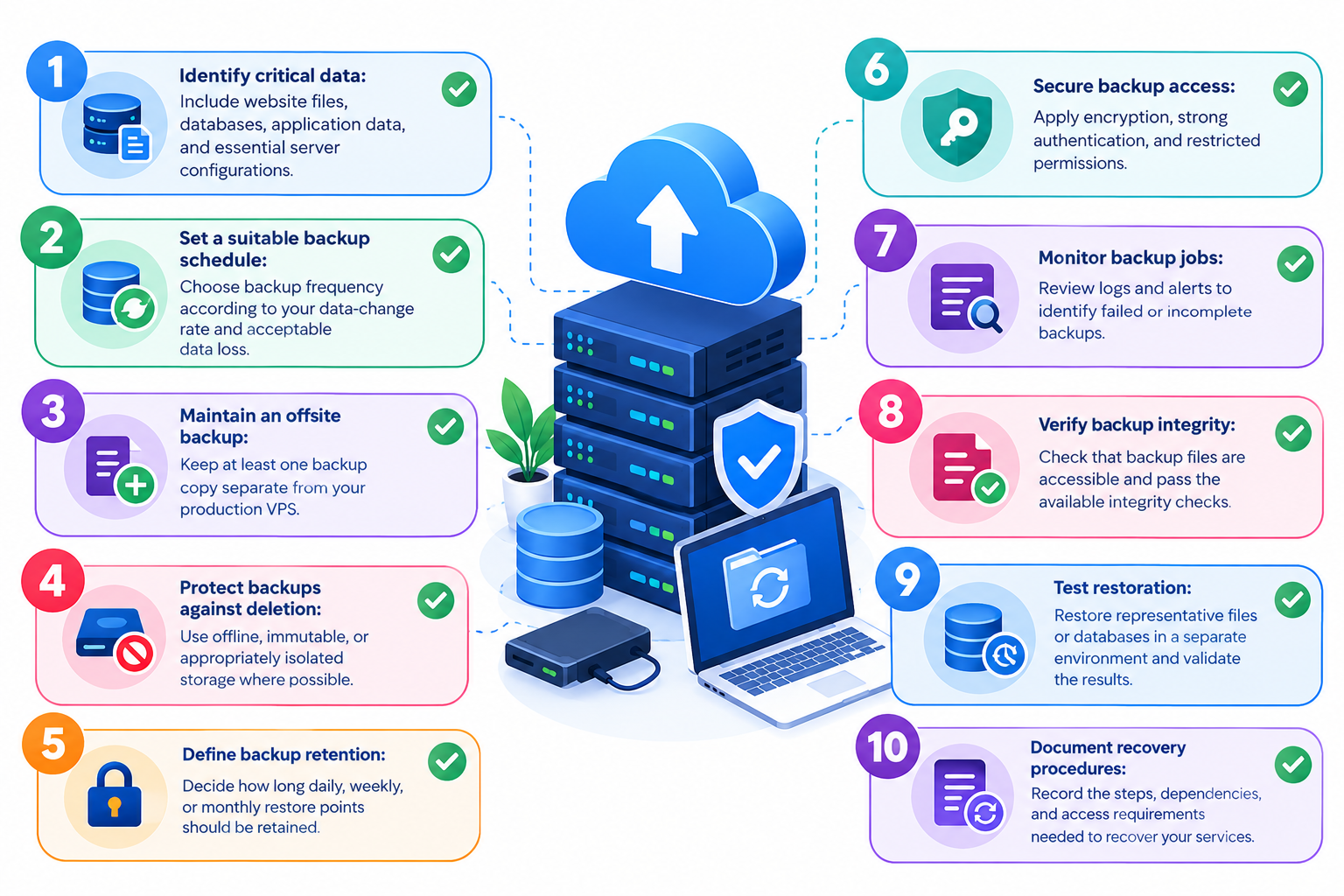
VPS Backup Checklist: 10 Essential Checks
Use the following checklist to review the most important parts of your VPS backup process.
- Identify critical data: Include website files, databases, application data, and essential server configurations.
- Set a suitable backup schedule: Choose backup frequency according to your data-change rate and acceptable data loss.
- Maintain an offsite backup: Keep at least one backup copy separate from your production VPS.
- Protect backups against deletion: Use offline, immutable, or appropriately isolated storage where possible.
- Define backup retention: Decide how long daily, weekly, or monthly restore points should be retained.
- Secure backup access: Apply encryption, strong authentication, and restricted permissions.
- Monitor backup jobs: Review logs and alerts to identify failed or incomplete backups.
- Verify backup integrity: Check that backup files are accessible and pass the available integrity checks.
- Test restoration: Restore representative files or databases in a separate environment and validate the results.
- Document recovery procedures: Record the steps, dependencies, and access requirements needed to recover your services.
Completing these checks provides a useful starting point for evaluating your VPS backup arrangements. The right configuration will depend on your applications, hosting environment, and recovery requirements.
1. Confirm That All Critical Data Is Included
A backup is useful only if it contains the data required to restore your services.
Depending on your VPS setup, review whether your backups cover:
- Website and application files: Website content, application code, uploaded files, and media.
- Databases: MySQL, MariaDB, PostgreSQL, or other databases used by your applications.
- Server configuration: Relevant web server, PHP, application, firewall, and service settings.
- Email data: Mailboxes and related data if your VPS hosts email services.
- Control panel data: Relevant cPanel, WHM, or other control panel information where supported.
- Recovery dependencies: Software versions, application dependencies, scheduled tasks, and deployment information needed to rebuild the environment.
Database backups require particular attention. Simply copying live database files may not produce a consistent backup if data is changing during the process. Use a database-aware backup method, a consistent snapshot, or another supported approach that accounts for ongoing writes.
Not every VPS requires every item listed above. Identify what your applications need and confirm that your chosen backup method covers those components.
2. Review Your VPS Backup Frequency
Backup frequency determines how much recent data you could lose if a server problem occurs between successful backups.
For example, if your latest successful database backup is 24 hours old, changes made since that backup may not be recoverable from that copy.
Use your business requirements to determine the appropriate schedule.
Workload | Possible starting point |
Frequently updated e-commerce website | Every few hours, or more frequently if required |
Business website with regular updates | Daily |
Low-change informational website | Daily or several times per week, depending on risk |
Business-critical database | Frequent backups or transaction-log protection where supported |
These are illustrative starting points, not universal recommendations. The correct frequency depends on how often data changes, how much data loss is acceptable, and which backup methods your environment supports.
Two measurements can help you make this decision:
- Recovery Point Objective (RPO): The maximum amount of data loss your business can tolerate, expressed as a period of time.
- Recovery Time Objective (RTO): The target time within which your services should be restored.
For example, an RPO of four hours means your recovery strategy should aim to limit data loss to four hours of changes. Your backup frequency and recovery method must be capable of meeting that objective.
3. Keep a Separate Offsite VPS Backup
A backup stored only on the production VPS may be lost if the server or its storage fails, or if an attacker gains control of the system.
An offsite VPS backup adds protection by keeping a copy in a separate storage location or infrastructure environment.
Possible destinations include:
- A separate backup server.
- Cloud object storage.
- A dedicated remote backup system.
- Geographically separate storage for additional protection against site-wide incidents.
However, offsite does not automatically mean ransomware-resistant. If a compromised production server can delete every backup using its existing credentials, the remote copy may also be vulnerable.
Where possible, maintain at least one copy that is offline, immutable, or otherwise protected from modification and deletion by compromised production credentials.
Also consider backup access permissions, storage costs, and the time required to retrieve large backup files during recovery.
For implementation details, see the related guide: Offsite VPS Backups.
4. Define a Backup Retention Policy
Backup retention determines how long previous backup copies remain available.
Keeping only the latest backup can be risky if a corrupted file, compromised application, or accidental deletion goes unnoticed for several days.
Your retention policy should define:
- How many daily backups to keep.
- Whether weekly or monthly restore points are required.
- How long older backups should remain available.
- When backups can be deleted.
- Whether different data types need different retention periods.
For example, a business might retain daily backups for 14 days and weekly backups for eight weeks. This is an illustrative policy, not a universal standard.
Choose retention periods according to your recovery needs, available storage, and applicable business or legal obligations. Also confirm that automated cleanup processes cannot remove backups you still need.
5. Secure Your Backup Files
VPS backups may contain customer information, database records, application files, and other sensitive data. They need appropriate protection against unauthorized access and deletion.
Include these security checks in your backup review:
- Encryption: Protect backup data in transit and at rest where supported.
- Restricted access: Allow only authorized users and services to access backup storage.
- Separate credentials: Avoid relying on the same unrestricted credentials for production and backup administration.
- Multifactor authentication: Enable it for backup management accounts where available.
- Encryption-key protection: Store keys securely and separately from the backup files, with a documented recovery process.
- Deletion protection: Limit the ability of a compromised production account to delete all backup copies.
- Access monitoring: Review logs for unexpected access or deletion attempts.
Encryption helps protect confidentiality, but it does not guarantee that data can be recovered. You must also preserve access to the keys and credentials needed to decrypt the backup.
For broader server security measures, see the VPS Server Hardening Checklist.
6. Monitor Backup Jobs and Check Their Integrity
A scheduled backup is not necessarily a successful backup. Storage limitations, expired credentials, network problems, permission errors, and database failures can prevent a job from completing properly.
Review the following regularly:
- Scheduled backup jobs complete as expected.
- Files reach the correct backup destination.
- Backup logs show no unresolved errors.
- Storage capacity is sufficient for upcoming backups.
- Failed jobs trigger alerts or notifications.
- Backup files pass the integrity checks available in your backup system.
- Unexpected changes in backup size are investigated.
A file’s presence or size alone does not prove that the data is complete or recoverable. Integrity checks can identify certain problems, but they cannot replace restoration testing.
For a more detailed examination of backup validation, use a dedicated VPS Backup Verification Guide, if available.
7. Test VPS Backup Restoration
Restore testing confirms whether your backups can be used to recover actual data. This is an important part of any reliable VPS backup strategy.
A basic test should include:
- Select a recent backup.
- Confirm that the necessary backup files, credentials, and encryption keys are available.
- Restore representative files or a database in a separate test environment.
- Check file permissions, database consistency, and application functionality.
- Confirm that the restored data matches the expected recovery point.
- Record how long the restoration took.
- Document any problems and correct the recovery procedure.
If your business depends on recovering an entire server, test full-server restoration as well. Restoring a few website files does not demonstrate that a complete VPS can be recovered successfully.
Repeat these tests periodically and after significant changes to your backup infrastructure.
For practical restoration instructions, link to How to Restore a VPS Backup when that guide is available.
8. Document Your Recovery Procedure
When a VPS becomes unavailable, administrators need clear recovery instructions.
Maintain documentation covering:
- Backup destinations and access procedures.
- Backup schedules and retention policies.
- Steps for retrieving and decrypting backup copies.
- Software versions and application dependencies.
- Procedures for restoring files, databases, and server configurations.
- DNS or network changes that may be needed after recovery.
- Hosting-provider support details and escalation procedures.
- The results of the latest restoration test.
Keep this documentation accessible even when your production VPS is unavailable. Do not store passwords, private keys, or encryption keys in an unprotected document.
A broader VPS Backup and Disaster Recovery Guide can cover recovery planning, business continuity, and related operational decisions in more detail.
Common VPS Backup Mistakes to Avoid
Even when backups are enabled, a few common mistakes can leave your data exposed.
- Keeping every copy on the same server: A server or storage failure may destroy both production data and local backups.
- Assuming successful jobs guarantee recovery: Backup logs alone cannot prove that a complete restoration will work.
- Ignoring database consistency: An unsuitable copy of a live database may be incomplete or inconsistent.
- Keeping too few restore points: A problem discovered late may have already affected your newest backups.
- Leaving backup deletion unrestricted: A compromised account may be able to destroy multiple backup copies.
- Ignoring storage capacity: Backups may fail when the destination runs out of space.
- Never testing full recovery: File-level restoration does not prove that an entire server can be rebuilt within your required recovery time.
Review these risks regularly and correct any weaknesses in your backup arrangements.
Frequently Asked Questions
