
A 429 Too Many Requests error means a component handling a request has detected that too many requests have been made within a given period and is temporarily rate-limiting the client.
HTTP status code: 429 Too Many Requests
The response can come from different layers, including an application, web server, reverse proxy, CDN, firewall, or API provider. The exact cause depends on which component is enforcing the request limit.
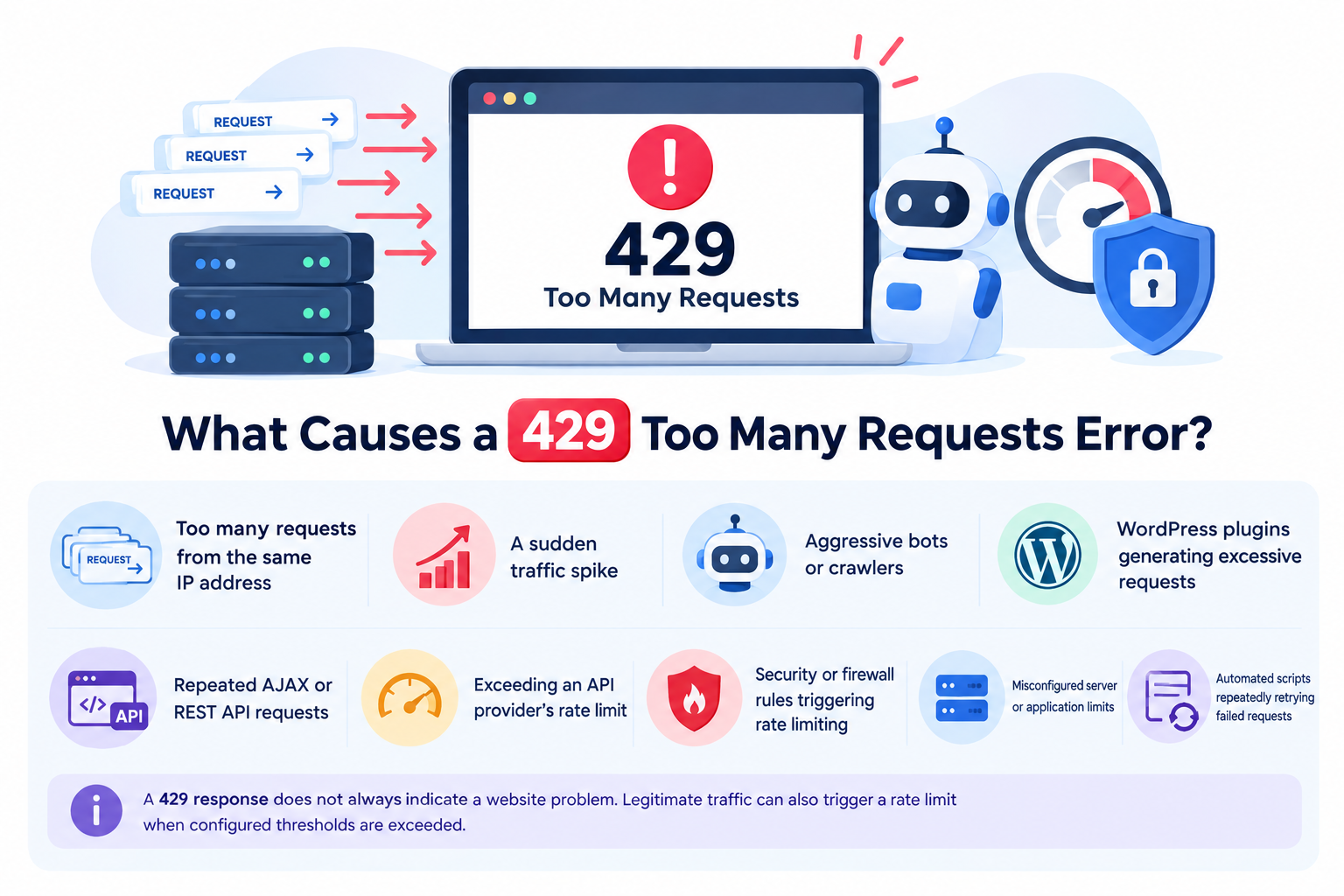
What Causes a 429 Too Many Requests Error?
A 429 error generally occurs when a client exceeds a configured request limit. Common causes include:
- Too many requests from the same IP address
- A sudden traffic spike
- Aggressive bots or crawlers
- WordPress plugins generating excessive requests
- Repeated AJAX or REST API requests
- Exceeding an API provider’s rate limit
- Security or firewall rules triggering rate limiting
- Misconfigured server or application limits
- Automated scripts repeatedly retrying failed requests
A 429 response does not always indicate a website problem. Legitimate traffic can also trigger a rate limit when configured thresholds are exceeded.
How to Fix the 429 Too Many Requests Error
1. Wait and Try Again
If the limit is temporary, waiting may allow the request limit to reset.
If the response includes a Retry-After header, follow the specified delay before sending another request.
Avoid repeatedly refreshing the page because additional requests can continue triggering the rate limit.
2. Identify Excessive Requests
If the error continues, determine which client or process is generating too many requests.
Check:
- Web server access logs
- Application logs
- WordPress debugging logs
- Firewall or security logs
- API usage statistics
- Server request monitoring
Look for repeated requests from the same IP address, URL, user agent, plugin, or API endpoint. This can help determine whether the traffic is legitimate or being generated by a faulty process.
3. Check WordPress Plugins, Themes, and Background Tasks
On WordPress websites, a plugin, theme, or background task can sometimes generate excessive requests.
Pay particular attention to:
- Security and monitoring plugins
- Backup plugins
- Broken AJAX requests
- Plugins communicating with external APIs
- Repeated requests to admin-ajax.php or /wp-json/
- Scheduled WordPress tasks
Temporarily disabling recently installed or updated plugins can help identify the source. If the 429 error disappears, re-enable plugins one at a time to locate the problem.
4. Review WordPress Cron Activity
Repeated background tasks can generate unnecessary requests.
Check scheduled tasks for jobs that:
- Run too frequently
- Fail and repeatedly retry
- Trigger external API requests
- Perform resource-intensive background operations
Correcting a problematic scheduled task can reduce unnecessary requests without simply increasing the rate limit.
5. Check Security and Firewall Rate Limits
A firewall, CDN, or security system may intentionally return HTTP 429 when request thresholds are exceeded.
Review the relevant rate-limiting rules and check whether legitimate traffic is being blocked.
If appropriate, adjust the rule rather than disabling protection completely. Make sure any change does not unnecessarily reduce your site’s security.
6. Check API Rate Limits
If the error occurs while using an API, check the provider’s request limits and usage.
You may need to:
- Reduce request frequency
- Batch requests where supported
- Cache appropriate API responses
- Implement exponential backoff
- Respect the Retry-After response
- Review your API quota
For automated applications, avoid retrying immediately after a 429 response. A delay or exponential backoff can prevent repeated requests from making the rate-limit problem worse.
7. Check the Layer Returning the 429
If you manage the infrastructure, determine which component is returning the response.
Check the:
- Web server
- Reverse proxy
- CDN
- Firewall
- Application
- API service
Comparing access, application, and security logs can help identify where the rate limit is being applied.
8. Clear Caches Only When Necessary
Caching is not normally the primary fix for a 429 error. If you have corrected a CDN, server, or application configuration and old behavior continues, clearing the relevant cache may help.
The important step is to fix the source of excessive requests first, rather than relying on cache clearing.
How to Find the Source of a 429 Error
The most useful approach is to determine who is generating the requests and where the limit is being applied.
Check the following:
- When does the error occur? — On one page, the WordPress dashboard, an API, or the entire website?
- Which IP or client is affected? — Check access and security logs.
- Which URL is being requested repeatedly? — Look for request patterns.
- Is a plugin or scheduled task responsible? — Test WordPress components.
- Is a firewall or CDN enforcing the limit? — Review rate-limit events.
- Is an external API involved? — Check its quota and request limits.
Look for repeated requests to the same URL, unusual user agents, repeated API calls, or specific WordPress endpoints such as admin-ajax.php and /wp-json/.
This helps distinguish a genuine traffic spike from an application, bot, or configuration problem.
Should You Increase the Rate Limit?
Not always.
If legitimate traffic regularly exceeds the configured threshold, increasing the limit may be appropriate. However, if excessive requests are caused by a faulty plugin, bot, script, or repeated API retries, increasing the limit can simply allow the underlying problem to continue.
Before increasing limits, identify the source of the requests and confirm that they are legitimate.
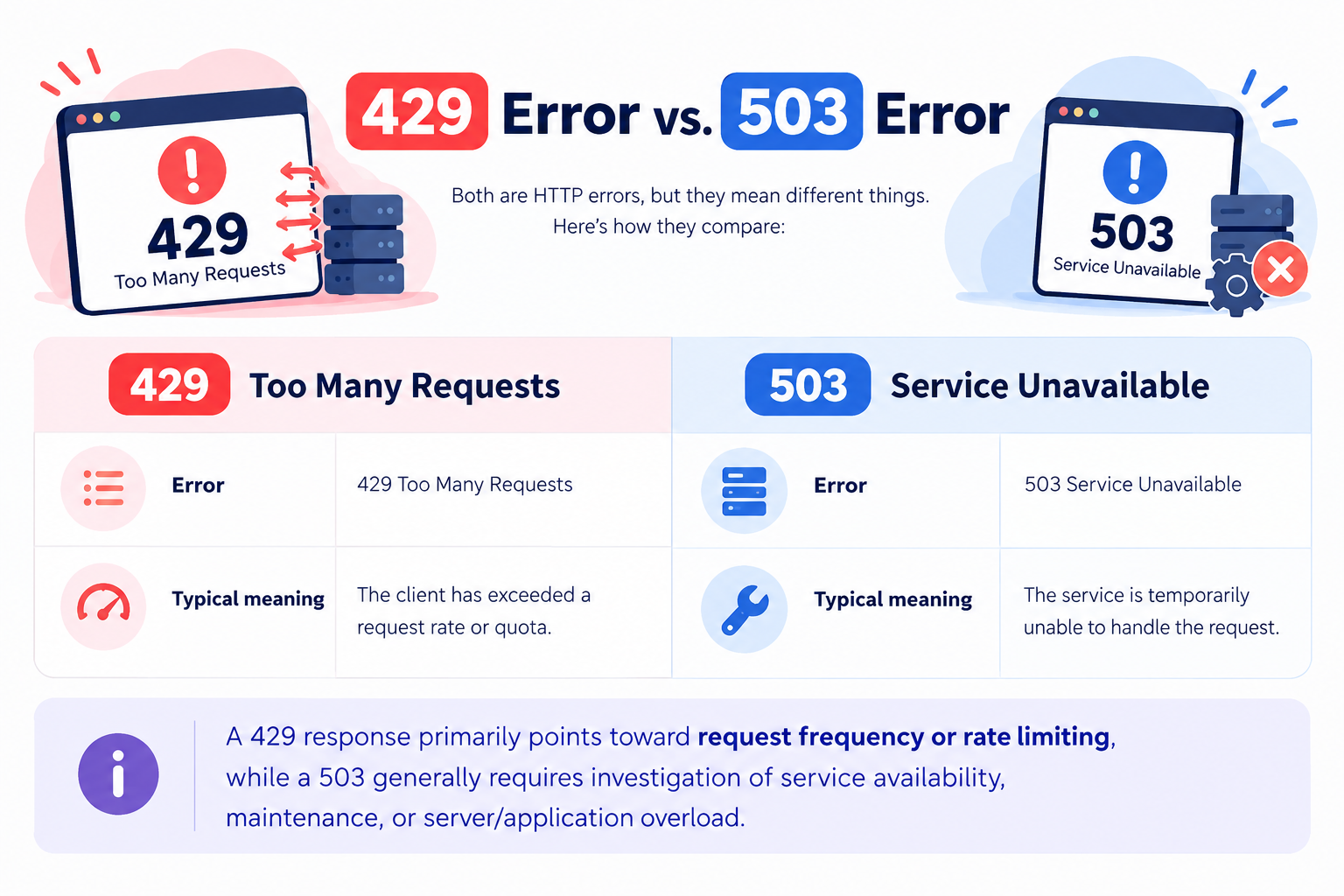
429 Error vs. 503 Error
These errors can look similar because both may prevent a request from completing, but they indicate different conditions.
|
Error |
Typical meaning |
|
429 Too Many Requests |
The client has exceeded a request rate or quota |
|
503 Service Unavailable |
The service is temporarily unable to handle the request |
A 429 response primarily points toward request frequency or rate limiting, while a 503 generally requires investigation of service availability, maintenance, or server/application overload.
Final Thoughts
The 429 Too Many Requests error is usually a rate-limiting response rather than a permanent website failure. Start by identifying the source of excessive requests, then check application activity, WordPress components, scheduled tasks, API limits, and security rules.
If the requests are legitimate, carefully adjusting the applicable rate limit may resolve the issue. If they are unnecessary or abusive, reducing or blocking those requests is the better approach.
The key is to identify why too many requests are being generated before simply increasing the limit.
