

If your website feels slow, crashes under traffic, or your hosting dashboard keeps flashing memory warnings, there’s a good chance RAM is the culprit. Figuring out how much RAM your VPS needs isn’t about picking the biggest number available — it’s about matching your server’s memory to what your applications actually do.
This guide breaks down exactly how much RAM a VPS needs based on real-world use cases, so you can choose (or upgrade) with confidence instead of guesswork.
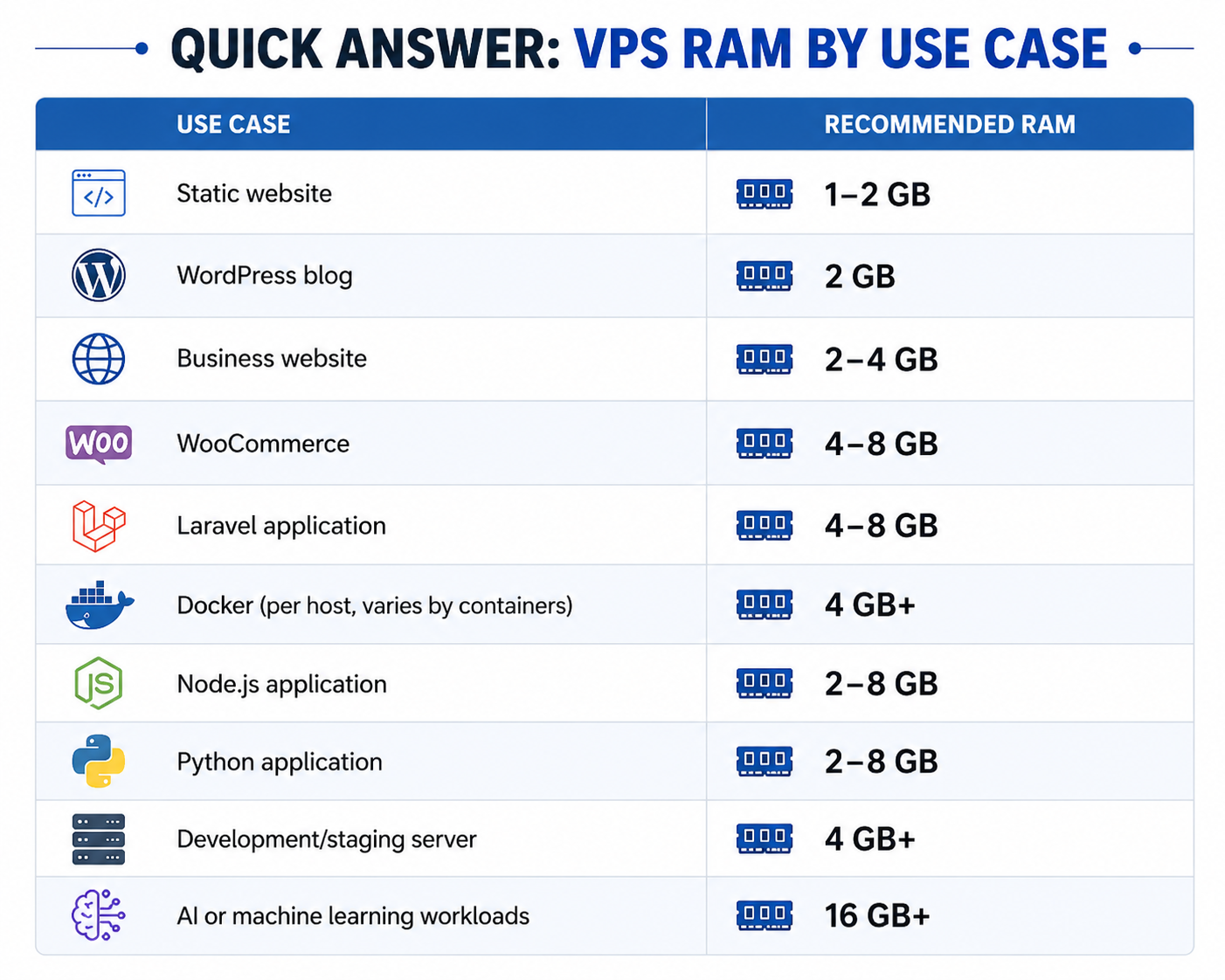
Quick Answer: VPS RAM by Use Case
If you just want a fast recommendation, start here:
| Use Case | Recommended RAM |
| Static website | 1–2 GB |
| WordPress blog | 2 GB |
| Business website | 2–4 GB |
| WooCommerce | 4–8 GB |
| Laravel application | 4–8 GB |
| Docker (per host, varies by containers) | 4 GB+ |
| Node.js application | 2–8 GB |
| Python application | 2–8 GB |
| Development/staging server | 4 GB+ |
| AI or machine learning workloads | 16 GB+ |
These are starting points, not hard rules. The sections below explain why your actual needs might sit higher or lower on each range.
Why RAM Matters on a VPS
RAM (Random Access Memory) is where your server temporarily stores data it’s actively working with — running processes, database queries, cached pages, and open connections. Unlike CPU, which handles processing power, available memory determines how many tasks your VPS can juggle at once without slowing down or crashing.
On a VPS, physical memory is fixed at the plan level. If you run out, your server doesn’t just slow down gracefully — it starts killing processes, throwing “out of memory” errors, or relying on slow disk-based swap space to compensate. That’s why picking the right VPS memory allocation upfront matters more than on shared hosting, where resource management is handled for you.
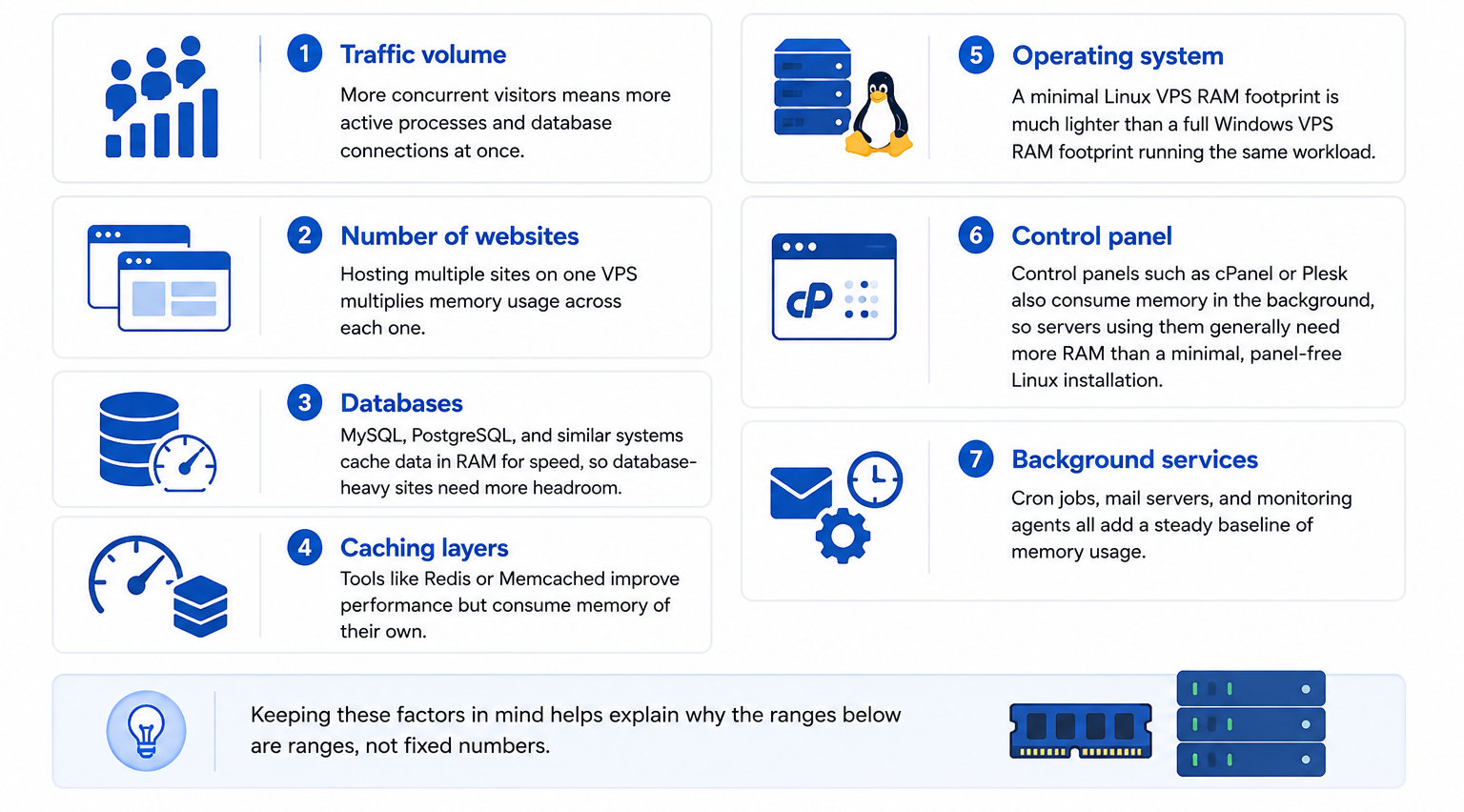
Factors That Affect RAM Requirements
Before matching your workload to a RAM tier, it helps to understand why two sites of the same “type” can need very different amounts of memory:
- Traffic volume — more concurrent visitors means more active processes and database connections at once.
- Number of websites — hosting multiple sites on one VPS multiplies memory usage across each one.
- Databases — MySQL, PostgreSQL, and similar systems cache data in RAM for speed, so database-heavy sites need more headroom.
- Caching layers — tools like Redis or Memcached improve performance but consume memory of their own.
- Operating system — a minimal Linux VPS RAM footprint is much lighter than a full Windows VPS RAM footprint running the same workload.
- Control panel — control panels such as cPanel or Plesk also consume memory in the background, so servers using them generally need more RAM than a minimal, panel-free Linux installation.
- Background services — cron jobs, mail servers, and monitoring agents all add a steady baseline of memory usage.
Keeping these factors in mind helps explain why the ranges below are ranges, not fixed numbers.
How Much RAM Does a VPS Need? (By Use Case)
Here’s a closer look at each RAM tier and what it typically supports.
1–2 GB RAM: Lightweight Sites and Basic Apps
This is enough for:
- Static websites (HTML/CSS, no database)
- A single low-traffic WordPress or blog site
- Small Node.js or Python scripts
- Testing environments
At this level, every megabyte counts, so lightweight software and caching become important rather than optional.
2–4 GB RAM: Standard Business Websites
Most small-to-medium business sites fall here, including:
- WordPress sites with moderate traffic (a few thousand visits/month)
- Sites running a handful of plugins or a page builder
- Small online stores with light traffic
- Basic mail or DNS hosting alongside a website
This range gives you breathing room for traffic spikes and background processes like backups or cron jobs without immediately hitting memory limits.
4–8 GB RAM: E-Commerce and Growing Applications
If your site does more than serve static pages, you’ll likely need this range:
- WooCommerce or other e-commerce platforms
- Sites with real-time features (chat, notifications, live search)
- Multiple WordPress installs on one VPS
- Applications with a dedicated database (MySQL, PostgreSQL) running alongside the web server
Databases are especially memory-hungry, since they cache query results and table data in RAM to avoid slow disk reads.
8–16 GB RAM and Above: High-Traffic or Resource-Intensive Workloads
This tier suits:
- High-traffic e-commerce stores
- Multi-site or multi-tenant hosting setups
- Applications with heavy background processing (video encoding, large-scale data analysis, machine learning inference)
- Development environments running multiple containers or virtual machines
At this stage, RAM sizing becomes less about “enough to run” and more about “enough to scale comfortably.” Memory needs at this level also tend to scale alongside CPU — if you’re sizing a server for heavier workloads, our guide on How Many CPU Cores Does a VPS Need? covers the other half of that equation.
RAM Recommendations for Popular Applications
Beyond general use cases, here’s a quick reference for specific platforms:
- WordPress: 2–4 GB covers most single-site installs comfortably. See our guide on the Best VPS Hosting for WordPress for platform-specific tips.
- WooCommerce: 4–8 GB, since product catalogs, sessions, and checkout processes add real memory overhead on top of WordPress itself.
- Laravel: 4–8 GB is typical, particularly once queues, caching, and a database are running alongside the application.
- Node.js: Memory needs depend heavily on concurrency; 2–8 GB is common depending on how many simultaneous connections your app handles.
- Docker: Allocate RAM per container need, not just per host — start with 4 GB and scale based on how many containers run simultaneously.
- Python: Usage varies by framework and workload, but 2–8 GB suits many web applications built on Django, Flask, or FastAPI.
Keep in mind that RAM is only one part of performance — storage speed matters too. If you’re unsure how much disk space to pair with your RAM, see our guide on How Much Storage Does a VPS Need?, or compare drive types in NVMe vs SSD VPS Hosting.
Can You Have Too Much RAM?
Yes. Extra RAM doesn’t improve performance if your applications aren’t using it — once a workload has enough memory to run comfortably, additional RAM often just sits idle. In most cases, it’s better to balance RAM with CPU and fast storage than to over-provision memory on its own. Oversized RAM allocations mainly add unnecessary cost, not extra speed.
Signs Your VPS Doesn’t Have Enough RAM
Rather than guessing, watch for these warning signs:
- Frequent 500 errors or site crashes during traffic spikes
- Slow page load times that worsen under load
- The OOM (Out of Memory) killer terminating processes, visible in system logs
- Heavy reliance on swap space, which uses your disk as overflow memory and is significantly slower than RAM
- Database or PHP processes randomly restarting
If you’re seeing more than one of these regularly, it’s a strong signal your current RAM allocation is undersized for your workload.
How to Check Your Current RAM Usage
Before deciding to upgrade, it’s worth confirming that memory usage — not CPU, disk, or software configuration — is actually the bottleneck. On most Linux VPS setups, commands like free -h or htop give a quick snapshot of memory usage, showing how much is used, free, and allocated to swap or cache.
If usage is consistently near 90–100% during normal operation (not just during rare spikes), that’s a clear indicator you’re running close to your limit.
What About Swap Memory?
Swap space acts as a safety net by using part of your disk as overflow memory when RAM runs out. It can prevent a server from crashing outright, but it’s not a substitute for adequate RAM — disk access is dramatically slower than RAM, so heavy swap usage often shows up as sluggish performance rather than a clean fix.
Configuring swap correctly is a useful safeguard, but it’s a separate topic from choosing the right RAM size. For a step-by-step walkthrough, see our dedicated guide on Configuring Swap Memory on a VPS.
Choosing the Right RAM: A Practical Approach
Rather than picking a plan based on price alone, consider this simple process:
- Identify your workload type (static site, CMS, e-commerce, database-driven app, etc.).
- Estimate current traffic and expected growth over the next 6–12 months.
- Check your current RAM usage if you’re already running a VPS.
- Leave headroom — aim for your average usage to sit around 60–70% of total RAM, not consistently at capacity.
- Plan for scalability by choosing a provider that allows easy RAM upgrades without a full server rebuild.
In practice, memory usage often grows over time as websites gain plugins, databases expand, and traffic increases. Choosing a VPS with an easy upgrade path can save you from unnecessary migrations later — and if you’re still deciding between environments, our comparison of Linux VPS vs Windows VPS covers how the operating system choice itself affects baseline memory needs.
Upgrading RAM on an Existing VPS
Most VPS providers, including CreativeON, allow RAM upgrades with minimal downtime, since VPS resources are typically adjustable without reprovisioning the entire server. If you’re consistently near your memory limit, upgrading is usually simpler — and safer — than trying to squeeze more performance out of an undersized plan through configuration tweaks alone.
For guidance on resizing your server without disrupting live traffic, check out our guide on Zero Downtime VPS Migration.
Conclusion
There’s no universal answer to how much RAM a VPS needs — it depends entirely on what you’re running and how much room you want for growth. Static sites can get by on 1–2 GB, while database-driven or high-traffic applications often need 8 GB or more. The safest approach is to monitor real usage, leave comfortable headroom, and choose a hosting setup that lets you scale RAM as your needs change.
At CreativeON, our VPS plans are built with flexible RAM tiers so you can start with what you need today and scale up smoothly as your project grows.
Frequently Asked Questions
