
If your website built on WordPress is loading slowly, it is not just a technical issue—it directly affects user experience, SEO rankings, and conversions.
The important thing to understand is this: WordPress is not inherently slow. It becomes slow due to performance bottlenecks introduced over time such as heavy media files, unnecessary scripts, plugin overload, and lack of proper optimization.
This guide focuses on 10 proven, real-world methods that directly improve WordPress speed without unnecessary theory or unrelated concepts.
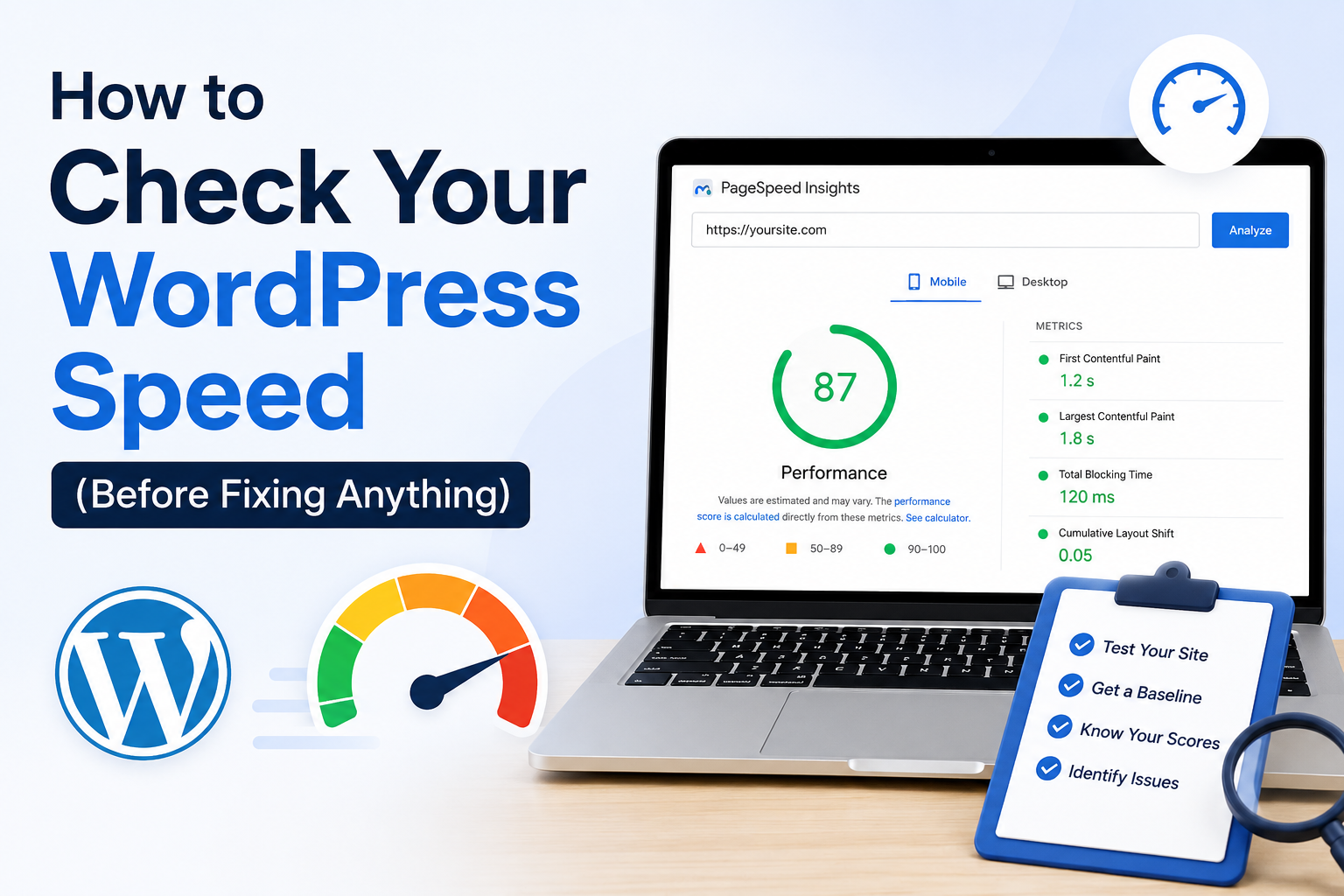
First: How to Check Your WordPress Speed (Before Fixing Anything)
Before applying optimizations, you need a clear baseline.
A proper speed analysis helps you identify what is actually slowing down your site instead of guessing.
You can use:
- Google PageSpeed Insights to check Core Web Vitals and performance score
- Load time analysis (initial + fully loaded time)
- Mobile performance check (often slower than desktop)
What you should observe:
- Largest Contentful Paint (LCP)
- Total Blocking Time (TBT)
- Image load delays
- Script delays
This step ensures your optimization is data-driven, not random.
What Actually Impacts WordPress Speed (Priority Order)
Not all optimizations have equal impact. If you want fast results, focus in this order:
- Caching system (highest impact)
- Image optimization
- Plugin cleanup
- Database optimization
- Script and CSS optimization
- CDN integration
Now let’s fix each area properly.
1. Enable a Proper Caching System
Caching is the foundation of WordPress performance. Without it, your server rebuilds every page request from scratch, which wastes resources.
A caching system stores a ready version of your pages so users receive content instantly instead of waiting for server processing.
What caching improves:
- Faster page delivery
- Reduced server load
- Better handling of traffic spikes
This is usually the highest ROI performance fix in WordPress optimization.
2. Optimize Images (Without Losing Visual Quality)
Large images are one of the most common reasons for slow websites.
Even a few unoptimized images can significantly increase page load time.
Best practices:
- Compress images before upload
- Use modern formats like WebP
- Resize images to actual display size (not oversized uploads)
Why this matters:
Browsers should never be forced to download more image data than necessary. That alone can cut loading time dramatically.
3. Remove Unnecessary Plugins
Every active plugin adds code execution, database queries, or script loading.
Too many plugins don’t just slow your site—they create performance conflicts.
Optimization approach:
- Keep only essential plugins
- Delete inactive plugins completely
- Replace heavy plugins with lightweight alternatives when possible
Think of plugins as “background workers”—too many workers slow down coordination.
4. Enable Lazy Loading for Media
Lazy loading ensures images and videos load only when they enter the user’s screen.
This reduces initial page weight and improves perceived speed.
Best for:
- Long blog posts
- Landing pages
- E-commerce product pages
Instead of loading everything at once, the browser loads content progressively.
5. Minify CSS, JavaScript, and HTML
Your website code contains extra characters like spaces, comments, and formatting that browsers don’t need.
Minification removes this unnecessary weight.
Result:
- Smaller file sizes
- Faster rendering
- Reduced blocking time
This improves both desktop and mobile performance.
6. Use a Lightweight Theme
Not all WordPress themes are built for performance.
Some themes include:
- Heavy animations
- Large script libraries
- Unused design elements
A lightweight theme focuses only on essential rendering, which improves speed significantly.
Key idea:
Less design bloat = faster rendering.
7. Clean and Optimize Your Database
Over time, WordPress databases accumulate unnecessary data such as:
- Post revisions
- Spam comments
- Auto drafts
- Expired transient data
Why this matters:
Every page request may involve database queries. A cluttered database slows those queries down.
Regular cleanup improves backend efficiency.
8. Use a Content Delivery Network (CDN)
A CDN distributes your website content across multiple global servers.
Instead of loading everything from a single location, users get content from the nearest server.
Benefits:
- Lower latency
- Faster global access
- Reduced server load
This is especially useful for websites with international traffic.
9. Reduce External Scripts and Third-Party Load
External scripts often come from:
- Analytics tools
- Chat widgets
- Ad networks
- External fonts
Each script adds extra HTTP requests and delays rendering.
Optimization strategy:
- Remove non-essential scripts
- Load scripts asynchronously where possible
- Audit third-party tools regularly
Less external dependency = faster page rendering.
10. Keep WordPress and PHP Updated
Outdated systems are slower and less efficient.
Updates in WordPress and PHP often include:
- Performance improvements
- Memory optimizations
- Better script handling
Why this matters:
Even perfect optimization cannot fully compensate for outdated core software.
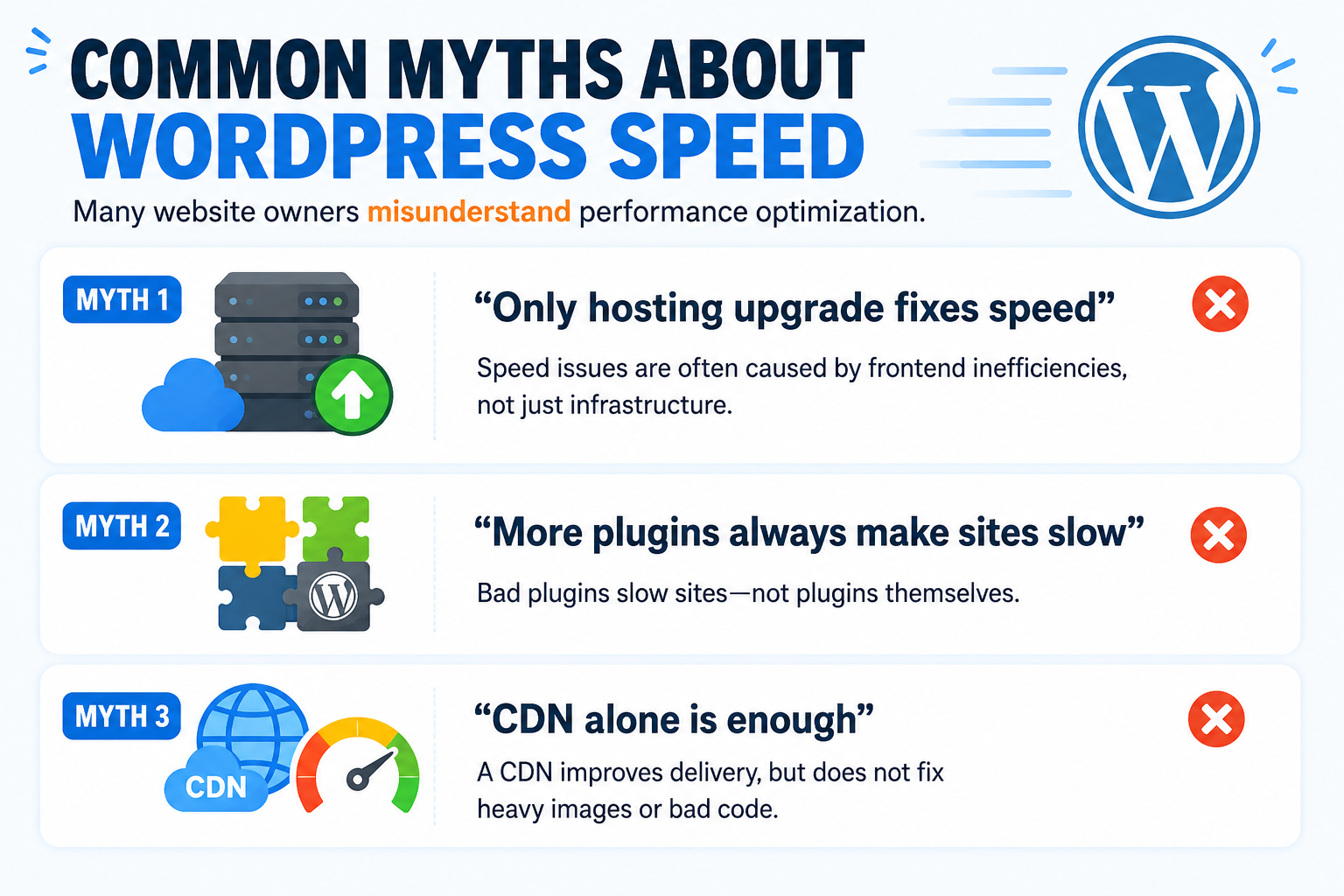
Common Myths About WordPress Speed
Many website owners misunderstand performance optimization.
Myth 1: “Only hosting upgrade fixes speed”
Speed issues are often caused by frontend inefficiencies, not just infrastructure.
Myth 2: “More plugins always make sites slow”
Bad plugins slow sites—not plugins themselves.
Myth 3: “CDN alone is enough”
A CDN improves delivery, but does not fix heavy images or bad code.
How to Measure Improvement After Optimization
After applying these methods, re-test your website using:
- Google PageSpeed Insights
- Mobile speed score comparison
- Load time before vs after optimization
What improvement looks like:
- Faster first load
- Reduced blocking time
- Improved Core Web Vitals scores
- Smoother mobile experience
Final Thoughts
Speed optimization in WordPress is not a single fix—it is a combination of small, targeted improvements that work together.
If you prioritize correctly, the biggest gains usually come from:
- caching
- image optimization
- plugin cleanup
Everything else fine-tunes performance further.
A well-optimized WordPress site is not just faster—it is more stable, more SEO-friendly, and significantly better for user engagement.
