
Have you ever joined a meeting on Google Meet and suddenly your camera stops working, the sound disappears, or the screen freezes? It can be stressful—especially if you’re in an online class, a team meeting, or talking to a client.
Guess what? Most Google Meet problems are easy to fix. In many cases, it only takes a few quick checks to get things working again.
In this friendly guide, we’ll walk through the most common Google Meet issues and simple fixes. You’ll learn how to solve them step-by-step using simple language.
If your business uses Google Workspace in Pakistan, these tips will also help your team run smoother meetings and avoid common technical problems.
What Is Google Meet?
Google Meet is a video meeting tool created by Google. It allows people to connect online using video, audio, and screen sharing.
People use it for many everyday situations like:
- Online classes
- Team meetings
- Client discussions
- Remote work
- Training sessions
Many companies use Google Meet through Google Workspace, which includes tools like Gmail, Google Drive, Google Docs, and Google Calendar.
Businesses that use Google Workspace Pakistan also get professional Business Emails, secure meetings, and better collaboration for teams.
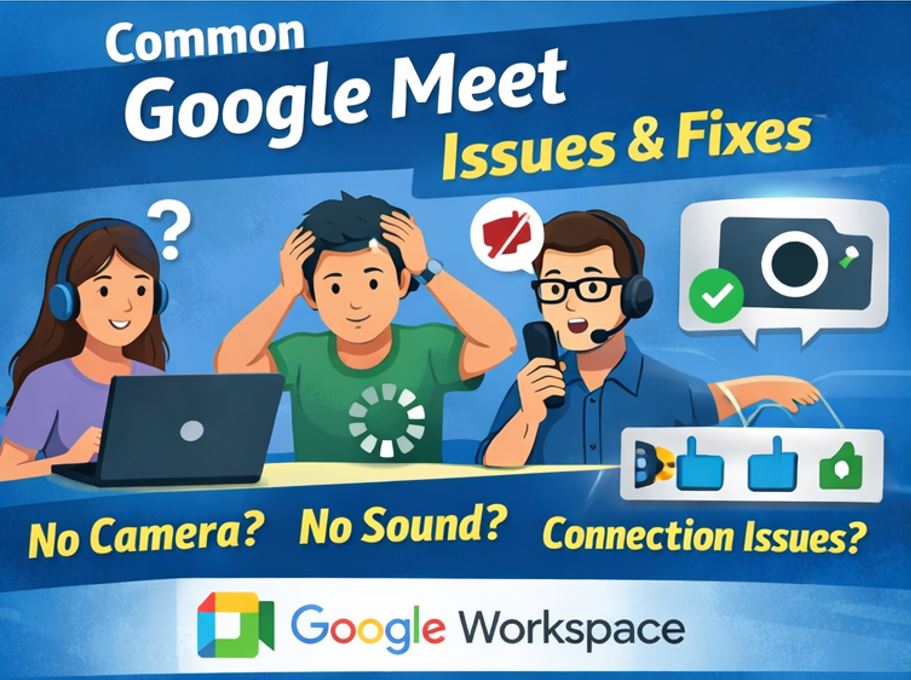
Why Google Meet Problems Sometimes Happen
Even reliable tools can have small issues.
Most Google Meet problems happen because of simple things, such as:
- Slow internet
- Camera or microphone permissions
- Browser problems
- Too many open apps
- Outdated software
The good news? These issues are usually quick to fix.
Let’s look at the most common ones.
1. Google Meet Camera Not Working
You join the meeting… but your camera shows a black screen.
Sound familiar?
Why this happens
Some common causes include:
- Camera permission blocked
- Another app using the camera
- Wrong camera selected
- Browser issue
How to fix it
Try these steps:
- Check camera permissions
- Click the lock icon in your browser’s address bar.
- Make sure camera access is allowed.
- Click the lock icon in your browser’s address bar.
- Close other apps
Apps like Zoom or Skype might already be using your camera. - Restart your browser
- Check Meet settings
- Click the three dots
- Select Settings
- Choose the correct camera.
- Click the three dots
💡 Tip: Always test your camera before an important meeting.
2. Microphone Not Working in Google Meet
Can you hear everyone but they can’t hear you?
That usually means the microphone isn’t working.
Common causes
- Microphone muted
- Wrong microphone selected
- Browser permission blocked
- Device settings issue
Easy fixes
Try this checklist:
- Make sure the mic icon is not muted
- Check microphone settings in Meet
- Allow microphone access in your browser
- Restart your device
Example:
If you’re attending a client meeting using Business Emails through Google Workspace, a microphone issue can slow down communication. Doing a quick mic test before the meeting helps avoid this.
3. No Sound in Google Meet
Sometimes you join a meeting but cannot hear anyone speaking.
Don’t worry—it’s usually a small setting.
Possible reasons
- Speaker muted
- Wrong speaker selected
- Headphones not connected properly
- Browser glitch
Quick solution
Try the following:
- Increase your computer volume
- Select the correct speaker in Meet settings
- Refresh the meeting page
- Try headphones or external speakers
4. Google Meet Screen Freezing or Lagging
If the video freezes or voices sound robotic, the issue is usually internet speed.
Why this happens
Video meetings need a stable connection. If the internet is slow, Google Meet may struggle.
How to fix it
Try these steps:
- Move closer to your Wi-Fi router
- Close extra apps or browser tabs
- Turn off your camera temporarily
- Use wired internet if available
Many companies using Google Workspace plans in Pakistan prefer stable office internet to keep meetings smooth.
5. Google Meet Won’t Join or Load
Sometimes the meeting page refuses to open.
This is usually caused by browser issues.
Easy fix
Try these steps:
- Refresh the page
- Update your browser
- Clear browser cache
- Try another browser
Recommended browsers include:
- Google Chrome
- Mozilla Firefox
Google Meet works best with Chrome.
6. Screen Sharing Not Working
Screen sharing is important when presenting slides, reports, or documents.
But sometimes it doesn’t start.
Why it happens
- Browser permission blocked
- Wrong window selected
- System restrictions
Fix it like this
Click Present Now, then choose:
- Entire screen
- A window
- A browser tab
Make sure you allow screen sharing permissions when your browser asks.
💡 Tip: If you’re presenting files stored in Google Workspace, open them in Google Drive before the meeting.
7. Google Meet Recording Not Available
Some users cannot see the record meeting option.
Why?
Because recording depends on Google Workspace plans.
Possible reasons
- Your plan does not include recording
- Admin disabled recording
- You are not the meeting host
If you’re unsure, contact your Google Workspace administrator.
Many businesses choose plans that support recording because it helps teams review meetings later.
Internet Speed Required for Google Meet
Good internet makes a big difference in video meetings.
Recommended speeds:
- 1 Mbps – basic video calls
- 3–4 Mbps – group meetings
- Higher speeds – HD meetings
Slow internet may cause:
- Frozen video
- Delayed sound
- Poor meeting quality
If meetings happen daily in your company, consider upgrading your connection.
Google Meet System Requirements
To run meetings smoothly, make sure your device meets these basic requirements:
- Updated web browser
- Working camera and microphone
- Stable internet connection
- Updated operating system
Supported browsers include Google Chrome and Mozilla Firefox.
Keeping your browser updated helps prevent many technical issues.
How Google Workspace Improves Google Meet Meetings
You can use Google Meet with a free Gmail account.
However, businesses often use it through Google Workspace because it includes extra features.
Some advantages include:
- Longer meetings
- Meeting recording
- Noise cancellation
- Attendance reports
- Calendar integration
- Better security
Companies using Google Workspace Pakistan also manage Business Emails, meetings, and documents in one platform.
Why Many Businesses in Pakistan Choose Google Workspace
More companies in Pakistan are moving to Google Workspace for their daily operations.
Why?
Because it helps teams work together easily with:
- Professional Business Emails
- Video meetings through Google Meet
- Shared files and documents
- Cloud storage
- Secure collaboration tools
At CreativeON, we help businesses set up Google Workspace in Pakistan and choose the right Google Workspace plans.
Because CreativeON is an official Google Workspace partner and reseller, we can provide Google Workspace pricing in Pakistan at lower rates than many providers. We even reduce our profit margin to make the service affordable for businesses.
CreativeON is also a PKNIC Gold Partner, helping companies manage their .PK domains and email services easily.
Helpful Tips for Smooth Google Meet Meetings
Want your meetings to run smoothly every time?
Try these helpful tips:
- Test your camera and microphone before meetings
- Join meetings 5 minutes early
- Use stable internet
- Close extra apps
- Keep your browser updated
- Mute your microphone when not speaking
These small habits make meetings much easier.
Quick Troubleshooting Table
Problem | Quick Fix |
Camera not working | Allow camera access in browser |
Microphone not working | Select correct microphone |
No sound | Check speakers or headphones |
Screen sharing not working | Allow screen sharing permission |
Meeting lagging | Improve internet connection |
Common Questions About Google Meet
Is Google Meet free?
Yes. Anyone with a Gmail account can use it.
However, Google Workspace plans include additional features for businesses.
How many people can join a Google Meet meeting?
This depends on the Google Workspace plan. Some plans support 100 to 500 participants.
Does Google Meet work on phones?
Yes. You can install the Google Meet app on Android and iPhone devices.
Why is Google Meet slow sometimes?
Usually because of slow internet or too many open browser tabs.
Which browser works best for Google Meet?
Google Meet works best with Google Chrome.
Quick Summary
Let’s quickly recap.
Most Google Meet problems are simple to fix, including:
- Camera not working
- Microphone issues
- No sound in meetings
- Screen freezing or lag
- Screen sharing problems
- Recording not available
These problems usually happen because of internet speed, browser settings, or permissions.
Businesses using Google Workspace in Pakistan often experience smoother meetings because the platform is designed for professional collaboration, Business Emails, and secure communication.
If your company needs help setting up Google Workspace plans or understanding Google Workspace pricing in Pakistan, the team at CreativeON is always ready to assist.
About the Author
Asher Feroze
This guide is brought to you by Asher Feroze. I’ve worked in various roles at CreativeON, including Manager Operations, Manager Marketing, and Level 2 Client Support. These days, I focus on helping people like you understand our products — whether it’s Domains, Dedicated Servers, VPS, Cloud Hosting, or Google Workspace — in simple, practical language. My goal is to make technology work for your business, not against it.