
Windows Server has specific CPU, memory, and storage requirements, and Microsoft’s published minimums are not the same as what a working VPS needs. This guide separates the two. It covers the Microsoft baseline, practical Windows VPS specs, and the Windows-specific factors (licensing, remote access, updates) that affect sizing.
For general VPS resource concepts, see our guide to VPS hosting. This article covers only what Windows Server adds.
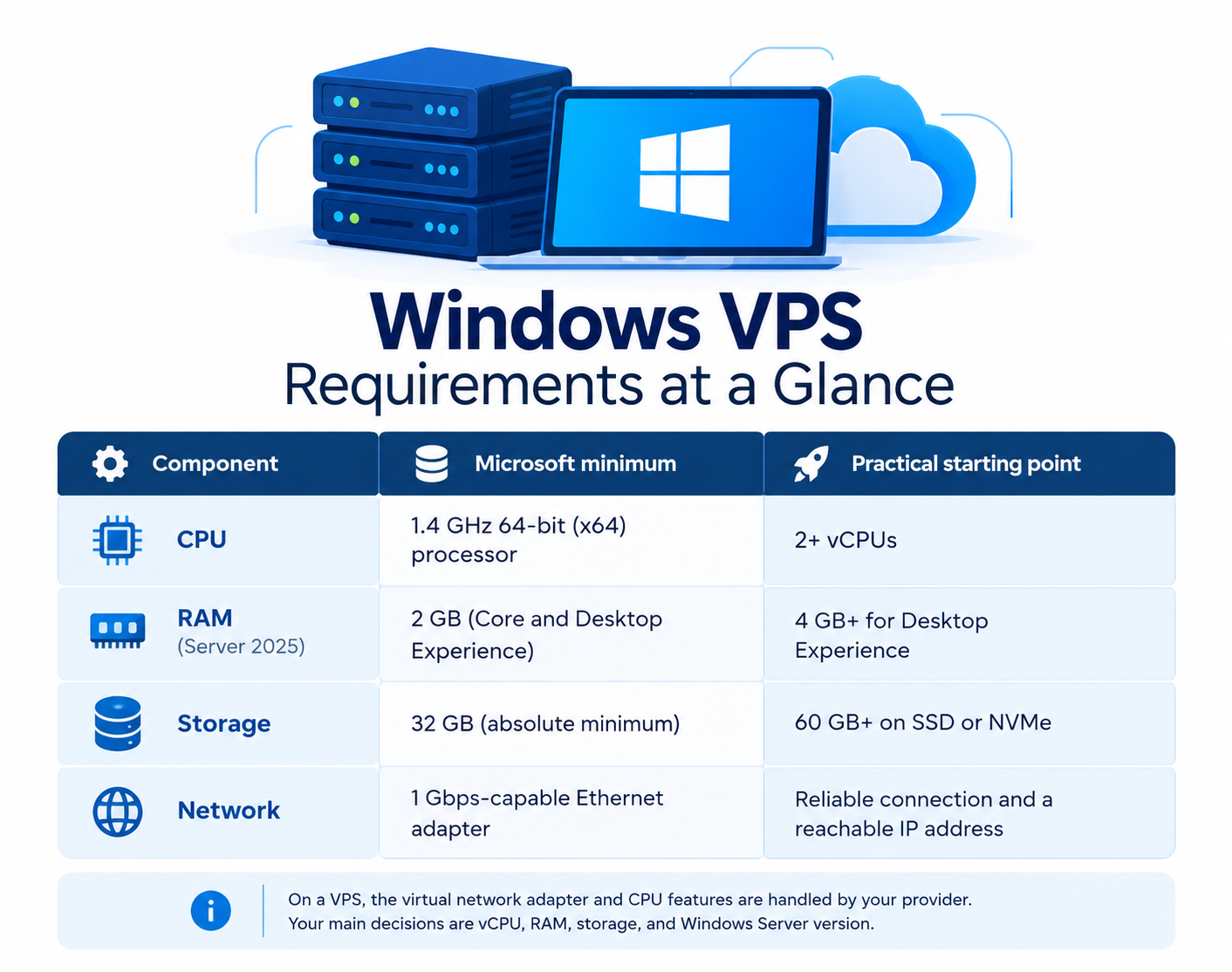
Windows VPS Requirements at a Glance
Microsoft’s minimums describe what the operating system needs to install and run. They don’t account for your applications. The practical column below is general planning guidance, not a Microsoft requirement or a performance guarantee.
Component | Microsoft minimum | Practical starting point |
CPU | 1.4 GHz 64-bit (x64) processor | 2+ vCPUs |
RAM (Server 2025) | 2 GB (Core and Desktop Experience) | 4 GB+ for Desktop Experience |
Storage | 32 GB (absolute minimum) | 60 GB+ on SSD or NVMe |
Network | 1 Gbps-capable Ethernet adapter | Reliable connection and a reachable IP address |
On a VPS, the virtual network adapter and CPU features are handled by your provider. Your main decisions are vCPU, RAM, storage, and Windows Server version.
CPU Requirements
Microsoft’s minimum is a 1.4 GHz 64-bit processor. Windows Server 2025 also requires CPU support for SSE4.2 and POPCNT, and all supported versions require second-level address translation. On a VPS this is your provider’s concern, but it’s worth confirming that the plan supports your chosen Windows Server version.
In practice, a single vCPU is tight once Windows Update, background services, and the graphical interface compete for processor time. Two vCPUs are a sensible starting point, with more for IIS applications or databases.
RAM Requirements
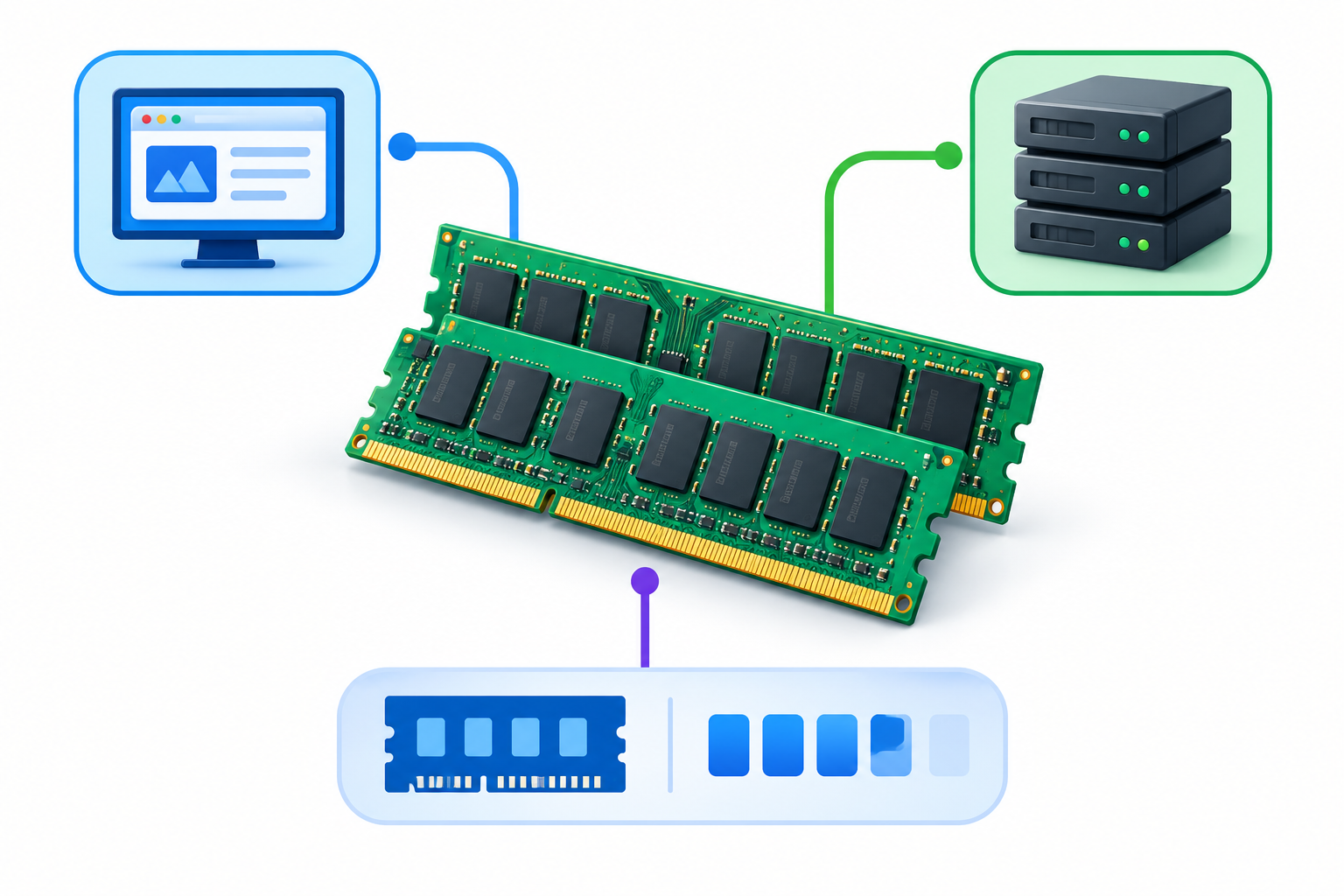
RAM is the requirement where the Windows Server installation option matters most:
- Server with Desktop Experience: The full graphical interface, and the easiest to manage over Remote Desktop.
- Server Core: A command-line-only installation with a smaller footprint, managed mainly through PowerShell.
The Microsoft minimums vary by version. Windows Server 2025 lists 2 GB for both options, with 4 GB recommended for Desktop Experience. Windows Server 2016 to 2022 list 1 GB for Server Core and 2 GB for Desktop Experience.
For Windows VPS RAM requirements in practice, 4 GB is a comfortable starting point for Desktop Experience. Server Core suits lightweight administration at 2–4 GB, if you’re comfortable working in PowerShell.
Storage Requirements
Microsoft treats 32 GB as an absolute minimum for a successful installation. Treat it as an installation floor, not a comfortable VPS allocation. Windows updates, the page file, logs, applications, and data all use disk space over time. A Desktop Experience installation is also about 4 GB larger than Server Core.
SSD or NVMe storage helps with boot times, updates, and database performance. Keep free space on the system drive so updates and applications can run.
Network and Access
For a typical internet-accessible Windows VPS, you’ll normally need a reachable IP address for remote administration. If you host websites or applications, a static IP also keeps DNS records valid. You’ll also need Administrator credentials and Remote Desktop enabled, with Windows Firewall allowing the RDP port (TCP 3389 by default). Restrict RDP access where possible, since an open RDP port is a common target.
For connection steps, see our guide on how to connect to a Windows VPS using Remote Desktop.
Windows Server Version and Licensing
Match the Windows Server version to your software. Check the vendor’s supported versions for SQL Server, .NET applications, control panels, and business software before you deploy.
Windows Server is licensed software, and on a VPS the operating system license is usually arranged through your provider. Confirm what your plan includes. Separate software (such as certain SQL Server editions) may need its own license. Windows Server includes two concurrent administrative Remote Desktop sessions. If more users need simultaneous desktop sessions, Remote Desktop Services licensing may apply, so check Microsoft’s current licensing terms before you size the server.
Windows VPS Requirements by Workload
Microsoft doesn’t publish one recommended configuration, because needs vary with the applications and roles installed. The figures below are practical starting points, not Microsoft requirements. Test and adjust.
Workload | Suggested starting point | Why |
Remote administration, light tools | 2 vCPU, 4 GB RAM | Desktop Experience plus a few small programs |
IIS with ASP.NET or .NET apps | 2–4 vCPU, 4–8 GB RAM | Web server, application pools, and logs need headroom |
SQL Server | 4+ vCPU, 8+ GB RAM | Databases use memory heavily and benefit from fast storage |
Multiple RDP users | Scale by concurrent sessions | Each session uses its own memory and CPU |
If you plan to run SQL Server Express, check its edition limits on memory, database size, and CPU before sizing the VPS around it.
How to Check Whether Your Windows VPS Has Enough Resources
Real usage is more reliable than estimates. After deployment, use built-in tools:
- Task Manager: Quick view of CPU, memory, disk, and network usage.
- Performance Monitor: Detailed counters and trends over time.
- Event Viewer: System and application errors that hint at resource problems.
- File Explorer or Disk Management: Free space on the system drive.
If CPU, memory, or disk usage stays high under normal load, increase that specific resource. More vCPUs won’t fix a memory or disk bottleneck.
Common Mistakes When Sizing a Windows VPS
- Using the Microsoft minimum as the target. It only covers installing and starting the OS.
- Choosing Desktop Experience with too little RAM. It’s convenient but needs more memory.
- Treating 32 GB as enough. Updates, logs, and data can fill it quickly.
- Forgetting licensing. Software and extra remote users may need separate licenses.
- Choosing an unsupported Windows Server version. Check application compatibility first.
- Never revisiting the size. Monitor and resize as your workload changes.
FAQ
