

If another person needs to connect to your Windows VPS through Remote Desktop, you can usually grant the required access by adding their account to the Remote Desktop Users group.
This guide shows how to add a user to Remote Desktop Users using Windows Server’s graphical tools or PowerShell. It also explains how to verify the membership and what to check if the user still cannot sign in.
The focus is specifically on granting RDP access to a Windows Server or Windows VPS. It does not cover complete Remote Desktop Services deployments or RDS collections.
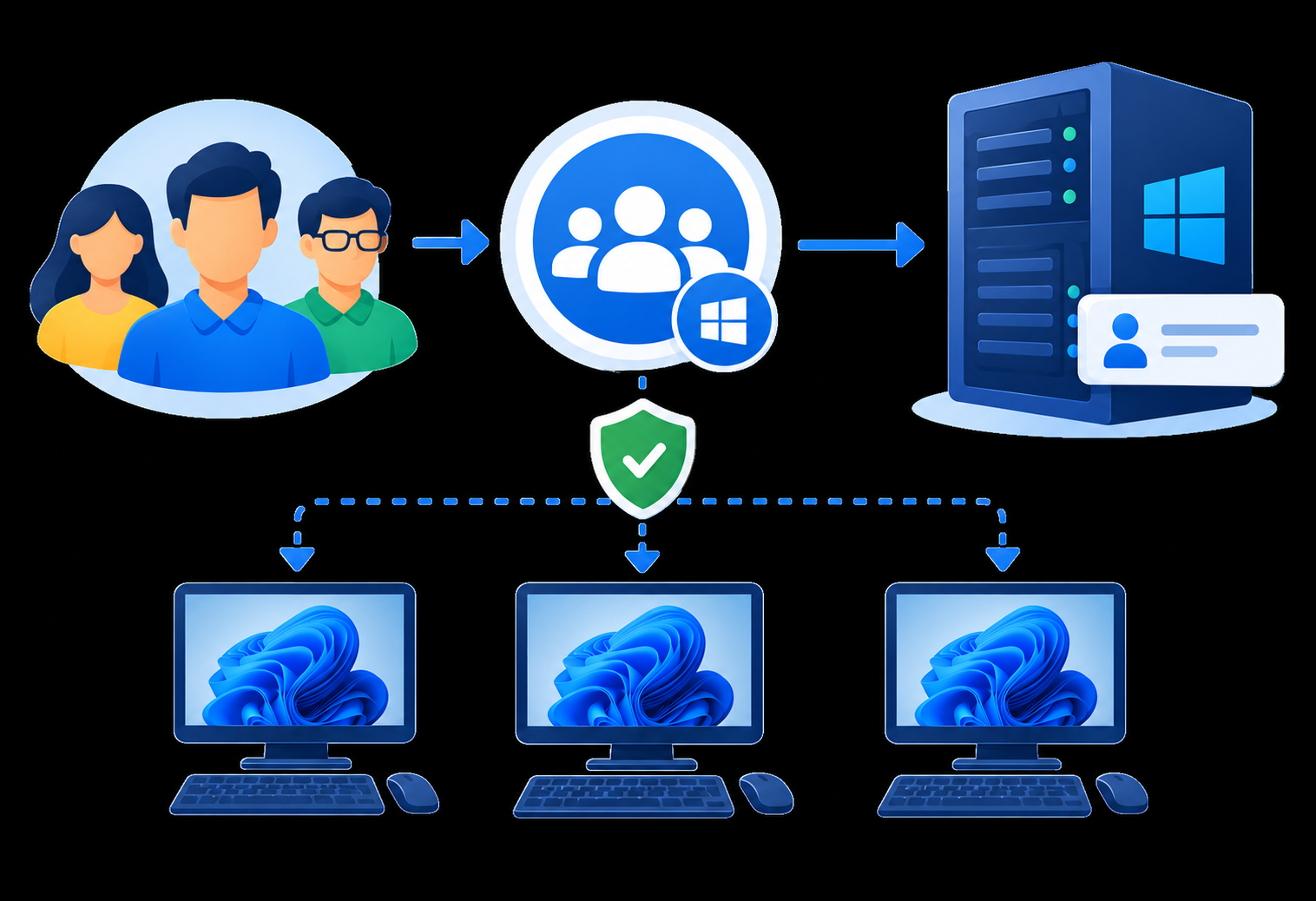
What Is the Remote Desktop Users Group?
Remote Desktop Users is a built-in Windows group used to grant users or groups permission to connect to a Windows device through Remote Desktop Services.
For a typical Windows VPS, adding a standard user to this group is preferable to giving the user administrator privileges when they only need routine remote access.
However, group membership is not the only factor involved in RDP access. The account must also be allowed to log on through Remote Desktop Services, and applicable local security policies or Group Policy settings must not deny the connection.
Before You Add the User
Before adding the account, make sure:
- You have administrator access to the Windows Server.
- The user account already exists.
- Remote Desktop is enabled.
- You know the correct account name.
- The user is authorized to access the server.
For a standalone Windows VPS, you will normally manage the local Remote Desktop Users group directly on the server.
If the server is joined to a domain, account and RDP permissions may also be affected by Active Directory and Group Policy.
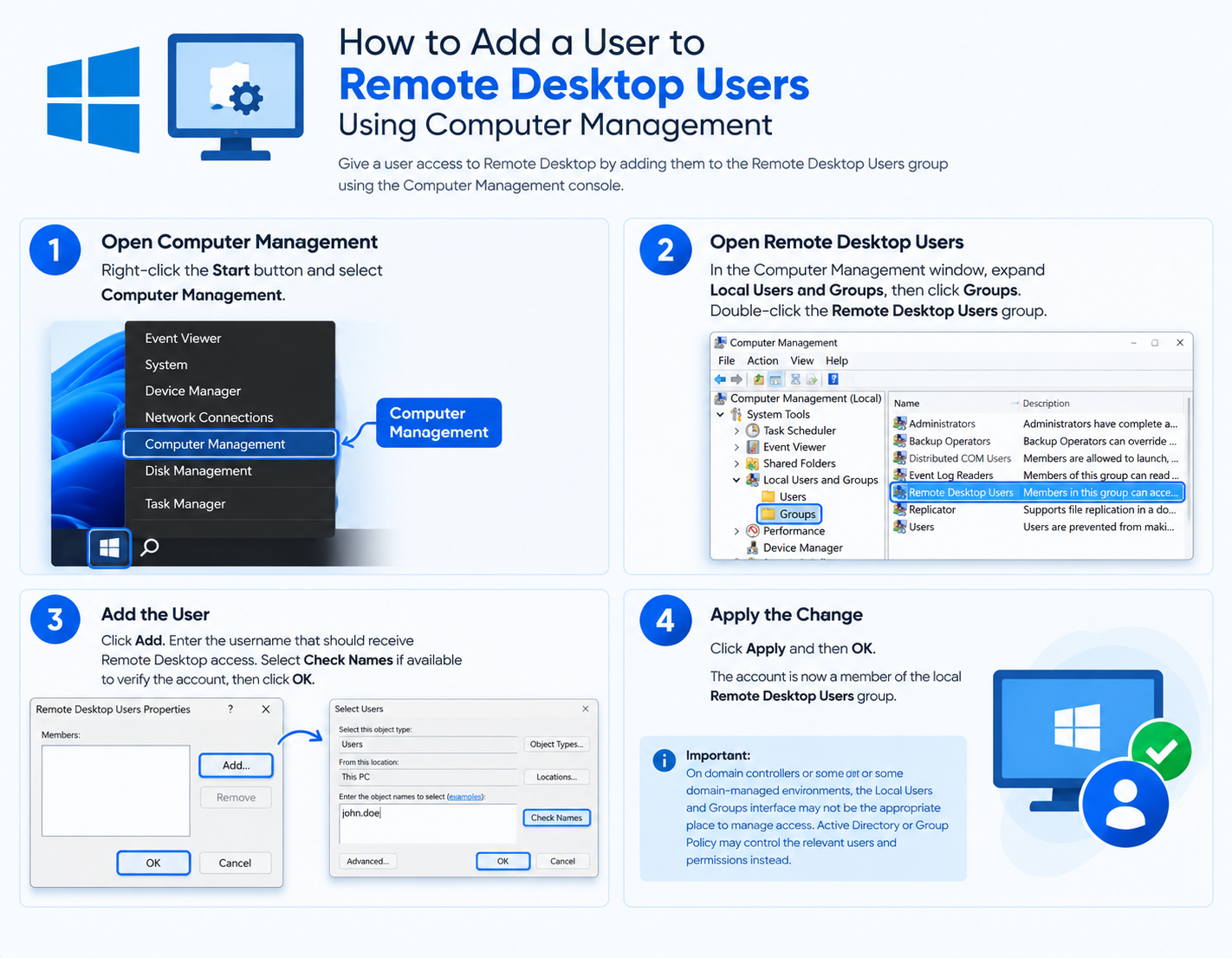
How to Add a User to Remote Desktop Users Using Computer Management
For a typical Windows Server or Windows VPS using local accounts, Computer Management provides a straightforward graphical method.
Step 1: Open Computer Management
Sign in to the Windows Server using an administrator account.
Then:
- Right-click Start.
- Select Computer Management.
- Expand Local Users and Groups.
- Select Groups.
Step 2: Open Remote Desktop Users
Find:
Remote Desktop Users
Double-click the group to open its properties.
Step 3: Add the User
Click Add.
Enter the username that should receive Remote Desktop access.
Select Check Names if available to verify the account, then click OK.
The user should now appear in the list of members.
Step 4: Apply the Change
Click Apply and then OK.
The account is now a member of the local Remote Desktop Users group.
Important: On domain controllers or some domain-managed environments, the Local Users and Groups interface may not be the appropriate place to manage access. Active Directory or Group Policy may control the relevant users and permissions instead.
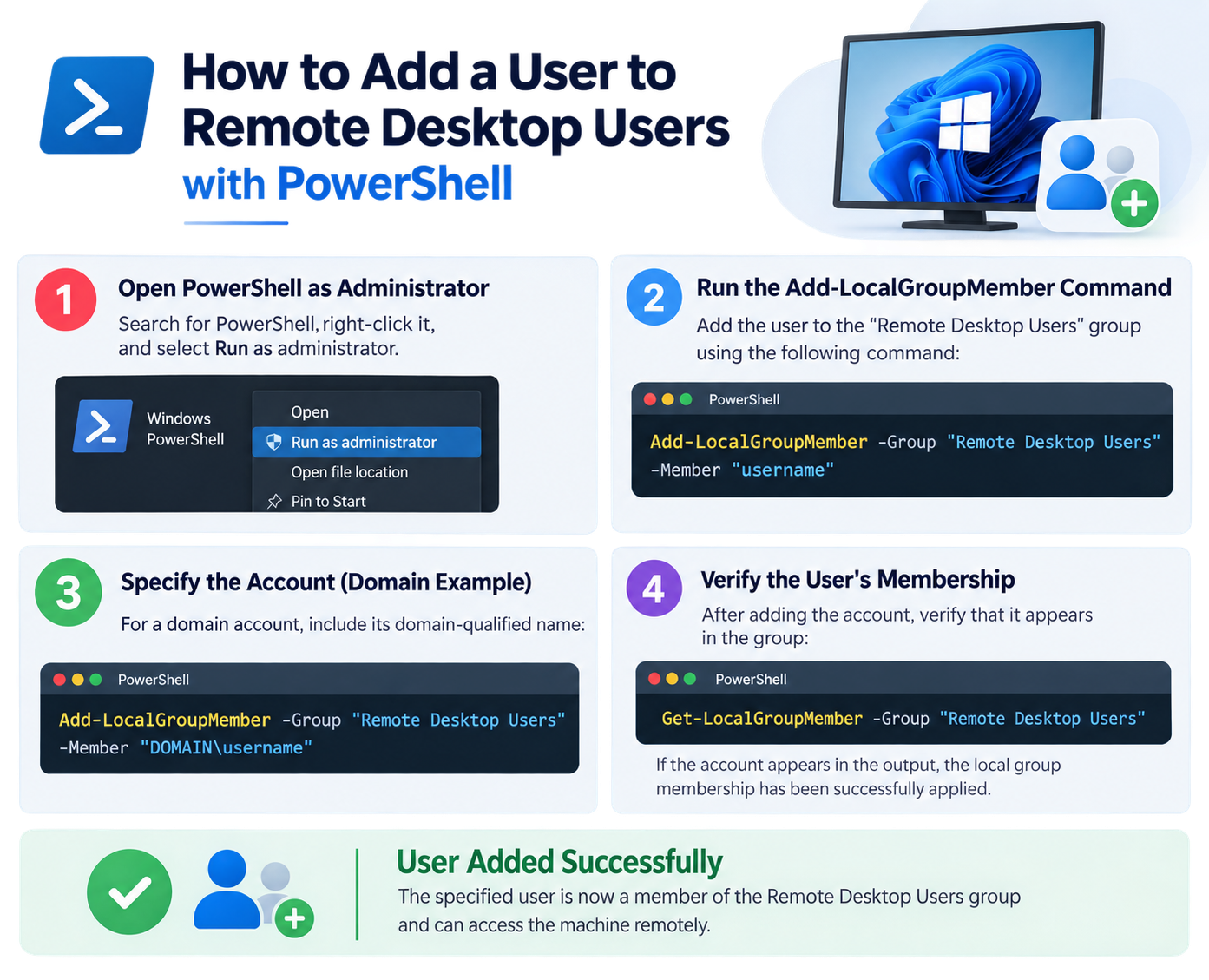
How to Add a User to Remote Desktop Users with PowerShell
You can also add a user from an elevated PowerShell session.
Open PowerShell as Administrator and run:
Add-LocalGroupMember -Group “Remote Desktop Users” -Member “username”
Replace username with the account you want to add.
For example:
Add-LocalGroupMember -Group “Remote Desktop Users” -Member “John”
For a domain account, you can specify the account using its domain-qualified name:
Add-LocalGroupMember -Group “Remote Desktop Users” -Member “DOMAIN\username”
Microsoft documents Add-LocalGroupMember as a method for adding accounts to the Remote Desktop Users group.
Verify the User’s Membership
After adding the account, verify that it appears in the group:
Get-LocalGroupMember -Group “Remote Desktop Users”
If the account appears in the output, the local group membership has been successfully applied.
Which Account Should You Add?
The account you add must be the account that the user will actually use when signing in through Remote Desktop.
For a local account, the username may be represented as:
SERVERNAME\username
For a domain account:
DOMAIN\username
The exact account format depends on the Windows Server environment.
For most standalone Windows VPS installations, you will generally be working with local Windows accounts.
How to Verify Remote Desktop Access
After adding the user, test the connection from another computer using a Remote Desktop client.
Enter the Windows Server’s hostname or IP address and sign in with the account you added.
If the user successfully reaches the Windows sign-in session and logs in, the RDP access is working.
If the user cannot sign in, group membership is only the first thing to check.
If the User Still Cannot Connect
A user can be a member of Remote Desktop Users and still be prevented from signing in by another Windows security setting.
Check the following:
1. Confirm Remote Desktop Is Enabled
Make sure the Windows Server is configured to accept Remote Desktop connections.
2. Check the Allow Logon Right
Windows has a security policy called:
Allow log on through Remote Desktop Services
This policy determines which users or groups can sign in through Remote Desktop Services. Microsoft notes that a successful RDP sign-in requires the appropriate group membership and the applicable logon right.
The policy is located under:
Computer Configuration → Windows Settings → Security Settings → Local Policies → User Rights Assignment
3. Check the Deny Logon Right
Also check:
Deny log on through Remote Desktop Services
If the user or one of their groups is included in this policy, the account may be prevented from using RDP even when another setting allows it.
Microsoft specifically notes that the deny policy can override the corresponding allow policy.
4. Check Group Policy
On domain-joined Windows Servers, Group Policy can overwrite local security settings.
A local configuration that appears correct may therefore not be the effective configuration applied to the server.
5. Check the Account
Confirm that:
- The username is correct.
- The account is enabled.
- The account is not locked out.
- The user is using the correct password.
- The correct local or domain account is being used.
6. Check Network and Firewall Access
If the user cannot establish an RDP connection at all, check network connectivity and the Windows Firewall configuration.
If the connection reaches the Windows sign-in screen but authentication is rejected, focus first on the account, group membership, and Windows user-rights policies.
For more extensive RDP failures, use a dedicated RDP troubleshooting guide rather than duplicating troubleshooting procedures here.
Remote Desktop Users vs Administrators
The Remote Desktop Users and Administrators groups have different purposes.
| Group | Purpose |
| Remote Desktop Users | Provides the group membership normally used for non-administrator RDP access |
| Administrators | Provides administrative privileges on the Windows Server |
If someone only needs to connect remotely and perform routine tasks, do not add them to Administrators simply to enable RDP.
Using the least privilege necessary is a better approach for routine Windows VPS access.
Important: Actual RDP access is still subject to Windows user-rights assignments and applicable security policies.
RDP User Access Security Tips
Once a user has Remote Desktop access, keep the account permissions as limited as practical.
Use Standard Accounts When Possible
If the user does not need administrative privileges, keep the account as a standard user rather than adding it to Administrators.
Remove Access When It Is No Longer Required
When a user no longer needs RDP access, remove the account from the Remote Desktop Users group.
With PowerShell:
Remove-LocalGroupMember -Group “Remote Desktop Users” -Member “username”
You can then verify the remaining members:
Get-LocalGroupMember -Group “Remote Desktop Users”
Review RDP Permissions in Managed Environments
For domain-joined servers, periodically review Group Policy and user-rights assignments to make sure only authorized users and groups can sign in through Remote Desktop Services.
Avoid making broad policy changes simply to resolve an individual RDP access problem.
Frequently Asked Questions
