
When managing a website, there will eventually be a need to transfer files between your computer and your web server. Whether you’re uploading website pages, installing a theme, restoring a backup, updating images, or managing application files, one of the most widely used methods is FTP.
FTP has been a fundamental part of website management for decades. Even though many hosting control panels now include browser-based file managers, FTP remains a reliable and efficient way to upload, download, and manage website files directly on a server.
In this guide, you’ll learn what FTP is, how it works, how to upload files using FTP, common troubleshooting techniques, security best practices, and when it makes sense to use FTP instead of other file management methods.
What Is FTP?
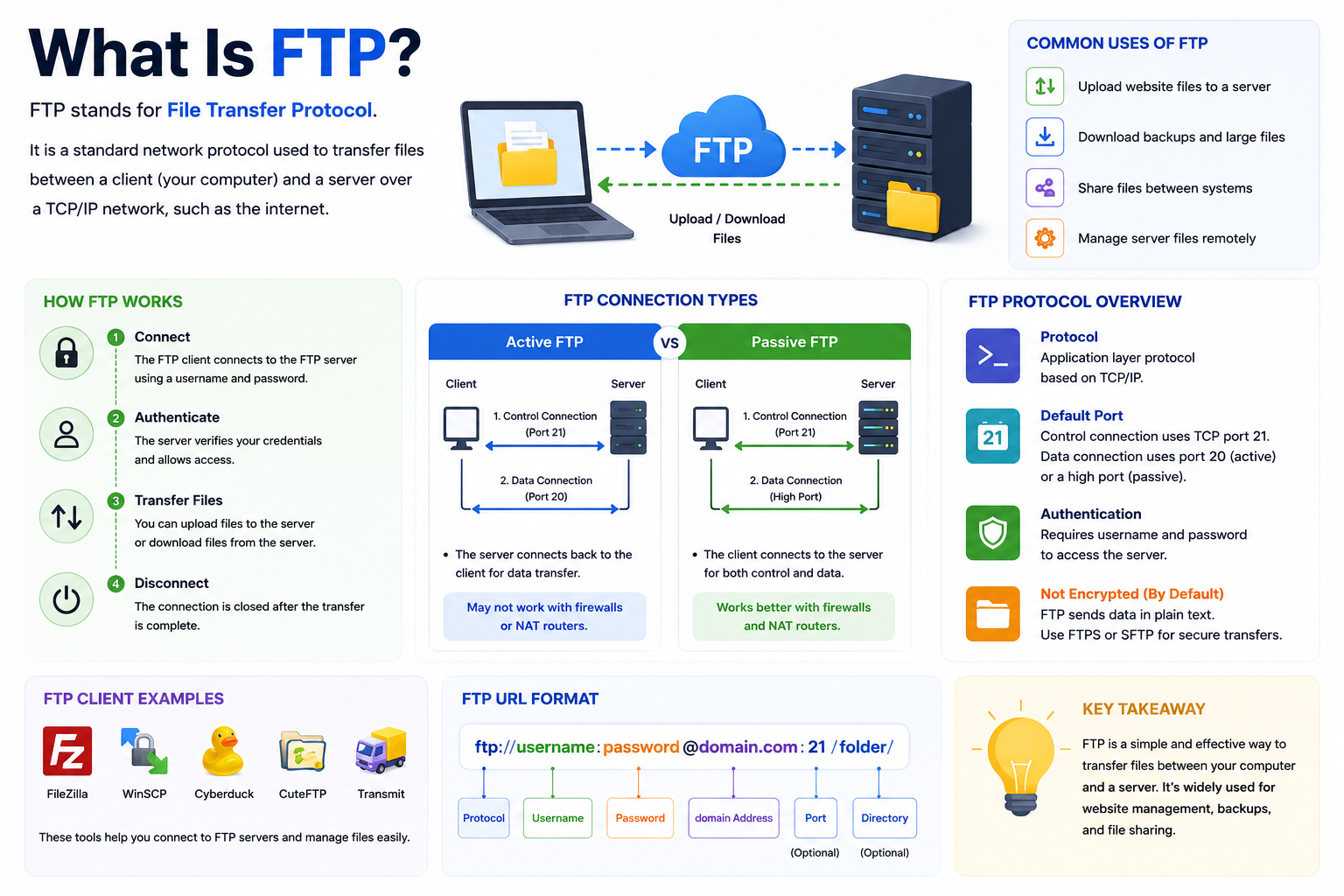
FTP stands for File Transfer Protocol.
It is a standard communication protocol used to transfer files between a local computer and a remote server over a network connection.
FTP allows users to:
- Upload files to a server
- Download files from a server
- Edit website files
- Create directories and folders
- Delete files
- Organize website content
- Transfer backups between systems
In simple terms, FTP acts as a bridge between your computer and your web server, allowing files to move back and forth efficiently.
Why FTP Is Still Used Today
Although modern website management tools have simplified many tasks, FTP remains popular because it offers direct access to server files.
Website owners, developers, designers, and IT administrators continue to use FTP for tasks such as:
- Uploading a new website
- Publishing website updates
- Uploading media files
- Restoring backups
- Managing website directories
- Troubleshooting website issues
- Downloading website files for local storage
FTP is particularly useful when transferring multiple files or large file collections that would be difficult to manage through a web browser.
How FTP Works
FTP works by establishing a connection between two systems:
FTP Client
The FTP client is software installed on your computer that allows you to connect to a server.
Popular FTP clients include:
- FileZilla
- WinSCP
- Cyberduck
- Transmit
The client provides a user-friendly interface for transferring and managing files.
FTP Server
The FTP server is the remote system that stores your website files.
Once connected, the server allows authorized users to upload, download, edit, and manage files based on their permissions.
Authentication
Before a connection is established, users must typically provide:
- Hostname
- Username
- Password
- Port number
After successful authentication, the FTP client displays the server’s file structure.
FTP Connection Components
To connect to a server, you’ll usually need the following details from your hosting account.
Hostname
The hostname identifies the server.
Examples include:
- ftp.yourdomain.com
- server123.examplehost.com
Username
The username identifies your FTP account.
Password
The password verifies access rights.
Port Number
The port determines how the connection is established.
Common ports include:
- Port 21 (FTP)
- Port 22 (SFTP)
- Port 990 (FTPS)
Always verify the correct connection settings within your hosting account.
FTP vs SFTP vs FTPS
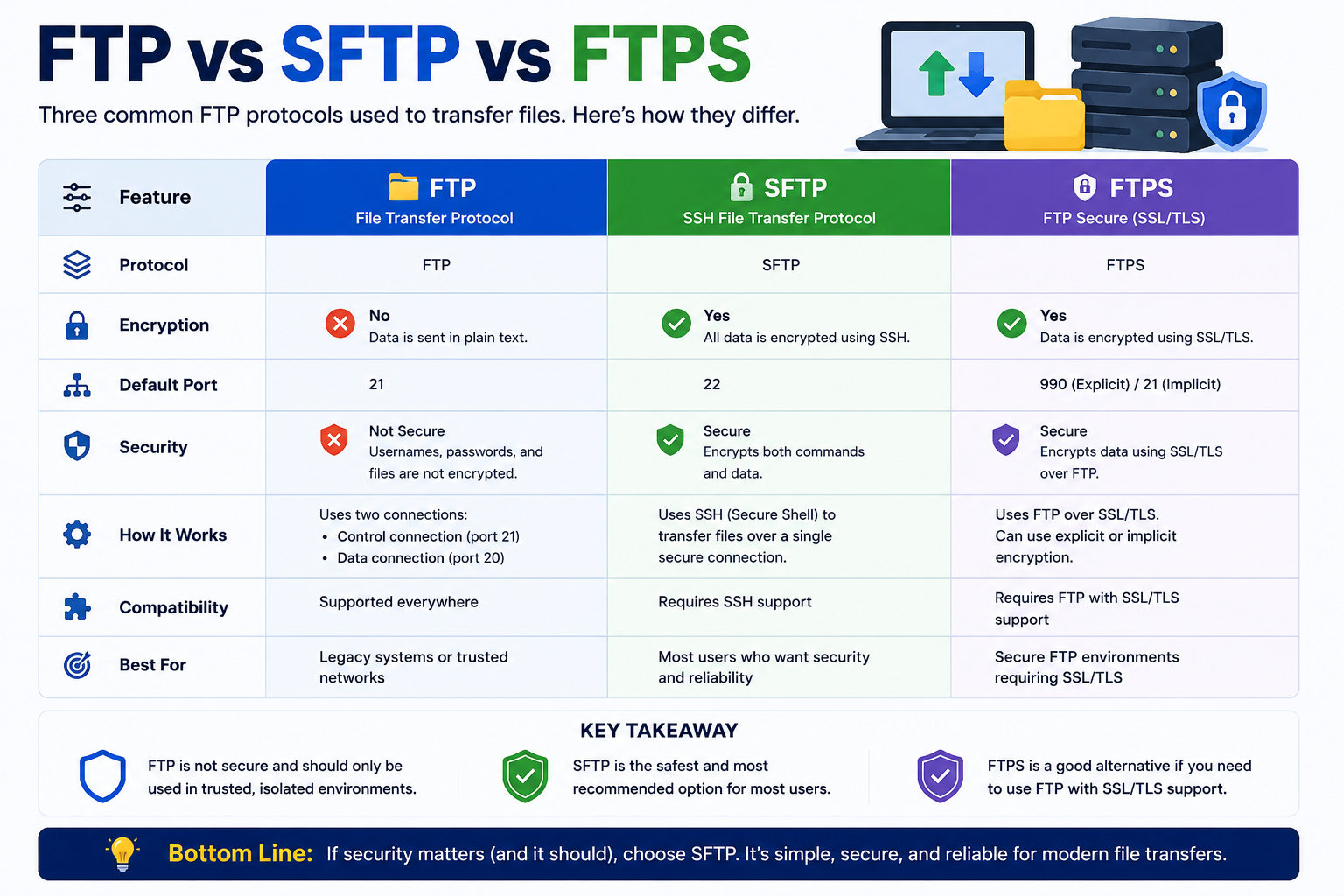
Many beginners assume all file transfer methods are identical, but there are important differences.
| Protocol | Encryption | Default Port | Recommended Usage |
| FTP | No | 21 | Legacy environments |
| SFTP | Yes | 22 | Recommended for most users |
| FTPS | Yes | 990 | Secure FTP environments requiring SSL/TLS |
FTP
Traditional FTP transfers data without encryption.
Usernames, passwords, and transferred files may be exposed if intercepted.
SFTP
SFTP stands for Secure File Transfer Protocol.
It uses encrypted SSH connections to protect data during transmission.
For most modern websites, SFTP is considered the preferred option.
FTPS
FTPS adds SSL/TLS encryption to standard FTP.
It offers improved security while maintaining compatibility with traditional FTP workflows.
Important Security Considerations
One of the most important things to understand about FTP is security.
Standard FTP Is Not Encrypted
Traditional FTP sends login credentials and transferred data in plain text.
If intercepted, sensitive information could potentially be viewed by unauthorized parties.
Use SFTP Whenever Possible
If your hosting provider offers SFTP access, it is generally the safest option because:
- Login credentials are encrypted
- Data transfers are encrypted
- File management activities are protected from interception
For modern website management, SFTP should be your first choice whenever available.
Active Mode vs Passive Mode FTP
A common source of FTP connection problems involves connection modes.
Active Mode
In Active Mode, the server initiates part of the connection back to the client.
This can sometimes create issues when firewalls or routers block incoming connections.
Passive Mode
In Passive Mode, the client initiates all communication.
Because modern networks often use firewalls and network address translation (NAT), Passive Mode typically works more reliably.
Which Mode Should You Use?
Most users should enable Passive Mode within their FTP client because it reduces connection issues and works better on home, office, and corporate networks.
How to Upload Files Using FTP
Uploading files through FTP is straightforward.
Step 1: Install an FTP Client
Download and install a trusted FTP application such as:
- FileZilla
- WinSCP
- Cyberduck
Choose the client that best fits your operating system and workflow.
Step 2: Gather FTP Credentials
Before connecting, collect:
- Hostname
- Username
- Password
- Port number
These details are usually available in your hosting control panel or account information.
Step 3: Connect to the Server
Open the FTP client and enter:
- Hostname
- Username
- Password
- Port
Click Connect.
If the information is correct, the connection will be established.
Step 4: Locate the Correct Website Directory
The FTP client usually displays:
- Local files on your computer
- Remote files on the server
Navigate to the appropriate website directory before uploading files.
Step 5: Upload Files
Select the files you want to upload and transfer them to the server.
Most FTP applications support:
- Drag and drop uploads
- Right-click upload options
- Batch transfers
- Queue management
Step 6: Verify the Upload
After the transfer finishes:
- Confirm files exist on the server
- Verify file sizes
- Check for transfer errors
- Visit the website if necessary
Verifying uploads helps identify problems before they affect website visitors.
Uploading Large Files with FTP
FTP is commonly used for transferring large files that may exceed browser upload limits.
Examples include:
- Website backups
- Media libraries
- Website migrations
- Software packages
- Large image collections
For large uploads:
- Use a stable internet connection
- Avoid interrupting transfers
- Enable transfer resume functionality
- Verify file integrity afterward
Many FTP clients can resume interrupted transfers automatically.
File Permissions After Uploading
File permissions control who can read, write, or execute files on a server.
After uploading files through FTP, permissions should be reviewed if:
- Pages display errors
- Scripts fail to execute
- Uploads do not function correctly
- Access restrictions occur unexpectedly
Incorrect permissions can cause website functionality issues even when uploads complete successfully.
While exact permission requirements vary depending on the application, verifying permissions is often one of the first troubleshooting steps when website files are not behaving as expected.
Common FTP Upload Errors
Even experienced users occasionally encounter FTP issues.
Authentication Failed
Possible causes include:
- Incorrect username
- Incorrect password
- Incorrect hostname
- Wrong port number
Permission Denied
The FTP account may not have permission to modify files in the selected directory.
Connection Timeout
Timeout errors may result from:
- Firewall restrictions
- Network instability
- Incorrect server settings
Incomplete Uploads
Large file transfers may fail because of:
- Interrupted internet connections
- Server storage limitations
- Session timeouts
Quick FTP Troubleshooting Checklist
Before contacting technical support, check the following:
✔ Verify the hostname
✔ Verify the username
✔ Verify the password
✔ Confirm the correct port
✔ Enable Passive Mode
✔ Check firewall settings
✔ Verify internet connectivity
✔ Confirm sufficient server storage space
✔ Retry the transfer
✔ Review FTP client logs for errors
This simple checklist resolves many common FTP issues.
Best Practices for FTP File Uploads
Following good file management habits can reduce mistakes and improve security.
Use Secure Connections
Whenever possible:
- Use SFTP instead of FTP
- Avoid unsecured public networks
- Use strong passwords
Keep Backups
Always maintain copies of important website files before making changes.
Backups simplify recovery if files are accidentally overwritten or deleted.
Organize Directories
A clean directory structure makes website management significantly easier.
Remove Unused Files
Old files can consume storage space and create confusion during maintenance.
Verify Permissions
After uploading important files, ensure permissions are appropriate for the application.
When Should You Use FTP?
FTP is useful whenever direct access to server files is needed.
Common situations include:
- Publishing website files
- Uploading images and documents
- Restoring website backups
- Managing application files
- Updating website content
- Downloading website data
- Troubleshooting file-related issues
Many website owners use FTP alongside browser-based file managers because each tool serves different purposes.
Common Myths About FTP
FTP Is Only for Developers
Not true.
Website owners, marketers, content managers, and small business operators frequently use FTP.
FTP Is Difficult to Learn
Modern FTP applications provide intuitive graphical interfaces that make file transfers simple.
FTP Is Outdated
While secure alternatives such as SFTP have become more common, FTP-based workflows remain widely used throughout the hosting industry.
The important factor is choosing secure transfer methods whenever possible.
Frequently Asked Questions
