
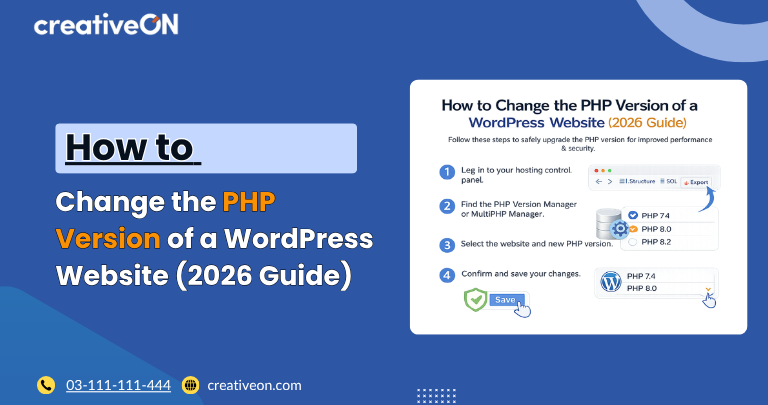
If your WordPress dashboard is warning you about an outdated PHP version, it’s worth acting on soon — not “eventually.” Updating PHP improves your website’s security, performance, and compatibility with modern themes and plugins.
But changing the PHP version of a WordPress website without preparation can cause plugin conflicts, theme errors, or downtime. This guide walks through what to check before updating, how to actually make the change, and what to do if something breaks afterward.
If your WordPress dashboard is warning you about an outdated PHP version, it’s worth acting on soon — not “eventually.” Updating PHP improves your website’s security, performance, and compatibility with modern themes and plugins.
But changing the PHP version of a WordPress website without preparation can cause plugin conflicts, theme errors, or downtime. This guide walks through what to check before updating, how to actually make the change, and what to do if something breaks afterward.
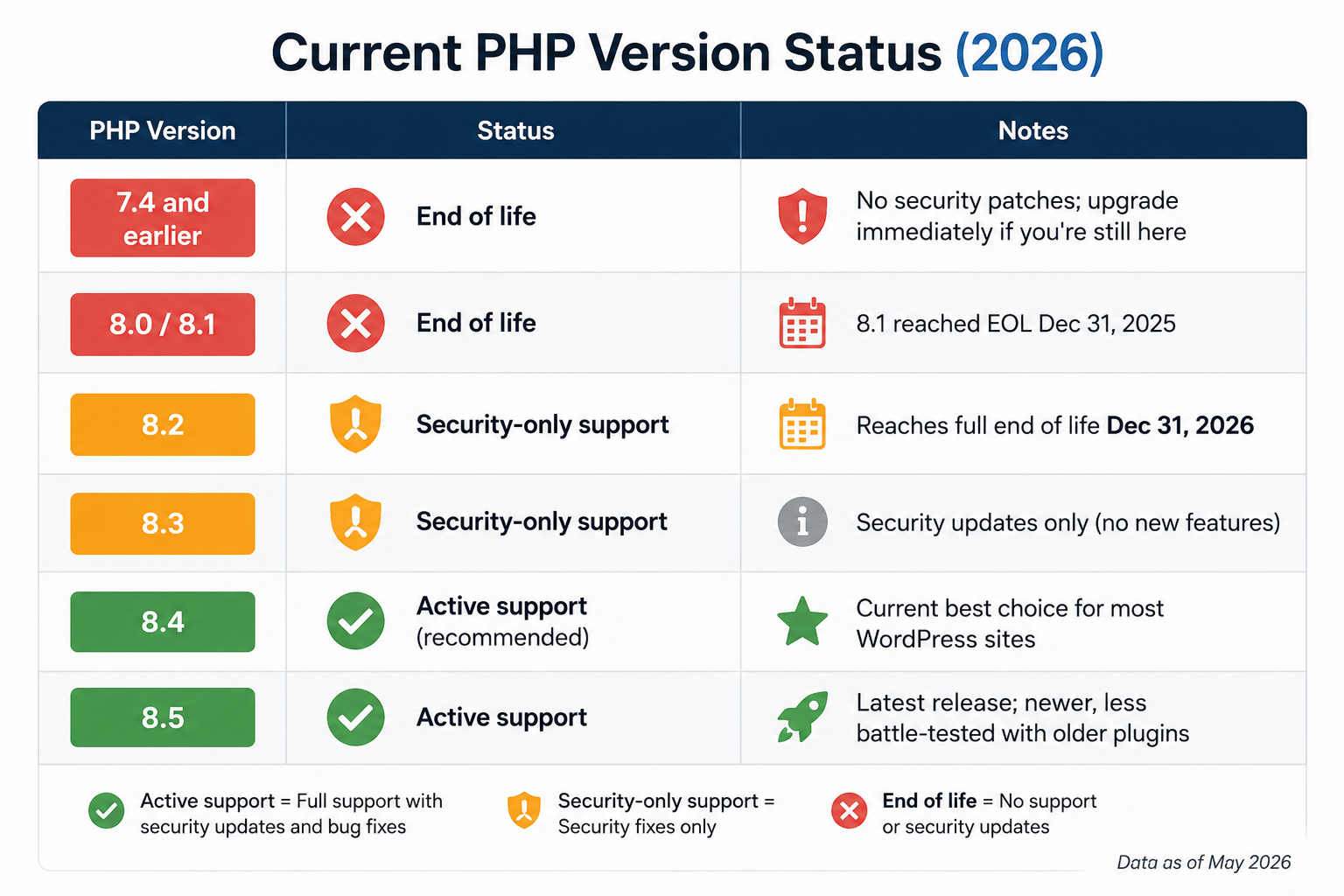
Current PHP Version Status (2026)
Before you touch any settings, it helps to know where each PHP version stands right now:
PHP Version | Status | Notes |
7.4 and earlier | End of life | No security patches; upgrade immediately if you’re still here |
8.0 / 8.1 | End of life | 8.1 reached EOL Dec 31, 2025 |
8.2 | Security-only support | Reaches full end of life Dec 31, 2026 |
8.3 | Security-only support | |
8.4 | Active support (recommended) | Current best choice for most WordPress sites |
8.5 | Active support | Latest release; newer, less battle-tested with older plugins |
If your host still has you on 7.4, 8.0, or 8.1, that’s not a “nice to have” update — those versions receive zero security patches, and running one on a live website is a real, ongoing risk. If you’re on 8.2, you have a real deadline: plan your move to 8.3 or 8.4 before the end of 2026. For most standard WordPress sites, PHP 8.4 currently offers the best balance of long support and plugin compatibility. Always confirm current status on php.net’s supported versions page before deciding, since these windows shift over time.
Why PHP Version Matters for WordPress
PHP is the language WordPress uses to generate pages and process requests. Like WordPress itself, PHP receives regular updates for security, stability, and performance. Running an outdated version can mean:
- Unpatched security vulnerabilities
- Slower page generation and processing
- Compatibility issues with newer plugins and themes
- Missing out on newer WordPress core features that assume a modern PHP baseline
Improved Security
Once a PHP version goes end of life, no further security patches are issued — ever. Any vulnerability discovered after that date stays open indefinitely on that version.
Better Performance
Newer PHP releases include real performance gains, which matter most for WooCommerce stores, content-heavy sites, and anything running a lot of active plugins.
Better Plugin and Theme Compatibility
Most active WordPress developers build and test against current PHP versions. Staying on a supported version keeps you compatible with plugin updates, premium themes, and page builders as they roll out.
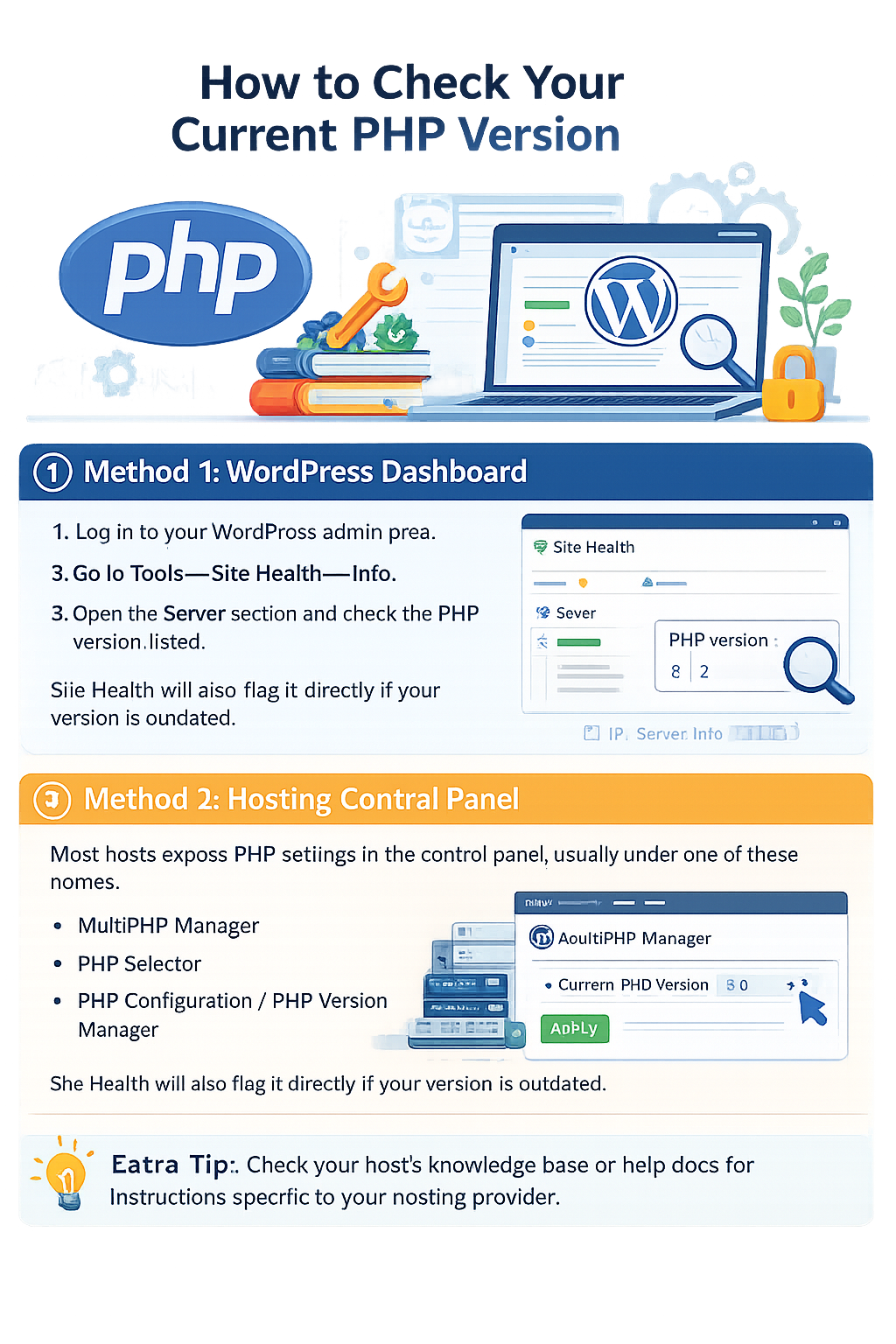
How to Check Your Current PHP Version
Method 1: WordPress Dashboard
- Log in to your WordPress admin area.
- Go to Tools → Site Health → Info.
- Open the Server section and check the PHP version listed.
Site Health will also flag it directly if your version is outdated.
Method 2: Hosting Control Panel
Most hosts expose PHP settings in the control panel, usually under one of these names:
- MultiPHP Manager
- PHP Selector
- PHP Configuration / PHP Version Manager
The exact label depends on your host.
Pre-Update Checklist
Changing PHP versions is usually simple, but a few minutes of prep prevents most problems:
- [ ] Create a complete website backup (files + database)
- [ ] Update WordPress core
- [ ] Update all active plugins and your theme
- [ ] Check PHP requirements for business-critical plugins (WooCommerce, security plugins, page builders)
- [ ] Test on a staging site if one is available
- [ ] Note your current PHP version, in case you need to roll back
- [ ] Confirm you know how to switch back through your host’s control panel
Step-by-Step: How to Change PHP Version
Step 1: Back Up Your Website
Back up your WordPress files, database, themes, plugins, and media before making any change. If something breaks, this is what gets you back to a working state. See our WordPress Backup Best Practices guide for a full process.
Step 2: Update WordPress, Plugins, and Themes
Outdated plugins and themes are the most common cause of PHP compatibility errors. Update WordPress core, all active plugins, and your theme — and remove anything you’re no longer using.
Step 3: Check PHP Compatibility
Before switching, confirm your important plugins and themes support the version you’re moving to. Pay particular attention to:
- WooCommerce and any commerce extensions
- Page builders
- Security plugins
- Custom or unmaintained themes
- Older plugins that haven’t been updated recently
If your site runs custom code, check the WordPress PHP compatibility documentation and test carefully before applying the change to a live site.
Step 4: Change PHP Version in cPanel
- Log in to cPanel.
- Open MultiPHP Manager (or Select PHP Version).
- Select your domain.
- Choose the target PHP version.
- Click Apply or Save.
Your site now runs on the selected version.
Step 5: Test Everything
After the switch, check:
- Homepage load
- Admin dashboard and login
- Contact forms
- Images and media
- Key plugin features
- WooCommerce checkout, if applicable
If all of that works normally, the update is complete.
Common Problems After a PHP Update
WordPress shows a critical error. Usually means a plugin or theme isn’t compatible with the new version. Try disabling recently updated plugins, switching temporarily to a default WordPress theme, checking your error logs, or contacting the plugin developer.
A plugin stops working. Check for a pending plugin update, confirm the developer’s stated PHP requirements, and replace the plugin if it’s no longer maintained.
Site looks broken or won’t load correctly. Clear WordPress cache, hosting-level cache, and CDN cache. A caching issue can make a site look broken even after a successful PHP update. See our WordPress Caching Guide for details.
How to Roll Back
- Log in to your hosting control panel.
- Open PHP version settings.
- Select the previous version.
- Save and test the site again.
Once you’re back up, find the actual cause (outdated plugin, old theme, custom code) before attempting the update again.
Should You Do This Yourself?
For most standard WordPress sites, changing PHP versions through the hosting control panel is a five-minute task. Consider getting help if:
- Your site runs significant custom development
- You manage a large, high-traffic WooCommerce store
- You’re relying on older, unmaintained plugins
- You’ve already hit PHP errors after a previous attempt
A managed WordPress host can handle compatibility testing and rollback for you, which matters more the more revenue-critical the site is.
Best Practices
- Always back up first
- Keep WordPress core, plugins, and themes current
- Avoid updating during peak traffic hours
- Test critical site functions immediately after the change
- Use a staging site for anything business-critical
- Watch error logs for a few days after the update
FAQ
