
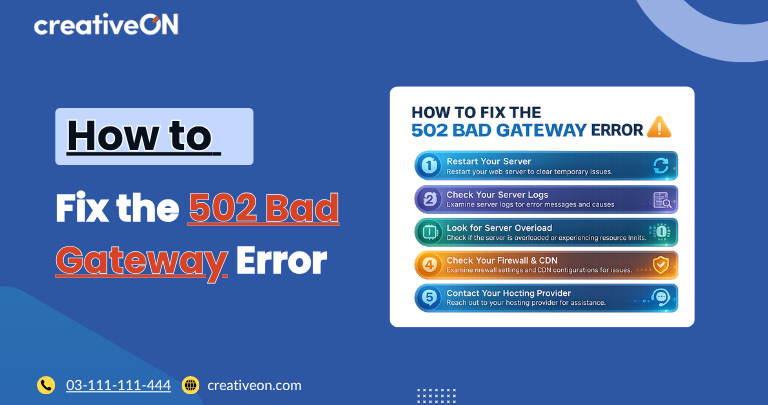
A 502 Bad Gateway error occurs when one server receives an invalid or no response from another server while trying to process a request. The result is that visitors cannot access your website, often seeing messages like “502 Bad Gateway,” “HTTP Error 502,” or “502 Proxy Error.”
While the error may appear alarming, it is usually temporary and can often be resolved by identifying the communication issue between your web server, application, or upstream service.
This guide walks through the most effective ways to diagnose and fix a 502 Bad Gateway error without covering unrelated hosting topics.
Check Whether the Problem Is Temporary
Before making configuration changes, determine whether the error is temporary.
Try these quick checks:
- Refresh the page after a few seconds.
- Open the website in an incognito window.
- Test from another browser or device.
- Access the website using a different internet connection.
If the website starts working again, the issue may have been caused by a temporary server interruption.
Verify Server Availability
A 502 error commonly appears when the web server cannot communicate with the application server or another backend service.
Check whether:
- The web server is running normally.
- The application service is online.
- Recent maintenance or deployments have affected the server.
- System resources have not been exhausted.
If your server is unavailable, restoring the affected service often resolves the error immediately.
Restart Web Server Services
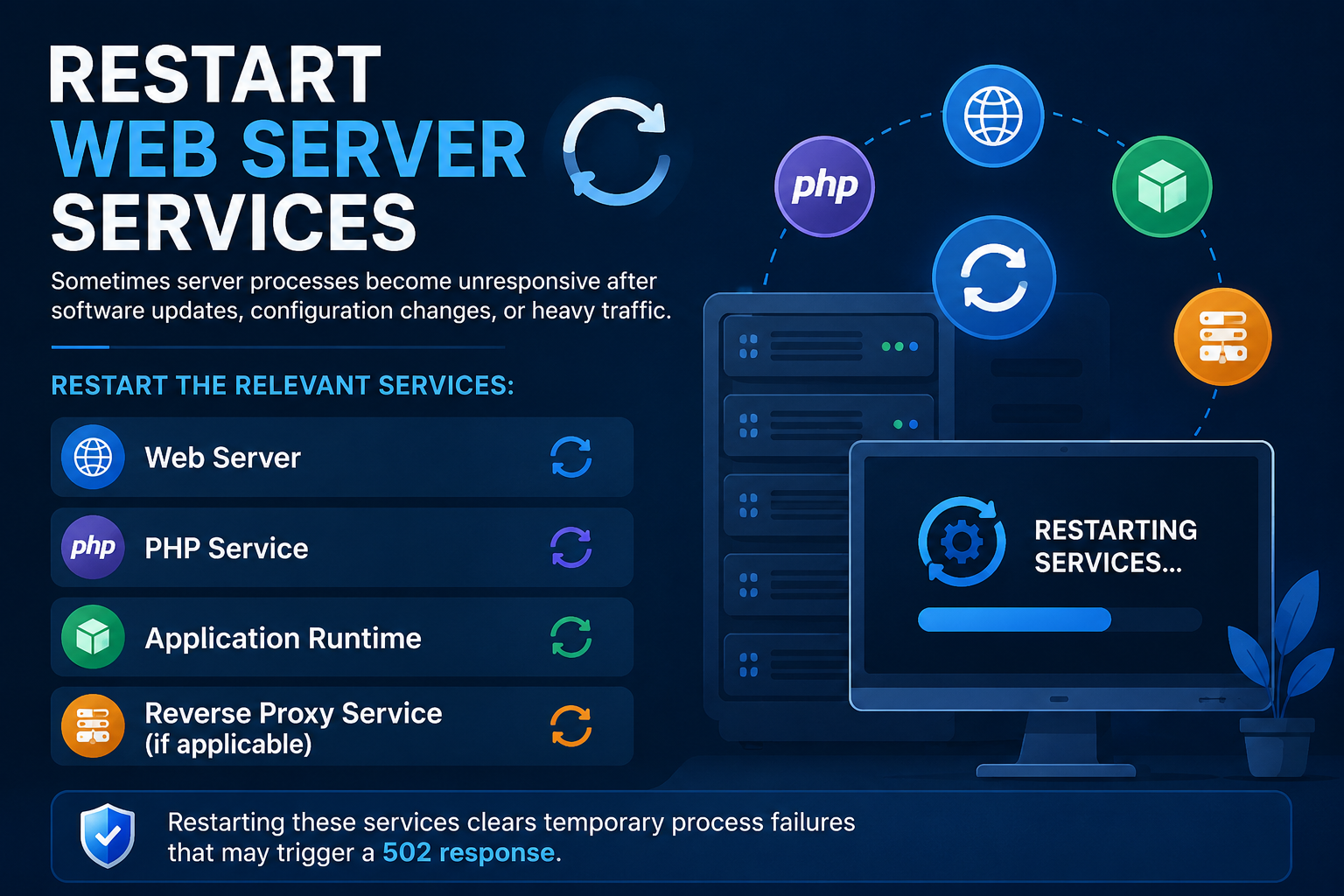
Sometimes server processes become unresponsive after software updates, configuration changes, or heavy traffic.
Restart the relevant services, such as:
- Web server
- PHP service
- Application runtime
- Reverse proxy service (if applicable)
Restarting these services clears temporary process failures that may trigger a 502 response.
Review Server Error Logs
Server logs are usually the fastest way to identify the source of a 502 error.
Look for messages related to:
- Connection timeouts
- Backend communication failures
- Process crashes
- Memory exhaustion
- Permission issues
- Unexpected application errors
- TLS/SSL handshake failures between the proxy and backend
Error logs often pinpoint the exact service or script causing the gateway failure.
Check Recent Website Changes
If the error appeared immediately after an update, the latest change may be responsible.
Review recent changes such as:
- Website updates
- New plugins or extensions
- Application upgrades
- Configuration edits
- Security rule modifications
Temporarily reversing the most recent change can help confirm whether it introduced the problem.
Verify PHP and Application Processes
Dynamic websites depend on background application processes to generate pages.
A 502 error may occur if these processes:
- Stop responding
- Crash unexpectedly
- Exceed execution limits
- Become overloaded
If you’re running PHP-FPM, check for exhausted worker pools or mismatched timeout settings, such as max_execution_time in PHP and fastcgi_read_timeout in your web server configuration. A backend that takes longer to respond than these limits allow can trigger a 502 even when the application itself is healthy.
Restarting or repairing the affected application service often restores normal communication with the web server.
Inspect Reverse Proxy Configuration
If your website uses a reverse proxy or load balancer, verify that it can successfully connect to the backend server.
Check for:
- Incorrect upstream addresses
- Invalid ports
- Timeout settings
- Backend service availability
- Expired or mismatched SSL/TLS certificates on the backend connection
Even a small configuration error can prevent successful communication and generate a 502 response.
Rule Out DNS Resolution Issues
Some 502 errors happen because the proxy or load balancer resolves the backend hostname to a stale or incorrect IP address, especially after migrating servers or changing infrastructure.
Check whether:
- The backend hostname resolves to the correct, current IP address.
- DNS caching (at the proxy, CDN, or OS level) is serving outdated records.
- Any recent DNS record changes have fully propagated.
If DNS is misconfigured or stale, the proxy may be trying to reach a server that no longer exists or no longer hosts the application.
Test for Resource Exhaustion
Servers under heavy load may fail to respond before gateway timeout limits are reached.
Monitor:
- CPU usage (e.g., with top or htop)
- Memory consumption (e.g., with free -m)
- Running processes
- Concurrent requests
If server resources remain consistently high, investigate the underlying workload before restarting services repeatedly.
Disable Recently Added Firewall or Security Rules
Some firewall or security configurations may unintentionally block legitimate communication between servers.
If the problem began after updating security settings:
- Review recent firewall changes.
- Check blocked requests.
- Confirm that backend connections are allowed.
Only disable rules temporarily while testing, then apply a safer permanent fix.
Clear CDN or Proxy Cache
If your website uses a content delivery network or proxy service, cached server responses can sometimes continue serving a 502 error even after the backend issue has been fixed.
Clearing the cache allows visitors to receive a fresh response from the origin server.
Contact Your Hosting Provider
If you’ve completed the above checks and the error persists, contact your hosting provider.
Provide details including:
- When the error started
- Any recent website changes
- Relevant log entries
- Whether the issue affects the entire website or only specific pages
This information helps the support team diagnose the problem more efficiently.
Tips to Prevent Future 502 Bad Gateway Errors
Although not every 502 error is avoidable, you can reduce the likelihood of future incidents by following good maintenance practices.
- Keep website software updated.
- Monitor server health regularly.
- Review server logs frequently.
- Test configuration changes before deployment.
- Remove unstable plugins or extensions.
- Schedule regular performance monitoring.
- Set calendar reminders to renew SSL/TLS certificates before they expire.
Proactive maintenance helps identify small issues before they develop into server communication failures.
Frequently Asked Questions
