

A 404 Not Found error means your web server is online and responding, but it can’t locate the specific page or file you requested. The site works — this one URL doesn’t. It’s one of the most common errors on the web, and in almost every case it’s fixable in minutes once you know where to look.
This guide walks through how to recognize a genuine 404, what causes it, how to fix it on any platform, and how to stop it from happening again.
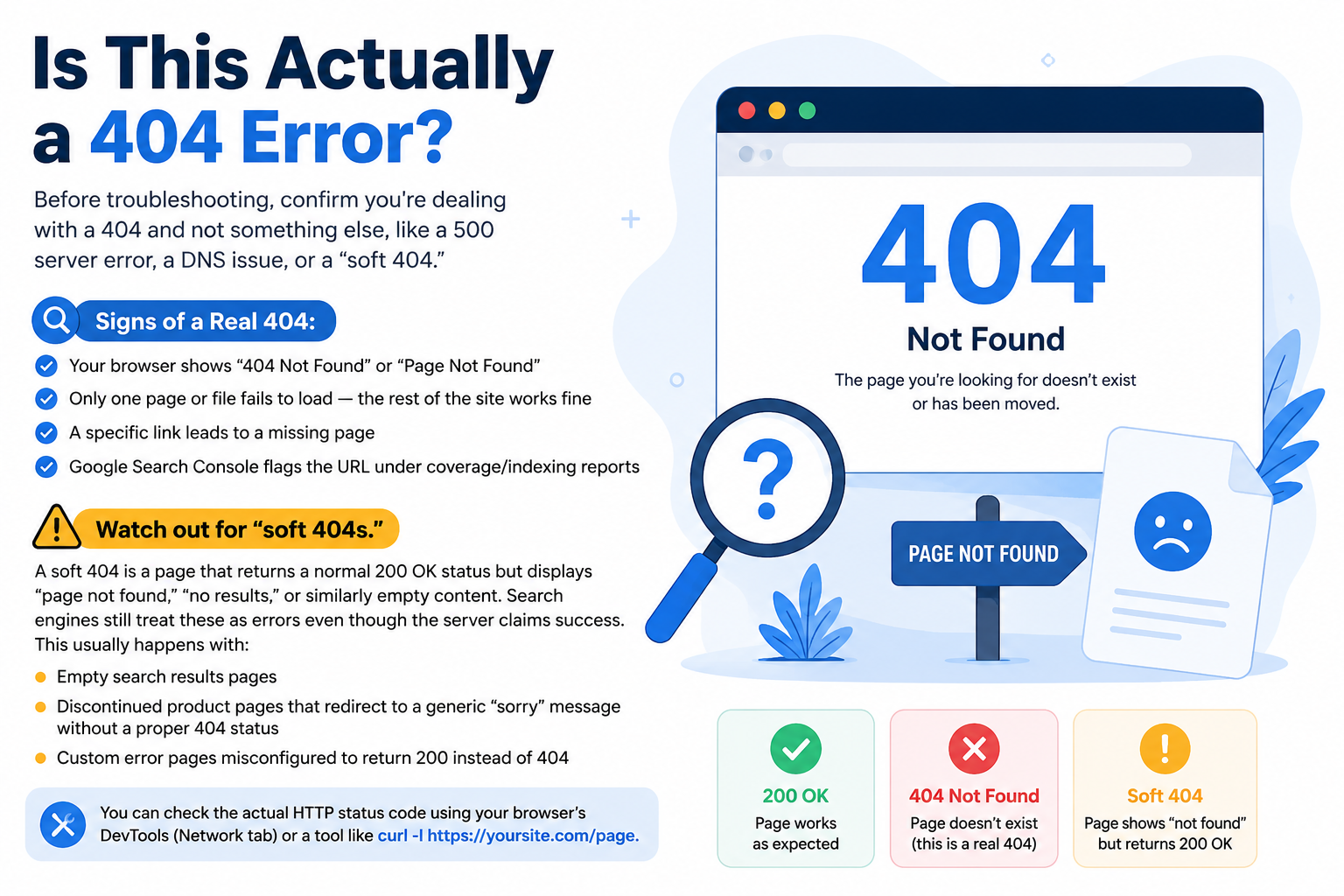
Is This Actually a 404 Error?
Before troubleshooting, confirm you’re dealing with a 404 and not something else, like a 500 server error, a DNS issue, or a “soft 404.”
Signs of a real 404:
- Your browser shows “404 Not Found” or “Page Not Found”
- Only one page or file fails to load — the rest of the site works fine
- A specific link leads to a missing page
- Google Search Console flags the URL under coverage/indexing reports
Watch out for “soft 404s.” A soft 404 is a page that returns a normal 200 OK status but displays “page not found,” “no results,” or similarly empty content. Search engines still treat these as errors even though the server claims success. This usually happens with:
- Empty search results pages
- Discontinued product pages that redirect to a generic “sorry” message without a proper 404 status
- Custom error pages misconfigured to return 200 instead of 404
You can check the actual HTTP status code using your browser’s DevTools (Network tab) or a tool like curl -I https://yoursite.com/page.
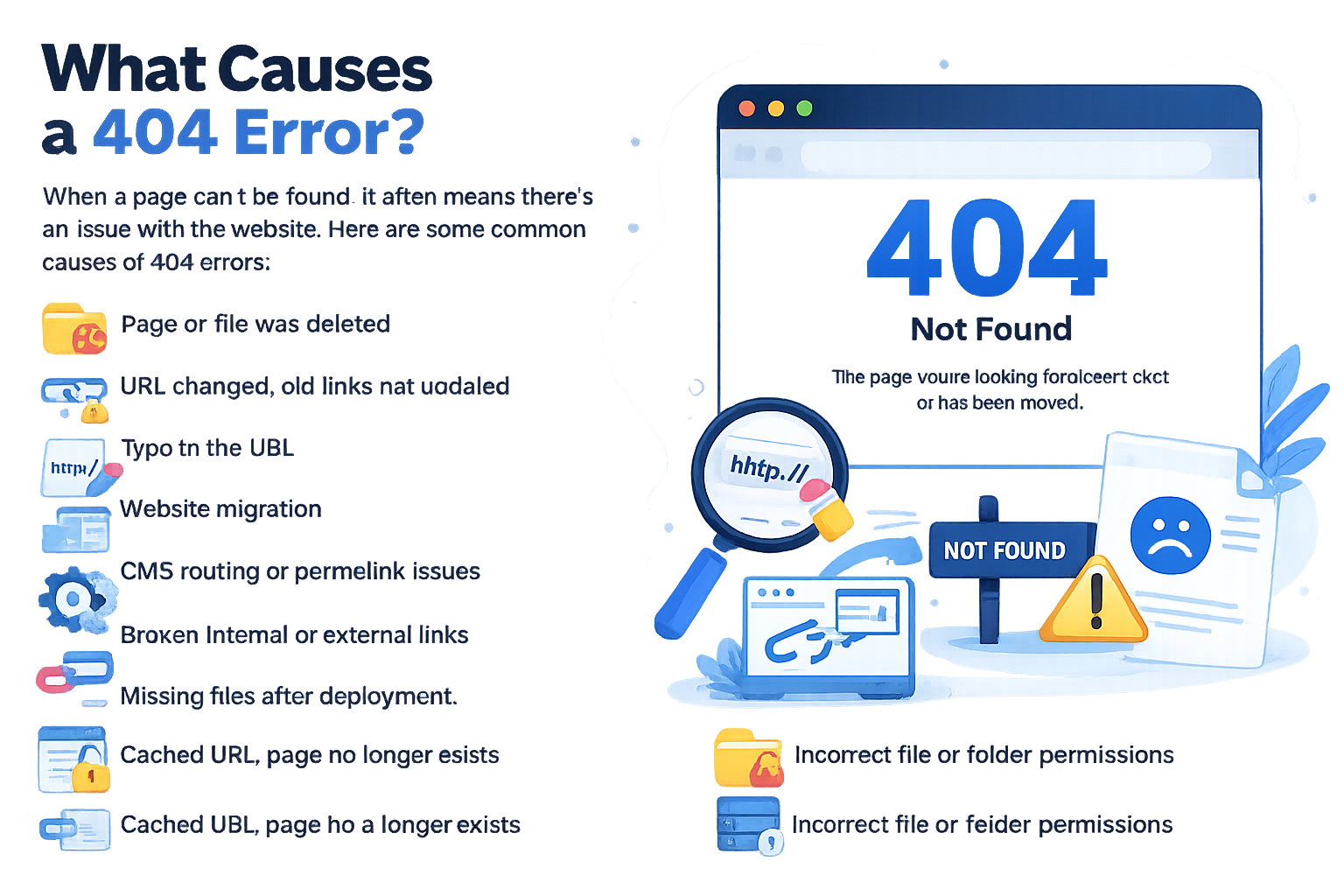
What Causes a 404 Error?
| Cause | How Common | Typical Fix |
| Page/file deleted | Very common | Restore or redirect |
| URL changed, old links not updated | Very common | Add a redirect |
| Typo in the URL | Very common | Correct the link |
| Website migration | Common | Rebuild redirect map |
| CMS routing/permalink issue | Common | Reset permalinks/rewrite rules |
| Broken internal/external links | Common | Update links |
| Missing files after deployment | Occasional | Redeploy/restore files |
| Cached URL, page no longer exists | Occasional | Clear cache |
| Incorrect file/folder permissions | Rare | Fix permissions |
Step-by-Step Fix
1. Verify the URL
Check for typos, extra slashes, wrong capitalization (servers are often case-sensitive), and incorrect file extensions. If the link came from an email or another site, compare it character-by-character with the real page address.
2. Rule Out Caching
Cached versions of a page can request an outdated URL long after it’s changed.
- Hard refresh: Ctrl+Shift+R (Windows/Linux) or Cmd+Shift+R (Mac)
- Test in an incognito/private window
- Clear your CDN or website cache (Cloudflare, Varnish, etc.)
3. Confirm the Page Still Exists
Log into your CMS or file system and check that the content wasn’t deleted or that an upload didn’t fail partway through.
4. Check Whether the URL Changed
If the page was renamed, moved, or given a new permalink, the fix isn’t to “undo” the change — it’s to redirect the old URL to the new one.
5. Platform-Specific Fixes
WordPress
- Go to Settings → Permalinks
- Click Save Changes without altering the structure (this rebuilds rewrite rules)
- Retest the page
- If a plugin was recently installed/updated, deactivate it temporarily to test
Shopify
- Go to Online Store → Navigation → URL Redirects
- Add a redirect from the old path to the new one (Shopify handles this without server file access)
Wix / Squarespace
- Both platforms have a built-in URL redirect manager in site settings — old URLs must be manually mapped since you can’t edit server config directly
Static sites (Next.js, Gatsby, Jekyll, Hugo)
- Check your routing/build output — a missing page usually means a build error or a route that wasn’t generated
- Next.js: verify the file exists under pages/ or app/ and check next.config.js for a redirects() entry
- Confirm your custom 404.js / not-found.js page returns an actual 404 status, not 200
Apache (.htaccess redirect example)
Redirect 301 /old-page.html https://example.com/new-page.html
Nginx (redirect example)
location /old-page.html {
return 301 https://example.com/new-page.html;
}
6. Review Redirect Rules
Look for redirects that point to another dead page, contain typos, or form a redirect chain that eventually dead-ends. Only redirect a page when genuinely equivalent content exists elsewhere — don’t mass-redirect everything to your homepage, as this hurts user experience and can be flagged by Google as a soft 404 pattern.
7. Fix Broken Internal Links
Use a crawler (Screaming Frog, Ahrefs, or Google Search Console’s “Links” report) to find internal links pointing to dead pages, then update them.
8. Check Server Logs
Look for the exact requested path, missing file paths, and rewrite/routing failures. This is the fastest way to catch typos or misconfigured rules you can’t see from the front end.
9. Restore From Backup
If content was deleted by accident, restore it from your most recent backup, then verify it doesn’t overwrite newer changes.
Preventing 404s: Build a Better Error Page
Even a well-maintained site will occasionally serve a 404. A good custom 404 page turns a dead end into a recovery path:
- Keep your site’s normal navigation/header visible
- Add a search bar
- Link to popular pages or your homepage
- Use a friendly, on-brand tone — but keep load time and clarity the priority over cleverness
- Critical: make sure the page actually returns an HTTP 404 status code, not 200 — otherwise search engines will index it as real content (a soft 404)
Why 404s Matter for SEO
Unaddressed 404 errors aren’t just a UX problem:
- Crawl budget waste — search engines spend time crawling dead URLs instead of your live content
- Lost link equity — if other sites link to a page you deleted without redirecting it, that inbound authority is lost
- Search Console flags — check Search Console → Pages → “Not found (404)” regularly to catch these at scale before they pile up
A few 404s are normal and won’t hurt rankings. A large or growing number, especially on previously-indexed pages, is worth fixing with redirects.
Quick FAQ
