
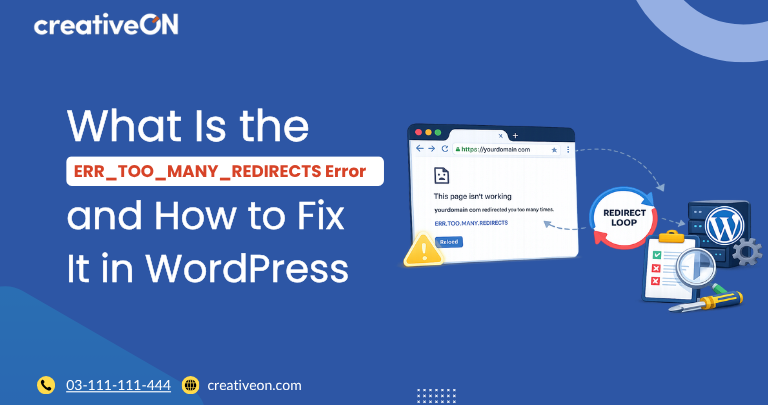
If your WordPress site suddenly refuses to load and your browser shows “This page isn’t working” along with the ERR_TOO_MANY_REDIRECTS error, your site is stuck in a redirect loop. Instead of loading the requested page, the server keeps sending the browser back and forth between two or more URLs until the browser gives up.
This error doesn’t damage your files or database — it’s almost always a configuration issue. Once you know where to look, it’s usually quick to resolve.

What Does ERR_TOO_MANY_REDIRECTS Mean?
A redirect tells the browser, “the content you want has moved, go here instead.” Normally this happens once or twice — for example, redirecting http:// to https://. A redirect loop happens when two settings contradict each other, so the browser is told to go back to a page it already tried, over and over, until Chrome (or another browser) stops and displays the error.
This is a client-side browser error, but the root cause lives in your WordPress configuration, not in the browser itself.
Common Causes in WordPress
Conflicting Site URL Settings
WordPress stores two core URLs — the WordPress Address (siteurl) and Site Address (home) — in the database. If one is set to http:// and the other to https://, or if they don’t match your actual domain, WordPress and your server can end up redirecting endlessly between the two.
SSL and HTTPS Misconfiguration
This is the most frequent trigger. It typically happens when:
- WordPress is set to force HTTPS, but the SSL certificate isn’t properly installed or recognized by the server.
- A “Force SSL” setting is enabled in WordPress while the hosting server is also redirecting HTTP to HTTPS — and the two redirects disagree about the outcome.
- The site was recently moved to SSL, but old links, settings, or caching layers still reference the non-secure version.
Redirect Loops from a Plugin
Security plugins, SSL plugins, and redirect/SEO plugins often add their own redirect rules. If two plugins each try to enforce a different version of the URL (with or without “www”, HTTP or HTTPS), they can cancel each other out and create a loop.
Incorrect .htaccess Rules
The .htaccess file controls redirect behavior at the server level. Manually added rules, or rules duplicated by multiple plugins, can conflict with WordPress’s own redirect logic and send the browser in circles.
Not every site uses .htaccess for this. On Nginx, redirect rules are typically defined in the server block instead, and some Apache setups define them in the virtual host configuration rather than .htaccess. If your site doesn’t use .htaccess, the equivalent rules in that server configuration are where to look instead.
CDN or Proxy SSL Mismatch
If your site uses a CDN or reverse proxy (such as Cloudflare) with SSL enabled at the edge, but the origin server’s SSL mode doesn’t match, the CDN and the server can each try to redirect the request to a different protocol, creating a loop between them.
Cookies Set Under the Wrong Domain
Occasionally, authentication or session cookies get set for the wrong protocol or domain version of the site. This can cause certain pages — often the WordPress login page — to redirect indefinitely for logged-in users while working normally for others.
How to Fix ERR_TOO_MANY_REDIRECTS in WordPress
Work through these steps in order, checking after each one whether the site loads.
1. Clear Your Browser Cache and Cookies
Before touching any settings, rule out a stale local cache. Clear cookies and cached data for your domain, or test the site in an incognito/private window. If the site loads normally there, the fix needs to happen on the browser side for regular visitors, but the underlying server issue below still needs addressing for everyone else.
2. Check the WordPress Address and Site Address
In Settings → General, confirm that both the WordPress Address and Site Address use the same protocol (either both https:// or both http://) and match your actual domain exactly.
If the dashboard itself is inaccessible because of the loop, these values can be corrected directly in the database (via wp_options, in the siteurl and home rows) or temporarily overridden in wp-config.php using the WP_HOME and WP_SITEURL constants.
Back up the database and wp-config.php before making either change. Both are core files, and an incorrect edit can take the site down in a different way than the redirect loop itself.
3. Verify Your SSL Certificate Is Active and Valid
Confirm the SSL certificate is correctly installed and not expired. If HTTPS isn’t fully and correctly configured on the server, forcing SSL redirects in WordPress will conflict with it. Once the certificate is verified as active, HTTPS-related redirect settings can be safely re-enabled.
4. Deactivate Plugins to Isolate the Conflict
Deactivate all plugins, particularly any SSL, security, caching, or redirect plugins, then reload the site. If it loads, reactivate plugins one at a time to identify which one is creating the conflicting rule, then adjust or remove its redirect settings.
5. Inspect and Reset the .htaccess File
Rename the current .htaccess file (so WordPress generates a fresh default version), then reload the site. If this resolves the loop, the original file contained a conflicting redirect rule. Any custom rules that were needed can be re-added individually and tested one at a time.
6. Match SSL Settings Between CDN and Server
If you’re using a CDN or proxy, ensure its SSL mode matches how your origin server handles HTTPS. A common mismatch is a CDN set to “Flexible” SSL while the server also enforces its own HTTPS redirect — switching the CDN to “Full” or “Full (Strict)” SSL usually resolves this.
7. Clear Server-Side and CDN Caching
Once settings are corrected, clear any caching plugin, object cache, and CDN cache. A cached version of the old (conflicting) redirect can keep the loop going even after the underlying setting is fixed.
Preventing This Error in the Future
- Set the Site and WordPress Address correctly the first time your SSL certificate is installed, rather than after the fact.
- Avoid running more than one SSL-enforcement or redirect-management plugin at once.
- Test redirect rule changes on a staging environment before applying them to a live site.
- After any domain, protocol, or CDN change, clear all caching layers immediately.
When to Contact Your Hosting Provider
If the redirect loop persists after checking the WordPress address settings, SSL certificate, plugins, .htaccess (or equivalent server configuration), and CDN settings, the cause may sit at the server level in a way that isn’t accessible through WordPress or cPanel alone — for example, a conflicting rule in the web server’s own configuration. At that point, contacting your hosting provider’s support team with the troubleshooting steps already tried will usually resolve it faster than continuing to test changes blind.
Final Thoughts
ERR_TOO_MANY_REDIRECTS in WordPress almost always comes down to two settings disagreeing about which URL or protocol is correct — most often between WordPress’s own address settings, a plugin, the .htaccess file, or a CDN’s SSL mode. Working through these layers methodically, rather than guessing, is the fastest way to identify the conflicting rule and get the site loading normally again.
