
If you’ve landed on a page showing “400 Bad Request” instead of the website you expected, it means the server couldn’t understand or process your request. Unlike server-side errors (like 500 Internal Server Error), a 400 Bad Request usually points to something wrong with the request itself — often caused by the browser, cache, or a malformed URL.
This guide explains exactly what triggers this error and how to resolve it, whether you’re a visitor trying to access a site or a site owner troubleshooting it from the backend.
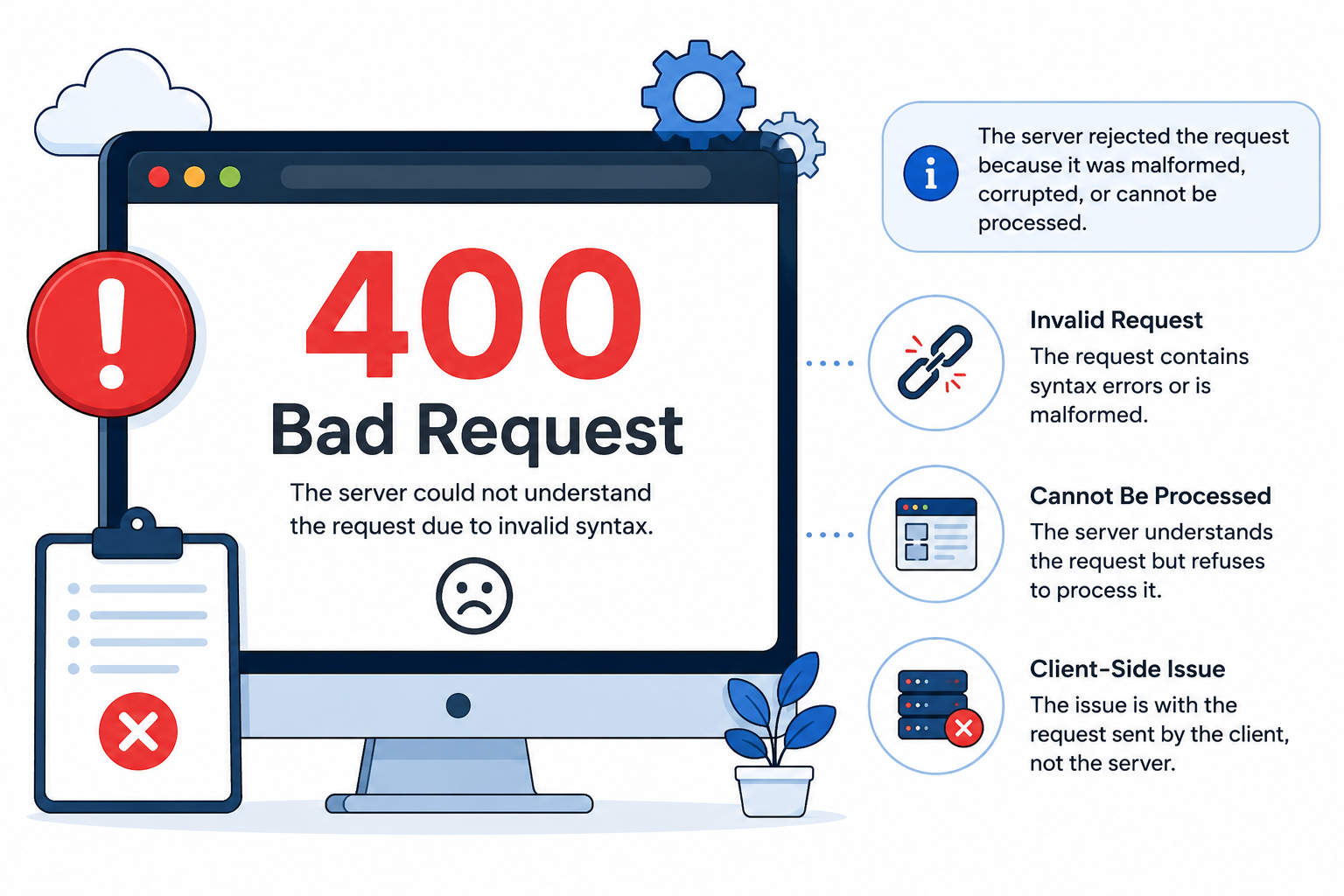
What Does 400 Bad Request Mean?
A 400 Bad Request is an HTTP status code returned when the server determines that the client’s request is malformed, corrupted, or otherwise something it cannot process. This differs from errors like 404 (page not found) or 502 (bad gateway), because the problem originates in how the request was sent — not in whether the resource exists or the server is reachable. In short, the server rejected the request before it could successfully process it.
Common variations you might see include:
- “400 Bad Request”
- “Bad Request – Invalid URL”
- “HTTP Error 400 – Bad Request”
- “400 Bad Request: Request Header Or Cookie Too Large”
Each variation hints at a slightly different underlying cause, but they all fall under the same category: the request never reached a stage where the server could fulfill it properly.
Common Causes of a 400 Bad Request Error
Corrupted Browser Cache or Cookies
Outdated or corrupted cookies are one of the most frequent triggers. Browsers store session data and cookies to speed up repeat visits, but if this data becomes invalid or too large, the server rejects the request outright.
Malformed or Mistyped URL
A URL containing invalid characters, incorrect encoding, or broken syntax can prevent the server from parsing it correctly. This is common when links are copied incompletely or when special characters aren’t properly escaped.
Invalid Request Parameters
Missing, incorrect, or improperly formatted URL parameters — such as broken query strings, form data, or API payloads — can cause a server to reject the request outright. This is especially common with search URLs, contact forms, and dynamically generated links.
Invalid or Oversized Upload Requests
Some applications return a 400 error when an upload request is invalid or exceeds an application-defined limit. That said, oversized files more commonly trigger 413 Content Too Large rather than 400 — the exact response depends on how the server or application is configured to validate uploads.
Browser Extensions or Corrupted Local Data
Extensions that modify request headers, or corrupted browser profile data, can interfere with how requests are formatted before they’re sent.
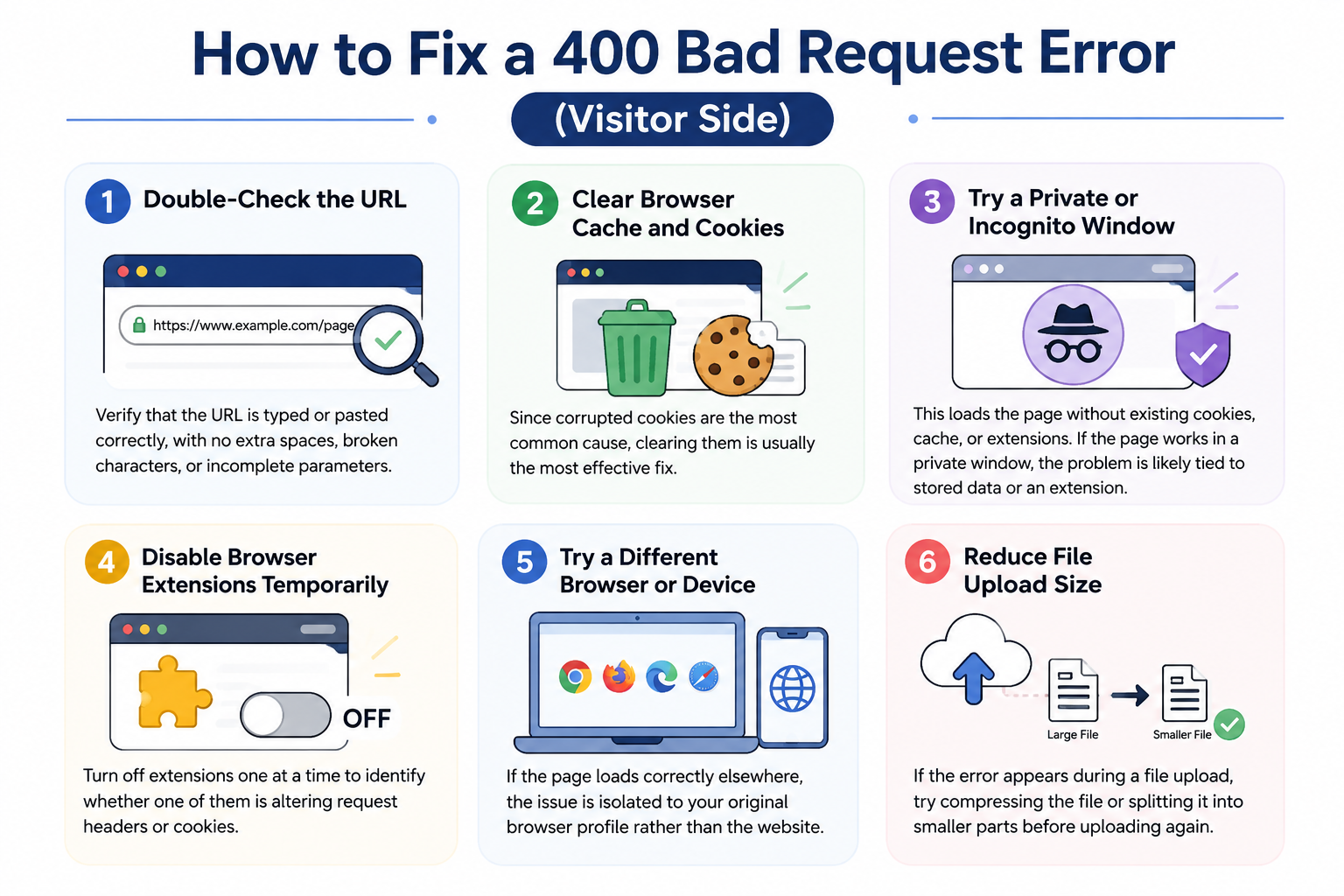
How to Fix a 400 Bad Request Error (Visitor Side)
1. Double-Check the URL
Verify that the URL is typed or pasted correctly, with no extra spaces, broken characters, or incomplete parameters.
2. Clear Browser Cache and Cookies
Since corrupted cookies are the most common cause, clearing them is usually the most effective fix. This removes any stored session data that may be malformed.
3. Try a Private or Incognito Window
This loads the page without existing cookies, cache, or extensions. If the page works in a private window, the problem is likely tied to stored data or an extension in your regular browser profile.
4. Disable Browser Extensions Temporarily
Turn off extensions one at a time to identify whether one of them is altering request headers or cookies.
5. Try a Different Browser or Device
If the page loads correctly elsewhere, the issue is isolated to your original browser profile rather than the website itself.
6. Reduce File Upload Size
If the error appears during a file upload, try compressing the file or splitting it into smaller parts before uploading again.
How to Fix a 400 Bad Request Error (Site Owner Side)
If visitors are reporting this error on your website, the issue is often on the server configuration side rather than the visitor’s browser.
- Check server logs to identify which specific requests are being rejected and why.
- Review header and cookie size limits — if your application sets excessive cookies, some server configurations will reject requests once headers exceed a defined size.
- Inspect recent code or plugin changes, especially anything that modifies request headers, redirects, or form submissions.
- Validate form and API input handling to ensure malformed data isn’t being passed through incorrectly.
If the issue persists after these checks, reviewing your server-side request handling configuration with your hosting provider can help pinpoint stricter limits that may be triggering the rejection.
400 vs. Other Common HTTP Errors
Because 400 is often confused with similar-looking error codes, here’s how it differs at a glance:
|
Error |
Meaning |
|
400 Bad Request |
The server can’t process the request as sent |
|
404 Not Found |
The requested resource doesn’t exist |
|
500 Internal Server Error |
The server hit an unexpected problem while processing a valid request |
|
502 Bad Gateway |
A proxy or gateway got an invalid response from an upstream server |
Final Thoughts
A 400 Bad Request error usually means the server rejected the request because it was malformed, invalid, or unprocessable — not because the website is down. For visitors, checking the URL, clearing cookies and site data, and testing another browser resolves most cases. For site owners, server logs, header and cookie limits, and recent code or plugin changes are the fastest places to find the root cause.