
When your browser requests a webpage, the server doesn’t always need to send the whole page back. Sometimes it simply replies, “Nothing has changed — use what you already have.” That response is the 304 Not Modified status code, and while it’s normal in most cases, it can occasionally cause display or update issues that need fixing.
What Does 304 Not Modified Mean?
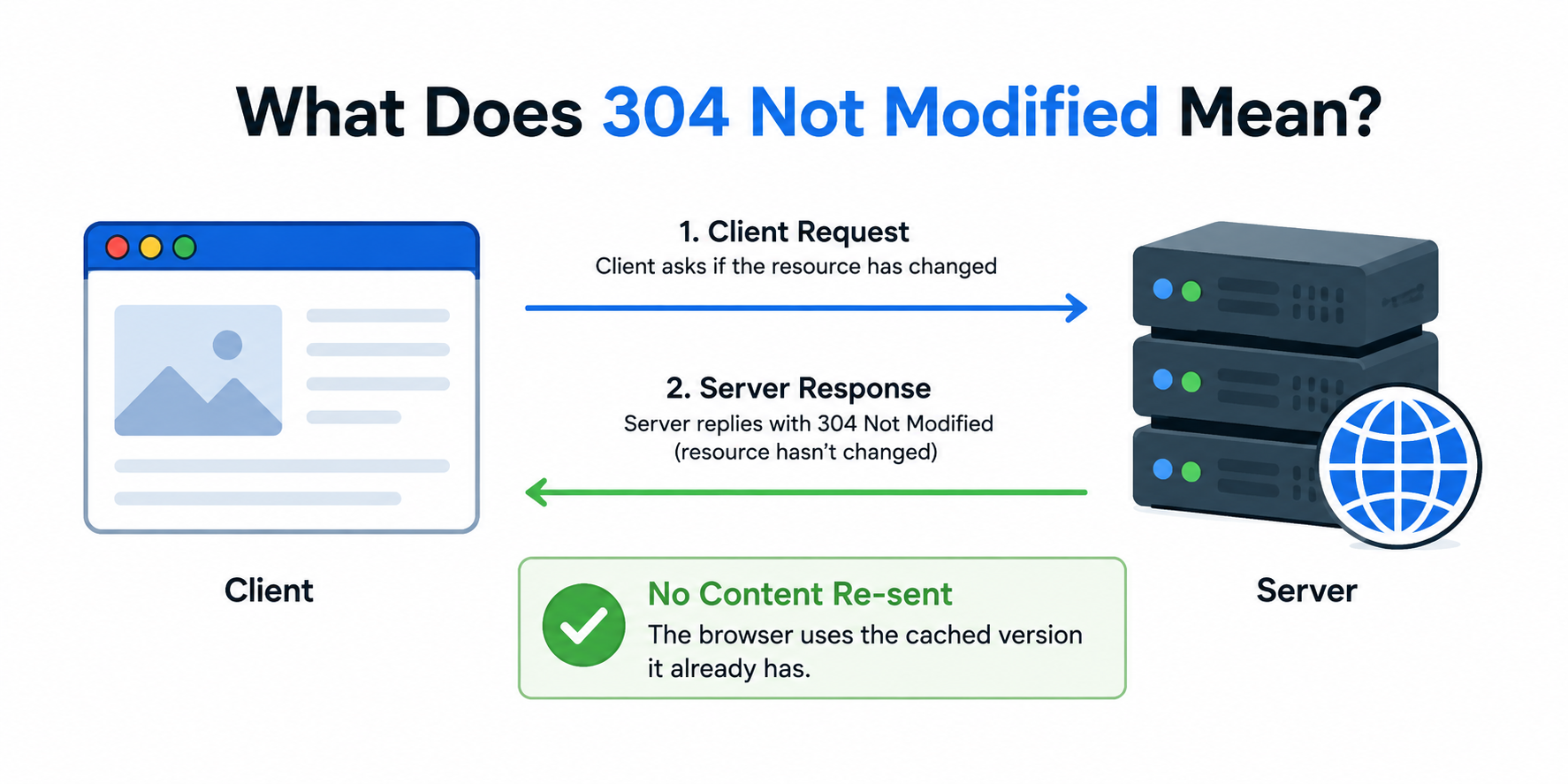
A 304 Not Modified status code is an HTTP response telling the browser that the requested resource (a page, image, script, or stylesheet) hasn’t changed since the last time it was fetched. Instead of downloading the file again, the browser can use its cached copy. This is a caching optimization, not an error — it’s part of how HTTP is designed to work.
How Does 304 Not Modified Work?
The process relies on conditional requests. When a browser has already cached a resource, its next request includes validation headers that let the server check for changes before deciding whether to resend the file:
- If-None-Match — sends back the ETag (a unique file version identifier) the browser received last time
- If-Modified-Since — sends back the last known modification date
The server compares this against the current version of the resource. If nothing has changed, it replies with 304 Not Modified and an empty body, and the browser reuses its cached copy. If the resource has changed, it responds with 200 OK and sends the updated file along with a new ETag or Last-Modified value.
Is 304 Not Modified a Good or Bad Sign?
In most cases, a 304 response is a good sign. It means:
- The browser is caching content correctly
- Server load is reduced
- Page load speed improves for the visitor
- Bandwidth usage is minimized
Problems can arise when cached content is stale or cache validation isn’t behaving as expected — for example, when a file has actually changed, but the browser or server still treats it as unchanged. This is when visitors see outdated content, broken layouts, or stale scripts even after an update.
Common Causes of 304 Not Modified Issues
1. Outdated ETag or Last-Modified Headers
If a server fails to update the ETag or Last-Modified timestamp after a file changes, it keeps confirming “no change” even when there is one.
2. Stale Browser or Proxy Cache
Browser or proxy caching rules can sometimes fail to reflect how frequently a resource actually changes. This can make a recently updated file appear unchanged to visitors, even when the server-side validation logic itself is working correctly.
3. CDN Cache Not Purged After Updates
When a site uses a content delivery network, updated files on the origin server may not be reflected until the CDN cache is cleared, leading to repeated 304 responses for old content.
4. Server Misconfiguration
Incorrect caching rules in server configuration can cause a resource to be marked as unchanged when it shouldn’t be, especially after deployments or content edits.
5. Development or Staging Environment Confusion
During development, cached 304 responses can make it seem like code changes aren’t taking effect, when in reality the browser is simply serving a cached version.
How to Fix 304 Not Modified Issues
Clear Browser Cache
The fastest way to confirm whether a 304 issue is client-side is to perform a hard refresh (Ctrl+F5 or Cmd+Shift+R) or clear the browser cache entirely. If the updated content appears, the issue was local caching, not the server.
Update or Force New ETags
Ensure the server regenerates the ETag or Last-Modified header whenever a file is edited. This forces browsers to recognize the file as new instead of reusing the cached version.
Purge CDN Cache After Changes
If a CDN is in use, always purge or invalidate the cache after publishing updates. This ensures visitors receive validation checks against the newest file version rather than an outdated one.
Review Server Caching Rules
Check server-side caching configuration to confirm conditional requests are being evaluated correctly, especially after migrations, plugin updates, or theme changes.
Disable Caching Temporarily for Debugging
When troubleshooting, temporarily disabling caching (or using browser developer tools with “Disable cache” enabled) helps isolate whether the 304 response is expected behavior or a genuine bug.
Check the Cache-Control Header
Also review the Cache-Control response header. It determines how long a resource can be stored and when it needs to be revalidated, so an overly permissive or outdated value can contribute to stale content even when ETags are working correctly.
304 Not Modified vs 200 OK
200 OK means the server processed the request successfully and returned the full resource. 304 Not Modified means the server checked the resource and determined the client’s cached copy is still valid, so it doesn’t resend the file body. Seeing 304 in the Network tab isn’t a failure — it’s the expected result of a working cache.
Should You Fix a 304 Not Modified Response?
It’s worth noting that 304 Not Modified is not inherently broken — it’s a core part of efficient web performance. The goal isn’t to eliminate 304 responses, but to make sure they only occur when content truly hasn’t changed. Removing conditional caching altogether would increase server load and slow down page delivery for all visitors.
Final Thoughts
The 304 Not Modified status code is a sign that browser caching is doing its job — reducing load times and saving bandwidth by reusing unchanged resources. Issues only occur when validation headers become out of sync with actual file changes, usually due to outdated ETags, unpurged CDN caches, or misconfigured caching rules. Fixing it is mostly about keeping cache validation accurate, not disabling caching altogether.
