

If you’re trying to install an SSL certificate on a VPS, it might feel a bit technical at first. Unlike shared hosting, where SSL is often just one click, VPS gives you more control—but also more responsibility.
The good news? Once you understand the process, installing SSL on a VPS is actually very manageable. And it’s one of the most important things you can do for your website.
Without SSL, your website shows as “Not Secure,” which can scare visitors away and hurt your Google rankings. With SSL, your site becomes secure, trustworthy, and ready for real users—especially if you’re running a business, blog, or online store.
In this guide, you’ll learn exactly how to set up SSL on your VPS step by step, even if you’re a complete beginner.
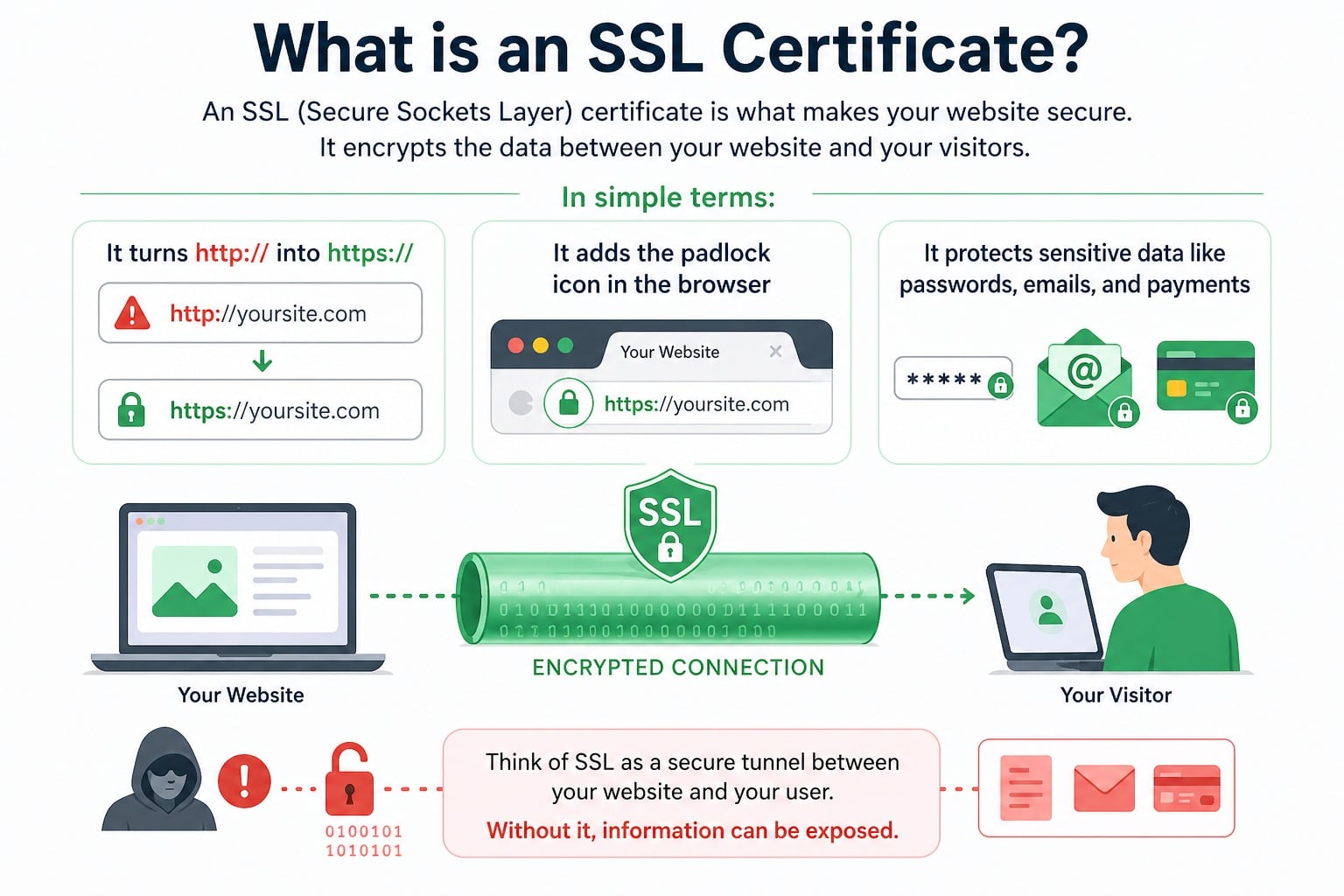
What is an SSL Certificate?
An SSL (Secure Sockets Layer) certificate is what secures your website by encrypting data between your server and visitors.
In simple terms:
- It turns http:// into https://
- It adds a padlock icon in the browser
- It protects sensitive data like passwords, emails, and payments
Think of SSL as a secure tunnel that keeps information safe while it travels between your website and your users.
Why SSL is Important for VPS Hosting
When you use VPS hosting (like CreativeON’s VPS solutions), you get full control over your server environment. That’s powerful—but it also means security is your responsibility.
SSL is essential because it:
- Protects user data from hackers
- Improves SEO rankings (Google prefers HTTPS websites)
- Builds trust with visitors
- Is required for login systems and eCommerce
If you’re running a business website, SSL is not optional—it’s a basic requirement.
Before You Start (Important Requirements)
Before installing SSL on your VPS, make sure you have:
- A domain name pointing to your VPS IP
- Access to your VPS via SSH
- Root or sudo privileges
- A web server installed (Nginx or Apache)
If your domain is not connected properly, SSL will not work.
Different Ways to Install SSL on VPS
There are multiple ways to set up SSL on a VPS. The best method depends on your needs.
1. Let’s Encrypt (Free SSL)
- Free and widely used
- Easy to install using Certbot
- Best for most websites
2. Paid SSL Certificates
- Higher trust level (ideal for large businesses)
- Comes with warranty and support
- Requires manual installation
3. Control Panel-Based SSL
- One-click install via panels like CyberPanel or cPanel
- Easier for beginners
In this guide, we’ll use Let’s Encrypt, which is the most popular option.
How to Install SSL Certificate on VPS (Step-by-Step Guide)
Let’s walk through the easiest method to install SSL on a Linux VPS using Certbot.
Step 1: Connect to Your VPS
Use SSH to access your server:
ssh root@your-server-ip
Step 2: Update Your Server
Run:
sudo apt update && sudo apt upgrade -y
Step 3: Install Certbot
For Nginx:
sudo apt install certbot python3-certbot-nginx -y
For Apache:
sudo apt install certbot python3-certbot-apache -y
Step 4: Generate SSL Certificate
For Nginx:
sudo certbot –nginx
For Apache:
sudo certbot –apache
You will be asked:
- Your email address
- Your domain name
- Whether to redirect HTTP to HTTPS (choose YES)
Certbot will automatically install and configure SSL for you.
Step 5: Verify SSL Installation
Open your website:
You should see:
- A padlock icon
- HTTPS working correctly
Step 6: Enable Auto-Renewal
Let’s Encrypt certificates expire every 90 days, but renewal can be automated.
Check status:
sudo systemctl status certbot.timer
Test renewal:
sudo certbot renew –dry-run
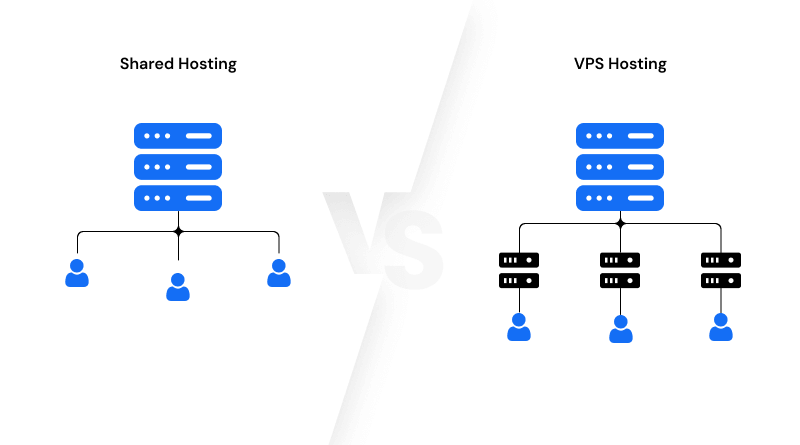
VPS vs Shared Hosting (SSL Perspective)
Understanding this helps beginners a lot.
- Shared Hosting = SSL is usually one-click, handled by provider
- VPS Hosting = You install and manage SSL yourself
Think of it like:
- Shared hosting = renting a room
- VPS = owning your own apartment
More control comes with more responsibility—but also more flexibility.
Why VPS + SSL is Powerful
When you combine VPS hosting with SSL, you get:
- Better performance
- Higher security
- Full control over configurations
- Ability to host multiple secure websites
This is why growing businesses often upgrade from shared hosting to VPS.
Real-Life Examples
Example 1: eCommerce Website
Without SSL:
- “Not Secure” warning
- Payment failures
- Low trust
With SSL:
- Secure checkout
- Better conversions
- Higher Google rankings
Example 2: Web App / Client Dashboard
If you’re running:
- SaaS platform
- Client portal
- Login-based system
SSL ensures:
- Secure user sessions
- Encrypted login data
- Safe communication
When Should You Upgrade to VPS for SSL?
You should consider VPS when:
- Your website is getting more traffic
- Your site is slowing down
- You need more control over security
- You are running business-critical applications
After Installing SSL – Best Practices
To keep your VPS secure, follow these tips:
- Force HTTPS redirection
- Keep your server updated
- Use a firewall (like UFW)
- Disable outdated SSL protocols
- Monitor certificate expiry
Security is not one-time—it’s ongoing.
Common Issues (And Fixes)
Domain Not Pointing to VPS
Make sure DNS is correctly configured.
Ports 80/443 Blocked
Run:
sudo ufw allow 80
sudo ufw allow 443
SSL Not Showing
- Clear browser cache
- Restart server
Related Concepts You Should Know
To better understand VPS and SSL, learn about:
- VPS Hosting (core infrastructure)
- Shared Hosting (entry-level hosting)
- Cloud Hosting (scalable environments)
- Dedicated Servers (full hardware control)
- Domain Names & DNS (connection layer)
- Business Email solutions like Google Workspace
These all work together in real-world deployments.
Frequently Asked Questions
