

An Ubuntu VPS can run websites, applications, and databases efficiently, but its performance depends on how well its resources and services are managed. High CPU usage, limited memory, low disk space, and unnecessary background processes can affect server stability and application response times.
This Ubuntu VPS optimization checklist helps you review the essential areas of your server without making unnecessary configuration changes. Whether you manage a new Ubuntu VPS or maintain an existing one, these checks can help you identify potential bottlenecks, improve reliability, and maintain a secure operating environment.
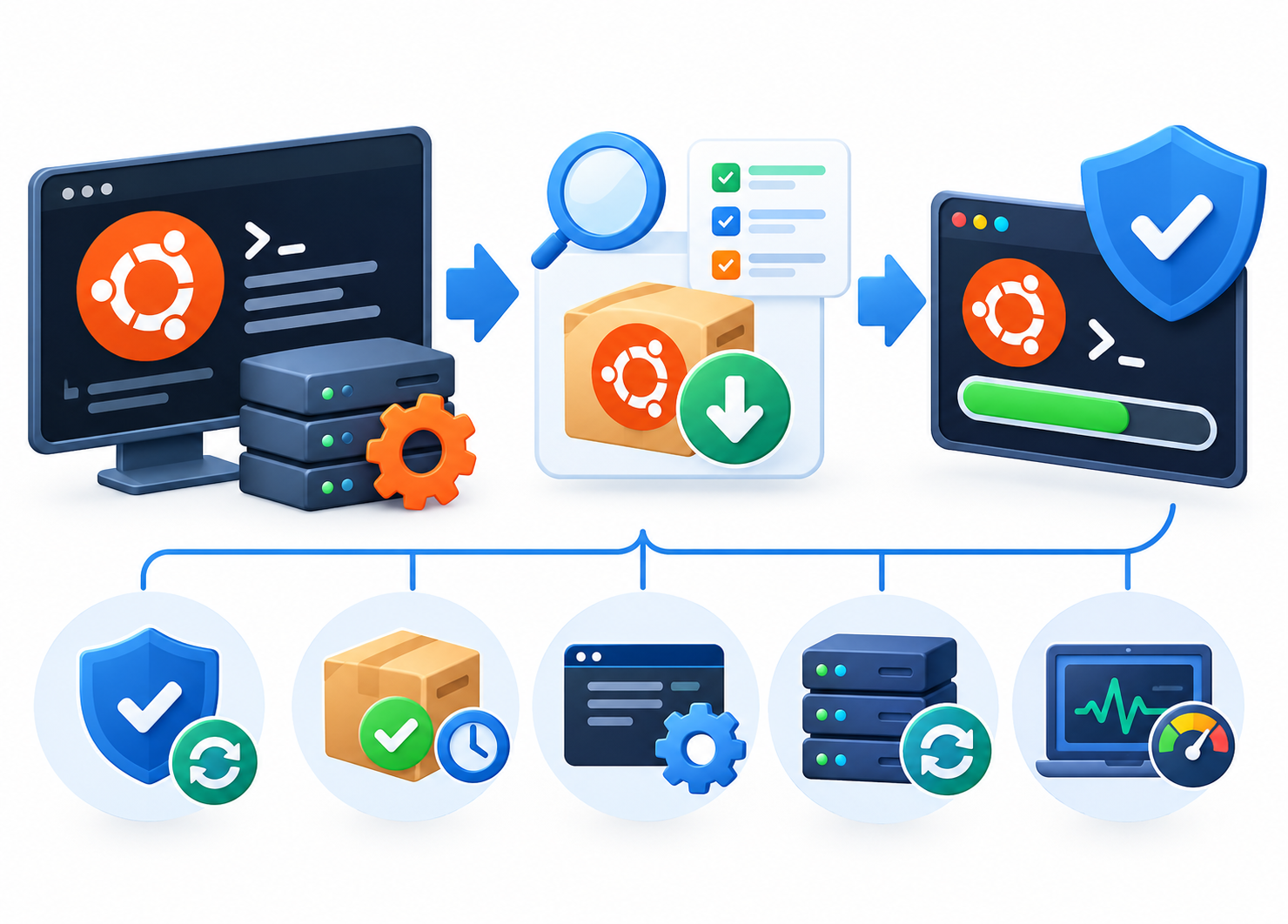
1. Update Ubuntu Packages Safely
Keeping Ubuntu packages updated helps address security vulnerabilities, fix bugs, and maintain system stability.
Start by refreshing the package lists and reviewing available updates:
sudo apt update
apt list –upgradable
When you are ready to apply updates, run:
sudo apt upgrade
Review the proposed changes before confirming them, especially on production servers.
Optimization checklist:
- Apply security updates regularly.
- Check whether important packages have pending updates.
- Plan maintenance windows for changes that may interrupt services.
- Confirm that applications remain operational after significant updates.
- Check whether a system reboot is required following kernel or other system updates.
Avoid performing a major Ubuntu version upgrade as part of routine optimization without first checking application compatibility and preparing a recovery plan.
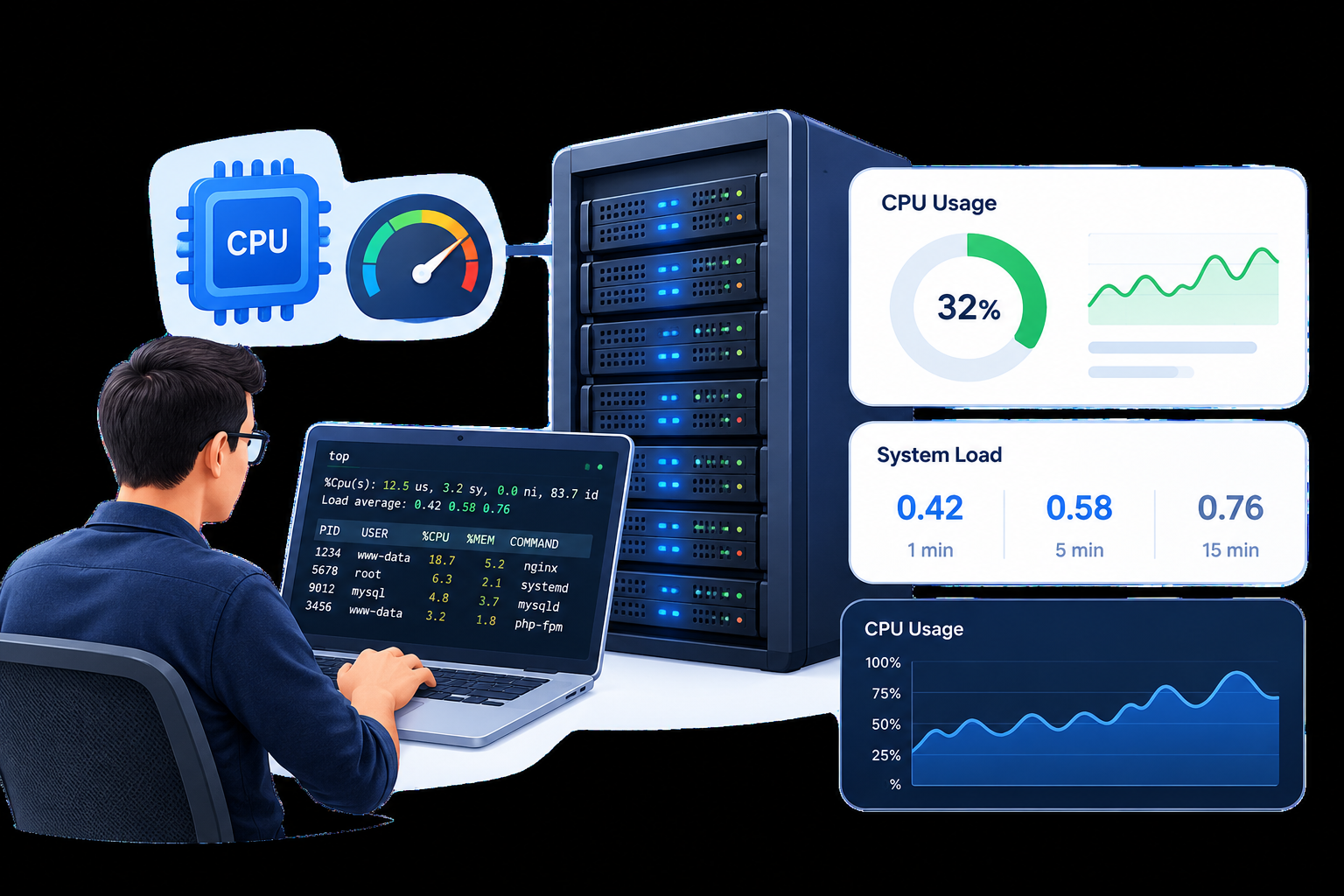
2. Check CPU Usage and System Load
High CPU usage can slow websites, increase application response times, and delay background tasks. Before changing server settings, identify which processes are consuming resources.
Run:
top
uptime
The top command displays running processes and their resource consumption. The uptime command shows system load averages.
What to check:
- Processes that consistently consume high CPU.
- Unexpected background tasks.
- CPU usage during peak traffic.
- Persistent high system load compared with the number of available CPU cores.
A temporary CPU spike does not necessarily indicate a problem. Investigate sustained high usage and correlate it with application traffic, scheduled tasks, or recent configuration changes.
If a particular application is responsible, investigate its workload before upgrading your VPS resources.

3. Review RAM and Swap Usage
Insufficient available memory can affect application performance and, in severe cases, cause Linux to terminate processes through its out-of-memory management mechanisms.
Check memory usage with:
free -h
Review swap configuration and usage with:
swapon –show
Optimization checklist:
- Check available memory during normal and peak workloads.
- Identify applications consuming unusually large amounts of RAM.
- Investigate persistent memory pressure.
- Review swap activity alongside application performance.
- Consider additional RAM if the workload regularly exceeds available memory.
Swap allows Linux to use disk space for some memory pages, but it is much slower than physical RAM. Swap usage alone does not mean that your VPS needs an upgrade. Persistent memory pressure and performance degradation are stronger reasons to investigate further.
Do not change swap settings simply to achieve a particular usage figure. The appropriate configuration depends on the server’s workload and available resources.
4. Check Disk Space and Storage Usage
Running out of disk space can prevent applications from writing data, cause database errors, interrupt package updates, and interfere with logging.
Check filesystem usage:
df -h
To identify large directories at the root filesystem level, run:
sudo du -xhd1 / 2>/dev/null
This command helps locate directories that use substantial disk space without crossing into other mounted filesystems.
Optimization checklist:
- Check available space on important filesystems.
- Identify unexpectedly large log files.
- Review application uploads, temporary files, and stored data.
- Check whether old backups are consuming local storage.
- Investigate disk usage trends rather than checking capacity only once.
Do not delete unfamiliar files or database data to free space. Determine what is consuming storage and confirm that files are safe to remove before taking action.
If storage consumption continues to grow, investigate the underlying cause rather than repeatedly deleting files.
5. Review Unnecessary Background Services
Ubuntu runs system services that support networking, remote administration, applications, and other system functions. Some additional services may be unnecessary for a particular VPS workload.
List running services:
systemctl –type=service –state=running
Review services enabled to start automatically:
systemctl list-unit-files –type=service –state=enabled
Use these lists to identify services you do not recognize or applications that are no longer required.
Optimization checklist:
- Identify unused software and services.
- Check whether applications still depend on a service.
- Investigate services that consume significant resources.
- Remove or disable unnecessary components only after verifying their purpose.
- Confirm essential services remain operational after changes.
Having many running services does not automatically mean your VPS is inefficient. Focus on unnecessary resource consumption and security exposure instead of disabling services simply to reduce their number.
6. Review Web Server and Application Performance
An Ubuntu VPS may have sufficient CPU and RAM while a website or application still performs poorly. The cause could be inefficient application code, slow database queries, unsuitable worker limits, or missing caching.
Start by checking resource consumption and identifying which services handle the workload.
Optimization checklist:
- Review web server and database resource usage.
- Investigate slow application responses.
- Check for expensive database queries.
- Enable appropriate application or page caching where supported.
- Review worker and connection limits against available memory and CPU.
- Compare response times before and after making changes.
Avoid copying configuration values from another server without considering your own workload and software versions.
If a specific service is responsible for high CPU usage or slow responses, investigate that issue directly rather than changing unrelated Ubuntu settings.
For more detailed troubleshooting, use dedicated CreativeON guides on VPS performance monitoring and fixing high CPU usage.
7. Verify Essential SSH and Firewall Settings
Security is an important part of maintaining a reliable Ubuntu VPS. However, security hardening should be performed carefully to avoid accidentally losing administrative access.
SSH checklist:
- Use strong authentication and unique credentials.
- Prefer SSH key-based authentication where appropriate.
- Review which accounts can access the server.
- Restrict administrative access when practical.
- Validate SSH configuration before applying changes.
To check the SSH server configuration syntax, run:
sudo sshd -t
If you change SSH settings, test a new connection before closing your existing administrative session.
Firewall checklist:
- Allow only the ports required by your applications.
- Confirm the correct SSH port and access rules.
- Check the current firewall configuration.
- Ensure web services remain accessible when required.
For Ubuntu systems using UFW, inspect the current rules with:
sudo ufw status verbose
Do not enable or modify firewall rules remotely without first confirming that your administrative access will remain available.
For detailed instructions, link this section to a dedicated VPS Firewall Setup Guide and SSH Security Guide rather than expanding this checklist into a full security tutorial.
8. Confirm Backups and Recovery Readiness
Server optimization should not come at the expense of data protection. Configuration changes, software updates, and unexpected failures can affect business-critical applications.
Use this checklist to verify that your recovery arrangements are adequate:
- Back up essential application files and databases.
- Keep at least one backup copy outside the VPS.
- Protect backup data with appropriate access controls.
- Monitor automated backup jobs for failures.
- Perform periodic restoration tests.
- Confirm that important configuration files can be recovered.
A successful backup job does not guarantee that the data can be restored correctly. Periodic restoration tests help identify incomplete backups and recovery problems before an incident occurs.
For implementation details, refer to CreativeON’s dedicated VPS Backup and Disaster Recovery Guide.
9. Verify Performance After Changes
Optimization should produce measurable improvements or address a clearly identified risk. Changing settings without checking the results can introduce new problems without improving performance.
After making changes, repeat the relevant checks:
top
free -h
df -h
uptime
Then verify that your website, database, or application is working correctly.
Post-optimization checklist:
- Compare CPU and memory usage with previous observations.
- Confirm that adequate disk space remains available.
- Check for failed or unexpectedly stopped services.
- Test important application functions.
- Review logs for new errors.
- Confirm that remote access and required network services still work.
Use comparable workloads when evaluating performance. A quiet period after a configuration change does not prove that the change improved performance.
Keep a record of significant changes and their results. This makes it easier to identify the cause if performance deteriorates later.
10. Establish a Routine Ubuntu VPS Maintenance Schedule
Ubuntu VPS optimization is an ongoing process. Regular reviews help you detect resource pressure, outdated packages, storage problems, and service failures before they significantly affect users.
Use this suggested schedule as a starting point:
| Frequency | Recommended checks |
| Daily or automated | Review important alerts, service failures, and backup errors. |
| Weekly | Review resource trends, disk usage, and unusual log activity. |
| Monthly | Review updates, access controls, firewall rules, and storage growth. |
| After significant changes | Verify application functionality, resource usage, and recovery readiness. |
The appropriate frequency depends on the importance of your applications, traffic levels, security requirements, and existing monitoring arrangements.
For business-critical systems, automated monitoring and alerts are more dependable than relying entirely on manual checks.
Frequently Asked Questions
