
Hey there!
Built a Node.js app and wondering how to put it online so everyone can use it?
You’re not alone. Many people get stuck at this point. But guess what? Deploying a Node.js app is easier than it looks — especially when you use a VPS server.
In this guide, I’ll walk you through everything in a simple, friendly way. By the end, you’ll know exactly how to run your app online — and even use it for automation tools like OpenClaw.
What Is the Easiest Way to Deploy a Node.js App?
The easiest way is:
👉 Upload your app to a VPS server, install Node.js, and run it using PM2 so it stays online 24/7.
That’s it. Simple, right?
Why Use a VPS for Node.js Deployment?
Let’s keep it real — Node.js apps need control and flexibility.
That’s why VPS Hosting is the best choice.
With a VPS server, you get:
- Full control over your environment
- Better performance than shared hosting
- Ability to run automation tools
- 24/7 uptime
If you’re searching for the best VPS in Pakistan, CreativeON provides:
- High-performance VPS Hosting
- Reliable cheap VPS in Pakistan
- Linux and Windows VPS options
- Local support in Pakistan & UAE
👉 Whether you want to buy VPS for a startup or scale your app later — it’s a solid choice.
Different Ways to Deploy a Node.js App
Before we jump into steps, let’s quickly look at your options.
1. VPS Hosting (Best Option)
- Full control
- Affordable
- Ideal for production apps
2. Cloud Platforms
- Easy to scale
- Slightly higher cost
3. Shared Hosting
- Limited support for Node.js
- Not recommended
👉 For most users, VPS Hosting is the perfect balance.
What You Need Before You Start
Don’t worry — you don’t need anything complicated.
Just make sure you have:
- A working Node.js app
- A VPS server
- SSH access
- Basic command line knowledge
- A domain (optional but recommended)
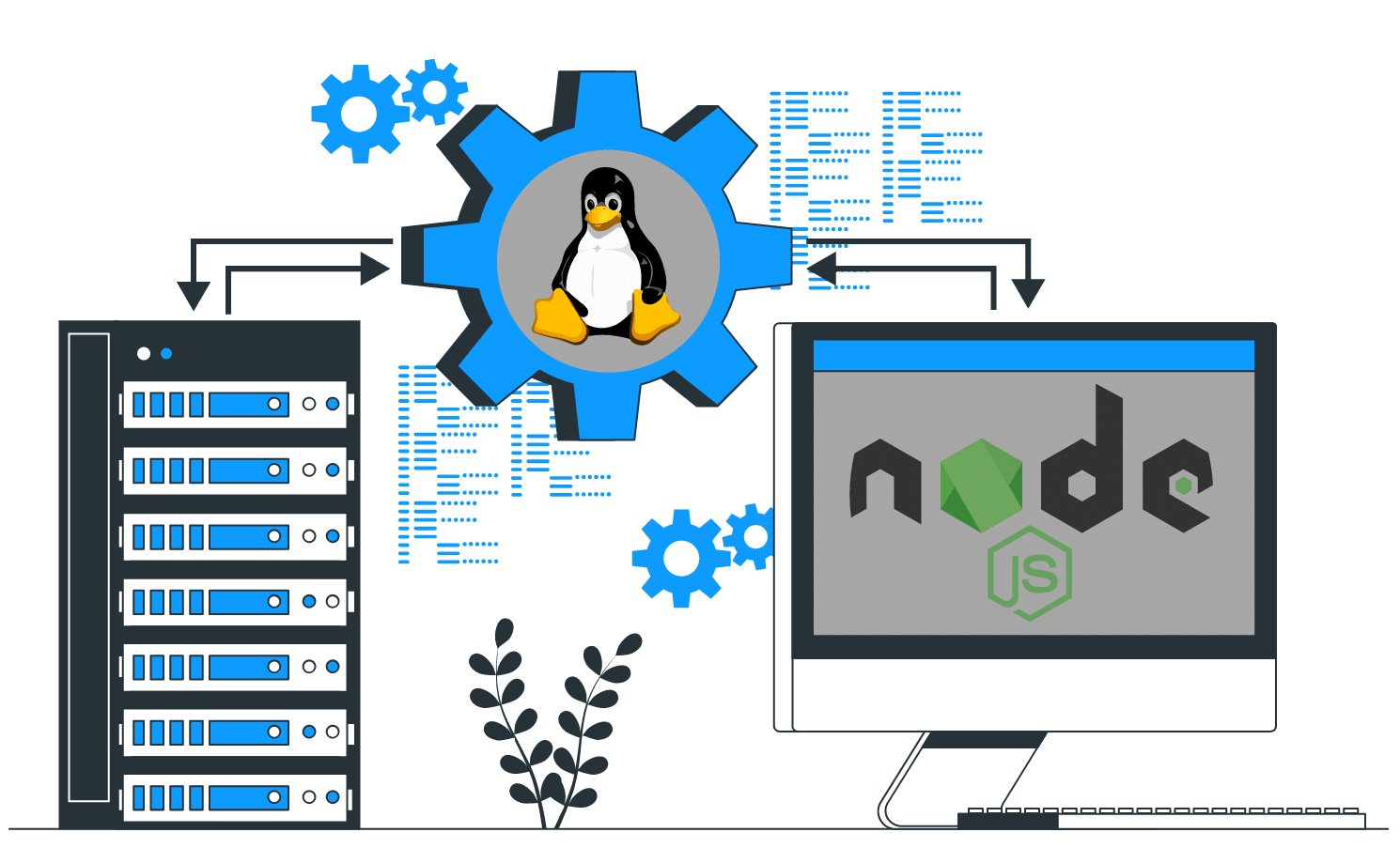
Step-by-Step: How to Deploy Node.js App on VPS Server
Let’s do this together 👍
Step 1: Connect to Your VPS
After you buy VPS, connect using SSH:
ssh root@your-server-ip
Step 2: Install Node.js
Run:
sudo apt update
sudo apt install nodejs npm -y
Check version:
node -v
npm -v
Step 3: Upload Your Node.js App
Option 1 (Recommended):
git clone your-repository-link
Option 2:
Upload files using FTP or file manager.
Step 4: Install Dependencies
Move into your project:
cd your-app-folder
npm install
Step 5: Start Your Application
Run:
node app.js
Your app is now running 🎉
But there’s a catch…
👉 It will stop when you close the terminal.
Step 6: Keep App Running with PM2
Install PM2:
npm install -g pm2
Start your app:
pm2 start app.js
Now your app:
- Runs in background
- Restarts automatically
- Stays online 24/7
Isn’t that neat?
Step 7: Set Up NGINX (Recommended)
Install NGINX:
sudo apt install nginx
It helps:
- Handle traffic
- Improve speed
- Make your app production-ready
Step 8: Connect Your Domain
Instead of using an IP, connect your domain:
- Point your domain to your VPS IP
- Update DNS settings
CreativeON provides Domain Registration and is a PKNIC Gold Partner, so you can easily get a .PK domain.
Node.js Deployment for Automation (OpenClaw Example)
Ever wished your computer could handle tasks automatically?
That’s where tools like OpenClaw come in.
You can run OpenClaw on a VPS server to:
- Automate daily tasks
- Run scripts 24/7
- Schedule jobs
- Manage workflows
Example Use Case:
Imagine:
- Auto-fetching data daily
- Sending reports automatically
- Running background scripts
👉 With VPS server automation, this runs without your computer.
Best Practices for Node.js Deployment (Important)
Want better performance? Follow these tips:
✔️ Use Environment Variables
Store sensitive data in .env files
✔️ Use PM2 Startup Script
pm2 startup
pm2 save
✔️ Keep Your Server Secure
- Use strong passwords
- Disable root login (optional advanced step)
✔️ Use Logs
pm2 logs
VPS vs Cloud vs Dedicated Server (Quick Comparison)
Hosting Type | Best For | Cost |
VPS Hosting | Node.js apps, automation | Affordable |
Cloud Hosting | Scaling apps | Medium |
Dedicated Server | Large systems | High |
Why Choose CreativeON?
Let’s keep it simple 👇
CreativeON is one of the leading hosting providers in Pakistan and the UAE, with:
- 20+ years of experience
- Local offices and support
- Trusted by brands like City42, Chughtai Lab, Daewoo Pakistan
We provide:
- VPS Hosting
- Cloud Hosting
- Dedicated Servers
- Google Workspace
- Domain Registration
Here’s something important:
👉 We are an Official Google Workspace Partner and Reseller
Because of this:
- We sometimes reduce our profit margin
- So businesses and students can access tools at affordable prices
Common Questions (FAQs)
