
Managing multiple client websites from one Virtual Private Server (VPS) can help web agencies, freelance developers, and IT service providers centralize hosting operations and simplify routine maintenance. Instead of maintaining a separate server for every client, you can host several websites on one VPS, provided its resources and security configuration meet their needs.
However, successful multi-client hosting requires more than adding domains to a server. You need to organize client accounts, manage resource usage, protect website data, maintain reliable backups, and resolve problems without unnecessarily affecting other clients.
This guide explains how to manage multiple client websites on one VPS using practical workflows suited to web agencies and developers.
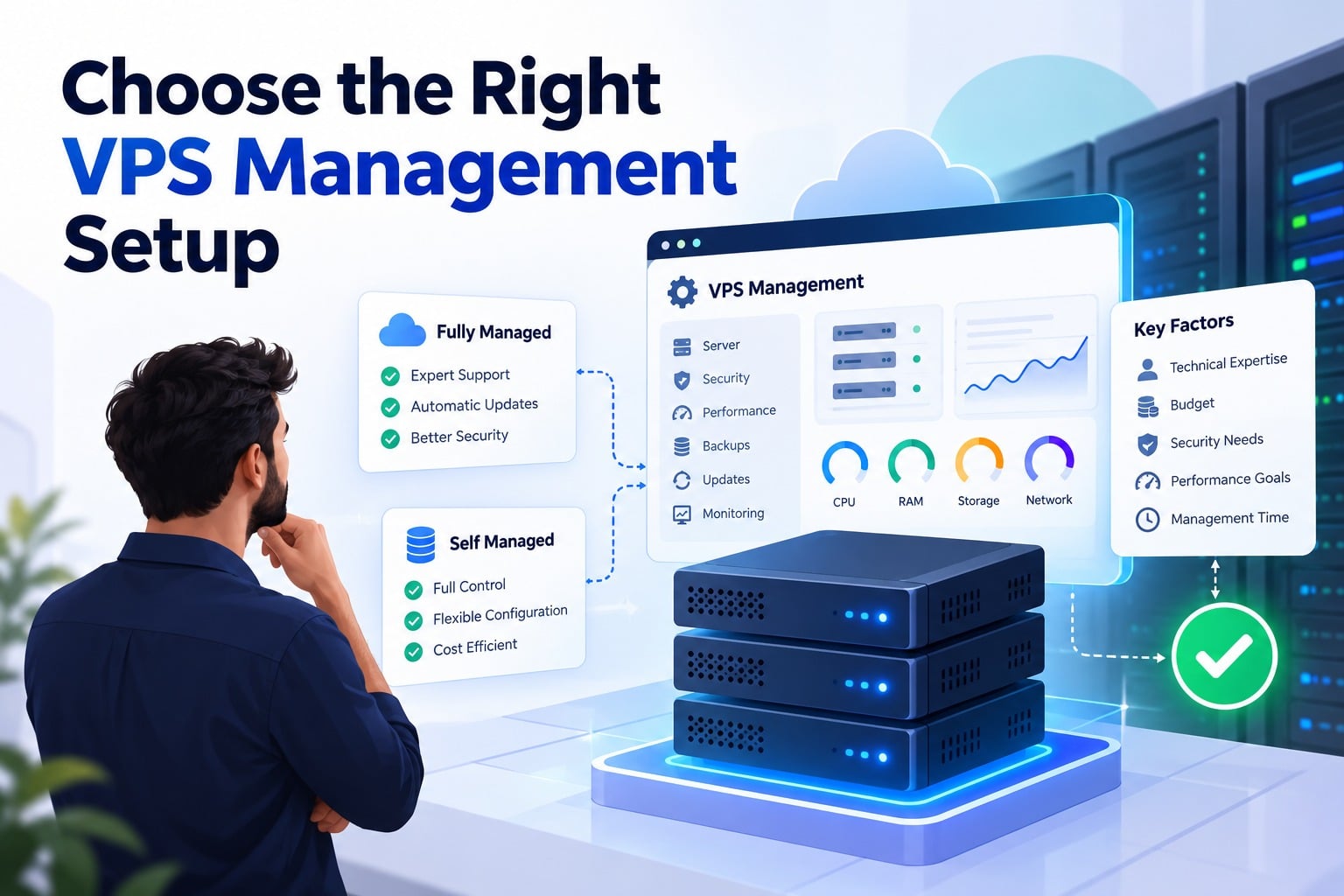
1. Choose the Right VPS Management Setup
Your hosting management approach determines how easily you can onboard clients, maintain websites, and control access.
Use a hosting control panel
A control panel such as cPanel/WHM or Plesk can simplify the administration of multiple client websites. Depending on the platform and license, it can help you:
- Create separate hosting accounts or subscriptions.
- Manage domains, databases, and SSL certificates.
- Control website files and application settings.
- Delegate client access with appropriate permissions.
- Apply available resource limits.
For agencies managing unrelated clients, separate hosting accounts are generally preferable to placing every website under one shared account.
Manage websites directly on Linux
Experienced administrators can manage multiple websites using Nginx or Apache virtual hosts, separate Linux users, database permissions, and command-line tools.
This approach offers flexibility but requires more technical knowledge. You must configure and maintain file permissions, web server settings, SSL certificates, logging, backups, and access controls.
Practical recommendation: Choose a control panel if your team wants a centralized graphical interface. Direct Linux management may suit agencies with experienced server administrators and established automation processes.
2. Organize Websites by Client
A consistent structure makes it easier to maintain websites, troubleshoot problems, and transfer a client’s site when your agency relationship ends.
Separate client accounts and permissions
Where practical, assign each client a separate hosting account or subscription. Each environment should have its own:
- Website files and document root.
- Database and database credentials.
- Authorized FTP/SFTP or deployment access.
- Domain and SSL configuration.
- Application permissions and configuration files.
Avoid sharing database administrator credentials, writable directories, or unrestricted file access across clients.
Separate accounts improve access management, but they do not guarantee complete isolation. The underlying operating system, web server, hosting configuration, and administrative privileges still influence how well one website is separated from another.
Clients who require stronger security boundaries or independent server administration may need separate VPS instances.
Use a consistent naming structure
Adopt a predictable naming convention for client accounts, databases, and backup directories.
| Item | Illustrative example |
| Client | Client A |
| Website | client-a.example |
| Database | clienta_wp |
| Hosting account | clienta |
| Backup directory | client-a/ |
These examples are placeholders, not mandatory naming conventions. Follow the restrictions of your control panel and operating system.
Maintain a central website inventory
Keep a record of every client website hosted on your VPS. Include:
- Client name and domain.
- Website platform and application version.
- Hosting account and resource requirements.
- DNS, SSL, and renewal information.
- Backup schedule and latest successful backup.
- Maintenance responsibilities and support contacts.
Store credentials in a suitable password manager rather than an ordinary, broadly accessible spreadsheet.
3. Establish a Repeatable Client Onboarding Workflow
A standard onboarding process reduces configuration mistakes and helps your agency deliver consistent service as its client portfolio grows.
Follow these steps when adding a new website to your VPS.
1. Assess the website. Identify its platform, expected traffic, storage requirements, database needs, security requirements, and business-critical functions.
2. Create the hosting environment. Set up a separate account or subscription, configure permissions, and apply suitable resource limits where supported.
3. Configure the website. Set up the domain, DNS records, SSL certificate, database, application, and any required email services.
4. Establish protection. Configure scheduled backups, select an offsite destination, and verify that the website can be restored.
5. Test before handover. Check that the website loads correctly, forms work, logins function, and essential business features operate as expected.
6. Document the arrangement. Record the account, resource requirements, backup policy, access responsibilities, and maintenance schedule in your website inventory.
Use the same checklist for every new client, adapting it when a website has specialized requirements.
4. Allocate VPS Resources Across Multiple Websites
The number of websites a VPS can host depends on their combined resource consumption—not simply the number of domains.
A lightweight business website may require relatively few resources, while a busy WooCommerce store or a website with resource-intensive plugins can consume substantial CPU, RAM, database capacity, and disk I/O.
Monitor the resources that matter
| Resource | What to monitor | Warning signs |
| CPU | Utilization and load | Slow responses and sustained high load |
| RAM | Available memory and swap activity | Memory pressure or terminated processes |
| Storage | Free space and disk I/O | Failed updates or slow database operations |
| Database | Query performance and connections | Slow page generation and connection errors |
| Network | Traffic and transfer usage | Congestion or bandwidth limits |
Remember that the operating system, database, web server, caching services, and background processes also need resources. Do not allocate the entire VPS capacity to individual websites.
Use resource limits where supported
Depending on your operating system and hosting platform, you may be able to configure:
- CPU and memory limits.
- PHP process and worker limits.
- Database connection limits.
- Web server request limits.
- Per-site caching and scheduled task controls.
These controls can reduce the impact of an overloaded website, but the available features and their effectiveness vary by configuration. A hosting account is not automatically equivalent to a fully isolated VPS.
Understand resource contention
Consider an agency hosting several small business websites and a busy online store on the same VPS. During a sales campaign, the store experiences a sudden increase in traffic and generates many expensive database queries.
If the store consumes most of the available CPU or memory, other client websites may also become slow—even if their own traffic has not increased.
The appropriate response is to identify the workload causing the pressure, investigate application and database performance, and apply targeted optimizations or resource controls. If the store consistently needs substantial capacity, moving it to a separate VPS may be more appropriate than repeatedly upgrading the shared environment.
Know when to upgrade or separate a client
Review your hosting arrangement when you observe:
- Persistent CPU or memory pressure.
- Slow performance across multiple websites.
- Recurring database bottlenecks.
- Insufficient storage or disk performance.
- One client’s workload repeatedly affecting others.
- Security or compliance requirements that call for stronger isolation.
A larger VPS may solve a capacity problem, but separating a demanding client can also reduce competition for resources and limit the shared failure domain.
5. Secure Multiple Client Websites on One VPS
Different businesses share the underlying server, so weak access controls or vulnerable applications can create risks beyond one website.
Apply least-privilege access
Give each client and developer only the permissions needed for their work.
- Avoid sharing root credentials or the main control panel administrator account.
- Use separate client and developer accounts.
- Restrict SSH access to authorized administrators.
- Use SSH keys where appropriate.
- Revoke access when a team member or client no longer needs it.
A client who only needs to edit website content should not automatically receive server administration privileges.
Keep applications and server software updated
Maintain the operating system, web server, database software, control panel, PHP versions, CMS platforms, themes, and plugins.
For WordPress websites, establish a repeatable update process:
- Confirm that a recent, usable backup exists.
- Test significant updates in staging where practical.
- Apply updates during an appropriate maintenance window.
- Test the website and its critical functions.
- Record and resolve any issues.
For more detailed procedures, link to CreativeON’s VPS Server Hardening Checklist and VPS Malware Detection and Cleanup Guide.
Isolate higher-risk websites
Consider a separate VPS for clients that handle sensitive information, run untrusted code, need independent administrative control, or require stronger isolation.
A compromised application may create risks for other websites if the server’s permissions and security boundaries are weak. Even with good isolation, a shared VPS can still experience common infrastructure failures.
6. Manage Backups for Every Client Website
Your backup strategy should protect each client’s files and databases while allowing you to restore one affected website without unnecessarily restoring every site on the server.
Create separate, verifiable backups
Define a backup policy for each website that covers:
- Frequency: How often files and databases are backed up.
- Retention: How long backup copies are kept.
- Destination: Where backup copies are stored.
- Verification: How successful completion and backup integrity are checked.
- Restoration: How often recovery is tested.
Do not rely exclusively on backups stored on the same VPS. Server failure, ransomware, or compromised administrative access could affect both production data and local backups.
Keep protected offsite copies and, where appropriate, use access controls or immutable storage to prevent compromised credentials from deleting backup history.
Test individual website restoration
A completed backup job does not guarantee that a working website can be restored.
Periodically restore a selected website in a staging environment and check that:
- Website files and databases are present.
- The application loads correctly.
- Login and essential business functions work.
- Required configuration and dependencies are available.
Link to CreativeON’s VPS Backup and Disaster Recovery Guide and VPS Backup Verification Guide for deeper backup and recovery instructions.
7. Monitor Websites and Troubleshoot Problems
Centralized monitoring helps your team distinguish between a problem affecting one client and a broader VPS issue.
Follow a consistent troubleshooting sequence
When a client reports that a website is slow or unavailable:
- Determine the scope. Check whether one website or multiple websites are affected.
- Check server health. Review CPU, available memory, storage, disk I/O, and relevant service status.
- Inspect the affected website. Check application and web server logs for errors.
- Investigate database activity. Look for slow queries, connection problems, or resource-intensive processes.
- Apply a targeted fix. Address the affected application’s configuration or workload before making wider server changes.
- Verify recovery. Test the website and confirm that other client sites are functioning normally.
If multiple websites fail simultaneously, investigate shared infrastructure such as the web server, database service, storage, or network. If only one site is affected, begin with its application, database, permissions, and recent changes.
For detailed monitoring tools and alert configuration, link to CreativeON’s VPS Monitoring Guide rather than expanding this article into a separate monitoring tutorial.
Standardize maintenance and support
Maintain a routine checklist covering:
- Application and security updates.
- Website availability and performance.
- Backup completion and recovery readiness.
- SSL certificate validity.
- Storage and resource consumption.
- Forms, checkout, login, and other critical functions.
Use a ticketing system or project tracker to record each client’s reported issue, investigation, actions taken, and resolution. This reduces repeated troubleshooting and makes handovers easier.
Test major updates and risky changes in staging before deploying them to a live website. Ensure staging environments do not expose sensitive customer data or remain publicly accessible without appropriate controls.
8. Plan for Client Offboarding
When a client leaves your agency, a documented handover prevents confusion, lost data, and lingering access.
Use this checklist:
- Confirm the client’s ownership and transfer requirements.
- Prepare the agreed website files and database exports.
- Document required application configuration and dependencies.
- Coordinate DNS changes and identify any email or SSL dependencies.
- Transfer authorized credentials through a secure method.
- Confirm that the client can access and operate the transferred website.
- Revoke agency and developer access when appropriate.
- Follow the agreed retention policy for remaining backups and client data.
Do not cancel hosting or delete backups until the transfer is verified and the applicable contractual and retention obligations have been addressed.
Planning for offboarding from the beginning also makes it easier to move a website to a separate VPS if its needs change.
Frequently Asked Questions
