
If you’ve recently pointed a domain to a new VPS, changed an IP address, or moved your nameservers, you may find that the website works for some visitors but not others. One network may show the new website while another still reaches the old server.
This is often caused by DNS propagation issues, but not every DNS problem is caused by propagation. An incorrect DNS record, outdated nameserver configuration, local DNS cache, or an old IPv6 record can produce similar symptoms.
This guide explains how DNS propagation works, what causes delays, how to determine whether a DNS change is actually propagating, and what to do when it isn’t.
What Are DNS Propagation Issues?
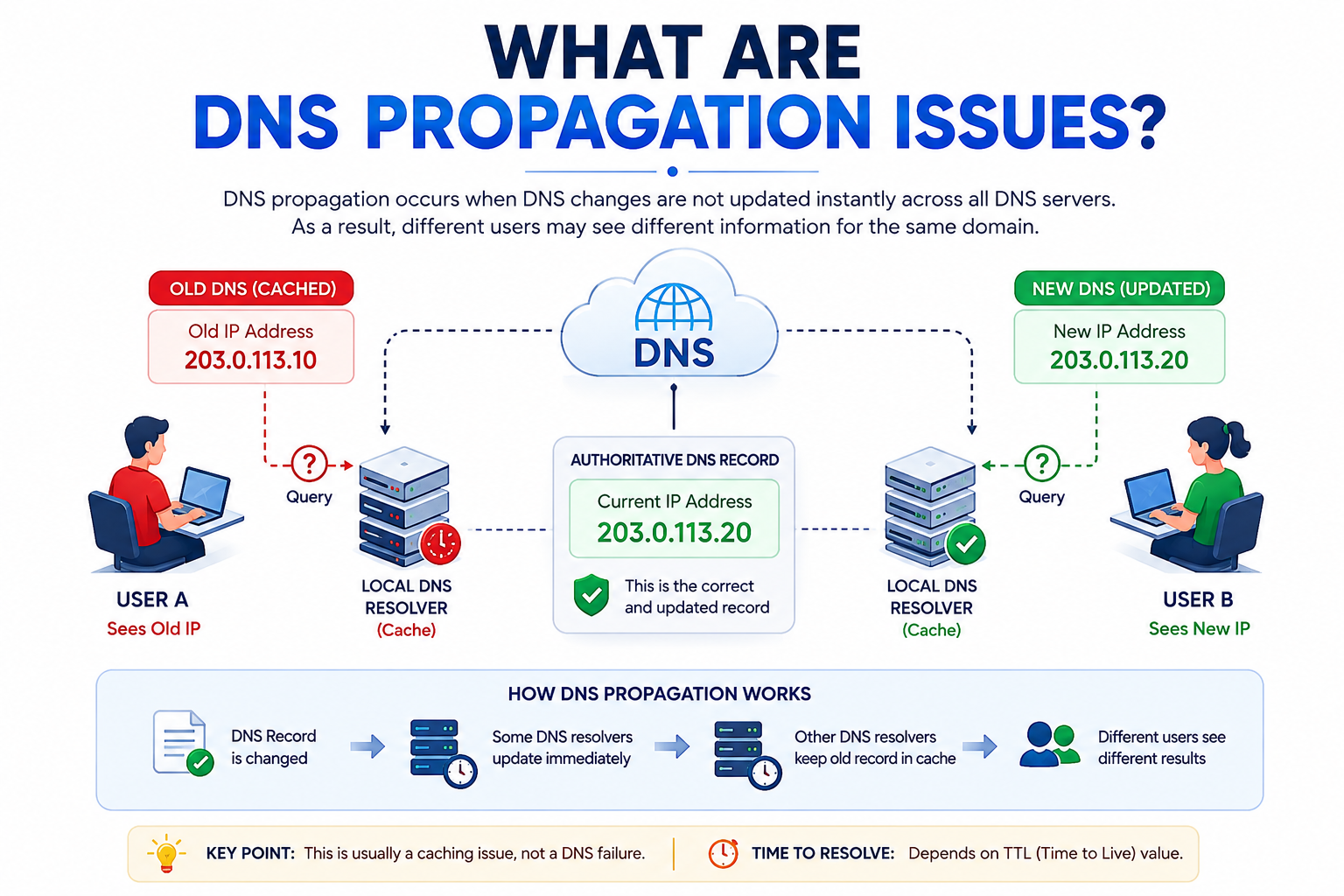
DNS propagation describes the period during which different DNS resolvers begin returning updated information after a DNS record or nameserver change.
When you change an A record, for example, recursive DNS resolvers may still have the previous response stored in their cache. They continue returning that cached information until its TTL (Time to Live) expires and they retrieve the record again.
This means two users can temporarily receive different DNS results for the same domain.
For example, if your website moves from:
Old VPS: 203.0.113.10
New VPS: 203.0.113.20
and you change the domain’s A record to the new IP, one DNS resolver may already return 203.0.113.20 while another still returns 203.0.113.10.
That’s usually a caching issue rather than a failure of DNS itself.
However, if the authoritative DNS record is still incorrect, waiting for propagation will not fix the problem.
Signs of a DNS Propagation Problem
Common symptoms include:
- Your website works on one network but not another.
- Mobile data shows the new website while Wi-Fi shows the old one.
- Some users reach the old VPS after a server migration.
- A domain resolves correctly in one location but not another.
- A newly created subdomain does not work everywhere.
- Email behaves differently from the website after an MX record change.
- DNS lookup tools return different IP addresses.
- Your computer continues showing the old website even though other networks show the new one.
These symptoms can indicate DNS propagation, but they should not automatically be treated as proof of propagation.
The first step is to verify the actual DNS configuration.
What Causes DNS Propagation Delays?
1. DNS Caching and TTL
DNS resolvers cache responses so they do not need to query authoritative DNS servers every time someone visits a domain.
The TTL (Time to Live) determines how long a DNS response can remain cached.
For example, if an A record has a TTL of 3600 seconds, a resolver can cache that response for up to one hour before it needs to retrieve fresh information.
This is why a DNS change may not become visible everywhere at exactly the same time.
2. Nameserver Changes
Changing an individual DNS record is different from changing the domain’s authoritative nameservers.
When you move DNS management from one provider to another, the domain’s delegation information also needs to be recognized by recursive resolvers.
As a result, nameserver changes can produce inconsistent results while cached delegation information expires.
3. Incorrect DNS Records
Sometimes what looks like DNS propagation is simply an incorrect configuration.
For example:
- The A record points to the wrong VPS IP.
- A CNAME points to an old hostname.
- An MX record still points to the previous mail provider.
- A required DNS record was never created.
- Conflicting records exist.
- The DNS change was made at a provider that is not authoritative for the domain.
If every resolver consistently returns the wrong value, waiting for propagation is unlikely to solve the problem.
4. Local DNS Caching
Your operating system, browser, router, or local DNS resolver may retain an older DNS response.
This can make a DNS change appear broken on your computer even when the updated record is already visible elsewhere.
Testing the domain from another network is a simple way to identify this situation.
5. Incorrect AAAA Records
When troubleshooting VPS migrations, don’t check only the A record.
An AAAA record maps a domain to an IPv6 address. If the A record points to the new VPS but an old AAAA record still points somewhere else, users with IPv6 connectivity may reach the wrong server.
This can create particularly confusing “works for me but not for others” behavior.
Always check both A and AAAA records when IPv6 is configured for the domain.
How to Check If DNS Is Really Propagating
Before waiting for DNS propagation, use the following process to determine what is actually happening.
1. Check the Authoritative Nameservers
First determine which nameservers are authoritative for your domain.
This tells you where the public DNS configuration is actually being controlled.
If your domain uses nameservers from Provider A, changing records at Provider B will have no effect on the authoritative DNS configuration.
This is one of the most common mistakes after moving hosting or DNS providers.
2. Verify the DNS Record
Check the relevant record in your authoritative DNS management panel.
For a website hosted on a VPS, this is commonly an A record:
Type: A
Host: @
Value: 203.0.113.20
Also check:
- CNAME records
- AAAA records
- MX records
- TXT records where relevant
- Conflicting or duplicate records
Make sure the destination matches the server or service you actually intend to use.
3. Query Multiple DNS Resolvers
Check the domain using multiple public DNS resolvers.
For example, you can compare results from services such as Google Public DNS and Cloudflare DNS.
The goal isn’t simply to find a website that says “propagated.”
Instead, compare the actual DNS answers.
If one resolver returns the old IP and another returns the new IP, cached DNS information is a likely explanation.
If every resolver returns the old IP, investigate the authoritative DNS configuration.
4. Use a DNS Propagation Checker
A DNS propagation checker can query DNS resolvers in different geographic locations and show whether they are returning the old or new record.
These tools are useful for quickly spotting inconsistent results.
However, treat them as diagnostic tools rather than an absolute test of whether DNS is “fully propagated.”
The more important question is:
What does the authoritative DNS server return, and what are recursive resolvers returning?
5. Test From Another Network
Try accessing the domain from:
- Your normal Wi-Fi connection
- Mobile data
- Another internet connection
- Another device
If the domain works correctly on one network but not another, the two networks may be using resolvers with different cached DNS responses.
6. Check the VPS Independently
If you have just moved the website to a new VPS, verify that the new server actually works before assuming DNS is responsible.
Check that:
- The web server is running.
- The domain is configured on the server.
- The website files are present.
- Required ports are accessible.
- The firewall is not blocking web traffic.
- SSL is correctly configured where required.
If DNS resolves to the correct IP but the website still fails, the problem may be on the VPS rather than with DNS propagation.
For server-level issues, use the appropriate dedicated troubleshooting guide instead of treating every failure as a DNS problem.
How to Fix DNS Problems That Look Like Propagation
There is an important distinction here:
You cannot force a cached DNS response on another resolver to disappear immediately.
But you can correct configuration problems and make future DNS changes easier to manage.
Correct Incorrect DNS Records
If the authoritative DNS server contains the wrong IP address, hostname, or record type, correct it at the authoritative DNS provider.
Do not keep changing records simply because some networks still show the old value.
Once the authoritative record is correct, cached responses will eventually expire.
Check for Conflicting Records
Review the complete DNS configuration rather than looking only at the record you changed.
For a website migration, check at least:
- A
- AAAA
- CNAME
- Nameservers
For email changes, also check:
- MX
- Relevant TXT records
A forgotten record can make a correctly configured migration appear broken.
Flush Local DNS Cache
If public DNS resolvers already return the new record but your computer still uses the old address, your local DNS cache may be responsible.
You can flush the DNS cache on your operating system or test using another DNS resolver or network.
Wait When Caching Is Actually the Cause
If:
- The authoritative DNS record is correct,
- Public resolvers are gradually returning the new value, and
- Only some networks still return the old value,
then waiting for cached DNS responses to expire is usually the correct action.
Repeatedly changing the record can make troubleshooting more difficult.
How Long Does DNS Propagation Take?
There is no universal DNS propagation time.
The time required depends on factors such as:
- The DNS record’s TTL
- Existing cached responses
- Whether you changed a record or nameservers
- The resolver being used
- Local DNS caching
For a normal DNS record change, some resolvers may update quickly while others continue returning cached information until their previous response expires.
Nameserver changes can involve additional cached delegation information.
The important point is that waiting is only appropriate when the DNS configuration itself is correct.
If the authoritative DNS server is returning the wrong IP, waiting longer will not correct it.
Can You Speed Up DNS Propagation?
You cannot force external DNS resolvers to refresh instantly.
However, you can prepare for planned DNS changes.
Lower the TTL Before a Planned Change
If you are planning a VPS migration, reduce the TTL of relevant records before making the actual DNS change.
For example, you might temporarily use a shorter TTL during the migration window.
The important detail is timing: lowering the TTL at the same moment you change the IP does not instantly remove previously cached responses.
Existing caches still have to expire according to the TTL under which they were originally stored.
Make One Change at a Time
Avoid changing your A record, nameservers, MX records, and other DNS settings simultaneously unless the migration requires it.
Making changes individually makes it easier to identify the source of a problem.
Document Your DNS Zone
Before a migration, record your existing DNS configuration.
This gives you a reference when recreating records at a new provider and reduces the chance of accidentally losing an important record.
How Do You Know DNS Propagation Is Complete?
There is no single switch that tells you DNS has “finished propagating.”
Instead, look for consistent results.
You can consider the DNS change broadly established when:
- The authoritative DNS server returns the intended record.
- Major recursive resolvers return the new value.
- Different networks resolve the domain correctly.
- The website or service works at the new destination.
- Related records such as MX or subdomains work as expected.
If one specific device still shows the old result while public resolvers consistently return the new one, investigate local DNS caching rather than continuing to change the domain’s DNS configuration.
Common DNS Propagation Mistakes
Avoid these common troubleshooting mistakes:
Changing the DNS Record Repeatedly
If some resolvers still have cached information, repeatedly changing the record does not make them update faster.
Changing DNS at the Wrong Provider
Always confirm which nameservers are authoritative before editing DNS records.
Checking Only the A Record
An old AAAA record can send IPv6 users to a different server even when the A record is correct.
Assuming Every Website Error Is DNS
If the domain resolves to the correct VPS IP but the website returns an error, investigate the web server, application, firewall, or SSL configuration.
Lowering TTL After the Change and Expecting Immediate Results
TTL changes affect future caching behavior. They do not instantly erase existing cached responses.
Preventing DNS Problems During Future VPS Changes
Good planning can make DNS changes much easier.
Before a planned VPS migration:
- Review the current DNS zone.
- Identify the A, AAAA, CNAME, and MX records that may be affected.
- Confirm the authoritative nameservers.
- Lower relevant TTL values in advance if appropriate.
- Prepare and test the new VPS.
- Change DNS when the new server is ready.
- Monitor DNS responses from multiple resolvers.
- Verify the website and other dependent services.
- Restore normal TTL values after the migration has stabilized.
For a complete server-migration process, see the dedicated Zero Downtime VPS Migration guide rather than duplicating migration procedures here.
Frequently Asked Questions
