

If your website suddenly stops accepting uploads, your database throws write errors, or your control panel warns “No space left on device,” you’re likely dealing with a disk full error. This is one of the most common VPS issues, and thankfully, one of the easiest to resolve once you know where to look.
This guide walks you through identifying the cause of a full disk, fixing it safely, and preventing it from happening again — without needing deep Linux expertise.
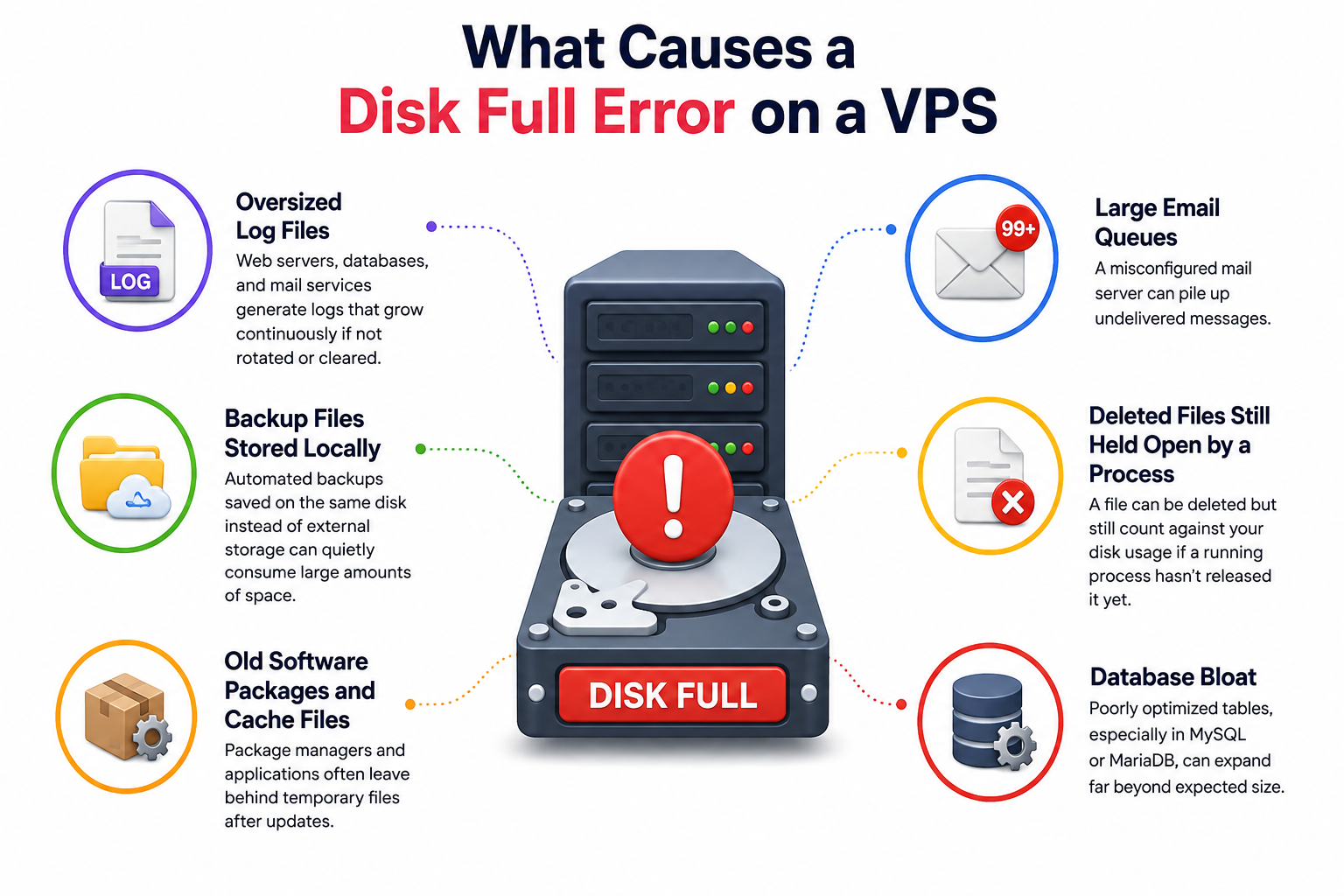
What Causes a Disk Full Error on a VPS
A disk full error simply means your VPS has run out of available storage space. The usual suspects include:
- Oversized log files – Web servers, databases, and mail services generate logs that grow continuously if not rotated or cleared.
- Backup files stored locally – Automated backups saved on the same disk instead of external storage can quietly consume large amounts of space.
- Old software packages and cache files – Package managers and applications often leave behind temporary files after updates.
- Large email queues – A misconfigured mail server can pile up undelivered messages.
- Deleted files still held open by a process – A file can be deleted but still count against your disk usage if a running process hasn’t released it yet.
- Database bloat – Poorly optimized tables, especially in MySQL or MariaDB, can expand far beyond expected size.
Identifying which of these applies to your server is the first step toward a lasting fix.
Signs You’re Running Out of Disk Space
Before troubleshooting, confirm that disk space is actually the problem. Common symptoms include:
- Website errors such as “500 Internal Server Error” or failed file uploads
- Database connection failures or write errors
- Inability to install updates or new software
- Email delivery failures
- Control panel alerts about low disk space
- SSH login working, but commands failing unexpectedly
If you’re seeing any of these, it’s worth checking your disk usage right away.
How to Check Disk Usage on Your VPS
Connect to your VPS via SSH and run a quick check to confirm available space and locate the largest space consumers.
Check overall disk usage:
df -h
This shows how much space is used and available across your disk partitions.
Find the largest directories:
du -sh /* 2>/dev/null | sort -rh | head -10
This lists the top space-consuming directories, helping you narrow down where the problem lies.
Check for large individual files:
sudo find / -xdev -type f -size +500M -exec ls -lh {} \; 2>/dev/null
The -xdev flag keeps the search on your current filesystem instead of scanning mounted volumes, and the 500MB threshold keeps results focused on files actually worth investigating.
Check inode usage:
df -i
Occasionally df -h shows free space, but the disk still reports “full.” This usually means you’ve run out of inodes rather than storage capacity — often caused by an application generating huge numbers of small files (session caches, mail spools, temporary files). If inode usage is near 100% while byte usage looks fine, that’s your real issue.
Fixing the Disk Full Error
Once you’ve identified the cause, apply the fix that matches your situation.
1. Clear Oversized Log Files
Log files are usually the quickest win. Before truncating anything, check which service owns the file and whether its size is normal — a log that’s grown unusually large sometimes points to a recurring error flooding it with entries, not just a lack of rotation. Once you’ve confirmed it’s safe to clear, truncate it rather than deleting it outright (deleting a file a process still has open won’t free the space immediately):
truncate -s 0 /var/log/large-log-file.log
For a longer-term fix, configure logrotate so logs are automatically compressed and rotated rather than growing indefinitely.
2. Remove Unnecessary Package Cache
On Debian/Ubuntu systems:
sudo apt clean
This clears cached package files without touching anything currently installed. apt autoremove can also free space by removing packages that were pulled in as dependencies and are no longer needed — but review what it lists before confirming, rather than running it as a routine disk-full fix.
On CentOS/AlmaLinux or other RHEL-based systems:
sudo dnf clean all
(use yum clean all on older versions without dnf)
3. Move or Delete Local Backups
If backups are stored on the same disk as your live data, move them to external or cloud storage instead. Keeping backups off-server also improves your disaster recovery posture — a topic covered in more depth in our VPS Backup Verification guide.
4. Clear the Mail Queue
If your mail server has a large backlog, start by reviewing what’s actually queued:
postqueue -p
Avoid bulk-deleting the entire queue — that also removes legitimate mail that simply hasn’t sent yet. Instead, investigate why messages are piling up (misconfigured delivery, a spam surge, or an application sending far more mail than expected), since that’s the actual cause worth fixing.
5. Address Deleted-but-Open Files
Sometimes a large file is deleted but a running process still holds it open, so the space isn’t released. You can find these with:
lsof +L1
Restarting the associated service typically frees the space immediately.
6. Investigate Database Growth
If your database files are the biggest consumer of space, identify which database and tables are responsible before doing anything else — optimizing tables isn’t always the right fix, and it carries its own operational considerations depending on your storage engine and workload. Treat unexpected database growth as a separate investigation rather than something to resolve with a single command, and consult a dedicated database optimization guide if you have ongoing bloat.
Verifying the Fix
After applying changes, re-run df -h (and df -i if inode usage was the culprit) to confirm that space has been freed. There’s no universal safe percentage — the right amount of headroom depends on your traffic, backup schedule, and database size — but consistently running near full capacity is a sign you need either better cleanup habits or more storage. Test the services that were previously failing (website uploads, database writes, email delivery) to make sure everything is functioning normally again.
Preventing Future Disk Full Errors
A one-time cleanup solves the immediate problem, but prevention keeps it from coming back:
- Set up automated log rotation so logs never grow unchecked.
- Schedule regular cleanup tasks for cache and temporary files.
- Store backups off-server, not on the same VPS disk.
- Monitor disk usage proactively so you’re alerted before space runs critically low — this is where a dedicated VPS Monitoring Guide becomes useful, as it covers setting up alerts before problems affect your users.
- Periodically review database size and optimize tables as part of routine maintenance.
- If your VPS is consistently near capacity despite cleanup, it may simply be undersized for your workload, and upgrading your storage plan is the more sustainable solution.
Common Mistakes to Avoid
- Deleting files without checking what they are. Removing unfamiliar files in system directories can break services or the OS itself.
- Clearing backups without a replacement plan. Freeing space by deleting your only backup trades one problem for a bigger one.
- Wiping all logs at once. This removes the audit trail you’d need if the issue recurs or turns out to be something more serious.
- Treating cleanup as the fix. Freeing space resolves the symptom; if the underlying cause (a misconfigured process, unrotated logs, unchecked mail queue) isn’t addressed, the disk will fill up again.
Conclusion
A disk full error is disruptive, but it’s rarely complicated to fix. By checking disk usage, identifying the largest consumers of space, and applying the right cleanup steps, you can restore normal operation quickly. The real value, though, comes from prevention — automated log rotation, off-server backups, and proactive monitoring mean you’re far less likely to be troubleshooting the same issue again next month. If disk usage keeps returning to critical levels despite regular cleanup, that’s usually a sign the server needs more storage or a closer look at what’s driving the growth, rather than another round of manual fixes.
Frequently Asked Questions
