

If you see “Connection reset by peer” when connecting to your VPS, the connection is being forcibly closed instead of completing normally. The problem commonly occurs with SSH, SFTP, SCP, APIs, databases, or other services running on a VPS.
The most common causes include an SSH or application service problem, firewall or security rules, an IP address blocked by Fail2ban, VPS resource exhaustion, or a network problem between your computer and the server.
This guide explains how to identify the cause and fix connection reset by peer on a VPS without making unnecessary changes to the server.
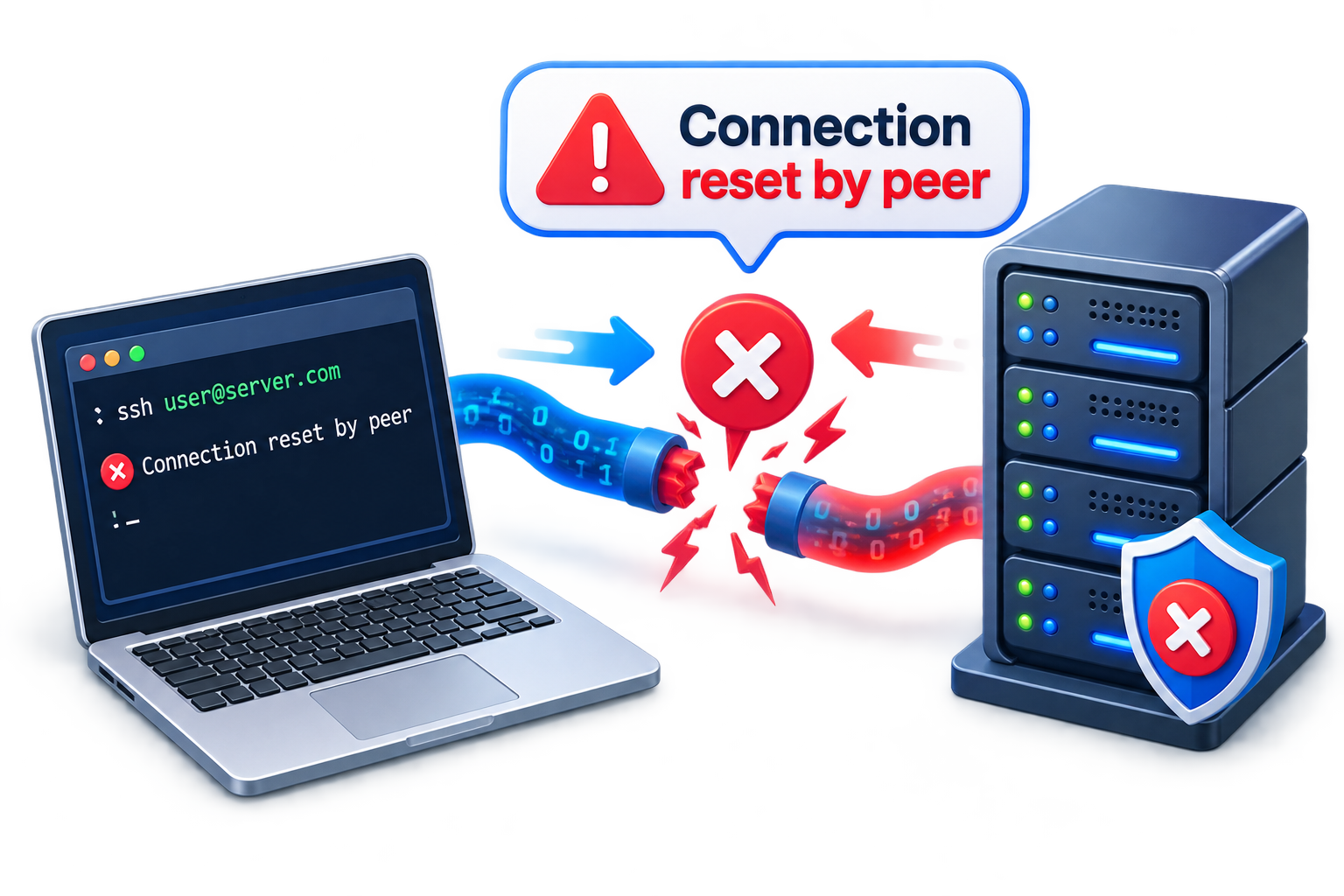
What Does “Connection Reset by Peer” Mean?
A connection reset occurs when a TCP connection is forcibly terminated by the remote server or by a device handling the connection.
For example, an SSH connection might return:
ssh: connect to host example.com port 22: Connection reset by peer
The message describes what happened to the connection, but it does not identify the root cause.
The reset could come from:
- The SSH service
- An application running on the VPS
- A server firewall
- Fail2ban or another security tool
- A VPS provider’s network security layer
- A resource-exhausted server
- A device or network between the client and VPS
That is why troubleshooting should focus on identifying which component is closing the connection.
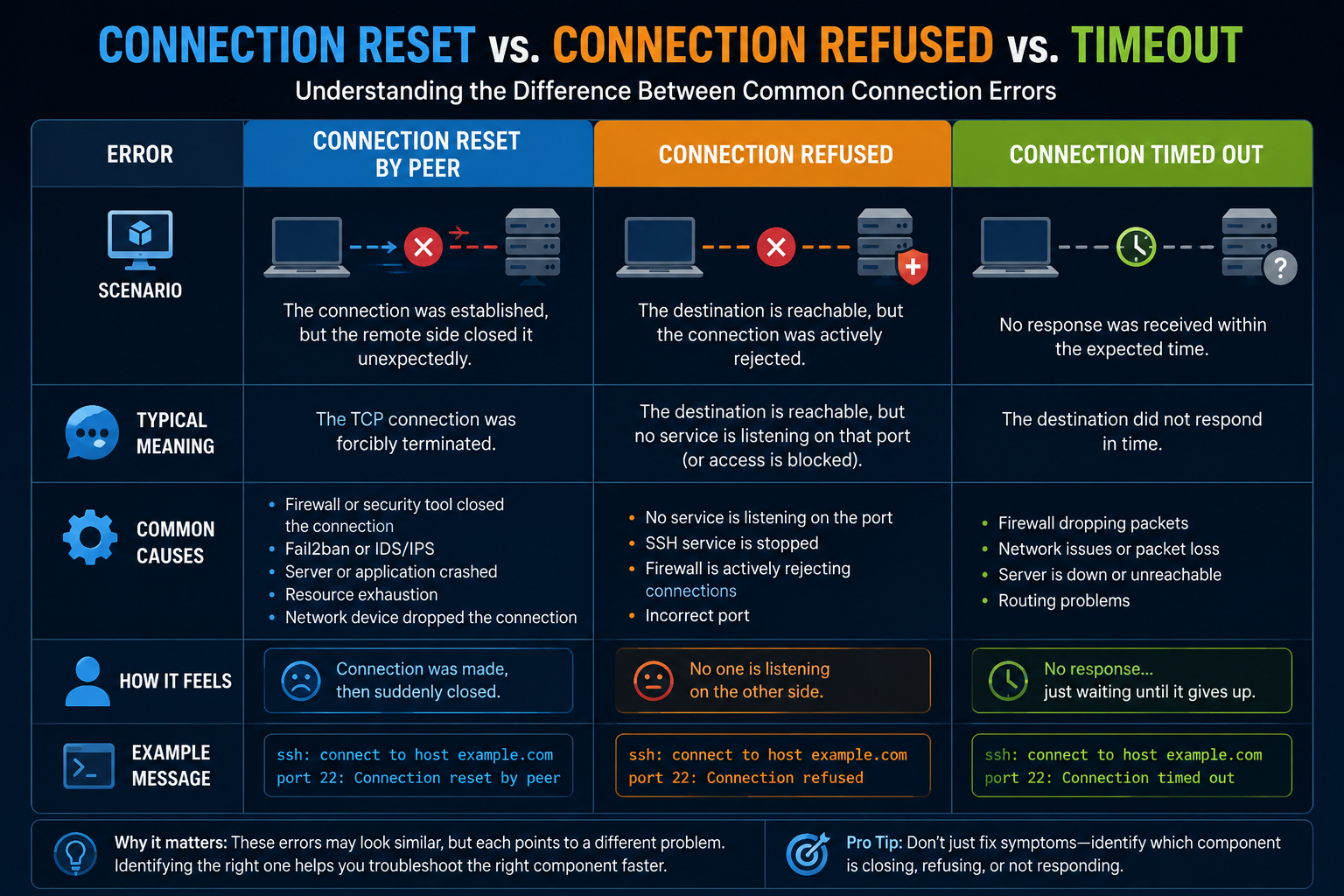
Connection Reset vs. Connection Refused vs. Timeout
These errors are easy to confuse, but they indicate different conditions.
|
Error |
Typical meaning |
|
Connection reset by peer |
The TCP connection was forcibly terminated |
|
Connection refused |
The destination is reachable, but the connection was actively rejected or no service is listening on that port |
|
Connection timed out |
No response was received within the expected time |
|
Permission denied |
The SSH service was reached, but authentication or authorization failed |
This distinction is useful because it prevents you from troubleshooting the wrong component.
For example, if SSH returns connection reset by peer, immediately reinstalling SSH or changing passwords may not solve the problem if a firewall or security tool is actually terminating the connection.
Common Symptoms
A VPS connection reset can appear in several ways:
- SSH connects and immediately disconnects.
- SSH sessions are dropped during use.
- SFTP or SCP transfers stop unexpectedly.
- A specific VPS port accepts a connection and then closes it.
- One application repeatedly loses its connection.
- Connections fail from one network but work from another.
- Multiple users experience the same reset.
The timing and scope of the problem provide useful clues.
If only SSH is affected, investigate SSH and its security controls first.
If multiple services are affected, investigate the VPS firewall, resources, network configuration, or provider-level networking.
If only one application is affected, investigate that application before changing the VPS network configuration.
Common Causes of Connection Reset by Peer on VPS
1. SSH Service Problems
SSH is one of the most common places to encounter this error.
First check whether the SSH service is running:
sudo systemctl status ssh
On distributions where the service is named sshd, use:
sudo systemctl status sshd
If the service has stopped, restart it:
sudo systemctl restart ssh
However, do not stop at restarting the service. If it keeps failing, inspect the logs to find out why.
A recurring SSH failure may be caused by:
- Invalid SSH configuration
- Authentication restrictions
- Resource exhaustion
- Security software
- A failed service dependency
If the problem started after modifying SSH configuration, validate it before restarting:
sudo sshd -t
No output generally indicates that the configuration syntax passed the test.
For a broader SSH troubleshooting problem, see the dedicated SSH Connection Refused guide rather than duplicating its complete troubleshooting process here.
2. Firewall Rules Are Terminating the Connection
A VPS may have several layers of firewall protection:
- UFW
- firewalld
- nftables or iptables
- VPS provider firewall
- Cloud security groups
- Network access-control rules
Check the firewall used by your Linux distribution.
For UFW:
sudo ufw status
For firewalld:
sudo firewall-cmd –list-all
Also check any firewall or security controls configured through your VPS provider.
Make sure the required service port is allowed from the appropriate source.
For SSH, the default port is TCP 22, although your server may use a different port.
Do not solve the problem by opening every port to every IP address. Allow only the traffic that the service actually requires. Where practical, restrict administrative access such as SSH to trusted source IP addresses.
For detailed firewall configuration, link to the VPS Firewall Setup Guide rather than turning this article into a firewall tutorial.
3. Fail2ban or Security Software Has Blocked Your IP
Fail2ban can automatically block an IP address after repeated failed authentication attempts or other suspicious activity.
Check whether Fail2ban is running:
sudo fail2ban-client status
If an SSH jail is configured, check its status:
sudo fail2ban-client status sshd
The exact jail name depends on the server configuration.
If your IP address has been banned, remove the ban only after confirming that the connection attempts are legitimate.
Do not permanently disable Fail2ban simply because it is preventing access. Investigate why the IP was blocked first.
If repeated authentication failures are occurring, review your SSH authentication configuration and security logs.
4. VPS Resource Exhaustion
A VPS under severe resource pressure can cause services to become unstable or terminate unexpectedly.
Check memory:
free -h
Check disk space:
df -h
Check active processes and resource usage:
top
Look for:
- Very high memory usage
- CPU exhaustion
- A completely full filesystem
- Large numbers of processes
- Services repeatedly restarting
Memory exhaustion can also trigger the Linux OOM killer, which may terminate processes to recover available memory.
Review recent system messages:
sudo journalctl -p warning -b
If a service was killed because the VPS ran out of memory, fixing the network configuration will not solve the underlying problem.
You may need to identify the process consuming resources, optimize it, or increase the VPS resources if the workload genuinely requires more capacity.
5. The Application or Service Is Crashing
Not every connection reset is an SSH problem.
Suppose SSH works normally but a connection to an application on port 8080 repeatedly resets. In that case, investigate the application itself.
Check the service:
sudo systemctl status your-service
Then review its recent logs:
sudo journalctl -u your-service –since “30 minutes ago”
Replace your-service with the actual service name.
Look for:
- Application crashes
- Configuration errors
- Dependency failures
- Resource-related errors
- Repeated service restarts
If only one service produces the reset, avoid changing unrelated VPS networking settings until that service has been investigated.
6. Network Problems Between Your Computer and VPS
The VPS may be healthy while something between your computer and the server is interrupting the connection.
Potential causes include:
- ISP routing problems
- VPN interference
- Corporate or local firewall rules
- Packet loss
- Temporary routing problems
- Provider-side network issues
One of the simplest tests is to connect from another network.
For example, try:
- A different internet connection
- A mobile hotspot
- Another VPS or server
- A different trusted client
If the connection works from another network, the VPS may not be the source of the problem.
How to Diagnose Connection Reset by Peer on VPS
Follow these steps in order rather than changing several server settings at once.
Step 1: Confirm DNS Resolution
First make sure the hostname resolves to the expected VPS IP address:
nslookup example.com
or:
dig example.com
If DNS points to the wrong IP, you may be troubleshooting the wrong server.
DNS problems should be handled separately from the connection-reset problem once the destination is confirmed.
Step 2: Test the TCP Port
Use Netcat to test whether the required TCP port can be reached:
nc -vz example.com 22
Replace 22 with the actual service port.
The result provides useful information.
A successful connection indicates that the TCP port is reachable.
A message such as:
Connection refused
usually indicates that the host is reachable but the service is not accepting the connection or the connection is being actively rejected.
A timeout points more toward filtering, routing, or an unreachable destination.
A successful TCP connection followed by an application-level reset points you toward the service or security controls handling that connection.
Step 3: Use SSH Verbose Mode
If SSH is the affected service, run:
ssh -vvv [email protected]
The verbose output shows the stages of the SSH connection.
Pay attention to the final messages before the connection is reset.
This helps determine whether the failure occurs:
- Before the SSH handshake
- During the handshake
- During authentication
- Immediately after authentication
- During an established session
Do not paste private keys, passwords, or other sensitive information into support requests when sharing diagnostic output.
Step 4: Confirm That the Service Is Listening
On the VPS, check listening TCP ports:
sudo ss -lntp
To check a specific port:
sudo ss -lntp | grep :22
Replace 22 with the appropriate port.
If nothing is listening on the expected port, investigate the relevant service.
If the service is listening but external connections are being reset, continue with firewall, security, and log checks.
Step 5: Review Service and Authentication Logs
For SSH:
sudo journalctl -u ssh –since “30 minutes ago”
Depending on the Linux distribution, authentication events may also be stored in:
/var/log/auth.log
or:
/var/log/secure
Look for entries corresponding to the exact time the connection failed.
For other services, inspect their individual logs:
sudo journalctl -u your-service –since “30 minutes ago”
Logs are particularly important when the service appears to be running but repeatedly terminates connections.
Step 6: Check Firewall and Security Controls
Once the service is confirmed to be running, check:
- VPS firewall
- Provider firewall
- UFW/firewalld
- nftables/iptables
- Fail2ban
- IP allowlists and blocklists
If only one source IP is affected, a security rule or IP ban becomes more likely.
If every external client is affected, investigate the service, server firewall, VPS networking, or provider infrastructure.
Step 7: Check VPS Health
Finally, check the VPS itself:
free -h
df -h
top
Also inspect recent warnings:
sudo journalctl -p warning -b
If you find OOM events, disk exhaustion, service crashes, or other system-level problems, resolve those before assuming the network is responsible.
How to Fix Connection Reset by Peer
The correct solution depends on what your investigation finds.
|
Cause |
Appropriate fix |
|
SSH service stopped |
Start/restart SSH and investigate why it stopped |
|
Invalid SSH configuration |
Correct the configuration and validate it with sshd -t |
|
Firewall rule |
Allow the required port and trusted source traffic |
|
IP blocked by Fail2ban |
Remove the legitimate ban and investigate the failed attempts |
|
VPS resource exhaustion |
Identify the resource-consuming process and restore capacity |
|
Application crash |
Fix the application or service configuration |
|
Network-path problem |
Test alternate networks and investigate routing/VPN/firewall issues |
|
Provider-level network problem |
Provide diagnostics to the VPS provider |
Avoid repeatedly rebooting the VPS without investigation.
A reboot may temporarily restore a crashed service or clear a resource problem, but it does not explain why the connection was reset.
What If the VPS Works From Another Network?
This is a particularly useful diagnostic result.
If you can connect to the VPS from one network but consistently receive connection reset by peer from another, compare the two environments.
Check:
- Public source IP
- VPN usage
- Local firewall
- ISP/network restrictions
- Routing path
If only one public IP is affected, check whether that IP has been blocked by Fail2ban, a firewall, or another security system.
If multiple users on the same network experience the problem, investigate the network’s firewall or routing configuration.
When Should You Contact Your VPS Provider?
Contact your VPS provider when your investigation suggests the problem is outside the VPS itself.
This is especially appropriate when:
- The VPS is unreachable from multiple independent networks.
- The VPS network interface appears unavailable.
- Provider-level firewall rules may be involved.
- Network connectivity became unstable without a configuration change.
- The problem began after an infrastructure or network change.
- Console access works but external connectivity remains unavailable.
When contacting support, provide:
- VPS IP address
- Affected port
- Approximate failure time
- Client/source IP
- Exact error message
- Relevant SSH or application logs
- Results of TCP connectivity tests
This gives the provider useful information instead of simply reporting that the VPS is “not working.”
Preventing Future VPS Connection Resets
Once the issue is resolved, reduce the chance of recurrence by following basic VPS administration practices:
- Keep the operating system and services updated.
- Monitor CPU, memory, disk space, and service availability.
- Keep firewall rules limited to required traffic.
- Review Fail2ban and other security policies.
- Test SSH configuration before applying changes.
- Monitor authentication and system logs.
- Avoid exposing unnecessary ports.
- Maintain current VPS backups before major configuration changes.
- Investigate recurring service crashes instead of repeatedly restarting them.
- Use appropriate SSH keepalive settings when long-lived connections are being dropped because of idle network conditions.
For broader security improvements, use a dedicated VPS Server Hardening Checklist rather than adding unrelated security procedures to this troubleshooting article.
Frequently Asked Questions
