

Introduction
If your VPS is connected to the internet, it is constantly being scanned by automated bots looking for weak passwords and exposed login services. One of the most common methods they use is a brute force attack, where thousands of username and password combinations are tried until one works.
Without proper brute force attack prevention, attackers may gain unauthorized access to your server, steal sensitive data, install malware, or use your VPS for malicious activities.
This guide explains how brute force attacks work, how to recognize them, and the most effective ways to reduce the risk. While we’ll mention some security tools, detailed setup instructions are covered in their own dedicated guides.
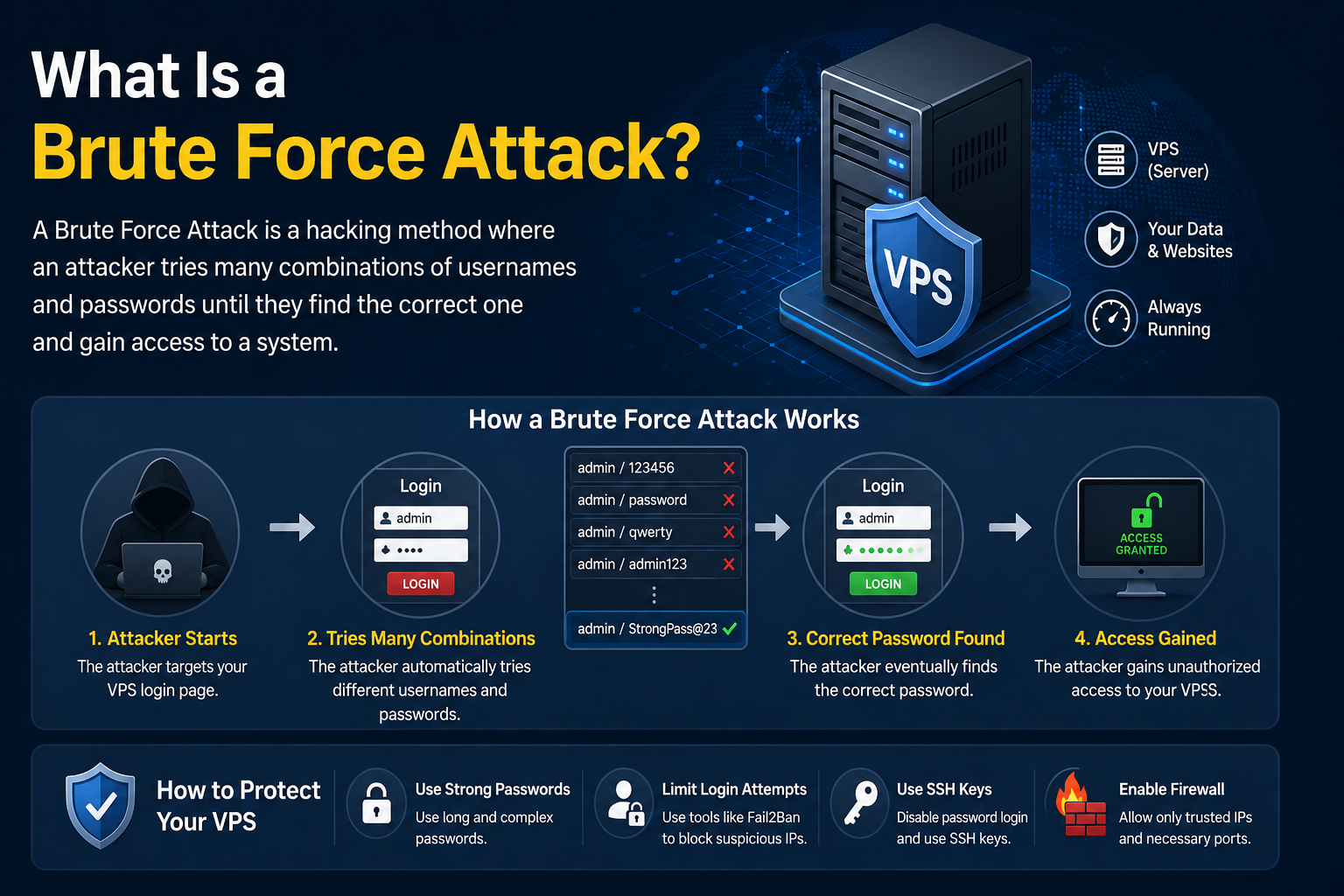
What Is a Brute Force Attack?
A brute force attack is a method of gaining unauthorized access by repeatedly attempting different username and password combinations until the correct credentials are found.
Instead of exploiting a software vulnerability, attackers target weak or reused passwords.
On VPS servers, the most common targets include:
- SSH login (port 22)
- Control panels
- Remote Desktop Protocol (RDP) on Windows VPS
- FTP and SFTP services
- Database login portals
- Web application login pages
Most attacks are carried out by automated bots that scan thousands of servers every day.
How Brute Force Attacks Target VPS Servers
Attackers don’t usually choose a specific server. They use automated scripts that continuously scan the internet for publicly accessible login services.
A typical attack follows these steps:
- Scan IP addresses for open login ports.
- Identify available services such as SSH or RDP.
- Try common usernames like root, admin, or ubuntu.
- Test thousands of password combinations.
- Continue until access is gained or the server blocks further attempts.
Servers using weak passwords or lacking login protection are much more likely to be compromised.
Common Signs of a Brute Force Attack
Many VPS owners don’t realize an attack is happening because automated login attempts are common. Monitoring your server logs can help detect suspicious activity early.
Typical signs include:
- Hundreds or thousands of failed login attempts.
- Repeated login requests from different IP addresses.
- Continuous attempts using usernames like root, admin, or test.
- Increased authentication-related entries in SSH or system logs.
- Higher CPU or network activity during attack periods.
If you regularly review your logs, you’ll often spot these patterns before they become a serious security issue.
Why Brute Force Attacks Are Dangerous
A successful brute force attack can compromise your entire VPS. Once an attacker gains access, they may install malicious software, modify system files, or steal sensitive information.
Potential risks include:
- Unauthorized server access
- Data theft
- Malware or ransomware installation
- Spam email distribution
- Cryptomining software running on your VPS
- Website defacement
- Loss of customer trust
- Service downtime
Even unsuccessful attacks consume server resources and generate unnecessary log entries, making early prevention worthwhile.
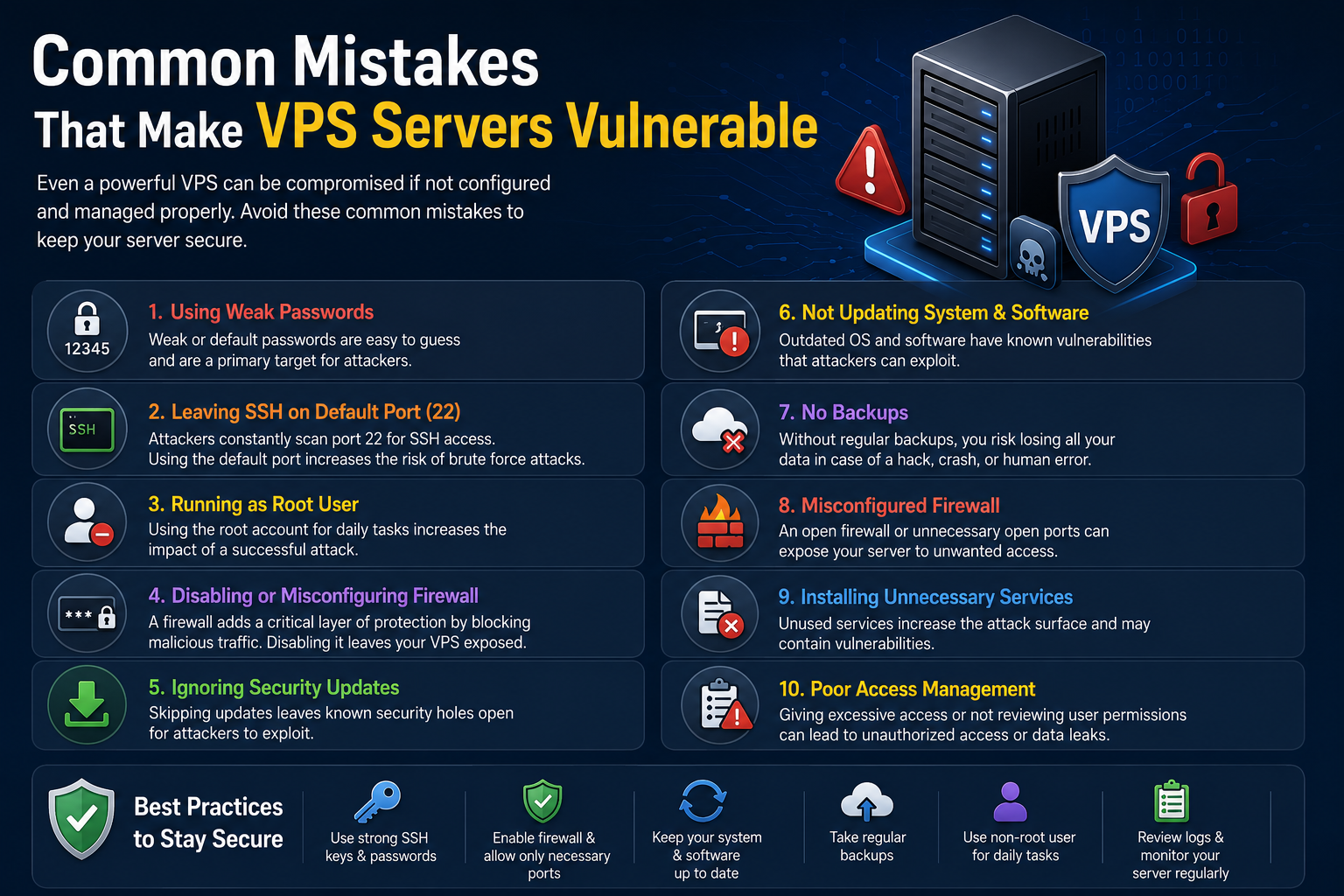
Common Mistakes That Make VPS Servers Vulnerable
Many successful attacks happen because of simple security oversights.
Avoid these common mistakes:
- Using weak or predictable passwords
- Reusing passwords across multiple services
- Allowing direct root login
- Not limiting failed login attempts
- Ignoring security updates
- Leaving unused services exposed to the internet
- Failing to monitor authentication logs regularly
Addressing these issues significantly reduces the chances of a successful brute force attack.
How to Prevent Brute Force Attacks on a VPS
There isn’t a single solution that stops every brute force attack. The best approach is to combine several security measures that make unauthorized access much harder.
1. Use Strong, Unique Passwords
Weak passwords are the easiest target for attackers.
A secure password should:
- Be at least 16 characters long.
- Include uppercase and lowercase letters.
- Contain numbers and special characters.
- Be unique for every account.
Avoid using names, birthdays, or common words.
2. Disable Password Authentication for SSH
If possible, use SSH key authentication instead of passwords. SSH keys are significantly more secure and cannot be guessed through brute force attacks.
Once SSH keys are configured correctly, you can disable password-based SSH logins entirely.
Related guide: SSH Key Authentication Setup Guide
3. Disable Direct Root Login
The root account is the first target for most automated attacks.
Instead:
- Create a standard user account.
- Grant administrative privileges only when needed.
- Disable direct root SSH login.
This simple change reduces the number of successful attack attempts.
Related guide: Linux User Management Guide
4. Limit Failed Login Attempts
Allowing unlimited login attempts gives attackers endless opportunities to guess passwords.
Configure your server to:
- Temporarily block repeated failed logins.
- Increase the delay between attempts.
- Lock accounts after multiple failures where appropriate.
This makes automated attacks much less effective.
5. Use Fail2Ban or Similar Protection
Tools like Fail2Ban monitor authentication logs and automatically block IP addresses that generate repeated failed login attempts.
Benefits include:
- Automatic IP banning
- Reduced attack traffic
- Minimal manual intervention
- Support for SSH and many other services
Related guide: Fail2Ban Installation and Configuration Guide
6. Restrict Access with a Firewall
A firewall helps reduce unnecessary exposure by allowing access only to required services.
Good practices include:
- Keep only essential ports open.
- Restrict administrative ports to trusted IP addresses whenever possible.
- Block unused services.
Related guide: VPS Firewall Configuration Guide
7. Enable Multi-Factor Authentication (MFA)
Even if a password is compromised, multi-factor authentication (MFA) adds another layer of protection by requiring a second verification step.
MFA is especially valuable for:
- Hosting control panels
- Administrative dashboards
- Remote management tools
- Business-critical applications
Best Practices for Long-Term Protection
Brute force attack prevention is an ongoing process, not a one-time setup. Regular maintenance helps keep your VPS secure as new threats emerge.
Follow these best practices:
- Keep your operating system updated.
- Remove unused user accounts.
- Disable services you no longer need.
- Review authentication logs regularly.
- Rotate passwords periodically.
- Audit user permissions.
- Use SSH keys wherever possible.
- Back up important data on a regular schedule.
Small, consistent security improvements are often more effective than relying on a single security tool.
Common Mistakes to Avoid
Even well-configured servers can become vulnerable if basic security practices are overlooked.
Avoid these mistakes:
- Using the default SSH port as your only security measure.
- Relying solely on strong passwords.
- Ignoring failed login alerts.
- Leaving old user accounts active.
- Delaying security updates.
- Disabling security tools because of false positives.
- Assuming small websites won’t be targeted.
Automated bots scan servers of all sizes, so every internet-facing VPS should be protected.
How to Verify Your VPS Is Better Protected
After applying the recommended security measures, verify that your VPS is properly protected.
Check the following:
- SSH key authentication works as expected.
- Password login is disabled (if applicable).
- Direct root login is blocked.
- Failed login attempts are being limited or blocked.
- Your firewall only allows required ports.
- Authentication logs no longer show excessive repeated login attempts.
- Security updates are installed regularly.
Continue monitoring your server periodically, as new threats and attack patterns can emerge over time.
Conclusion
Brute Force Attack Prevention is one of the simplest and most effective ways to improve your VPS security. While automated login attempts are common on internet-facing servers, they don’t have to become a successful attack.
By using strong passwords, SSH keys, disabling direct root login, limiting failed login attempts, enabling firewall protection, and adopting other security best practices, you can significantly reduce the risk of unauthorized access.
If you’re managing a VPS with CreativeON, following these recommendations will help keep your server secure, reliable, and ready to support your applications with confidence.
Frequently Asked Questions (FAQ)
