
Backing up important Linux server files is an important part of managing a VPS. rsync provides a simple way to copy and synchronize files between directories, disks, or remote Linux servers.
Because rsync can transfer only new or changed files during subsequent runs, it is useful for recurring server file backups. It can also transfer backups securely over SSH. (Rsync)
In this guide, you’ll learn how to backup a Linux server using rsync, back up files to another server, exclude unnecessary files, and safely verify your backup.
What Is rsync?
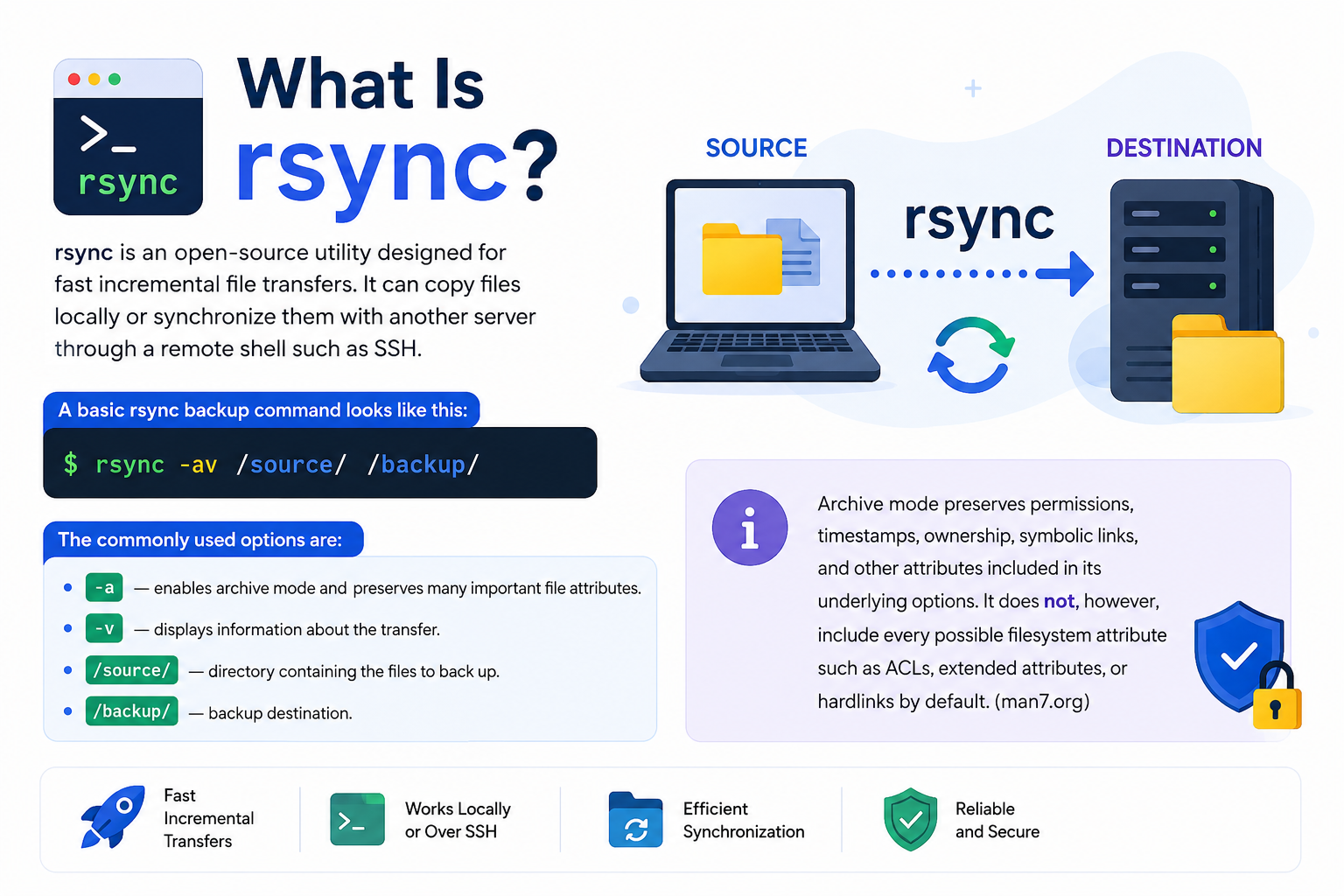
rsync is an open-source utility designed for fast incremental file transfers. It can copy files locally or synchronize them with another server through a remote shell such as SSH. (Rsync)
A basic rsync backup command looks like this:
rsync -av /source/ /backup/
The commonly used options are:
- -a — enables archive mode and preserves many important file attributes.
- -v — displays information about the transfer.
- /source/ — directory containing the files to back up.
- /backup/ — backup destination.
Archive mode preserves permissions, timestamps, ownership, symbolic links, and other attributes included in its underlying options. It does not, however, include every possible filesystem attribute such as ACLs, extended attributes, or hardlinks by default. (man7.org)
How to Backup a Linux Server Using rsync
Before starting, identify the directories that contain the data you actually need to protect.
For example, website files on a Linux VPS are commonly stored under /var/www/.
1. Check if rsync Is Installed
Run:
rsync –version
If rsync is installed, the command displays its version.
On Debian or Ubuntu, you can install it with:
sudo apt update
sudo apt install rsync
On RHEL-based distributions:
sudo dnf install rsync
2. Create the Backup Directory
For a local backup, create a destination directory:
sudo mkdir -p /backup/server
Then run:
sudo rsync -av /var/www/ /backup/server/
This synchronizes the contents of /var/www/ with /backup/server/.
Pay Attention to the Trailing Slash
The trailing slash can affect how rsync handles the source directory.
For example:
rsync -av /var/www/ /backup/www/
copies the contents of www into /backup/www/.
Whereas:
rsync -av /var/www /backup/
can create:
/backup/www/
Understanding this difference helps prevent unexpected directory structures in your backup.
Back Up Linux Server Files to a Remote Server
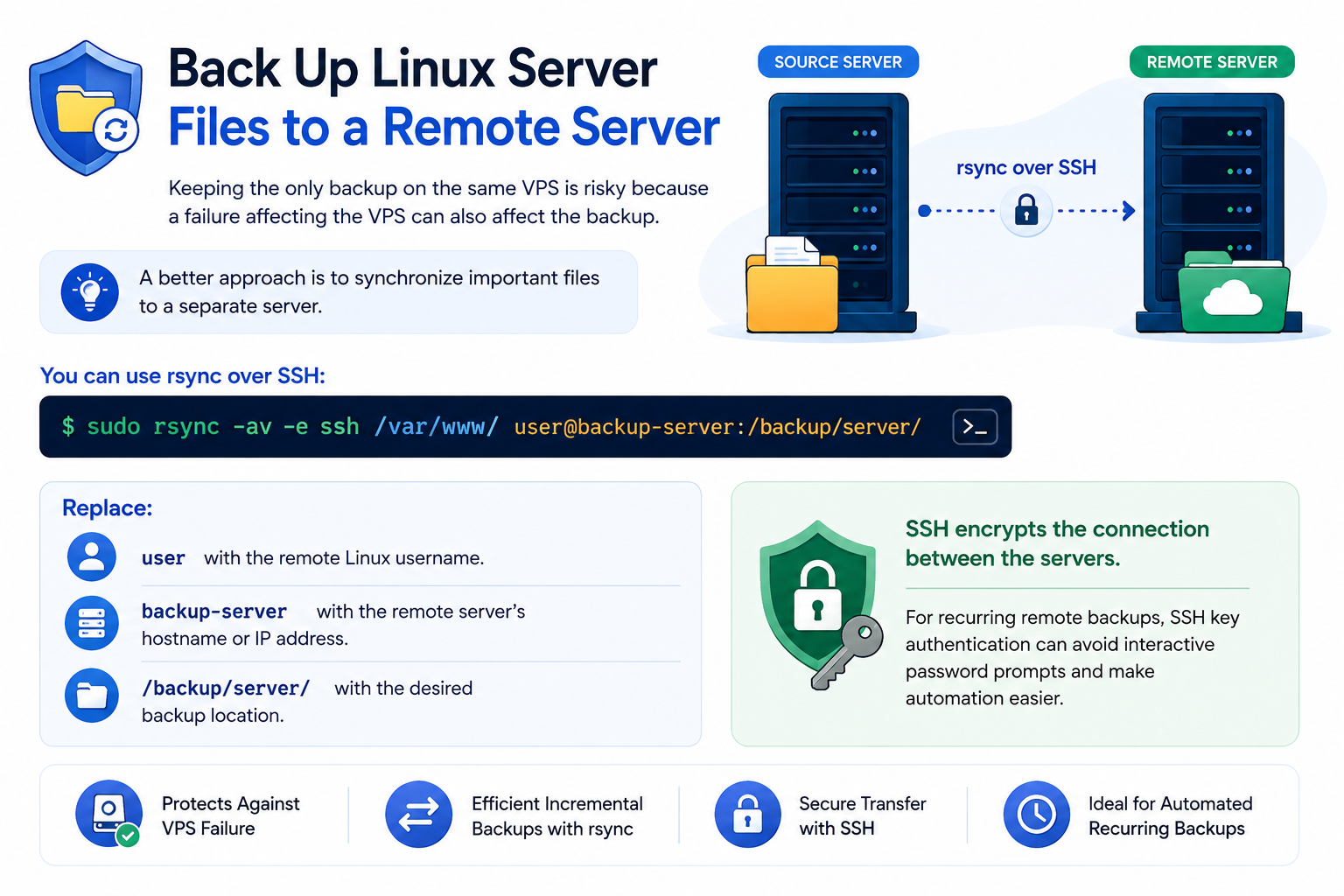
Keeping the only backup on the same VPS is risky because a failure affecting the VPS can also affect the backup.
A better approach is to synchronize important files to a separate server.
You can use rsync over SSH:
sudo rsync -av -e ssh /var/www/ user@backup-server:/backup/server/
Replace:
- user with the remote Linux username.
- backup-server with the remote server’s hostname or IP address.
- /backup/server/ with the desired backup location.
SSH encrypts the connection between the servers.
For recurring remote backups, SSH key authentication can avoid interactive password prompts and make automation easier.
Exclude Unnecessary Files
Some directories contain temporary or cache data that does not need to be backed up.
For example:
sudo rsync -av \
–exclude=’cache/’ \
–exclude=’tmp/’ \
/var/www/ /backup/server/
You can add additional –exclude rules when necessary.
Be careful when excluding files from a production server. Only exclude data after confirming that it can safely be recreated.
Test an rsync Backup Before Running It
If you want to see what rsync would transfer without actually changing the destination, use –dry-run:
sudo rsync -av –dry-run /var/www/ /backup/server/
This is particularly useful when you’re testing a new command or changing include and exclude rules.
It is also strongly recommended before using –delete.
Should You Use –delete?
You can make the destination closely mirror the source with:
sudo rsync -av –delete /var/www/ /backup/server/
However, use this option carefully.
–delete removes files from the destination when those files no longer exist in the source. The official rsync documentation specifically warns that this option can be dangerous and recommends testing it with –dry-run first. (Rsync)
For example:
sudo rsync -av –delete –dry-run /var/www/ /backup/server/
Review the output before performing the actual synchronization.
Important: A mirrored directory is not the same as a historical backup. If a file is accidentally deleted from the source, a mirror using –delete can also remove it from the destination.
Verify Your Linux Server Backup
After running rsync, check the destination:
ls -lah /backup/server/
You can also perform another dry run:
sudo rsync -av –dry-run /var/www/ /backup/server/
If there are no unexpected differences, the source and destination are synchronized.
For important data, go one step further and periodically test restoring selected files from the backup. A successful synchronization does not by itself prove that your complete recovery process works.
What About Databases?
Rsync is primarily a file synchronization tool. It should not automatically be treated as a complete database backup solution.
For example, copying a live MySQL or MariaDB data directory with rsync does not necessarily provide a consistent database backup.
Use a database-aware backup or dump method for databases, then use rsync to transfer those backup files if appropriate.
This keeps the rsync process focused on transferring files rather than trying to replace database-specific backup tools.
Automate rsync Backups
After testing your command manually, you can schedule it with cron.
For example:
0 2 * * * rsync -av /var/www/ /backup/server/
This runs the backup every day at 2:00 AM.
For automated backups, make sure you also account for:
- Correct file permissions
- SSH authentication for remote backups
- Logging
- Backup failures
- Available storage space
For more detailed scheduling and retention strategies, see our VPS Backup Automation Guide.
Common rsync Backup Mistakes
Avoid these common problems when using rsync for Linux server backups:
1. Storing the Only Backup on the Same Server
If the VPS or its storage fails, the backup may be lost too. Use a separate storage location or backup server when possible.
2. Using –delete Without Testing
Always run a dry run first when using destructive synchronization options.
3. Forgetting Important Files
Don’t assume that backing up /var/www/ protects everything required to restore an application. Depending on the application, you may also need configuration files, uploaded data, and database backups.
4. Never Testing a Restore
Periodically restore a few files to a temporary location and confirm that they are usable.
5. Ignoring Backup Security
Protect the backup server and restrict access to backup data. A backup can contain the same sensitive information as the production server.
Keep rsync Updated
If rsync is installed on a production VPS or backup server, keep it updated.
rsync 3.5.0 was released on August 13, 2026, as a major security release addressing 33 security issues. The official project recommends that users upgrade. (Rsync)
Check your installed version with:
rsync –version
Use your Linux distribution’s supported package repository to obtain security updates.
Frequently Asked Questions
