

If Apache won’t start on your VPS, the first step is to avoid repeated restarts and find the exact error instead. In most cases, Apache startup failures trace back to a configuration error, a port conflict, a missing module, a permissions problem, or insufficient system resources — and each one leaves a specific clue in the logs.
This guide walks you through the most common causes, how to investigate using Apache’s status output and logs, and how to fix and prevent the issue going forward.
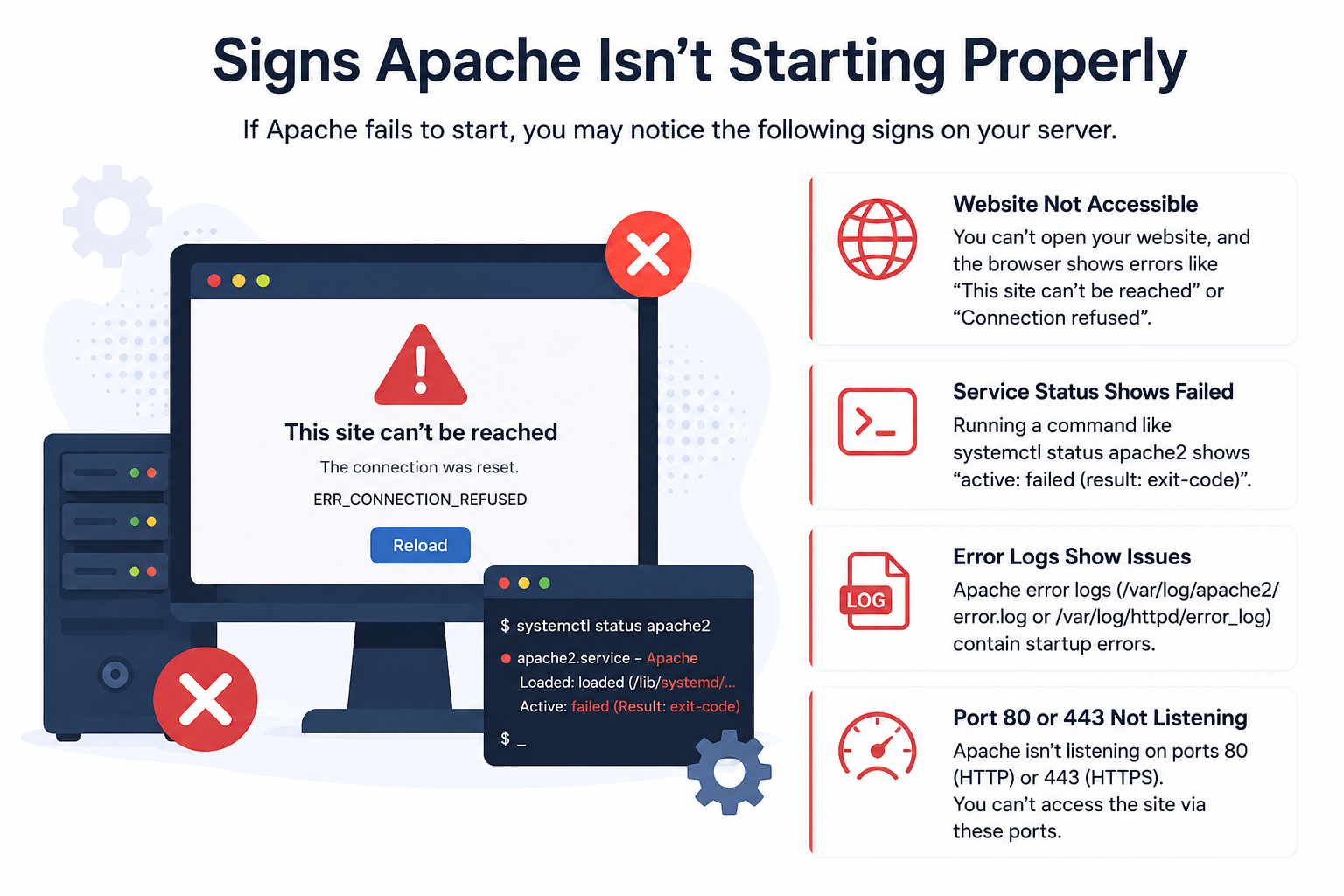
Signs Apache Isn’t Starting Properly
Before troubleshooting, confirm that you’re actually dealing with a startup failure rather than a different issue, such as a firewall block or DNS problem. Typical signs include:
- Running systemctl start apache2 (or httpd on CentOS/RHEL) returns a failure message.
- Your website shows a “Connection refused” or “This site can’t be reached” error.
- systemctl status apache2 shows the service as failed or inactive.
- Apache starts briefly, then stops on its own shortly after.
If any of these match your situation, the steps below will help you pinpoint and resolve the cause.
Common Causes of Apache Startup Failures
Apache typically fails to start for one of the following reasons:
1. Port Conflicts
Another service — often Nginx, a Node.js app, or a previous Apache process that didn’t shut down cleanly — may already be using port 80 or 443.
2. Syntax Errors in Configuration Files
A misplaced bracket, missing semicolon, or typo in httpd.conf, apache2.conf, or a virtual host file will prevent Apache from loading.
3. Conflicting Virtual Host Bindings
Having multiple ServerName directives across virtual hosts is normal — each vhost has its own. The real problem is usually a duplicate or conflicting Listen directive, such as two virtual hosts both bound to the same IP address and port, or an invalid address in the binding. This causes Apache to reject the configuration at startup.
4. Missing or Broken Modules
If a module referenced in your configuration (such as mod_ssl or mod_rewrite) isn’t installed or is misconfigured, Apache will refuse to start.
5. Insufficient Permissions
Apache needs proper read/write access to its log directory, PID file location, and web root. Permission errors here can silently block startup.
6. Out-of-Memory Conditions
On resource-constrained VPS plans, Apache may fail to start if the server doesn’t have enough available RAM to allocate its worker processes.
How to Investigate the Problem
The fastest way to identify the exact cause is to check Apache’s own status output and log files rather than guessing.
Step 1: Check the service status
systemctl status apache2
This often reveals the specific reason for failure directly in the output.
Step 2: Test the configuration syntax
apachectl configtest
or on CentOS/RHEL:
httpd -t
This command scans your configuration files and reports any syntax errors, along with the exact file and line number.
Step 3: Review the error log
tail -50 /var/log/apache2/error.log
(On CentOS/RHEL, this is typically /var/log/httpd/error_log.)
The error log almost always contains the precise reason Apache refused to start, such as a port conflict or a missing module.
Step 4: Check what’s using port 80 or 443
sudo lsof -i :80
If another process is already bound to the port, Apache will fail every time until that conflict is resolved.
How to Fix Apache Won’t Start Issues
Once you’ve identified the cause from the steps above, apply the matching fix:
- Port conflict: Stop the conflicting service, or change Apache’s Listen directive to a different port if the other service must keep running.
- Syntax error: Open the file and line number reported by configtest, correct the error, and re-run the test until it passes.
- Conflicting bindings: Search your virtual host files for repeated or conflicting Listen entries pointing at the same IP and port, and correct or remove the duplicate.
Missing module: Check the error log for the exact module name, then enable it:
a2enmod sslsystemctl restart apache2
- Only enable the module the error actually names — don’t enable modules speculatively, since that can introduce new configuration requirements.
Permission errors: Rather than recursively resetting ownership across your entire web root (which can break WordPress permissions, deployment scripts, or FTP/SFTP workflows), check the ownership and permissions of the specific file or directory named in the error log:
ls -la /path/from/error/logsudo chown www-data:www-data /path/from/error/log
- Adjust only what the log points to.
- Low memory: Reduce Apache’s MaxRequestWorkers value in the configuration, or consider upgrading your VPS plan if memory constraints are recurring. If this keeps happening, our VPS Monitoring Guide can help you track resource usage before it causes an outage.
After applying a fix, restart Apache:
sudo systemctl restart apache2
Verifying Apache Is Running Correctly
Once Apache starts without errors, confirm everything is working as expected:
- Run systemctl status apache2 and confirm the status shows active (running).
- Visit your website in a browser to confirm it loads.
- Check the error log again to make sure no new warnings appeared.
- Run apachectl configtest one more time to confirm a clean configuration.
If the site still doesn’t load even though Apache is running, the issue may be related to firewall rules or DNS rather than Apache itself. For a full walkthrough of firewall rules on your VPS, see our VPS Firewall Setup Guide.
Preventing Future Startup Failures
A few habits can significantly reduce how often you run into this issue:
- Always run apachectl configtest before restarting Apache after making configuration changes.
- Keep a backup of working configuration files before editing them — our VPS Backup & Disaster Recovery Guide covers how to set this up properly.
- Avoid running multiple web servers (like Apache and Nginx) on the same port without a clear setup plan.
- Monitor your VPS resource usage so memory shortages don’t catch you off guard.
- Apply Apache and OS updates during scheduled maintenance windows, not during peak traffic.
- Review file and directory permissions periodically rather than only after an error occurs — see our VPS Server Hardening Guide for a full checklist.
Conclusion
Apache failing to start is almost always traceable to a specific, identifiable cause — a port conflict, a configuration error, a permissions issue, or a resource limitation. By checking the service status, running a configuration test, and reviewing the error log, you can usually diagnose the problem in just a few minutes and get your site back online quickly.
If you continue to run into recurring startup issues, it may be worth reviewing your overall server setup — CreativeON’s VPS hosting plans are built with reliability and support in mind, so help is always available when you need it.
Frequently Asked Questions
