
If your website suddenly shows a “Not Secure” warning or visitors are blocked by a certificate error page, you’re dealing with one of the most common VPS management headaches: SSL certificate errors on VPS. These errors don’t just look bad — they block visitors outright, erode trust in your site, and can disrupt any application, API, or integration that depends on a secure connection to your server.
The good news is that most SSL certificate errors on a VPS come down to a small set of predictable causes, and nearly all of them can be diagnosed and fixed without deep Linux expertise. This guide walks through why these errors happen, how to identify the exact cause, and how to resolve them for good.
What Causes SSL Certificate Errors on a VPS
Unlike shared hosting, where SSL is often managed automatically by the hosting panel, a VPS puts certificate management largely in your hands. That flexibility is powerful, but it also means small misconfigurations can break HTTPS entirely. The most common causes include:
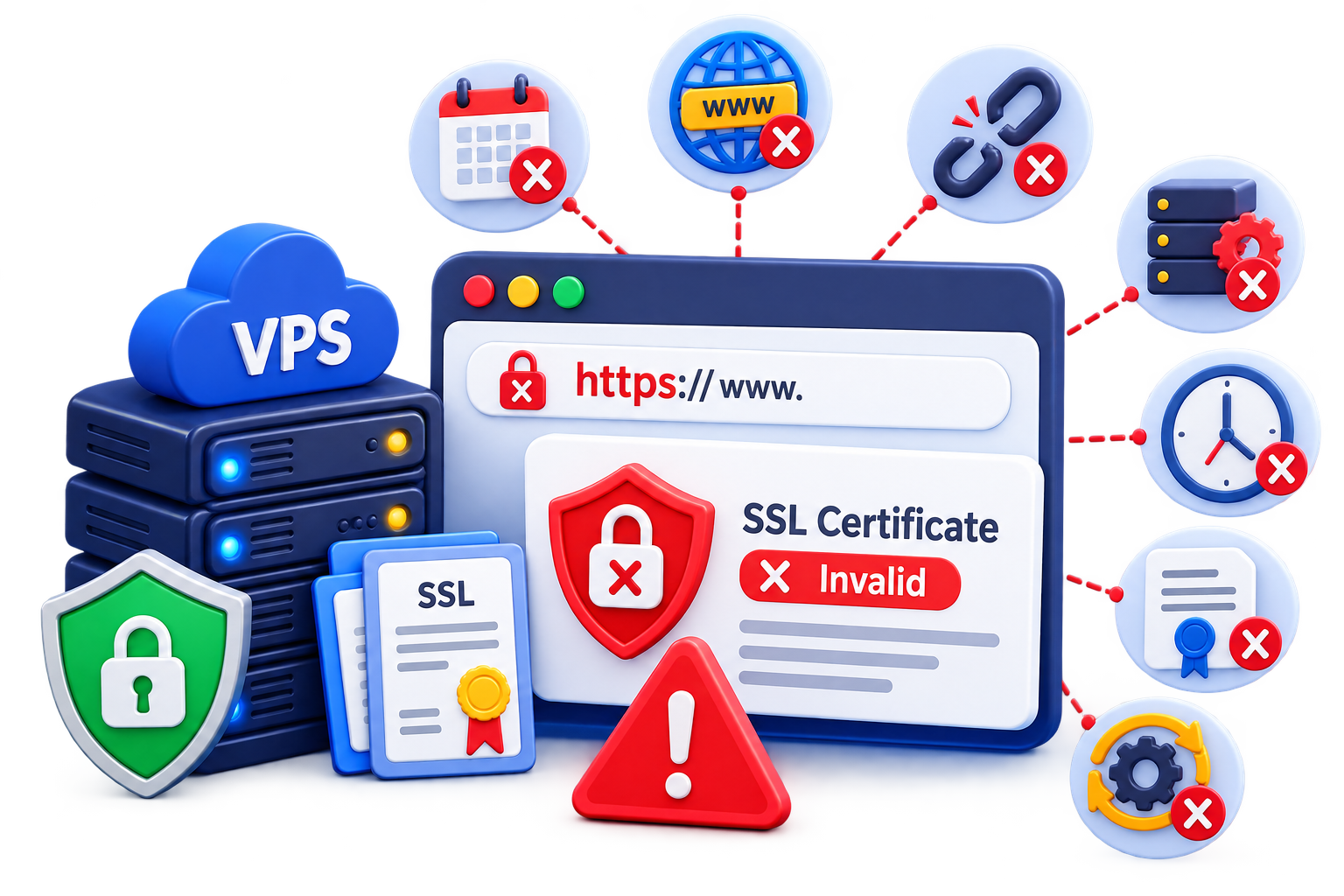
- Expired certificates — the certificate’s validity period has passed and was never renewed.
- Mismatched domain names — the certificate was issued for a different domain or subdomain than the one being accessed (for example, missing a www version).
- Incomplete certificate chains — the intermediate certificate isn’t installed alongside the primary certificate, so some browsers can’t verify trust.
- Incorrect web server configuration — Apache or Nginx pointing to the wrong certificate files, or a virtual host block missing SSL directives entirely.
- System clock drift — if your VPS’s system time is significantly off, it can cause certificates to appear invalid even when they’re not.
- Self-signed or untrusted certificates — used for testing but mistakenly left active on a production site.
- Renewal automation failures — tools like Certbot failing silently due to permission issues, firewall rules, or DNS changes.
Common Signs of SSL Certificate Errors
Before diagnosing the root cause, it helps to recognize how these errors typically present themselves:
- Browser warnings such as “Your connection is not private” or “NET::ERR_CERT_DATE_INVALID”
- “NET::ERR_CERT_COMMON_NAME_INVALID” when the certificate doesn’t match the domain
- Mixed content warnings, where some page resources still load over HTTP (note: this is a separate HTTPS configuration issue, not a sign the certificate itself is invalid)
- SSL handshake failures reported by monitoring tools or uptime checkers
- Email clients or APIs rejecting connections to your server due to certificate validation failures
If you’re seeing intermittent HTTPS failures rather than a full outage, it’s worth ruling out broader connectivity issues first — our VPS Uptime and Downtime Troubleshooting Guide covers that process in detail.
Diagnosing the Exact Problem
Rather than guessing, it’s faster to confirm exactly what’s wrong before making changes. A key principle for VPS troubleshooting: check what certificate the server is actually presenting before assuming the problem is with the certificate file itself.
- Confirm what certificate the server is actually serving
On a VPS, it’s easy to assume that the certificate installed on disk is the one visitors receive — but that’s not always true, especially if the VPS hosts multiple domains. The server might still be serving an old certificate, a certificate for a different domain, or a default certificate tied to the wrong virtual host.
Check the live certificate directly:
echo | openssl s_client -servername yourdomain.com -connect yourdomain.com:443 2>/dev/null | openssl x509 -noout -dates -issuer -subject
The -servername flag matters here — it enables SNI (Server Name Indication), which tells the server which domain’s certificate to return. Without it, a VPS hosting several sites might return the wrong certificate by default, making the error look worse than it is.
This command shows the certificate’s validity window, issuer, and subject in one step, so you immediately know whether the live certificate matches what you expect.
- Verify the domain matches the certificate
Compare the “Subject” and “Subject Alternative Name” (SAN) fields from the command above against the domain you’re actually accessing. If your site is reached at www.yourdomain.com but the certificate only covers yourdomain.com, browsers will flag it as a mismatch.
- Check for a missing intermediate certificate
Use an SSL checker tool (such as SSL Labs’ SSL Test) to scan your domain. It will explicitly flag an incomplete chain if the intermediate certificate is missing.
- Confirm the web server is loading the right files
Review your Nginx or Apache SSL configuration block to ensure the ssl_certificate and ssl_certificate_key (or Apache’s equivalent directives) point to the current, correct file paths — and to the correct virtual host if the VPS serves more than one domain.
- Rule out DNS pointing to the wrong server
If the domain resolves to an outdated IP address, an old VPS, or a different server entirely, you may end up troubleshooting the wrong machine altogether. Check the domain’s A record (and AAAA record, if IPv6 is in use) to confirm it points to the VPS you’re actually working on. DNS issues are a separate topic — see our VPS DNS Configuration Guide if the records need correcting.
How to Fix SSL Certificate Errors on VPS
Once you know the cause, the fix is usually straightforward.
Renewing an Expired Certificate
If you’re using Let’s Encrypt with Certbot, renewal is typically a single command:
sudo certbot renew
Renewing the certificate file doesn’t always mean your web server has picked it up — this depends on whether a reload or deploy hook is configured to run after renewal. If the site still shows the old certificate after renewing, reload the web server manually and confirm your Certbot setup includes a reload/deploy hook so future renewals apply automatically.
If automatic renewal has been failing silently, check the Certbot logs (/var/log/letsencrypt/letsencrypt.log) for permission errors or blocked ports. Port 80 or 443 being closed by your firewall is a frequent cause of failed renewals — see our VPS Firewall Setup Guide for how to review and adjust firewall rules safely.
Fixing a Domain Mismatch
Reissue the certificate to include all domain variations your site actually uses:
sudo certbot –nginx -d yourdomain.com -d www.yourdomain.com
Make sure every subdomain that serves traffic is covered, including any staging or API subdomains.
Installing a Complete Certificate Chain
Most modern tools like Certbot handle this automatically by installing a “fullchain” file. If you installed a certificate manually, ensure your web server configuration references the fullchain file rather than just the primary certificate.
Correcting Web Server Configuration
Double-check that your virtual host or server block includes accurate paths, then test the configuration before reloading:
sudo nginx -t && sudo systemctl reload nginx
For Apache:
sudo apachectl configtest && sudo systemctl reload apache2
If your VPS hosts multiple websites, make sure each domain’s virtual host (or server block) references its own certificate and private key. A misconfigured or missing server block can cause the wrong domain’s certificate to be served through SNI, even when every individual certificate is otherwise correct.
Fixing System Clock Drift
If your server’s time is out of sync, install and enable NTP (Network Time Protocol) to keep the clock accurate:
sudo timedatectl set-ntp true
Certificate validation depends on accurate system time, so this small step prevents a surprisingly common class of SSL errors.
Verifying the Fix
After applying a fix, confirm the certificate error is fully resolved:
- Clear your browser cache or test in a private/incognito window, since browsers cache certificate errors.
- Run an SSL checker scan on your domain to confirm a valid, trusted chain.
- Test the site from multiple devices or networks to rule out local caching issues.
- Check that all subdomains and the non-www/www versions of your site load without warnings.
If errors persist after these steps, it’s worth confirming that DNS is pointing to the correct server — our VPS DNS Configuration Guide explains how to verify this.
Preventing Future SSL Certificate Errors
Fixing the immediate issue is only half the job. A few habits keep certificate errors from coming back:
- Automate renewals and confirm the automation is actually running, not just configured.
- Set up expiry monitoring so you’re alerted weeks before a certificate lapses, not after visitors start seeing errors.
- Keep server time synced using NTP to avoid clock-related validation failures.
- Document your certificate setup, including which domains are covered and where files are stored, especially if multiple people manage the server.
- Review your setup after any DNS or hosting change, since moving a domain can silently break certificate validation.
For a broader look at keeping your server secure and stable over time, our VPS Server Hardening Checklist and VPS Monitoring Guide are good next steps.
Frequently Asked Questions
