
If you’ve tried to log in to your server and been met with a blunt “Permission denied (publickey)” or “Permission denied (password)” message, you already know how disruptive it can be. You can’t manage your applications, deploy updates, or even check server health until access is restored.
The good news is that SSH permission denied on a VPS is usually straightforward to fix once you know where to look. This guide walks through why the error happens, how to diagnose it correctly, and how to get back into your server safely.
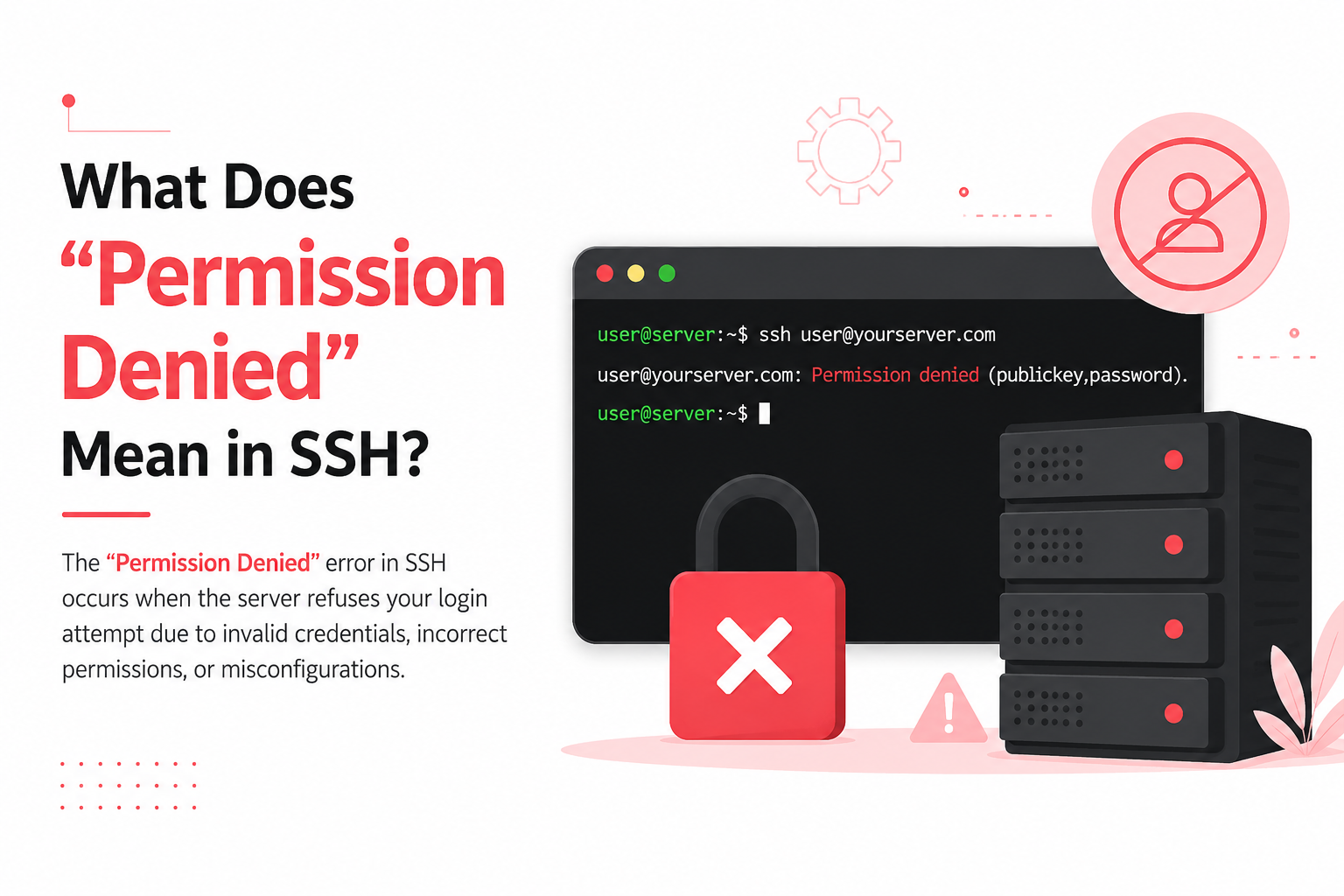
What Does “Permission Denied” Mean in SSH?
“Permission denied” means the SSH server was reached and responded, but your authentication attempt was rejected. This is an important distinction from other connection problems: a timeout or “connection refused” happens at an earlier stage — before authentication is even attempted — and points to a different issue such as the SSH service not running, the wrong port, or network-level filtering. That scenario is covered separately in our SSH Connection Refused Fix.
“Permission denied,” by contrast, specifically tells you that SSH authentication failed. That narrows the problem down to a handful of predictable causes.
Common Signs of an SSH Authentication Failure
- Permission denied (publickey) when connecting via SSH key
- Permission denied (password) when password authentication is disabled
- Repeated authentication failures despite entering the correct password
- Key-based login working from one device but not another
- Sudden failure after a server migration, OS reinstall, or firewall change
If you’re seeing any of these, the cause is almost always related to authentication configuration rather than the server being down.
Common Causes of SSH Permission Denied Errors
1. Incorrect or Missing SSH Key
The most frequent cause. Your local machine may be pointing to the wrong private key, or the public key on the server may not match what you’re presenting.
2. Wrong File Permissions on the Server
SSH is strict about file permissions for security reasons. If your ~/.ssh directory or authorized_keys file has overly permissive settings, SSH will silently refuse to use them — even if the key itself is correct.
3. Password Authentication Disabled
Many VPS providers disable password login by default for security. If you’re attempting a password login on a server configured for key-only access, you’ll always see “Permission denied,” regardless of whether the password is correct.
4. Logging in as the Wrong User
Attempting to connect as root when root login is disabled, or using a username that doesn’t exist on the server, produces the same generic error.
5. SELinux or File Ownership Issues
On some Linux distributions, SELinux contexts or incorrect file ownership on the .ssh directory can block authentication even when permissions look correct at first glance.
How to Diagnose the Problem
Before applying a fix, it helps to confirm exactly what’s going wrong. Run your SSH command with verbose output:
ssh -v user@your-server-ip
For deeper detail, use -vvv instead of -v. In the output, look for:
- Which identity file (private key) SSH is offering
- Whether the server accepts or rejects that key
- Whether password authentication is being offered as a fallback
- Which authentication methods the server allows (shown in a line like Authentications that can continue)
This single step saves significant troubleshooting time, since it tells you whether the problem is on your end (wrong key) or the server’s end (authentication method disabled).
If you have console access through your hosting provider’s dashboard, use it. Console access bypasses SSH entirely, letting you fix permissions or configuration directly even when SSH itself is inaccessible.
Step-by-Step Solution
Step 1: Verify You’re Using the Correct Key
Confirm which private key your SSH client is using:
ssh -i /path/to/your/private-key user@your-server-ip
If this works but your default connection doesn’t, update your SSH config file (~/.ssh/config) to point to the correct key automatically.
Step 2: Check and Fix File Permissions
Log in via console access or an alternate working method, then verify permissions on the server:
chmod 700 ~/.ssh
chmod 600 ~/.ssh/authorized_keys
Incorrect permissions here are one of the most common — and most overlooked — causes of this error.
Step 3: Confirm the Public Key Is Actually in authorized_keys
Open the file and check that your public key is present and hasn’t been corrupted by line breaks or accidental edits:
cat ~/.ssh/authorized_keys
Step 4: Check Ownership
Make sure the .ssh directory and its contents are owned by the correct user, not root:
chown -R username:username ~/.ssh
Step 5: Only If Needed — Review sshd_config
This step should only be necessary if the earlier checks confirm the server’s authentication policy itself is causing the problem — for example, password authentication is disabled and you have no working key. Treat this as a last resort rather than a routine fix, since it directly affects server security.
sudo nano /etc/ssh/sshd_config
Look for PasswordAuthentication and PermitRootLogin, adjust as needed, then restart the SSH service:
sudo systemctl restart sshd
Note that the service name is sshd on most distributions, but some (including Ubuntu) use ssh instead — if the restart command fails, try sudo systemctl restart ssh.
Only re-enable password authentication if you understand the security trade-off, and disable it again once you’ve restored key-based access.
Verifying the Fix
After making changes, test the connection again with verbose logging:
ssh -v user@your-server-ip
You should see authentication succeed without falling back through multiple failed methods. If you’re still blocked, revisit the diagnosis step — verbose output will usually point to exactly which stage is failing.
Preventing Future SSH Permission Denied Errors
- Keep a backup admin user with key-based access in case your primary key is ever lost or corrupted
- Store private keys securely and avoid regenerating keys without updating the server
- Document your SSH configuration whenever you change authentication settings
- Enable console access through your hosting provider as a fallback recovery method
- Review file permissions after any manual server migration or backup restoration
For broader server security practices beyond SSH access, our VPS Server Hardening Checklist covers additional steps worth implementing alongside these fixes. And if your connection fails before you even reach the authentication stage, see our SSH Connection Refused Fix instead — that covers service, port, and connectivity issues rather than authentication.
Conclusion
An SSH permission denied error can feel alarming, especially when you’re locked out of a production server, but it almost always comes down to a mismatched key, incorrect file permissions, or a misconfigured authentication setting. Working through the diagnosis steps above will identify the exact cause quickly, and the fixes themselves take only a few minutes to apply once you know where to look.
At CreativeON, we help VPS users resolve access issues like this every day, and understanding the root cause is the best way to prevent it from happening again.
Frequently Asked Questions
