
An SSH connection timed out error means your SSH client could not establish a connection with the remote server before the connection attempt expired. In most cases, the problem occurs before SSH authentication, so changing your password or SSH key usually will not fix it.
For a VPS, the most common causes are an incorrect IP address, the wrong SSH port, a blocked firewall rule, an unreachable server, or an SSH service that is not listening correctly.
This guide shows you how to identify the cause of an SSH connection timed out error and restore access without making unnecessary server changes.
What Does “SSH Connection Timed Out” Mean?
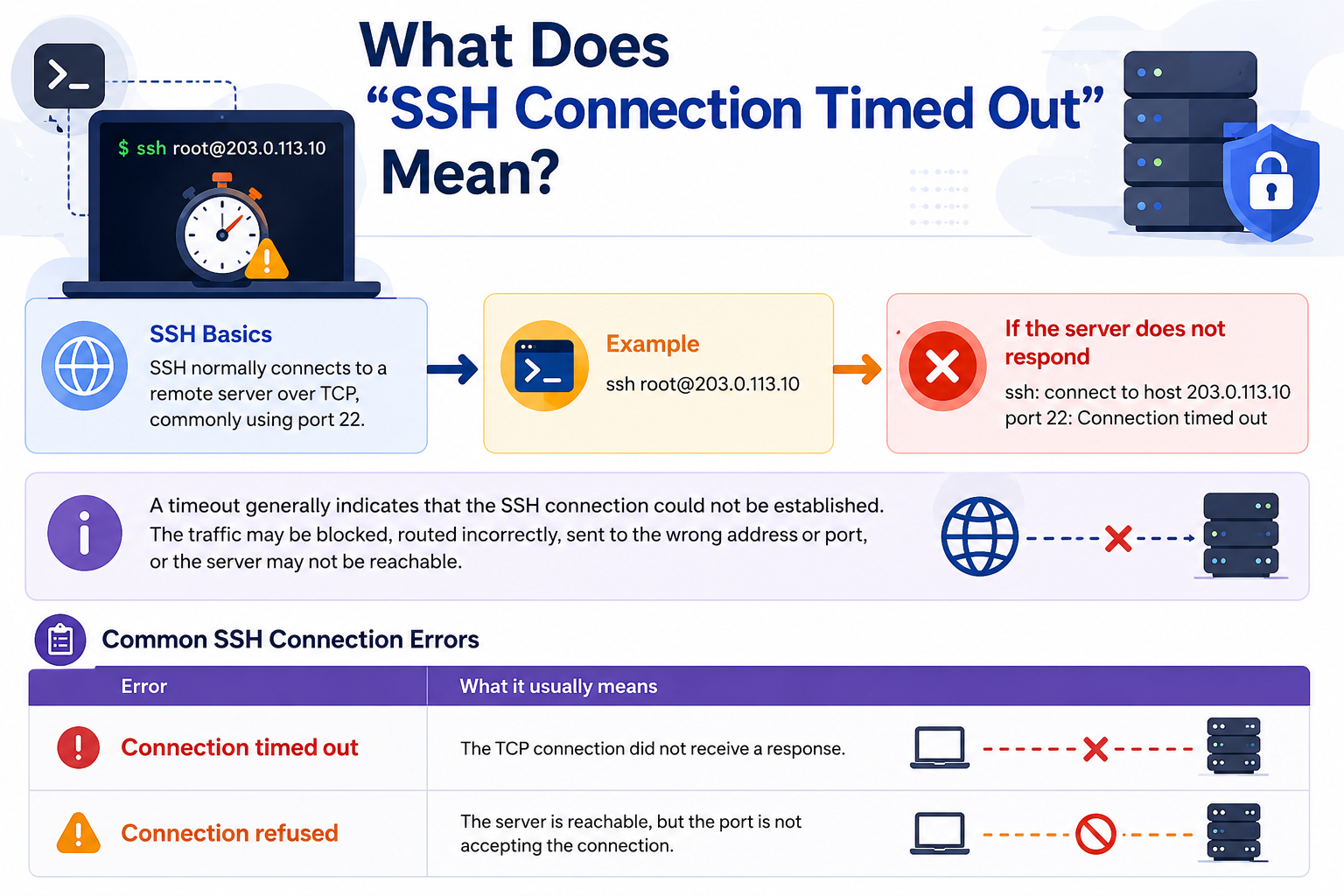
SSH normally connects to a remote server over TCP, commonly using port 22.
For example:
If the server does not respond to the connection attempt, you may see:
ssh: connect to host 203.0.113.10 port 22: Connection timed out
A timeout generally indicates that the SSH connection could not be established. The traffic may be blocked, routed incorrectly, sent to the wrong address or port, or the server may not be reachable.
It is important to distinguish this from other SSH errors:
|
Error |
What it usually means |
|
Connection timed out |
The TCP connection did not receive a response |
|
Connection refused |
The server is reachable, but the port is not accepting the connection |
|
Permission denied |
SSH was reached, but authentication failed |
|
No route to host |
There is a routing or network reachability problem |
For help with a refused SSH connection, see the SSH Connection Refused Fix guide.
Common Causes of an SSH Connection Timeout
1. The VPS IP Address Is Incorrect
Start with the simplest possibility: make sure you are connecting to the correct public IP address.
ssh root@YOUR_SERVER_IP
Check the VPS control panel and compare its current IP address with the one in your SSH command.
An incorrect address can occur after:
- VPS migration
- Server rebuild
- IP reassignment
- DNS or configuration changes
- Provisioning a new VPS
If you are connecting to a hostname rather than an IP address, verify that the hostname resolves to the correct server.
2. You Are Using the Wrong SSH Port
SSH commonly uses TCP port 22, but administrators may configure SSH to use another port.
For example, if SSH listens on port 2222:
ssh -p 2222 root@YOUR_SERVER_IP
If you connect without specifying the custom port, your client will normally try port 22:
ssh root@YOUR_SERVER_IP
That can result in a timeout if port 22 is blocked and the actual SSH service is listening elsewhere.
If you have console access to the VPS, check the SSH configuration and listening ports before changing anything.
3. A Firewall Is Blocking the SSH Port
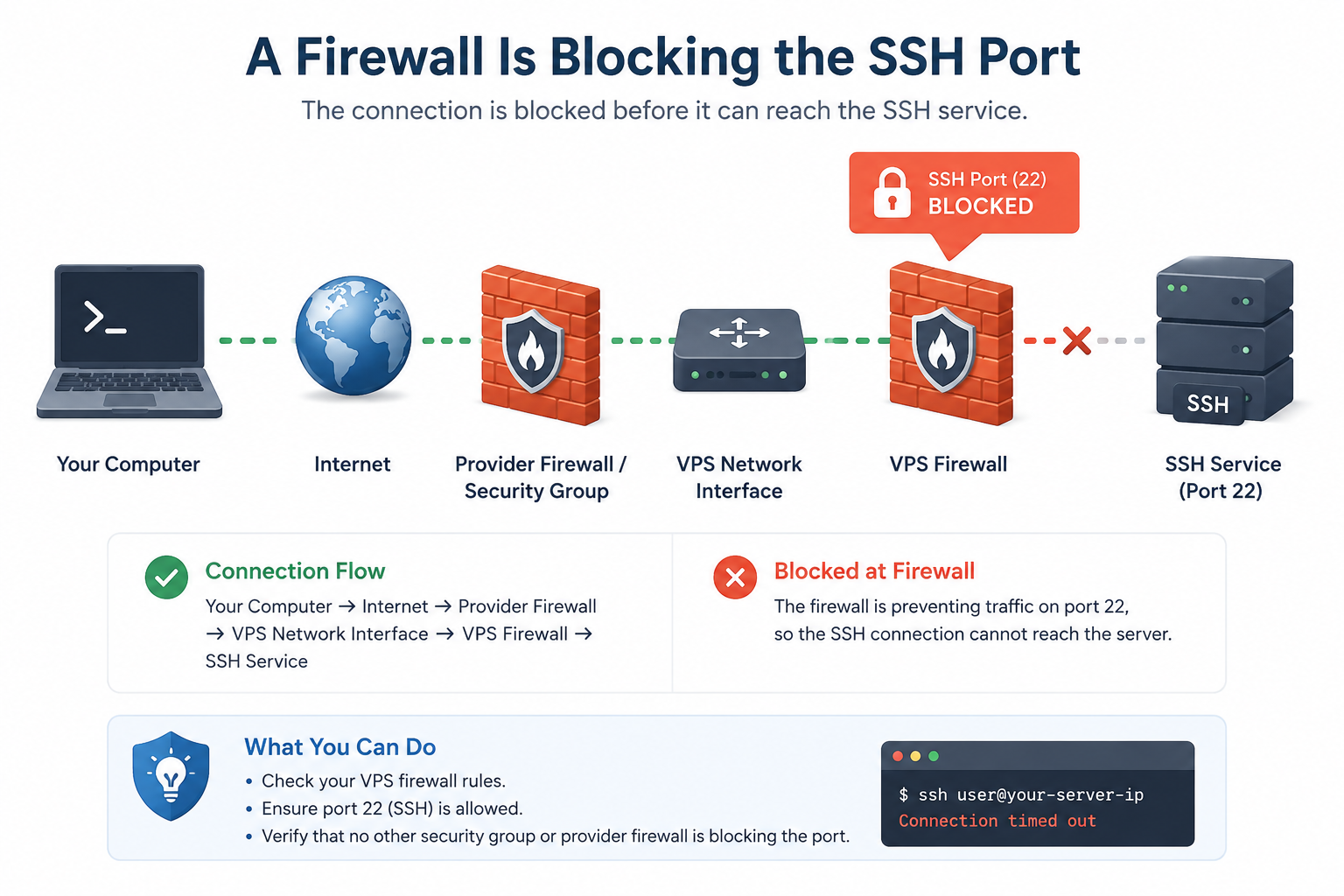
A firewall can prevent SSH traffic from reaching the server.
There may actually be more than one firewall layer between your computer and the SSH service:
Your computer
↓
Internet
↓
Provider firewall / security group
↓
VPS network interface
↓
VPS firewall
↓
SSH service
For example, a VPS may use UFW, firewalld, or another Linux firewall while the hosting provider also provides network-level filtering.
If either layer blocks the SSH port, your connection may fail.
If you have console access, check UFW with:
sudo ufw status
For a standard SSH configuration using port 22, an appropriate UFW rule may look like:
sudo ufw allow 22/tcp
If SSH uses another port, allow that port instead:
sudo ufw allow 2222/tcp
For systems using firewalld, inspect the active firewall configuration:
sudo firewall-cmd –list-all
Do not change firewall rules blindly on a remote VPS. An incorrect rule can lock you out of the server.
For broader firewall configuration, see the VPS Firewall Setup Guide.
4. The VPS Is Offline or Unreachable
An SSH timeout can occur when the VPS itself is unavailable.
Check your hosting control panel for:
- VPS power status
- Server health
- Network status
- Resource usage
- Provider-side incidents
A server that has crashed, stopped responding, or lost network connectivity cannot accept SSH connections normally.
If your provider offers a web-based VPS console, use it to determine whether the operating system is running and accessible independently of SSH.
5. The SSH Service Is Not Running or Not Listening
The SSH daemon must be running and listening on the expected port.
On Ubuntu or Debian, check:
sudo systemctl status ssh
On many RHEL-based distributions, the service is commonly named sshd:
sudo systemctl status sshd
If the service has stopped, it may be necessary to restart it:
sudo systemctl restart ssh
or:
sudo systemctl restart sshd
The exact client error depends on the surrounding network and firewall configuration. A stopped SSH service does not always produce a timeout; the server may instead actively refuse the connection.
You can also check whether SSH is listening:
sudo ss -tlnp | grep ssh
This helps confirm whether the SSH daemon is actually listening for TCP connections.
6. Your Current Network Is Blocking SSH
The problem may not be on the VPS.
Some corporate networks, public Wi-Fi networks, VPNs, or restrictive firewalls can block outbound SSH traffic.
Try connecting from another network, such as a mobile hotspot.
For example:
Office network → SSH timeout
Mobile hotspot → SSH works
If SSH works from the second connection, investigate the original network rather than repeatedly changing your VPS configuration.
How to Troubleshoot an SSH Connection Timed Out Error
Instead of changing several settings at once, troubleshoot the connection in a logical order.
Step 1: Verify the VPS IP Address
Confirm the current public IP address from your VPS control panel.
Then try:
ssh root@YOUR_SERVER_IP
If you normally connect using a hostname, temporarily test the server’s IP address directly.
This helps determine whether DNS resolution is contributing to the problem.
Step 2: Confirm the SSH Port
If SSH uses the standard port:
ssh root@YOUR_SERVER_IP
For a custom port:
ssh -p YOUR_SSH_PORT root@YOUR_SERVER_IP
If you are unsure which port SSH uses, check the server configuration through the VPS console.
Step 3: Test Whether the TCP Port Is Reachable
Use Netcat (nc) to test the SSH port:
nc -vz YOUR_SERVER_IP 22
For a custom SSH port:
nc -vz YOUR_SERVER_IP YOUR_SSH_PORT
This test checks whether a TCP connection can be established to that port.
It does not test SSH authentication.
For example:
nc succeeds
↓
TCP port is reachable
↓
SSH authentication can be attempted
Whereas:
nc times out
↓
TCP connection cannot be established
↓
Check IP, routing, firewall, port and server availability
This makes a TCP port test more useful than relying only on ping.
Step 4: Check Both Firewall Layers
If you have console access, check the VPS firewall.
For UFW:
sudo ufw status
For firewalld:
sudo firewall-cmd –list-all
Also check any provider-level firewall, security group, or network access rules associated with your VPS.
Make sure the correct SSH port is allowed.
Step 5: Verify That SSH Is Listening
Check the active listening sockets:
sudo ss -tlnp | grep ssh
You should see the SSH service listening on the expected port.
For example, if SSH is configured for port 22, the output should indicate that port 22 is listening.
If nothing appears, check the SSH service status and configuration.
Step 6: Check the SSH Service
On Ubuntu/Debian:
sudo systemctl status ssh
On many RHEL-based systems:
sudo systemctl status sshd
If necessary, restart the service:
sudo systemctl restart ssh
or:
sudo systemctl restart sshd
Only restart SSH after confirming that the configuration is valid and that you understand the consequences of the change.
Step 7: Run SSH in Verbose Mode
If the network and port appear reachable, run SSH with verbose output:
ssh -vvv root@YOUR_SERVER_IP
The verbose output shows where the connection process stops.
This can help distinguish between:
- Network connectivity problems
- Port problems
- Host-key negotiation
- Authentication problems
Do not share private keys, passwords, or other sensitive information when sharing SSH diagnostic output.
Step 8: Test From Another Network
If the VPS appears healthy and the SSH port is correctly configured, test from another internet connection.
A successful connection from a different network can indicate that the original ISP, router, VPN, proxy, or firewall is blocking SSH traffic.
What If You Are Locked Out of SSH?
If you have neither SSH access nor another management method, do not keep changing firewall and SSH settings remotely.
Use your VPS provider’s web console, VNC console, serial console, or emergency access method, if available.
A console can allow you to:
- Check whether the VPS is running
- Inspect firewall rules
- Verify the SSH service
- Check listening ports
- Correct a bad SSH configuration
- Restore network access
If your provider does not offer console access, contact support and provide the VPS IP address, SSH port, and exact error message.
What If You Changed the SSH Port?
Using a custom SSH port can cause confusion when troubleshooting.
For example, if SSH was moved from port 22 to port 2222, this command:
ssh root@YOUR_SERVER_IP
still attempts to use port 22.
You must specify the configured port:
ssh -p 2222 root@YOUR_SERVER_IP
Also confirm that the new port is allowed by both the VPS firewall and any provider-level firewall.
Changing the SSH port should not be considered a complete server-security strategy. For broader security practices, see the VPS Server Hardening Checklist.
How to Prevent Future SSH Connection Problems
Once SSH access has been restored, a few simple practices can make future troubleshooting easier.
Keep Emergency Console Access Available
If your VPS provider provides a web or emergency console, know how to access it before you need it.
This is especially important after making firewall or SSH configuration changes.
Test Firewall Changes Before Closing Your Session
When changing firewall rules on a remote VPS, keep your existing SSH session open.
Open a second SSH session and confirm that you can still connect before closing the original session.
This reduces the risk of accidentally locking yourself out.
Document Your SSH Port
If you use a custom SSH port, record it securely along with your server-management information.
This prevents future attempts to connect through port 22 by mistake.
Monitor VPS Availability
Monitoring can alert you when a VPS becomes unreachable before you discover the problem yourself.
For broader server monitoring practices, see the VPS Monitoring Guide.
SSH Connection Timed Out vs. Connection Refused
These errors can look similar but point toward different troubleshooting paths.
|
Error |
Typical meaning |
First things to check |
|
Connection timed out |
No response was received from the target port |
IP, routing, firewall, port, server availability |
|
Connection refused |
The server was reached but rejected the connection |
SSH service, listening port, local firewall |
|
Permission denied |
SSH was reached but authentication failed |
Username, SSH key, password, authentication configuration |
|
No route to host |
The network cannot reach the destination |
Routing, network configuration, firewall |
These are general diagnostic patterns rather than absolute rules. Firewall behavior and network configuration can affect the exact error reported by the SSH client.
For a refused connection, see the dedicated SSH Connection Refused Fix guide rather than repeating that troubleshooting process here.
Frequently Asked Questions
