
If your website suddenly shows a 502 Bad Gateway or 503 Service Unavailable error, PHP-FPM may have stopped running. PHP-FPM (FastCGI Process Manager) processes PHP requests between your web server and PHP itself, so when the service fails, PHP-based websites can become unavailable almost instantly.
This guide shows you how to confirm PHP-FPM is down, identify why it stopped, restart it safely, and prevent the problem from recurring.
What Does “PHP-FPM Not Running” Mean?
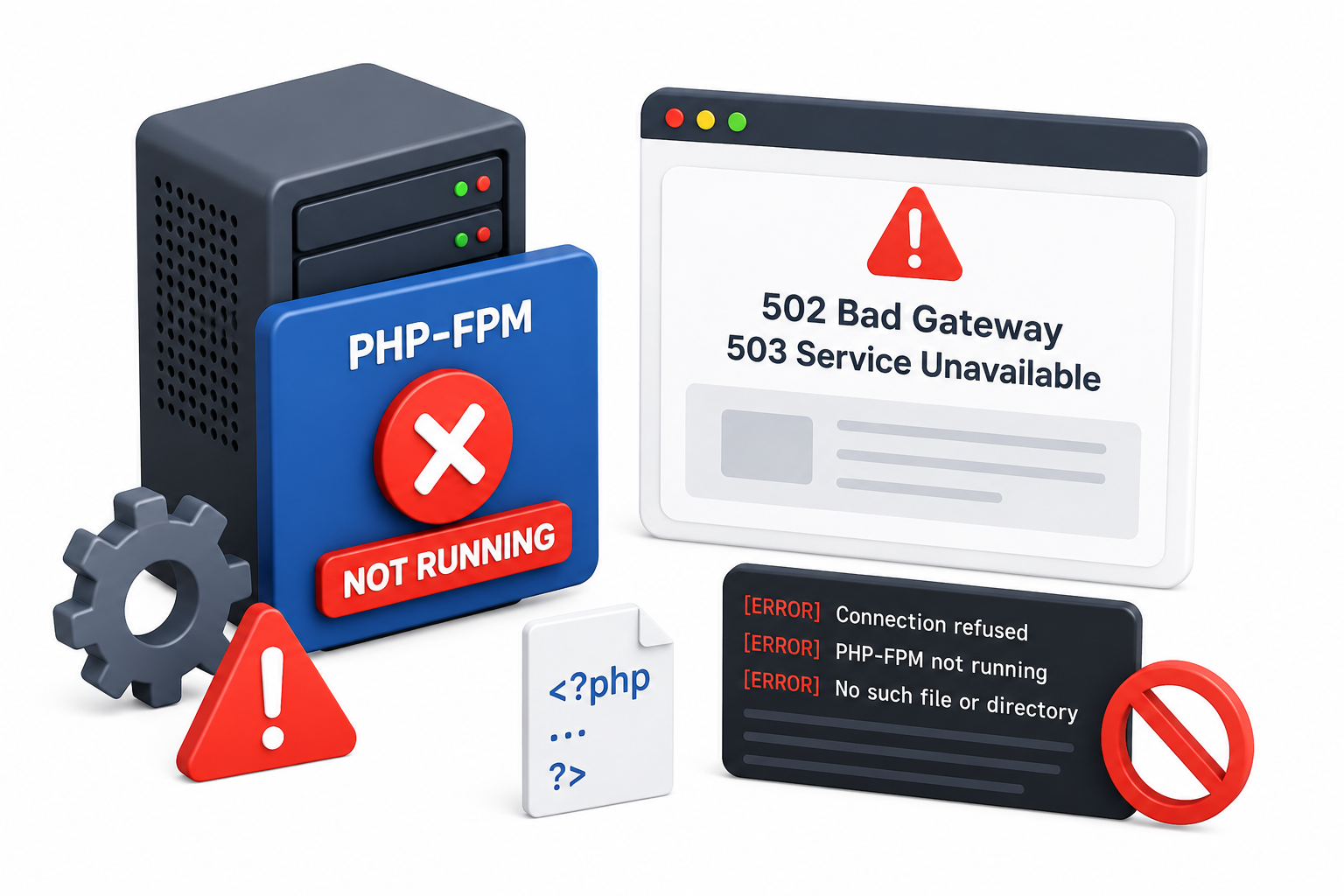
When a visitor requests a PHP page, your web server (typically Nginx or Apache) hands that request to PHP-FPM, which processes it and returns the result. If PHP-FPM has crashed, failed to start, or been stopped, the web server has nowhere to send PHP requests. The usual symptoms are:
- 502 Bad Gateway (most common with Nginx)
- 503 Service Unavailable
- A blank white page with no content
- “Connection refused” errors in the server logs
This is different from a PHP syntax error or a broken plugin, which usually produce a specific error message rather than taking the whole site offline.
Common Causes of PHP-FPM Not Running
Server resource exhaustion. If the VPS is under severe memory pressure, the Linux kernel may terminate processes to reclaim memory. PHP-FPM can be affected, particularly when its worker processes consume more memory than the server can safely provide.
Misconfigured pool settings. Incorrect values in pm.max_children or related directives can cause PHP-FPM to fail on startup or crash under load.
A recent PHP version change. Switching PHP versions without properly restarting or reconfiguring FPM can leave the old socket or service in a broken state.
Corrupted or mismatched socket files. If the socket PHP-FPM uses to communicate with the web server is missing or misconfigured, the service may run but still appear broken to visitors.
Server crashes or reboots. A VPS reboot or unexpected crash can leave PHP-FPM stopped if it isn’t set to start automatically.
Configuration syntax errors. A typo in php-fpm.conf or a pool .conf file will prevent the service from starting at all.
How to Check If PHP-FPM Is Actually Running
Connect to your VPS via SSH. PHP-FPM’s service name is usually version-specific — for example php8.2-fpm — though some distributions use the generic php-fpm. Check which FPM services exist on your server with:
systemctl list-units –type=service | grep fpm
Then check its status, replacing 8.2 with the version installed on your server:
systemctl status php8.2-fpm
If it shows “inactive” or “failed,” you’ve confirmed the issue. It’s also worth checking your web server’s error log (commonly /var/log/nginx/error.log for Nginx) for “connection refused” messages pointing at the PHP-FPM socket — that confirms the web server can’t reach it.
How to Fix PHP-FPM Not Running
1. Restart the Service
sudo systemctl restart php8.2-fpm
sudo systemctl status php8.2-fpm
If it starts and stays running, your site should be back online. If it fails again immediately, move to the next step.
2. Check the Logs
The fastest way to see why PHP-FPM won’t start is:
sudo journalctl -u php8.2-fpm –no-pager -n 100
This works consistently across distributions. PHP-FPM may also write to a separate error log; check the error_log directive in your FPM configuration if you need that file’s exact location, since the path varies between systems.
3. Validate the Configuration
php-fpm -t
This checks your configuration files for syntax errors without starting the service, saving you from repeated failed restarts.
4. Check VPS Memory
free -h
If memory usage is consistently near its limit, that’s often the root cause rather than a one-off glitch. Reducing pm.max_children to a level your available RAM can support helps prevent PHP-FPM from spawning more workers than the server can handle. If you need help calculating the right value, our dedicated PHP-FPM tuning guide covers that in detail — this isn’t the place to work through the math.
5. Confirm the Socket Matches Your Web Server
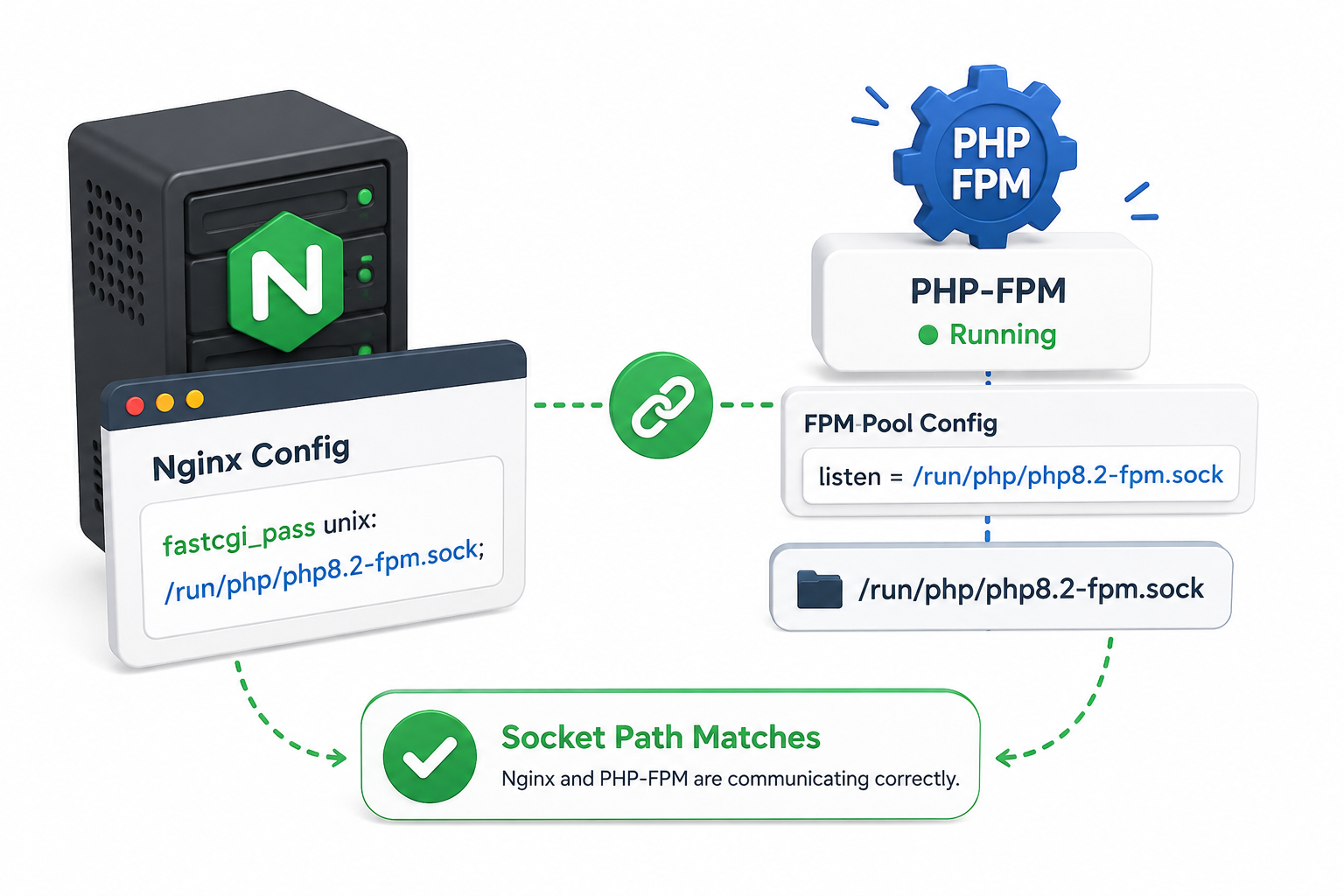
PHP-FPM and your web server must agree on how they communicate. Check the listen directive in your FPM pool config:
listen = /run/php/php8.2-fpm.sock
and confirm your Nginx config points to the same path:
fastcgi_pass unix:/run/php/php8.2-fpm.sock;
If PHP-FPM is running but you still see 502 errors, a mismatched socket path is a common cause — fix the path and reload Nginx.
6. Enable PHP-FPM at Boot
If PHP-FPM works after a manual start but is missing after every reboot, it’s a separate issue from the service simply being down. Check whether it’s enabled:
sudo systemctl is-enabled php8.2-fpm
If not:
sudo systemctl enable php8.2-fpm
Verifying the Fix
- Load your website and confirm pages render normally.
- Re-check systemctl status php8.2-fpm after a few minutes to make sure it hasn’t crashed again.
- Watch the web server error log for any new “connection refused” entries.
- If you adjusted memory or pool settings, monitor resource usage over the next few hours under real traffic.
Preventing PHP-FPM From Stopping Again
- Size pm.max_children and related pool settings to match your VPS’s actual available RAM.
- Monitor server resource usage so memory exhaustion doesn’t catch you off guard.
- Keep PHP and PHP-FPM updated, since older versions are more prone to stability bugs.
- Automated monitoring that restarts PHP-FPM after a crash can reduce downtime, but it isn’t a substitute for fixing the underlying cause — repeated failures should still be investigated.
For resource sizing, our VPS Resource Monitoring Guide and Configure Swap Memory guide are worth reviewing if crashes tend to line up with traffic spikes.
Frequently Asked Questions
