
If a process on your VPS has ever shut down without warning, and your logs point to something called “Out of Memory,” you’ve met the OOM Killer. Understanding the OOM Killer is essential for anyone managing a Linux VPS, because it explains one of the most misunderstood causes of unexpected downtime.
This article explains what the OOM Killer is, why it activates, how to confirm it happened, and what to do to prevent it from taking down critical services again.
What Is the OOM Killer?
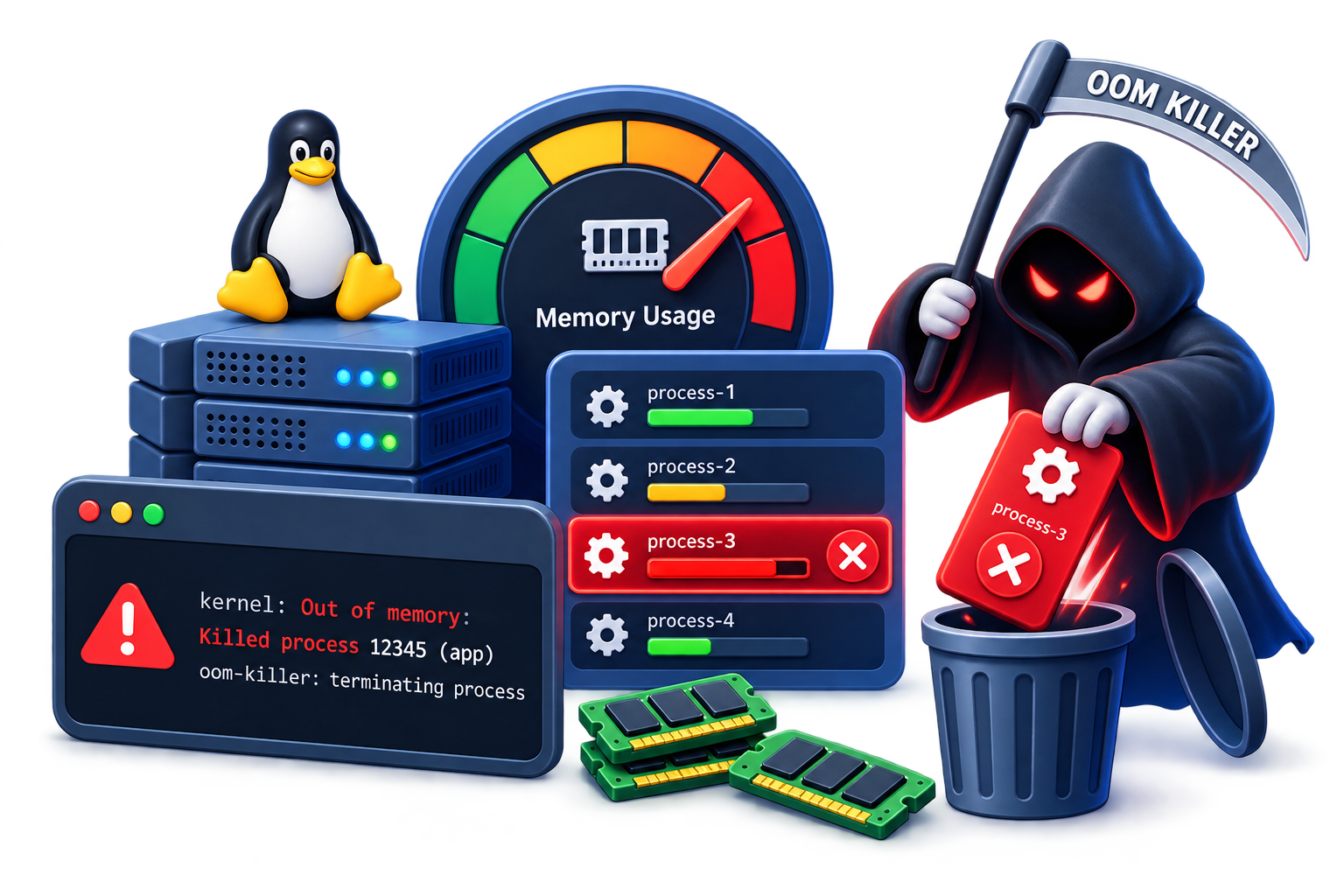
The Out of Memory Killer, commonly shortened to OOM Killer, is a built-in Linux kernel mechanism. When the kernel cannot satisfy a memory request, even after trying to reclaim memory from caches and other sources, it needs to act before the system locks up entirely.
Instead of letting the server freeze, the kernel selects one or more running processes and terminates them to free up memory. This is a protective mechanism, not a bug. Without it, a memory-exhausted Linux system could become completely unresponsive, even to administrators trying to fix the problem.
It’s worth noting that an OOM event doesn’t always mean the entire server is out of memory. If a process is running inside a container or a memory-limited cgroup, it can hit an OOM condition within that boundary even while the rest of the server has memory available. This article focuses on system-level OOM events, since container-specific memory limits are a topic of their own.
Signs the OOM Killer Has Been Triggered
Before diving into causes, it helps to recognize the symptoms. Common signs include:
- A service or application (like MySQL, Node.js, or PHP-FPM) stops unexpectedly with no clear error in its own logs.
- The process seems to vanish rather than crash gracefully.
- Server performance was degrading (slow response times) just before the shutdown.
- Restarting the service works fine, until memory pressure builds up again.
If you’re seeing repeated, unexplained restarts of specific services, the OOM Killer is one of the first things worth checking.
What Causes an OOM Killer Event
The OOM Killer only activates under genuine memory pressure. Common causes on a VPS include:
Insufficient RAM for the workload. The most straightforward cause. If your applications, database, and system processes collectively need more memory than the VPS has available, the kernel eventually runs out of room.
Memory leaks in applications. A poorly optimized script or application can gradually consume more memory over time without releasing it, eventually exhausting available resources.
Sudden traffic spikes. A burst of visitors or requests can cause memory-hungry processes (like PHP-FPM workers or database connections) to multiply faster than the server can handle.
Misconfigured services. Databases and web servers often have memory limits or worker counts that aren’t tuned to the VPS’s actual capacity, allowing them to overcommit memory.
Little or no swap space. Swap provides additional virtual memory the kernel can lean on during temporary spikes, giving the system more room to cope before it has to kill anything. It’s not a substitute for adequate RAM, and a system with swap can still trigger the OOM Killer, but running with none at all removes a useful buffer.
How to Investigate an OOM Killer Event
Confirming that the OOM Killer is responsible is the first diagnostic step.
Check Kernel Messages
The dmesg command displays messages from the kernel’s ring buffer and is usually the fastest way to confirm an OOM event:
dmesg -T | grep -i -E ‘oom|out of memory|killed process’
Check the systemd Journal
On most modern VPS distributions, journalctl gives the same kernel messages with better filtering and timestamps:
journalctl -k | grep -i -E ‘oom|out of memory|killed process’
Check Traditional Log Files
On some distributions, the same events are also recorded in:
/var/log/syslog
/var/log/messages
Any of these will show a line similar to Killed process 1234 (mysqld), along with a memory snapshot from the moment the kernel intervened.
Check Current Memory Usage
free -h
Pay attention to the “available” column and swap usage, not just how much RAM shows as “used.” Linux uses spare memory for disk caching, so a high “used” figure by itself doesn’t mean the server is in trouble — it’s normal Linux behavior, not a warning sign on its own.
How Does Linux Choose Which Process to Kill?
Linux assigns every running process an OOM score that helps the kernel decide which process is the best candidate to terminate when memory can’t be reclaimed. The score takes into account factors like the process’s memory footprint and its oom_score_adj value, an adjustment administrators can set to make a process more or less likely to be picked.
The Killed Process Isn’t Necessarily the Cause
This is one of the most useful things to understand when troubleshooting: the process the kernel kills isn’t necessarily the one that caused the memory shortage. If your logs show Killed process 1234 (mysqld), that doesn’t automatically mean MySQL was responsible — it may simply have been the process the kernel selected as the best candidate to reclaim memory from. Treat the killed process as a starting point for investigation, not an automatic conclusion.
How to Resolve OOM Killer Issues
Once you’ve confirmed the OOM Killer is the cause, the fix depends on the underlying issue.
1. Add or Adjust Swap Space
If your VPS has no swap, adding a swap file gives the system breathing room during temporary memory spikes, reducing the chances of an abrupt kill.
For step-by-step instructions on setting this up correctly, see our dedicated guide: Configure Swap Memory.
2. Right-Size Your VPS Plan
If memory usage is consistently near capacity even under normal traffic, the underlying issue may simply be insufficient RAM for your workload. Upgrading to a plan with more memory is often the most reliable long-term fix.
3. Tune Application Memory Limits
Most services that commonly get targeted by the OOM Killer, such as MySQL, PHP-FPM, and Node.js applications, have configurable memory limits. Setting these limits appropriately prevents any single service from consuming more memory than the server can safely provide.
4. Identify and Fix Memory Leaks
If the same application repeatedly triggers the OOM Killer despite adequate resources, a memory leak is likely. Reviewing application code, updating outdated packages, or restarting long-running processes on a schedule can help as a temporary mitigation — but it shouldn’t replace identifying and fixing the underlying leak.
5. Adjust OOM Protection Carefully
Linux allows administrators to influence how likely a process is to be selected by adjusting its oom_score_adj value. Use this cautiously: protecting one process without addressing the underlying memory shortage will usually just cause a different process to be killed instead.
Verifying the Fix
After making changes, monitor your server to confirm the OOM Killer no longer activates:
- Check journalctl -k or dmesg over the following days for new OOM events.
- Monitor memory usage trends using tools like htop, free -h, or a dedicated monitoring solution.
- Confirm the previously affected service maintains uptime under normal and peak traffic conditions.
For ongoing visibility into memory and resource usage, our VPS Monitoring Guide walks through setting up proactive alerts before problems escalate.
Preventing Future OOM Killer Events
Prevention is more effective than repeated troubleshooting. Keep these practices in mind:
- Regularly review memory usage trends rather than waiting for a crash to investigate.
- Set realistic memory limits for all major services.
- Keep swap space configured as a safety buffer, even on higher-RAM plans.
- Choose a VPS plan sized for your actual workload, with some headroom for growth.
- Treat scheduled restarts of leaking services as a stopgap, not a fix.
Conclusion
The OOM Killer isn’t a malfunction. It’s the Linux kernel doing its job to keep your entire VPS from freezing when memory runs out. The real problem is usually one of a few root causes: insufficient RAM, unoptimized applications, missing swap space, or misconfigured service limits.
By checking your logs, identifying the pattern behind the kills, and applying the right fix, whether that’s adding swap, tuning memory limits, or upgrading your plan, you can stop the OOM Killer from disrupting your services. For CreativeON VPS users, keeping an eye on memory trends and sizing your plan around your actual workload goes a long way toward avoiding these events in the first place.