

A Broken Pipe error on a VPS means a process tried to send data through a network connection that had already been closed. On Linux VPS servers, you may see messages such as Broken pipe, Write failed: Broken pipe, or:
client_loop: send disconnect: Broken pipe
Despite the name, a Broken Pipe error does not necessarily mean your VPS is broken. The connection may have been closed by your SSH client, the VPS, a firewall, router, NAT device, VPN, ISP, or another network component.
The most important step is to determine when and how the connection breaks. An SSH session that disconnects only after being idle requires a different solution from a file transfer that fails during active network traffic.
This guide explains what Broken Pipe means, how to diagnose the cause, and how to fix and prevent recurring VPS connection problems.
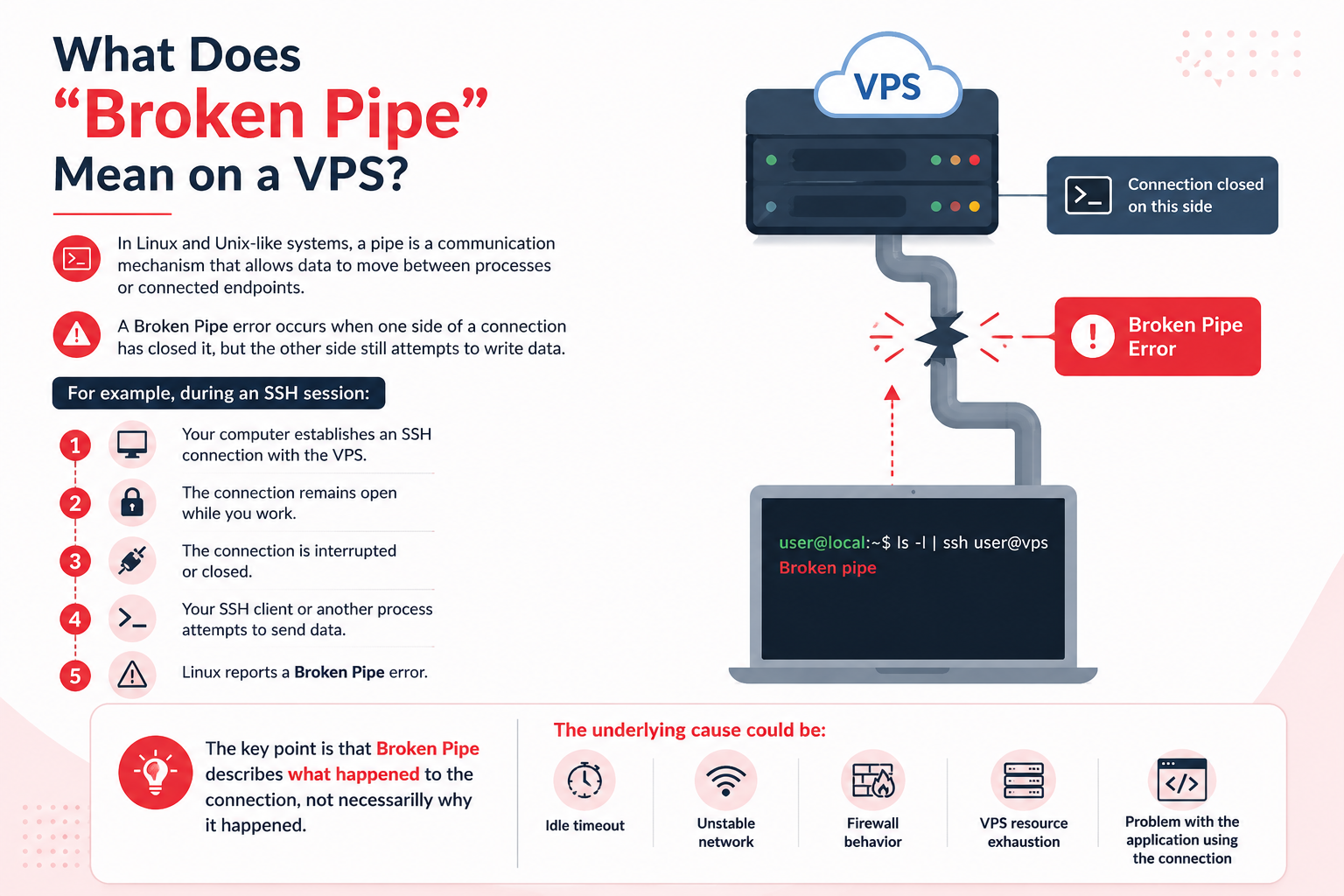
What Does “Broken Pipe” Mean on a VPS?
In Linux and Unix-like systems, a pipe is a communication mechanism that allows data to move between processes or connected endpoints.
A Broken Pipe error occurs when one side of a connection has closed it, but the other side still attempts to write data.
For example, during an SSH session:
- Your computer establishes an SSH connection with the VPS.
- The connection remains open while you work.
- The connection is interrupted or closed.
- Your SSH client or another process attempts to send data.
- Linux reports a Broken Pipe error.
The key point is that Broken Pipe describes what happened to the connection, not necessarily why it happened.
The underlying cause could be an idle timeout, unstable network, firewall behavior, VPS resource exhaustion, or a problem with the application using the connection.
Broken Pipe Error: Quick Diagnosis
Before changing SSH or TCP settings, identify the pattern.
What you observe | What to investigate first |
SSH disconnects only after being idle | SSH keepalive, NAT, firewall, VPN |
Connection drops during active transfers | Packet loss, network stability, VPN, firewall |
Problem occurs during heavy server activity | CPU, RAM, disk I/O, OOM events |
Only one computer or network is affected | Local network, router, VPN, ISP |
Multiple networks experience the problem | VPS networking, SSH service, hosting infrastructure |
Several applications lose connections | Broader network or TCP connectivity issue |
This approach is more reliable than assuming that every Broken Pipe error should be fixed by increasing SSH keepalive values.
Common Symptoms of a Broken Pipe Error
Depending on the application involved, you may experience:
- SSH sessions disconnecting unexpectedly
- SSH sessions dropping after periods of inactivity
- Write failed: Broken pipe
- client_loop: send disconnect: Broken pipe
- SCP or SFTP transfers stopping unexpectedly
- Long-running commands being interrupted
- Network-dependent scripts failing
- Persistent application connections being closed
- Large file transfers failing before completion
The exact error message can vary between operating systems, SSH clients, applications, and transfer tools.
What Causes a Broken Pipe Error on a VPS?
Several different problems can produce the same error. The timing and circumstances of the disconnect are often the best clues.
1. SSH or Network Idle Timeout
An idle SSH connection can eventually be closed by the SSH client, SSH server, firewall, router, NAT device, VPN, or another network component.
For example, you may connect to your VPS, leave the terminal inactive for an extended period, and later find that the session has disconnected.
This does not necessarily mean that OpenSSH itself has a universal idle timeout. The timeout may be imposed somewhere else along the network path.
If the problem happens consistently after inactivity, investigate keepalive and idle-connection behavior first.
2. Unstable Internet Connection
A short interruption in your local connection can break an established SSH or TCP session.
Possible causes include:
- Unstable Wi-Fi
- Mobile network changes
- Packet loss
- Router problems
- VPN interruptions
- ISP connectivity problems
- Switching between network interfaces
Your internet connection does not have to completely stop working for an existing TCP connection to fail.
3. VPS Network or Routing Problems
The VPS or its upstream network may experience temporary connectivity problems.
Possible causes include:
- Network interruptions
- Packet loss
- Routing problems
- Network interface issues
- Upstream connectivity failures
- Hosting infrastructure problems
If connections fail consistently from multiple networks and devices, the VPS or its network path deserves closer investigation.
4. Firewall, NAT, or VPN Timeouts
Firewalls, NAT devices, routers, and VPNs can maintain their own connection-tracking and timeout rules.
An intermediate device may remove an idle connection even though both the SSH client and VPS are still running normally.
This is particularly relevant when the connection fails after a predictable period of inactivity.
Cloud security groups and firewalls do not automatically cause every Broken Pipe error, so avoid changing firewall settings unless your troubleshooting indicates that they are involved.
5. VPS Resource Exhaustion
A VPS under severe resource pressure can become slow or unresponsive, causing network services and applications to behave unexpectedly.
Check:
top
Memory:
free -h
Disk space:
df -h
You can also check the system load:
uptime
Look for:
- Extremely high CPU usage
- Very low available memory
- A filesystem approaching 100% usage
- Resource-heavy processes
- Memory pressure or OOM events
If resource exhaustion occurs at the same time as the connection failure, address the resource problem instead of simply increasing SSH timeout values.
6. Client-Side Application Problems
The SSH client, terminal application, IDE, SFTP client, VPN software, or another local application can sometimes interrupt a connection.
If the problem occurs only on one computer, try:
- Another SSH client
- Another computer
- Another network
- A different terminal application
This can help determine whether the VPS is actually responsible.
How to Diagnose a Broken Pipe Error on a VPS
Step 1: Determine When the Connection Breaks
Start by identifying the exact pattern.
Ask:
- Does it happen only after inactivity?
- Does it happen while actively typing commands?
- Does it happen during large file transfers?
- Does it happen during backups?
- Does it happen only from one network?
- Does it affect multiple users?
- Does the entire VPS become unreachable?
This information can quickly narrow down the likely cause.
Step 2: Test the VPS From Another Network
Try connecting from a different network if possible.
For example, compare:
- Home internet
- Mobile hotspot
- Another office network
- Another computer
If the problem disappears on another network, investigate your local router, VPN, ISP, or network connection.
If the problem continues from multiple independent networks, investigate the VPS, SSH service, or hosting network.
Step 3: Test Basic Connectivity
You can use:
ping your-vps-ip
Ping provides a quick indication of network reachability, but it does not prove that SSH is healthy. ICMP may be blocked or handled differently from TCP traffic.
For SSH-specific troubleshooting, use verbose SSH output:
ssh -vvv user@your-vps-ip
The -vvv option provides detailed debugging information that can help identify where the SSH connection is failing.
Step 4: Check VPS Resources
Check CPU and running processes:
top
Check memory:
free -h
Check disk space:
df -h
Check system load:
uptime
If the VPS is consistently under heavy load, identify the process causing the resource pressure before making SSH configuration changes.
Step 5: Check SSH and System Logs
Logs can help determine whether the SSH service reported a problem around the time of the disconnect.
On Debian or Ubuntu systems, SSH authentication logs are commonly available in:
/var/log/auth.log
You can monitor recent entries with:
sudo tail -f /var/log/auth.log
On many RHEL-based systems, check:
/var/log/secure
For systems using systemd, you can also inspect the SSH service through journalctl.
Depending on the distribution, try:
sudo journalctl -u ssh –since “10 minutes ago”
or:
sudo journalctl -u sshd –since “10 minutes ago”
The exact service name varies by Linux distribution.
If SSH logs show no useful information, that does not necessarily rule out a network problem. The connection may have been terminated somewhere between your computer and the VPS.
How to Fix a Broken Pipe Error on a VPS
The appropriate fix depends on the cause you identify.
Solution 1: Configure SSH Client Keepalives
If your SSH connection disconnects mainly while idle, client-side SSH keepalives can help maintain the connection.
Edit or create:
~/.ssh/config
For a specific VPS, use:
Host my-vps
HostName 203.0.113.10
User root
ServerAliveInterval 60
ServerAliveCountMax 3
Replace the hostname, IP address, and username with your actual VPS details.
What do these settings do?
ServerAliveInterval 60 tells the SSH client to send a keepalive message when the connection has been idle for the specified interval.
ServerAliveCountMax 3 controls how many unanswered keepalive messages the client will tolerate before considering the connection unavailable.
A host-specific configuration is preferable when only one VPS requires different SSH behavior.
You can also use:
Host *
ServerAliveInterval 60
ServerAliveCountMax 3
if you intentionally want the setting to apply to all SSH connections.
Keepalive settings can help with idle connection timeouts, but they cannot repair packet loss, a failed network path, a crashed server, or an application that deliberately closes the connection.
Solution 2: Configure SSH Server Keepalives
If you administer the VPS and need server-side keepalive behavior, review:
/etc/ssh/sshd_config
Depending on your OpenSSH configuration, relevant settings include:
ClientAliveInterval 60
ClientAliveCountMax 3
These settings are controlled by the SSH server rather than the client.
Before applying changes, keep an existing SSH session open so you have a way back if the new configuration is incorrect.
Validate the configuration:
sudo sshd -t
If the command returns no error, reload or restart the SSH service using the method appropriate for your Linux distribution.
For example:
sudo systemctl reload sshd
On some distributions, the service may be named ssh instead:
sudo systemctl reload ssh
Do not blindly restart SSH on a production VPS without validating the configuration first.
Solution 3: Check Your Network, VPN, Router, or Firewall
If the connection fails during active use or from a particular network, investigate the network path.
Check whether:
- Your Wi-Fi connection is dropping packets
- Your VPN is reconnecting
- Your router is unstable
- Your ISP connection is intermittent
- A corporate firewall is terminating long-lived connections
- An intermediate NAT device is expiring idle sessions
If you manage the firewall or router, review its connection timeout policies.
Do not simply disable firewall protections to solve a Broken Pipe error. First establish that the firewall is actually responsible.
Solution 4: Resolve VPS Resource Problems
If the error appears during CPU-intensive, memory-intensive, or disk-intensive operations, investigate server resources.
Start with:
top
free -h
df -h
Identify processes consuming excessive resources.
Possible solutions include:
- Stopping unnecessary processes
- Optimizing resource-heavy applications
- Reducing the workload
- Scheduling intensive operations during quieter periods
- Increasing VPS resources when the workload genuinely requires more capacity
The correct solution is to address the resource bottleneck rather than treating Broken Pipe as an SSH configuration problem.
Solution 5: Use tmux or screen for Long-Running Tasks
Do not depend on a fragile interactive SSH session for commands that may run for hours.
For example, start a tmux session:
tmux new -s mysession
Run your long-running command inside it.
If your SSH connection is interrupted, reconnect to the VPS and run:
tmux attach -t mysession
The command can usually continue running because the terminal session exists independently of your temporary SSH connection.
You can use screen as an alternative:
screen
The important distinction is that tmux and screen do not prevent the network connection from breaking. They help prevent a temporary SSH disconnect from unnecessarily terminating an interactive process.
Solution 6: Use Resumable Methods for Large File Transfers
If Broken Pipe occurs during large transfers, consider whether the transfer method can resume after an interruption.
For example, rsync is often better suited to repeatable file synchronization than relying on a single scp transfer.
For long or unreliable transfers, choose a tool or workflow that supports resuming rather than repeatedly starting the entire transfer from the beginning.
For important backups, use a proper backup system rather than relying on an open SSH session.
What About TCP Keepalive Settings?
Linux provides system-level TCP keepalive parameters such as:
net.ipv4.tcp_keepalive_time
net.ipv4.tcp_keepalive_intvl
net.ipv4.tcp_keepalive_probes
These control TCP keepalive behavior at the operating-system level.
However, do not change these values simply because you encountered one Broken Pipe error.
SSH already has its own keepalive mechanisms, and changing system-wide TCP settings may affect multiple applications.
TCP keepalive tuning becomes more relevant when you have evidence that multiple TCP-based applications are experiencing idle connection drops, rather than an SSH-only problem.
If you need to investigate this area, first determine which application is affected and understand the existing network timeout behavior before modifying system-wide settings.
How to Verify the Fix
After making a change, test the exact situation that previously caused the error.
For an idle SSH disconnect
Leave an SSH session inactive for a period longer than the previous failure point and monitor whether it remains connected.
For file transfers
Repeat the same transfer that previously failed.
For long-running commands
Run the operation inside tmux or screen and verify that it continues even if the SSH connection is interrupted.
For network problems
Test from another network or device and compare the results.
For resource problems
Monitor CPU, RAM, disk space, and system logs while reproducing the issue.
Make one major configuration change at a time whenever possible. This makes it much easier to determine what actually resolved the problem.
Broken Pipe vs Other Common Connection Errors
Broken Pipe is often confused with other network and SSH errors.
Error | What it generally means |
Broken pipe | A process attempted to write to a connection that had already been closed |
Connection reset by peer | The remote endpoint or another network component reset the connection |
Connection timed out | A response was not received within the expected timeout |
Connection refused | The target host rejected the TCP connection, often because no service was listening on the requested port |
Connection closed | The connection ended without necessarily indicating the exact underlying cause |
These errors can have overlapping causes, but they should not automatically be treated as identical problems.
Common Mistakes When Fixing Broken Pipe Errors
Changing SSH settings without identifying the cause
Keepalive settings are useful when idle connections are being terminated, but they will not fix every Broken Pipe error.
Assuming the VPS has crashed
A Broken Pipe message alone does not prove that the VPS is down.
Check reachability, SSH behavior, resources, and logs before concluding that the server has failed.
Changing system-wide TCP settings immediately
TCP keepalive parameters affect broader network behavior and should not be changed as a first response to an SSH error.
Running critical long-running tasks directly over SSH
An interactive SSH session is not an ideal environment for processes that must survive temporary network interruptions.
Use tmux, screen, systemd services, queues, or another appropriate process-management method depending on the workload.
Changing several settings at once
If you change SSH configuration, firewall rules, TCP parameters, and application settings simultaneously, it becomes difficult to determine which change solved the problem.
Change one thing at a time and test.
Disabling security controls to troubleshoot connectivity
Do not permanently disable firewalls, security policies, or other protections just to make a connection work.
Identify the actual connection path and determine whether a security control is genuinely responsible.
How to Prevent Broken Pipe Errors on a VPS
You cannot eliminate every network interruption, but you can make VPS administration more resilient.
Good practices include:
- Configure sensible SSH keepalive settings when required.
- Keep your local network stable when managing production servers.
- Investigate recurring packet loss or VPN interruptions.
- Monitor VPS CPU, RAM, disk, and network performance.
- Keep the operating system and SSH packages maintained.
- Use tmux or screen for long-running interactive tasks.
- Use resumable or synchronization-based tools for large transfers.
- Maintain reliable VPS backups.
- Monitor recurring connection failures instead of treating every event as an isolated error.
- Keep existing SSH access available when testing server-side SSH configuration changes.
If connection problems repeatedly occur alongside high CPU, memory, or disk usage, investigate VPS resource utilization instead of simply increasing SSH timeout values.
Frequently Asked Questions
