

A business process that works well with five employees can become difficult when the team grows to 50.
Requests arrive through different channels, employees manually copy information between files, approvals get delayed, and managers spend time asking for updates.
Google Workspace can help you turn these scattered activities into connected business workflows. Instead of using Gmail, Drive, Sheets, Forms, Docs, and other tools separately, you can design a process where each tool has a clear role.
For businesses in Pakistan and the UAE, this can help teams maintain consistent processes even when employees work from different offices or locations.
What Makes a Business Workflow Scalable?
A scalable workflow is a process that can handle more requests, employees, or transactions without creating the same increase in manual work.
A useful way to think about a workflow is:
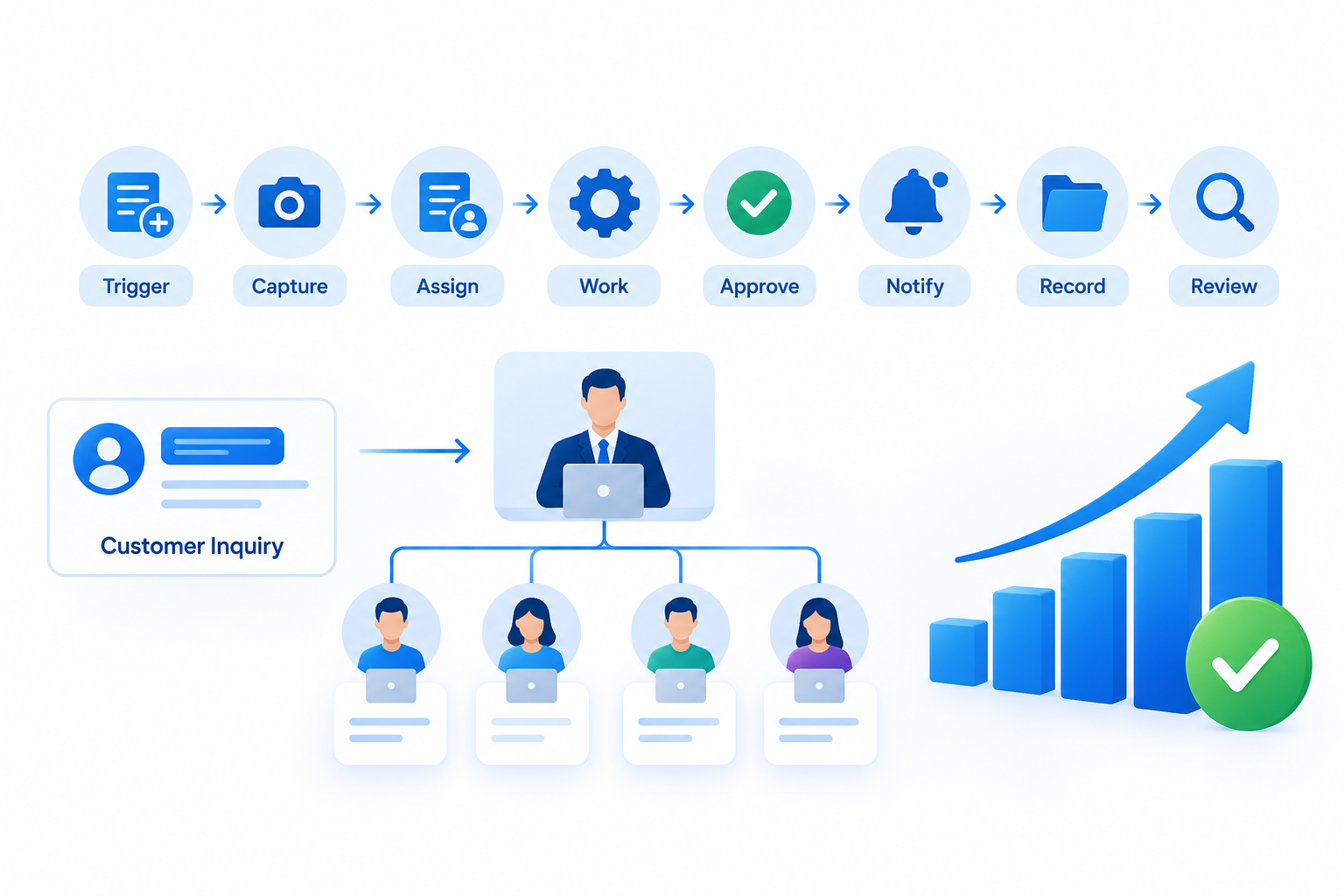
Trigger → Capture → Assign → Work → Approve → Notify → Record → Review
For example, a customer inquiry could follow this path:
New inquiry → Customer details captured → Salesperson assigned → Customer contacted → Proposal prepared → Manager approves → Customer notified → Record closed
The exact steps will vary by business, but the principle remains the same: every stage should have a clear purpose, owner, and outcome.
How to Build a Scalable Google Workspace Workflow
1. Map the Process Before Choosing the Tools
Do not start by asking, “Which Google Workspace app should we use?”
Start by asking:
- What triggers the process?
- What information do we need?
- Who receives the request?
- Who is responsible for the next step?
- Does someone need to approve it?
- What happens when information is missing?
- How do we know the process is finished?
This prevents the common mistake of creating a collection of tools without creating a proper process.
2. Standardize How Work Enters the Process
A scalable workflow needs a consistent starting point.
If employees receive requests through random emails, WhatsApp messages, phone calls, and spreadsheets, important information can easily be missed.
For suitable processes, Google Forms can provide a standard way to collect information.
Examples include:
- Sales inquiries
- Employee requests
- Leave applications
- Customer feedback
- Purchase requests
- Internal support requests
The goal is simple: the same type of request should enter the workflow in roughly the same format each time.
3. Create a Central Record
Once information has been collected, the team needs somewhere to track it.
For many small and medium-sized workflows, Google Sheets can provide a shared tracking layer.
A simple workflow tracker might contain:
| Request | Owner | Status | Priority | Due Date |
| Website inquiry | Sales | New | High | Monday |
| Leave request | HR | Review | Medium | Tuesday |
| Client proposal | Sales | Waiting | High | Wednesday |
This creates visibility.
Instead of repeatedly asking, “Who is handling this?”, team members can check the current status and owner.
4. Keep Related Files in Google Drive
Documents should be connected to the workflow rather than scattered across personal computers or unrelated folders.
For example, a sales process might use:
Sales → Leads → Proposals → Contracts → Completed
Google Drive can hold the related proposals, contracts, presentations, spreadsheets, and templates.
Use consistent folder structures, file names, and sharing permissions so employees know where information belongs.
5. Give Every Step an Owner
A workflow should never depend on everyone assuming that someone else will handle the next step.
Assign ownership at important stages.
For example:
Sales owns the inquiry → Finance reviews pricing → Manager approves discount → Sales sends proposal
Clear ownership makes accountability easier and reduces delays.
It also becomes important as the company grows because new employees can understand who is responsible for each stage.
6. Add Communication to the Process
Communication should support the workflow rather than become a separate place where important information disappears.
You might use:
- Gmail for customer and business email
- Google Chat for internal discussions
- Google Calendar for meetings and deadlines
- Google Docs for shared working documents
- Google Drive for related files
For example:
Customer request → Team assignment → Internal discussion → Meeting → Follow-up → Completion
This keeps communication connected to the work being performed.
Automate Only After the Process Works
One of the most important rules for scalable workflows is:
Do not automate a process that has not been standardized.
If a process is confusing when performed manually, automation can simply make the confusion happen faster.
First:
- Define the process.
- Remove unnecessary steps.
- Assign responsibilities.
- Standardize the information collected.
- Test the process manually.
- Identify repetitive work.
- Automate the suitable steps.
Google Workspace provides several ways to extend workflows. Workspace Studio supports AI-powered workflow creation and management, while Apps Script can be used for custom automation and integrations. AppSheet provides another route for building no-code business applications and workflows.
The right option depends on the complexity of the process.
Example: A Scalable Customer Inquiry Workflow
Imagine a company receives customer inquiries for its services.
A basic process could look like this:
1. Trigger
A customer submits an inquiry.
2. Capture
The required customer and service information is collected in a consistent format.
3. Assign
The inquiry is assigned to a salesperson.
4. Work
The salesperson contacts the customer and prepares the required information.
5. Approve
A manager reviews the proposal when approval is required.
6. Notify
The customer receives the response or proposal.
7. Record
The final status is recorded.
8. Review
The business reviews completed inquiries to identify delays or missed opportunities.
At first, many of these steps can be handled manually.
As the volume grows, repetitive parts can be automated.
This is what makes the workflow scalable: the process stays consistent while the amount of manual work can decrease.
Build Workflows in Layers
You do not need to redesign your entire business at once.
A practical approach is to build in layers.
Layer 1: Process
Define exactly how the work should happen.
Layer 2: Information
Decide what information must be collected and where it will be stored.
Layer 3: Ownership
Assign people to each important stage.
Layer 4: Visibility
Create shared trackers, statuses, deadlines, and dashboards where useful.
Layer 5: Automation
Automate repetitive tasks after the process has been tested.
Layer 6: Review
Measure where requests are delayed, rejected, duplicated, or forgotten.
This makes it easier to improve one part of the workflow without rebuilding everything.
Design for Exceptions, Not Just the Normal Case
A workflow is not truly scalable if it only works when everything goes according to plan.
Ask what should happen when:
- Required information is missing
- A manager does not approve a request
- The assigned employee is unavailable
- A customer changes their request
- A deadline is missed
- A request needs urgent attention
Create a clear path for these exceptions.
For example:
Normal request → Standard workflow
Urgent request → Priority handling
Missing information → Return to requester
Approval rejected → Revision required
This prevents unusual cases from breaking the entire process.
Keep Workflow Rules Simple
As a business grows, complicated processes become harder to manage.
Use:
- Clear status names
- Simple ownership rules
- Standard templates
- Consistent file locations
- Defined approval points
- Appropriate sharing permissions
- A documented process for exceptions
A workflow should be easy enough for a new employee to understand without asking several people how it works.
Business Workflows You Can Build With Google Workspace
The same principles can be applied to many business processes, including:
- Sales lead management
- Customer inquiries
- Employee onboarding
- Leave requests
- Purchase approvals
- Expense submissions
- Project tracking
- Marketing approvals
- Document reviews
- Customer follow-ups
- Internal support requests
The important thing is not to use every Google Workspace application.
Use the smallest combination of tools that makes the process clear, trackable, and repeatable.
Google Workspace for Businesses in Pakistan and the UAE
Google Workspace can support businesses with teams working from one office, multiple locations, or remotely.
For example, a company operating between Lahore and Dubai could use shared documents, calendars, communication tools, and workflow records while keeping the same basic business process across both locations.
This can be useful when a company grows from a small local team into a larger organization with multiple departments or offices.
When Should You Improve a Workflow?
Look for warning signs such as:
- Employees repeatedly enter the same information
- Managers constantly ask for status updates
- Requests are frequently forgotten
- Files are difficult to locate
- Approvals happen through long email chains
- Different employees follow different procedures
- A growing workload requires proportionally more administrative work
These are often signs that a process needs to be standardized or automated.
Why Choose CreativeON for Google Workspace?
CreativeON is an authorized Google reseller partner and has provided Google Workspace services since 2015. The company provides Google Workspace services and local support for businesses in Pakistan.
If your business is moving from traditional email or disconnected working methods to Google Workspace, CreativeON can help with Workspace plans, setup, migration, and ongoing support.
For businesses that want to build better workflows, the important step is not simply moving to a new set of applications. It is deciding how the team should work and then configuring the tools around that process.
Frequently Asked Questions
