
Technical documentation plays an important role in businesses that depend on servers, networks, software applications, and IT infrastructure. It helps technical teams understand how systems work, follow established procedures, troubleshoot problems, and maintain consistent operations.
However, managing technical documentation can become difficult as a business grows. Installation guides may be stored in different folders, server procedures may exist in outdated versions, and important instructions may remain in individual employees’ email accounts.
Google Workspace provides applications that businesses can use to create, organize, maintain, and share technical documentation. With Google Drive, Docs, Sheets, Forms, and Sites, teams can build a structured documentation system that makes technical information easier to access and maintain.
In this guide, we will explain how to organize technical documentation with Google Workspace, including folder structures, document registers, version history, access permissions, and practical examples for IT and infrastructure teams.
What Is Technical Documentation?
Technical documentation is written information that explains how a system, application, product, or technical process works.
Businesses use it to record technical configurations, document procedures, explain software features, and help employees complete specific tasks.
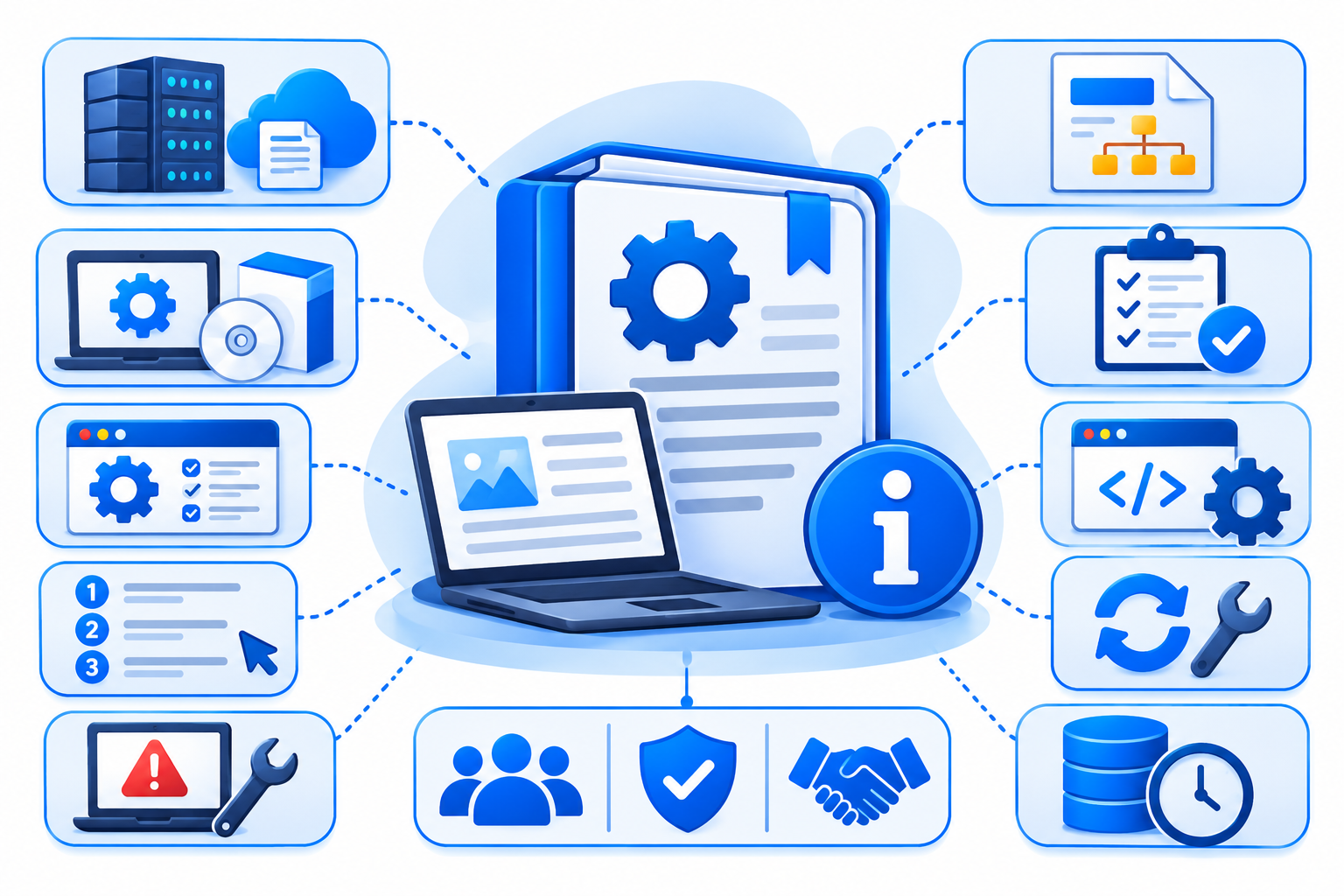
Common types of technical documentation include:
- Infrastructure documentation: Information about servers, networks, virtualization, cloud environments, and IT infrastructure.
- Installation guides: Instructions for installing operating systems, applications, and software packages.
- Configuration documentation: Details about system settings, network configurations, and application requirements.
- Standard operating procedures (SOPs): Instructions for performing routine technical tasks.
- Troubleshooting guides: Solutions to common server, network, and application problems.
- API documentation: Information about software interfaces, endpoints, requests, and integrations.
- Maintenance records: Information about system updates, maintenance activities, and technical changes.
An organized documentation system helps technical employees find reliable information without depending entirely on individual colleagues or informal communication.
How Google Workspace Helps Organize Technical Documentation
Google Workspace offers several applications that can support different parts of a technical documentation system.
Each application has a specific role:
Google Workspace application | Documentation purpose |
Google Drive | Store and organize technical documents |
Google Docs | Write technical guides and procedures |
Google Sheets | Maintain documentation registers and technical trackers |
Google Forms | Collect documentation requests and feedback |
Google Sites | Create an internal technical knowledge base |
Gmail | Communicate documentation updates |
Google Meet | Conduct technical reviews and discussions |
These applications can work together to support documentation activities. However, Google Workspace is primarily a collaboration and productivity platform, not a dedicated technical documentation or configuration management system.
1. Use Google Drive to Create a Central Documentation Repository
Google Drive can serve as the central location for storing technical documents.
Instead of keeping installation instructions, server information, and troubleshooting guides on individual computers, an IT department can organize approved documents in shared folders.
For organizations using Google Workspace, shared drives are particularly useful because files belong to the team rather than an individual employee. This helps maintain access to organizational documents when employees leave. Google’s shared-drive documentation explains how team ownership works.
A hosting company or IT department could use the following folder structure:
Technical Documentation/
│
├── 01-Infrastructure/
│ ├── Servers/
│ ├── Networking/
│ ├── Virtualization/
│ └── Cloud Infrastructure/
│
├── 02-Systems-and-Applications/
│ ├── Operating Systems/
│ ├── Control Panels/
│ └── Software Applications/
│
├── 03-Procedures-and-SOPs/
│ ├── Installation/
│ ├── Configuration/
│ ├── Maintenance/
│ └── Backup-and-Recovery/
│
├── 04-Troubleshooting/
│ ├── Server Issues/
│ ├── Network Issues/
│ └── Application Errors/
│
├── 05-Security/
│ ├── Access Policies/
│ └── Security Procedures/
│
└── 06-Archive/
This is an example structure, not a mandatory Google Drive template. Businesses should adjust folders according to their technical departments and systems.
For better organization:
- Create separate folders for major technical categories.
- Use consistent folder names.
- Avoid unnecessary nested folders.
- Keep approved documentation separate from drafts.
- Archive outdated documents according to company policy.
- Review shared-drive membership regularly.
For large organizations, separate shared drives for departments or major projects may provide better access control than keeping every document in one shared drive.
2. Use Google Docs to Create Technical Guides and Procedures
Google Docs is useful for writing and maintaining technical documentation.
Technical employees can prepare guides, explain configurations, document installation procedures, and collaborate on updates without exchanging multiple file copies.
For example, a hosting company’s system administration team could create Google Docs for:
- Linux VPS installation procedures.
- cPanel and WHM configuration guides.
- DNS management instructions.
- SSL certificate installation.
- Server backup and recovery procedures.
- Network troubleshooting.
- Operating system maintenance.
A consistent document format also makes technical information easier to understand.
A technical procedure could follow this structure:
Document title: Linux VPS Installation Procedure
Document information:
- Document ID: INFRA-SOP-001
- Responsible team: System Administration
- Version: 1.0
- Status: Approved
- Last reviewed: 24 November 2026
Document sections:
- Purpose
- Scope
- Prerequisites
- Required software
- Installation procedure
- Configuration requirements
- Verification steps
- Troubleshooting
- Revision history
This is an illustrative template. Technical instructions should be reviewed and approved by the responsible team before being used operationally.
Google Docs also supports comments, suggested edits, and version history. Authorized editors can review earlier changes and restore previous versions when necessary.
3. Use Google Sheets to Maintain a Technical Documentation Register
Creating documents is only one part of documentation management. Businesses also need to know which documents exist, who maintains them, and when they were last reviewed.
Google Sheets can help maintain a central documentation register.
A documentation register provides an overview of important technical documents without requiring employees to open every file individually.
For example:
Document ID | Document name | Owner | Version | Status |
INFRA-001 | VPS Installation Guide | System Admin | 1.0 | Approved |
NET-002 | Network Configuration | Network Team | 2.1 | Review |
SEC-003 | Security Procedure | Security Team | 1.2 | Approved |
OPS-004 | Server Backup Procedure | Operations | 1.1 | Approved |
A more detailed register can include:
- Document title and unique ID.
- Document category.
- Responsible employee or team.
- System or application.
- Current version.
- Last updated date.
- Last review date.
- Next review date.
- Approval status.
- Link to the Google Drive document.
Teams can use filters to find documents by category, owner, status, or review date.
Google Sheets is suitable for tracking documentation records and review schedules. It should not replace a dedicated configuration management database or specialist IT asset management system where more advanced tracking is required.
4. Use Google Forms to Collect Documentation Requests
Technical documentation needs regular updates because systems, applications, and procedures change over time.
Google Forms can provide a simple way for employees to submit documentation requests.
For example, a technical team could create an internal form with the following fields:
- Request title.
- Department.
- Related system or application.
- Type of documentation.
- Description of the required update.
- Reason for the request.
- Requested completion date.
Responses can be collected in Google Forms and linked to Google Sheets for review and tracking.
A simple documentation update process could work as follows:
- An employee identifies missing or outdated technical information.
- The employee submits a documentation request.
- The responsible team reviews the request.
- An assigned employee updates the relevant Google Doc.
- The updated document goes through the organization’s review and approval process.
- The documentation register is updated.
Do not use ordinary forms to collect passwords, private keys, API secrets, or other sensitive credentials.
5. Use Google Sites to Build an Internal Technical Knowledge Base
Google Sites can provide a navigable internal website where employees can find important technical information.
Rather than asking employees to search through multiple Drive folders, a business can create a central technical knowledge base with links to approved documentation.
For example, an IT knowledge base could contain:
Technical Knowledge Base
- Infrastructure Documentation
- Server Administration
- Network Procedures
- Software Installation
- Security Guidelines
- Backup and Recovery
- Troubleshooting Guides
- Employee IT Resources
Each section can link to relevant Google Docs, Sheets, PDFs, and other approved resources stored in Google Drive.
The distinction is important:
- Google Drive stores and organizes the underlying files.
- Google Docs contains the written technical instructions.
- Google Sheets maintains documentation registers and trackers.
- Google Sites provides a navigable interface for accessing approved information.
Google’s official documentation describes using Sites to create internal team and project sites that share information and link to documents and other resources.
See Google Workspace’s guide to creating team and project sites.
Set the site’s publishing and sharing permissions according to the intended audience. An internal knowledge base should not expose confidential infrastructure information to unauthorized visitors.
How to Organize Technical Documentation Effectively
Google Workspace provides the tools, but businesses also need consistent documentation practices.
The following recommendations can help maintain an organized technical documentation system.
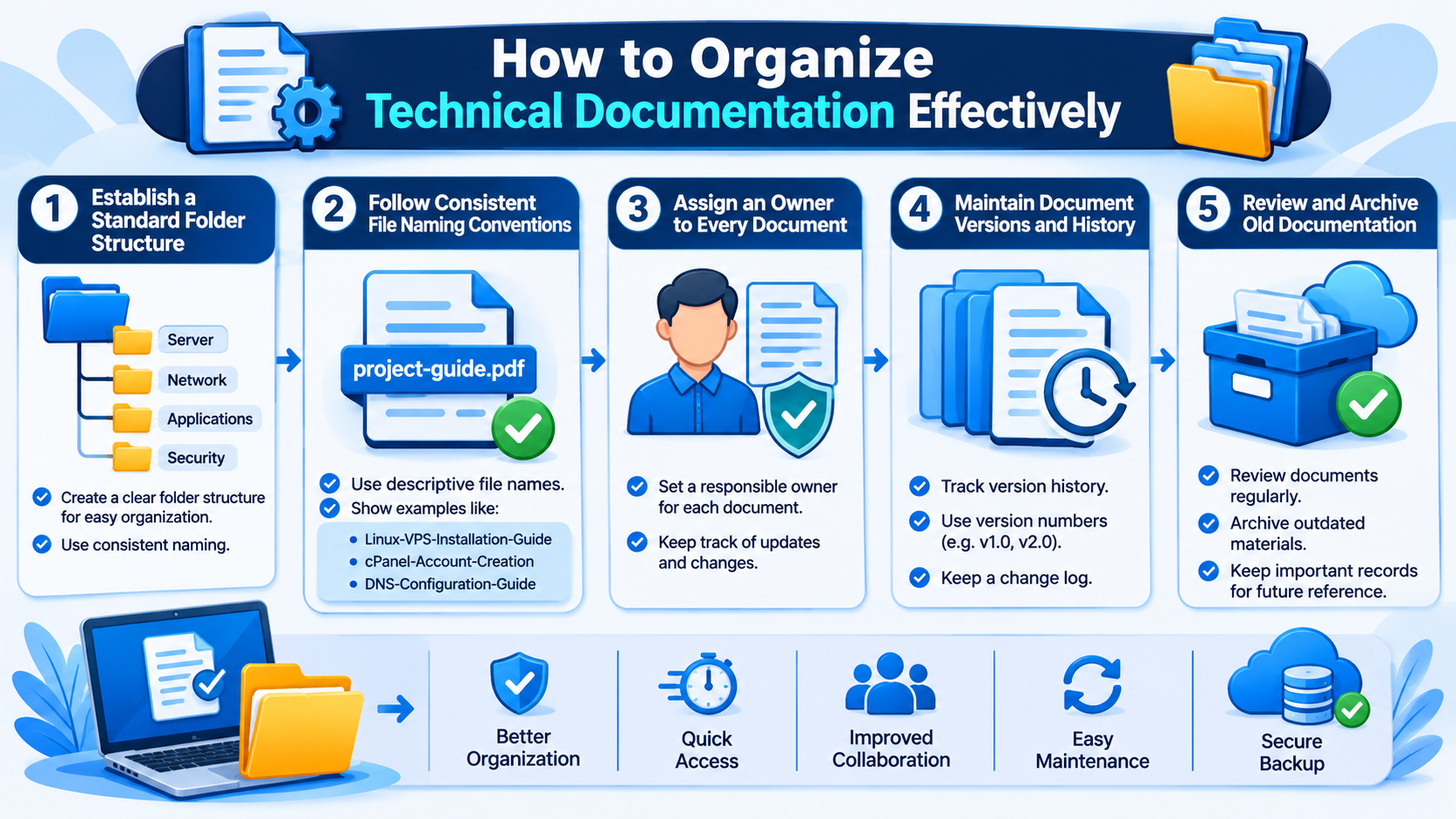
1. Establish a Standard Folder Structure
Create a folder structure that reflects how your organization manages technical information.
For example, server documentation should be easy to distinguish from network procedures, application guides, and security policies.
Use clear folder names and avoid unnecessary duplication.
For larger organizations, separate shared drives may be appropriate for departments that have different access requirements.
2. Follow Consistent File Naming Conventions
Descriptive file names make it easier to identify documents without opening them.
Examples include:
- Linux-VPS-Installation-Guide
- cPanel-Account-Creation-Procedure
- DNS-Configuration-Guide
- SSL-Renewal-Procedure
- Server-Backup-and-Recovery
Where appropriate, include a system name, document category, or revision identifier.
Avoid unclear names such as:
- Document1
- New-File
- Final-Version
- Latest-Updated-Document
A consistent naming convention helps employees search for the correct information.
3. Assign an Owner to Every Important Document
Every important technical document should have a responsible owner.
The owner is responsible for checking its accuracy and arranging updates when systems or procedures change.
For example:
Document | Responsible team | Review trigger |
Server Installation Guide | System Administration | After major installation changes |
Network Documentation | Network Team | After network changes |
Backup Procedure | Infrastructure Team | After backup process changes |
Security Policy | Security Team | After policy changes |
Document ownership does not mean that only one employee can edit a document. It means someone is accountable for its maintenance.
4. Maintain Document Versions and Review History
Technical instructions can become outdated when software is updated, infrastructure changes, or new procedures are introduced.
Google Docs and Sheets provide version history that allows authorized editors to review earlier changes and restore previous versions.
Google Docs also supports named versions, which can help teams identify significant document revisions. Google’s version history guide explains these features.
However, three concepts should not be confused:
- Version history: Shows earlier document versions and changes.
- Document approval: A business process for reviewing and authorizing a document.
- Change management: A broader process for controlling changes to systems, infrastructure, and operational procedures.
Google Docs version history does not automatically provide a complete approval or change-management system.
For important technical procedures, organizations should maintain a separate approval process and record significant operational changes in their appropriate systems.
5. Review and Archive Outdated Documentation
Technical documentation should be reviewed whenever the underlying system or procedure changes.
For example, a server installation guide may need an update after an operating system change or a major software upgrade.
A simple review process could include:
- Identify documents that need review.
- Assign them to the responsible technical employee.
- Check the instructions against the current system.
- Update inaccurate information.
- Obtain approval where required.
- Update the documentation register.
- Archive obsolete versions according to company policy.
This reduces the risk of employees following instructions that no longer match the current environment.
A Practical Documentation Lifecycle for IT Teams
A useful documentation system should cover the complete process from document creation to long-term maintenance.
A typical lifecycle can follow these seven stages:
- Create: Prepare a technical guide or procedure in Google Docs.
- Store: Save it in the appropriate Google Drive folder or shared drive.
- Review: Ask the responsible technical employee to check its accuracy.
- Approve: Follow the organization’s document approval process.
- Publish: Make the approved document available through the internal knowledge base.
- Maintain: Review and update it when systems or procedures change.
- Archive: Retain outdated documents according to the organization’s retention policy.
This process helps teams understand who creates documentation, who checks it, and how approved information becomes available to employees.
Security Best Practices for Technical Documentation
Technical documentation can contain information about company infrastructure, software configurations, network architecture, and internal operational procedures.
If this information is shared without proper controls, it may expose systems to unnecessary risks.
Consider the following security practices:
- Use individual business accounts: Avoid shared employee accounts for accessing company documentation.
- Apply least-privilege access: Give employees only the permissions required for their responsibilities.
- Restrict external sharing: Review whether technical documents should be accessible outside the organization.
- Review shared-drive membership: Remove access when employees leave or change roles.
- Separate sensitive documentation: Keep restricted infrastructure information separate from general employee guides.
- Protect administrator accounts: Use strong authentication and appropriate account security controls.
- Protect credentials: Store passwords, SSH private keys, API keys, and authentication tokens in an appropriate secrets-management system, not ordinary Google Docs or Sheets.
Google Drive provides sharing controls, but access depends on shared-drive membership, file permissions, and administrator settings. Organizations should review these controls before storing sensitive technical information.
Also remember that available security and administrative features can vary by Google Workspace edition and configuration.
Benefits of Organizing Technical Documentation With Google Workspace
A properly maintained documentation system can provide several practical benefits.
- Centralized information: Employees have an organized location for approved technical documents.
- Easier document discovery: Consistent folders and file names make information easier to find.
- Better collaboration: Authorized employees can contribute to shared documentation.
- Clear document ownership: Teams know who is responsible for maintaining important procedures.
- Improved knowledge sharing: New employees can access relevant technical instructions.
- Controlled document access: Sharing permissions help protect internal information.
- Simpler maintenance: Documentation registers and review schedules help identify outdated information.
These benefits depend on consistent documentation practices and appropriate system configuration. Google Workspace does not automatically keep every document accurate or up to date.
Is Google Workspace Suitable for All Technical Documentation?
Google Workspace can support many everyday documentation requirements, particularly for businesses that need to create guides, organize files, maintain registers, and share internal knowledge.
However, it is not a replacement for every specialist technical platform.
For example:
- Software development teams may need dedicated API documentation platforms.
- Infrastructure teams may require configuration management databases.
- IT support departments may need ticketing and service management systems.
- Security teams may require specialist tools for managing credentials and sensitive information.
- Engineering teams may need dedicated version control and technical publishing systems.
The right solution depends on the type of documentation, the size of the team, security requirements, and operational complexity.
For many businesses, Google Workspace can provide a useful foundation for everyday technical documentation while specialist platforms handle more advanced technical requirements.
Frequently Asked Questions
