
Teachers manage many responsibilities beyond classroom instruction. They prepare lesson plans, organize teaching materials, create assignments, track student progress, manage schedules, and communicate with parents and colleagues.
Keeping these activities organized can become challenging, especially when teachers work with multiple classes, subjects, and grade levels.
Google Workspace provides a collection of tools that can help teachers organize their daily work in one digital environment. Applications such as Google Drive, Docs, Sheets, Slides, Calendar, Forms, Gmail, and Google Classroom support different teaching activities, from preparing lessons to managing assignments and classroom communication.
Whether you teach at a school in Pakistan, the UAE, or another country, these tools can help you maintain organized teaching resources and manage everyday responsibilities more effectively.
In this guide, we explain how teachers can use Google Workspace to organize lesson plans, classroom activities, assignments, schedules, and other teaching tasks.
What Is Google Workspace for Teachers?
Google Workspace is a collection of cloud-based productivity and collaboration applications. Its education offering, Google Workspace for Education, is designed to support teaching, learning, communication, and school collaboration.
Teachers can use these applications to prepare educational materials, organize classroom resources, communicate with students, manage assignments, and collaborate with other educators.
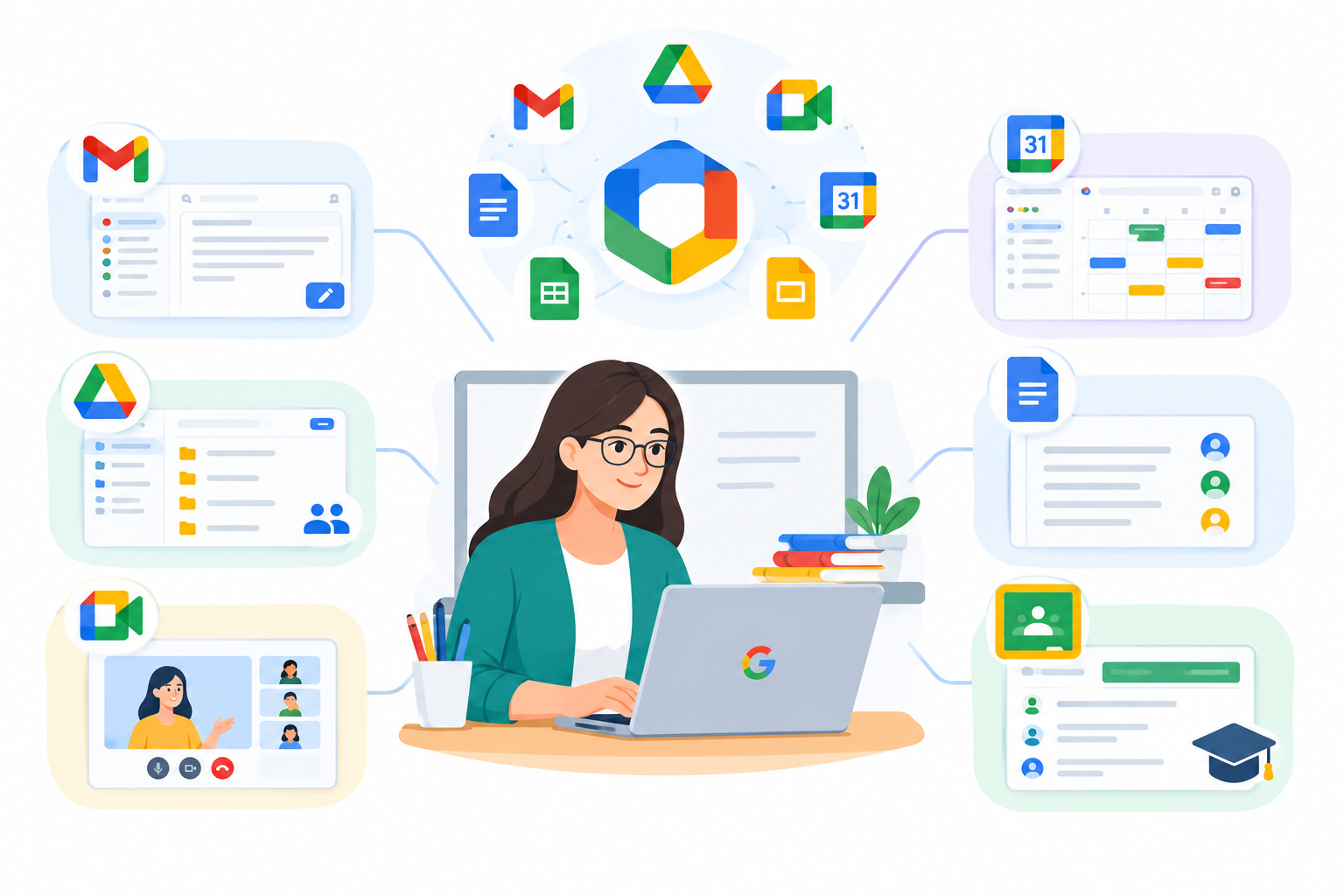
Some of the most useful applications include:
- Google Drive: Store and organize lesson plans, worksheets, and teaching materials.
- Google Docs: Prepare lesson plans, classroom notes, and educational documents.
- Google Sheets: Maintain grade records and assignment trackers.
- Google Slides: Create presentations and visual teaching materials.
- Google Calendar: Organize teaching schedules, meetings, and deadlines.
- Google Classroom: Distribute assignments, collect student work, and provide feedback.
- Google Forms: Create quizzes, surveys, and student feedback forms.
- Gmail: Manage professional school communication.
- Google Meet: Conduct online classes and remote meetings.
These applications can work together to support different parts of a teacher’s daily routine. Available features depend on the Google Workspace edition, institutional eligibility, and administrator settings.
Google for Education+2
How Teachers Can Use Google Workspace to Organize Their Work
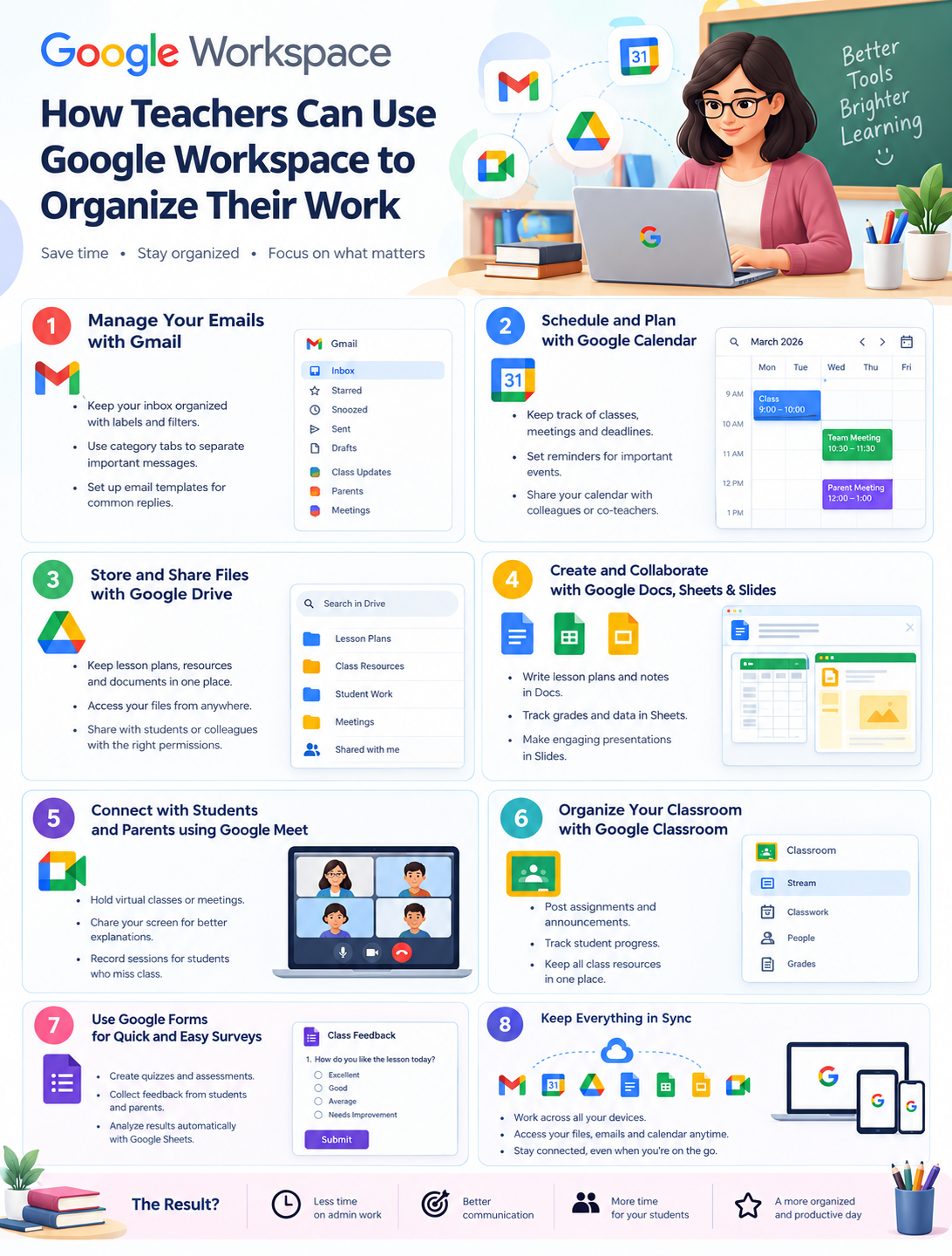
Each Google Workspace application serves a different purpose. Teachers can use them individually or combine them to manage their everyday teaching responsibilities.
1. Use Google Drive to Organize Teaching Materials
Teachers regularly prepare and collect digital resources, including lesson plans, worksheets, presentations, reading materials, and examination papers.
Without a consistent filing system, finding the right document can take unnecessary time.
Google Drive allows teachers to store files in folders and access them from supported devices. They can create separate folders for subjects, grade levels, academic years, and classroom activities.
For example, a teacher can organize teaching resources using this folder structure:
Teaching Resources/
│
├── Academic Year 2026-2027/
│ │
│ ├── Grade 6/
│ │ ├── Lesson Plans/
│ │ ├── Worksheets/
│ │ ├── Presentations/
│ │ └── Assessments/
│ │
│ ├── Grade 7/
│ │ ├── Lesson Plans/
│ │ ├── Worksheets/
│ │ ├── Presentations/
│ │ └── Assessments/
│ │
│ └── Grade 8/
│ ├── Lesson Plans/
│ ├── Worksheets/
│ └── Assessments/
Teachers should also use descriptive file names to make documents easier to identify.
For example:
- Grade-7-Math-Fractions-Lesson-01
- Grade-7-Math-Worksheet-01
- Grade-7-Math-Assessment-Term-01
Other useful ways to organize teaching resources include:
- Create separate folders for each subject and grade.
- Keep lesson plans separate from examination materials.
- Organize documents by academic year.
- Store commonly used worksheets and templates in dedicated folders.
- Share approved teaching resources with authorized colleagues.
- Review file-sharing permissions regularly.
A consistent folder structure makes it easier to find, reuse, and share teaching materials throughout the academic year.
2. Use Google Docs to Prepare Lesson Plans and Worksheets
Preparing lesson plans and classroom materials is a regular responsibility for teachers.
Google Docs provides an online document editor that teachers can use to create lesson plans, worksheets, reading assignments, classroom instructions, and teaching notes.
One practical approach is to create a reusable lesson-plan template. Instead of preparing a new document from scratch for every lesson, teachers can make a copy of the template and update the details.
A standard lesson-plan template can include:
- Subject and grade level.
- Lesson topic.
- Learning objectives.
- Required teaching materials.
- Classroom activities.
- Assessment methods.
- Homework or follow-up activities.
For example, a mathematics teacher can prepare one lesson-plan template and reuse it for topics such as fractions, percentages, geometry, and algebra.
Google Docs also supports real-time collaboration, allowing teachers to share documents with colleagues and work together on lesson materials.
Other practical uses include:
- Preparing examination instructions.
- Creating classroom worksheets.
- Writing teaching notes.
- Drafting student reading materials.
- Preparing meeting agendas.
- Collaborating on shared lesson plans.
This makes it easier to prepare, update, and distribute educational documents without maintaining several separate copies.
3. Use Google Classroom to Manage Assignments and Classwork
Google Classroom is one of the most useful applications for teachers who want to organize classroom activities digitally.
It allows teachers to create classes, distribute assignments, share learning materials, collect student submissions, and provide feedback.
For example, a teacher who teaches mathematics to three different grades can create separate classes for each grade.
Within each class, teachers can organize their work through several activities.
Organize classes and learning materials
Teachers can create separate classes for different subjects or grade levels and share relevant educational resources with students.
Create and distribute assignments
Teachers can prepare assignments with instructions, attach Google Docs or other learning materials, and set submission deadlines.
Review student submissions
Teachers can review submitted work, identify missing assignments, and organize student submissions through Classroom.
Provide feedback and grades
Teachers can add comments, assign grades, and return work to students for review.
Google Classroom works with other Google applications, including Drive, Docs, Forms, and Meet, creating a connected environment for classroom activities.
Classroom Help+1
For example, a teacher can prepare a worksheet in Google Docs, distribute it through Classroom, review completed work, and provide feedback without managing separate email attachments.
Google Classroom is designed for classroom learning and assignment management. It does not replace a complete school management system for admissions, fee collection, or other institutional administration.
4. Use Google Calendar to Manage Teaching Schedules
Teachers often manage several activities throughout the week, including classes, examinations, assignment deadlines, staff meetings, and parent-teacher meetings.
Google Calendar can help teachers organize these responsibilities in one place.
Teachers can create calendar events, set reminders, and share relevant schedules with colleagues.
For example, a teacher can use Google Calendar to record:
- Daily class schedules.
- Examination dates.
- Assignment submission deadlines.
- Staff meetings.
- Parent-teacher meetings.
- Lesson preparation deadlines.
- School events and training sessions.
Teachers can also create separate calendars for different responsibilities, making it easier to distinguish classroom activities from administrative tasks.
Sharing calendars with colleagues can help coordinate meetings and school activities, subject to the school’s sharing settings.
5. Use Google Sheets to Track Grades and Assignments
Google Sheets is a spreadsheet application that teachers can use to organize academic information and maintain structured records.
It can help teachers track marks, assessment results, assignment completion, and classroom activities.
For example, a teacher can create a student assessment tracker:
| Student | Assignment 1 | Assignment 2 | Test |
| Student A | 85 | 90 | 88 |
| Student B | 78 | 82 | 80 |
| Student C | 92 | 89 | 94 |
Teachers can use spreadsheet formulas to calculate totals, averages, and other results.
They can also create an assignment completion tracker:
| Student | Homework 1 | Homework 2 | Homework 3 |
| Student A | Completed | Completed | Pending |
| Student B | Completed | Pending | Completed |
| Student C | Pending | Completed | Completed |
Other useful applications include:
- Monitoring assignment completion.
- Preparing assessment summaries.
- Tracking classroom projects.
- Organizing examination schedules.
- Maintaining teaching activity records.
Google Sheets also supports collaboration, allowing authorized colleagues to work on shared academic documents.
Important: Student grades and academic records are sensitive information. Teachers should restrict spreadsheet access to authorized users and follow their school’s policies for official student records.
6. Use Google Forms to Create Quizzes and Collect Feedback
Google Forms can help teachers create online quizzes, collect student responses, and prepare surveys without creating separate paper-based forms for every activity.
Teachers can use it for classroom assessments, revision exercises, and feedback collection.
Some practical examples include:
- Preparing multiple-choice quizzes after a lesson.
- Creating subject-related revision assessments.
- Collecting feedback about classroom activities.
- Conducting educational surveys.
- Collecting responses for classroom projects.
For quizzes, teachers can configure answer keys, assign points, and provide feedback. Supported question types can be graded automatically, while other responses, such as written answers, may require manual review.
Google for Education+1
Teachers can also review response summaries and use Google Sheets to organize collected results.
For example, after teaching a science topic, a teacher can prepare a short Google Forms quiz, share it with students, review their responses, and identify topics that may need further explanation.
7. Use Google Slides to Prepare Classroom Presentations
Visual teaching materials can make lessons easier to present and help teachers explain topics in a structured way.
Google Slides allows teachers to create presentations using text, images, diagrams, charts, and other visual elements.
Teachers can prepare presentations for:
- Introducing a new lesson.
- Explaining difficult concepts.
- Presenting classroom activities.
- Summarizing important topics.
- Preparing revision materials.
- Supporting group projects.
For example, a science teacher can create a presentation about the solar system using images, diagrams, and short explanations.
Teachers can also share presentations with students or collaborate with colleagues when preparing educational material.
Because presentations are stored in Google Drive, teachers can organize them alongside related lesson plans and worksheets.
8. Use Gmail to Organize School Communication
Teachers regularly communicate with students, parents, school administrators, and colleagues.
Gmail provides tools such as labels, filters, search, and organized email conversations that can help teachers manage school communication.
For example, teachers can create labels such as:
- Parents
- School Administration
- Assignments
- Staff Meetings
- Student Activities
They can also use Gmail search to locate previous conversations and important messages.
Other useful practices include:
- Use a professional school email account.
- Keep school-related communication separate from personal email.
- Organize important conversations with labels.
- Review messages regularly.
- Use clear subject lines when contacting parents and colleagues.
A school-managed Google Workspace account can provide a consistent communication environment for teaching staff, depending on the institution’s configuration.
Teachers should follow school policies when communicating sensitive student information by email.
9. Use Google Meet for Online Classes and Teacher Meetings
Google Meet allows teachers to conduct video meetings with students and colleagues.
It can be useful for schools that offer remote learning, online revision sessions, or meetings involving staff members at different locations.
Teachers can use Google Meet for:
- Online classroom sessions.
- Student consultation meetings.
- Parent-teacher discussions.
- Staff meetings.
- Remote academic coordination.
- Teacher training sessions.
Teachers can also share their screens during meetings to present lesson materials, slides, and other educational resources.
Google Meet is included in Google Workspace for Education, although specific capabilities and meeting limits can vary by edition and administrator settings.
Google for Education+1
How Teachers Can Organize a Typical School Day with Google Workspace
Using individual applications is helpful, but teachers can get more value by combining them into a consistent daily routine.
Consider a teacher who manages three classes and teaches multiple subjects.
A typical working day might look like this:
| Daily activity | Google Workspace tool | How it helps |
| Before school | Google Calendar | Review the day’s schedule |
| Morning | Gmail | Check school communication |
| Before class | Drive and Docs | Open lesson plans and worksheets |
| During class | Google Classroom | Share assignments and learning materials |
| Classroom presentation | Google Slides | Present lesson topics |
| After assessment | Google Sheets | Update academic trackers |
| End of day | Google Classroom | Review submissions and provide feedback |
For example, a teacher can review the day’s schedule in the morning, open the relevant lesson materials from Drive, distribute assignments through Classroom, and update an assessment tracker after a test.
Each application serves a different purpose, but together they provide a consistent way to manage teaching responsibilities.
Benefits of Google Workspace for Teachers
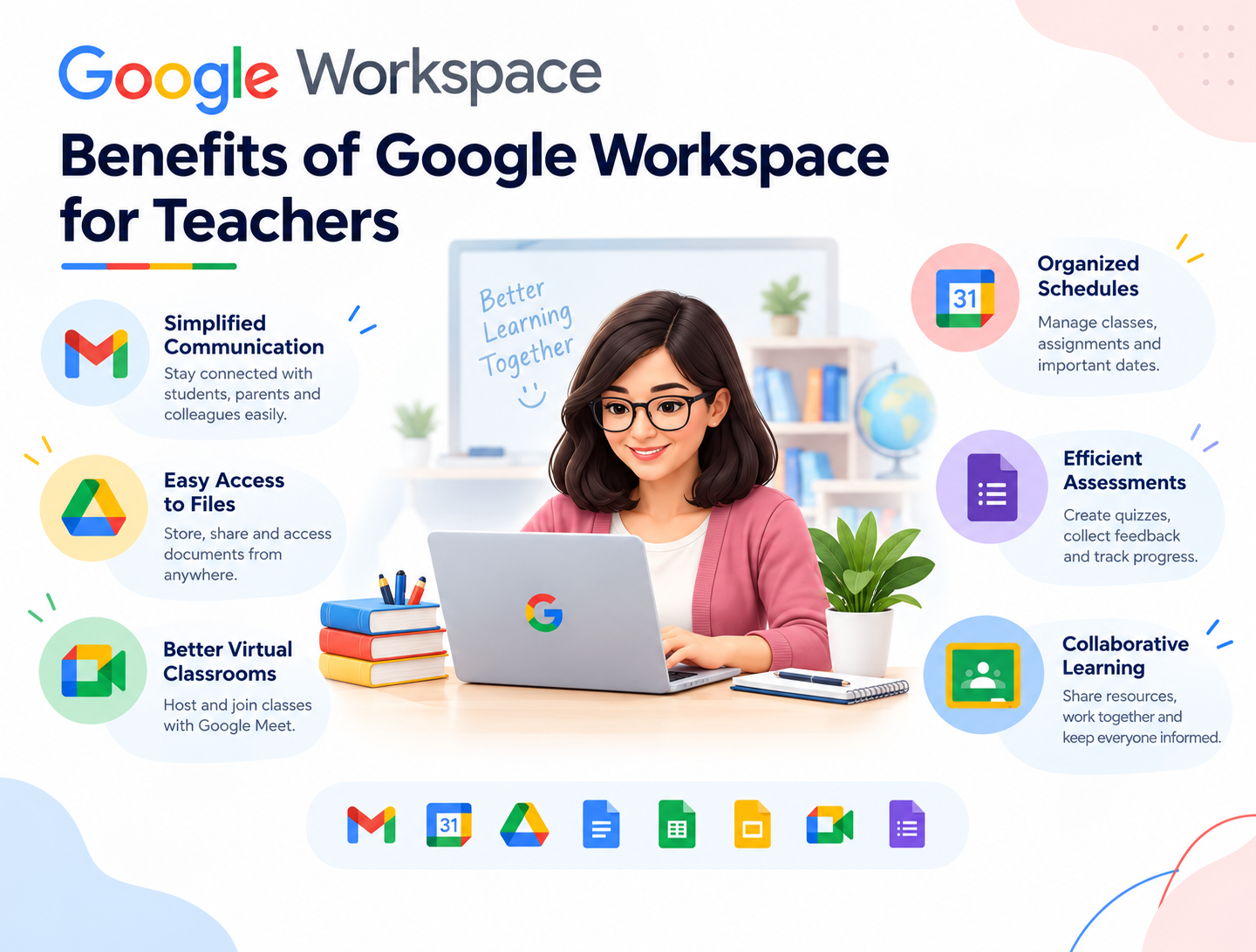
Google Workspace can help teachers manage several routine responsibilities through connected applications.
Some practical benefits include:
1. Better organization of teaching materials
Teachers can maintain structured folders for lesson plans, worksheets, presentations, and other educational resources.
2. Easier collaboration with colleagues
Teachers can work together on lesson plans, documents, presentations, and shared educational materials.
3. More organized schedules
Google Calendar helps teachers keep track of classes, meetings, examinations, and deadlines.
4. Convenient assignment management
Google Classroom provides tools to distribute assignments, collect student work, and provide feedback.
5. Support for classroom assessments
Google Forms and Sheets can help teachers prepare quizzes, collect responses, and organize assessment results.
6. Flexible access to work materials
Cloud-based applications allow teachers to access their work from supported devices when they have an internet connection and appropriate account access.
These benefits depend on how schools configure the tools and how consistently teachers use them.
Security and Privacy Considerations for Teachers
Teachers may handle sensitive information, including student names, academic records, contact details, and other school-related information.
For this reason, organizing work digitally should also include appropriate security practices.
Teachers and schools should consider the following:
- Use school-approved Google Workspace accounts for professional activities.
- Protect accounts with strong authentication.
- Share documents only with authorized individuals.
- Review folder and document permissions regularly.
- Avoid sharing student information through public links.
- Follow school policies for storing and handling student records.
- Remove access when staff members no longer need it.
It is also important to distinguish between different types of teaching materials.
For example, a general classroom worksheet may be suitable for sharing with an entire class, while student grades or personal information should only be accessible to authorized individuals.
Schools should review the applicable Google Workspace for Education edition, administrative controls, contractual terms, and relevant privacy requirements before handling sensitive student information.
Google Workspace does not automatically make a school compliant with every education privacy or data-protection regulation. Appropriate configuration and organizational policies remain important.
Google Workspace+1
Is Google Workspace Suitable for Every Teacher?
Google Workspace can be useful for teachers who want to organize lesson materials, manage assignments, coordinate schedules, and collaborate with colleagues.
However, the right setup depends on the teacher’s and school’s requirements.
For example, an individual teacher may need only a few productivity applications, while a school managing multiple departments and student accounts may benefit from a centrally administered Google Workspace for Education environment.
Before selecting a suitable setup, schools should consider:
- The number of teachers and students.
- Existing teaching and learning systems.
- Available internet access.
- Data protection requirements.
- Required administrative controls.
- The Google Workspace edition that meets their needs.
Google Workspace for Education is intended for eligible educational institutions. Schools should check Google’s current eligibility requirements, edition details, and regional availability before selecting a subscription. Education Fundamentals is available at no cost to qualifying institutions, while other editions provide additional capabilities.
Google for Education+1
Frequently Asked Questions
