
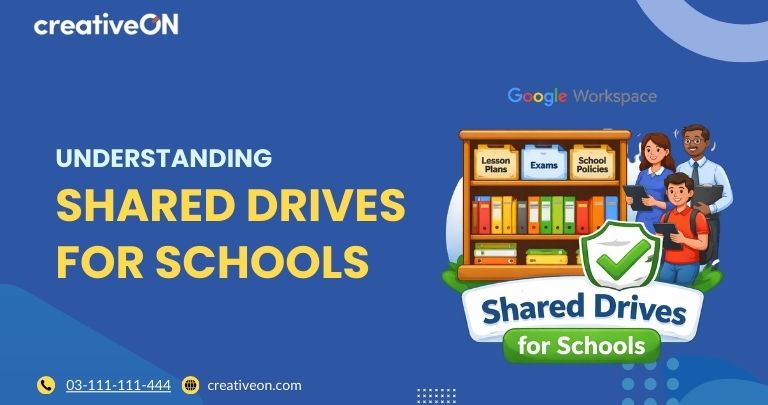
Ever had that “oh no” moment when a teacher leaves the school and their lesson plans vanish with them? Or maybe you’ve spent hours hunting for a permission slip template that’s buried in someone’s private folder?
If that sounds familiar, you’re going to love Shared Drives. It’s a simple yet powerful tool inside Google Workspace that keeps school files safe, organized, and easy to share.
In this guide, we’ll break it down step-by-step, give you real-life examples, and show why schools in Pakistan and UAE are switching to Shared Drives with CreativeON.
What Exactly is a Shared Drive?
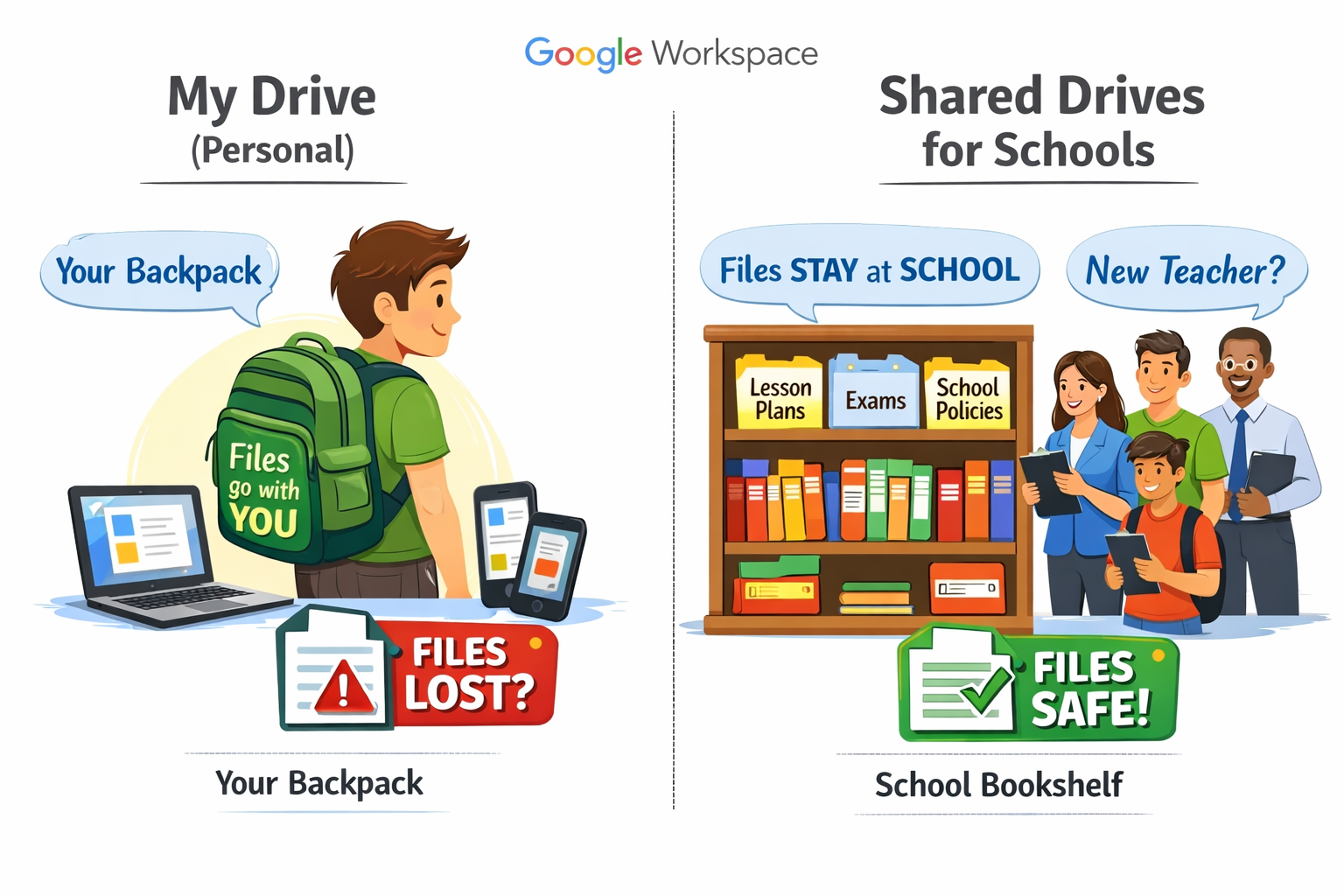
Think of your normal Google Drive like your personal backpack. Everything inside is yours — if you leave the school, you take your backpack (and files) with you.
A Shared Drive, on the other hand, is like a big bookshelf in the teacher’s lounge 📚.
- The school owns the bookshelf, not one person
- Files stay safe even if a teacher leaves
- Everyone in the school with access can use the files according to their role
Examples of files perfect for Shared Drives:
- Grade-level lesson plans
- School policies and handbooks
- Department meeting notes
- Photos from school events
Shared Drives vs My Drive: What’s the Difference?
Feature | My Drive | Shared Drives |
Ownership | Individual | School/Organization |
Files lost if user leaves? | Yes ❌ | No ✅ |
Collaboration | Limited | Easy and structured |
Best for | Personal work | School teamwork |
Rule of thumb:
- Use My Drive for personal files
- Use Shared Drives for school-wide files
Shared Drives vs Shared Folders: What’s the Difference?
Some schools get confused between these two. Here’s a simple way to think about it:
- Shared Folder inside My Drive
- Owned by the person who created it
- Files can disappear if that person leaves
- Collaboration is limited
- Owned by the person who created it
- Shared Drive
- Owned by the school
- Files stay safe no matter what
- Perfect for teams or departments
- Owned by the school
👉 Pro tip: Use Shared Drives for anything critical like lesson plans, exams, or admin documents.
Why Schools in Pakistan and UAE Need Shared Drives
Using Google Workspace in Pakistan and UAE makes school life so much easier. Here’s why Shared Drives are a game-changer:
- Files stay safe – No more lost lesson plans or student records
- Easy for new teachers – Just add them to the Drive and they have everything they need
- Better Business Emails – Professional emails + secure document storage
- Teamwork-friendly – Teachers and admin staff can collaborate in real time
- Time-saving – Less searching for files = more time with students
Real-Life Example
Let’s say your school creates a Shared Drive called “Grade 10 Resources”.
Inside, you have:
- 📁 Notes
- 📁 Assignments
- 📁 Exams
- 📁 Lesson Plans
Teachers can upload and edit files,
Students can view what they need,
New teachers instantly get access when they join.
No more messy WhatsApp files or USB drives 😄
How Shared Drives Work: Step-by-Step
Setting up Shared Drives is super easy. Here’s a quick guide:
- Open Google Drive
- On the left, click Shared Drives
- Right-click → New Shared Drive
- Name it (like “Math Department” or “Summer Camp 2026”)
- Add members and set permissions:
- Viewer: Can only see files
- Commenter: Can comment
- Contributor: Can upload files
- Content Manager: Can add/edit files
- Manager: Full control
- Viewer: Can only see files
💡 Tip: Give students Viewer access, teachers Content Manager, and admins Manager.
Best Folder Structure for Schools
A good folder structure saves time and keeps everything tidy:
- School Drive
- Admin
- Policies
- Staff Records
- Policies
- Teachers
- Lesson Plans
- Exam Templates
- Lesson Plans
- Students
- Assignments
- Study Notes
- Assignments
- Events
- Photos
- Videos
- Photos
- Admin
Keep folder names clear and consistent — it makes finding files a breeze.
Common Mistakes Schools Make
- Giving full access to everyone
- No clear folder structure
- Mixing personal & school files
- Forgetting to review permissions
💡 Fix: Start small with one department first and expand gradually.
Tips for Success
- Keep folders organized
- Use descriptions for important files
- Regularly review access
- Train teachers and staff
- Use Shared Drives alongside Business Emails for a professional, secure setup
Frequently Asked Questions (FAQ)
Who owns the files in a Shared Drive?
The school or organization owns them — not individuals.
Can someone accidentally delete everything?
No! Permissions control who can delete or move files.
Can students upload files?
Yes, if you give them the proper permissions.
Do Shared Drives work in Pakistan and UAE?
Absolutely! Schools using Google Workspace Pakistan and UAE rely on them every day.
What about storage limits?
Shared Drives use pooled storage from your Google Workspace plan. Higher-tier plans offer more space.
Why Choose CreativeON for Google Workspace?
At CreativeON, we help schools in Pakistan and UAE get started with Google Workspace quickly and safely.
Here’s why schools trust us:
- Official Google Workspace Partner and Reseller
- Local support with real people in both countries
- Competitive Google Workspace pricing in Pakistan and UAE
- Help with setup, migration, and training
- Gold partners of PKNIC for extra trust
💡 Tip: Since we’re official partners, we sometimes leave our profit margin to give schools the best rates. Your school gets powerful tools without breaking the budget.