

Online classes and virtual meetings have become common for schools, teachers, and businesses in Pakistan. Tools like Google Classroom and Google Meet make it easy to connect, teach, and collaborate from anywhere.
But what if a student misses a class?
What if a team member cannot attend an important meeting?
This is where Google Meet recording becomes incredibly useful.
By recording your meeting or class, you can save the entire session as a video and share it later with students, staff members, or clients.
In this guide, you will learn:
- How Google Meet recording works
- How to record Google Meet meetings step-by-step
- Where recordings are saved in Google Drive
- How to share recordings in Google Classroom
- How businesses and schools in Pakistan can use Google Workspace with recording features
Let’s begin with the basics.
Understanding Google Classroom and Google Meet
Before learning how to record Google Meet, it helps to understand how these tools work together.
Think of Google Classroom as your online classroom manager. It allows teachers to:
- Post assignments
- Share study material
- Communicate with students
- Organize class resources
On the other hand, Google Meet is the live video classroom where teachers and students interact in real time.
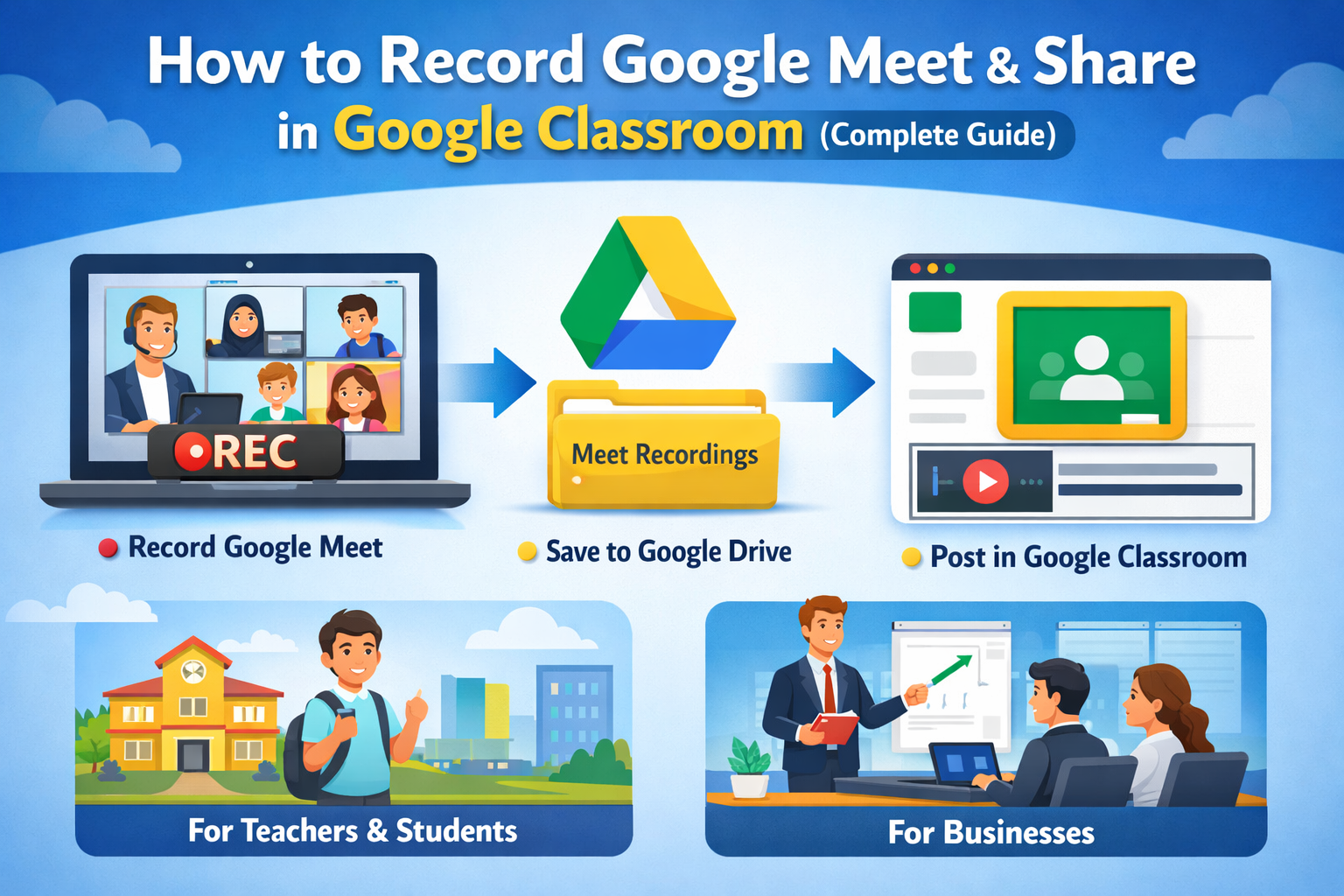
When you start a class on Google Meet, you can also record the session so it can be watched later.
For example:
- A teacher starts a class using Google Meet
- The teacher starts Google Meet recording
- The class is automatically saved as a video
- The recording can later be shared in Google Classroom
This simple workflow helps students review lessons whenever they need.
Who Can Record a Google Meet Session?
Not every account can record a meeting. Google Meet recording is available only in certain editions of Google Workspace.
Recording is typically available for:
Education users
Schools using:
- Education Plus
- Teaching and Learning Upgrade
Business users
Companies using:
- Business Standard
- Business Plus
- Enterprise plans
However, the Google Workspace administrator must enable recording in the admin console.
If you do not see the record option in Google Meet, it usually means:
- Your plan does not support recording
- Recording is disabled by your admin
- You are not the meeting organizer
How to Record Google Meet (Step-by-Step Guide)
Recording a meeting in Google Meet only takes a few clicks.
Follow these steps to record Google Meet sessions.
Step 1: Start or Join a Meeting
Open Google Meet and start a new meeting or join an existing one.
You can start a meeting by:
- Clicking New Meeting
- Joining through Google Calendar
- Opening a Meet link shared by the organizer
Once the meeting begins, you can start recording.
Step 2: Start Google Meet Recording
At the bottom right of the meeting screen:
- Click the three dots (More options)
- Select Record meeting or Start recording
- Confirm when the pop-up appears
Once recording starts, everyone in the meeting receives a notification.
It is always good practice to tell participants:
“This meeting or class is being recorded.”
Step 3: Stop the Recording
When the session is finished:
- Click the three dots menu again
- Select Stop recording
The recording will also stop automatically when the meeting ends or when all participants leave.
Where Google Meet Recordings Are Saved
After the meeting ends, Google Meet recording is automatically saved in the organizer’s Google Drive.
The video is stored in a folder called:
Meet Recordings
You will also receive an email with the recording link.
This makes it easy to:
- Download the video
- Share the recording
- Add it to Google Classroom
Processing may take a few minutes depending on the length of the meeting.
How to Share a Google Meet Recording in Google Classroom
Once the recording is ready, teachers can easily share it with students.
Here is a simple method used by most educators.
Step 1: Locate the Recording
Open Google Drive and go to the folder called:
Meet Recordings
You can also open the email sent by Google with the recording link.
Step 2: Get the Share Link
Right-click the recording file and choose:
Get Link
Then adjust the sharing settings so students can view the video.
Step 3: Post the Recording in Google Classroom
Now open Google Classroom and choose where you want to share the video.
You can post the recording as:
- Class material
- Assignment reference
- Announcement
Click Add → Google Drive, select the recording, and publish the post.
Students can now watch the class recording anytime.
Benefits of Google Meet Recording for Teachers
For teachers and schools, Google Meet recording offers several important advantages.
Helps students who miss classes
Students who could not attend the live session can watch the recorded class later.
Improves exam preparation
Recorded lessons allow students to replay difficult topics multiple times.
Creates a learning library
Teachers can build a library of recorded lessons for future batches.
Supports hybrid learning
Both online and in-person students can access the same learning materials.
Benefits of Recording Meetings for Businesses
Businesses in Pakistan also benefit greatly from record Google Meet sessions.
Companies often use recordings to:
- Save important team meetings
- Record training sessions
- Document client presentations
- Create onboarding material for new employees
Instead of repeating the same explanation again and again, companies can simply share the recorded meeting.
Tips for Using Google Meet Recording Effectively
To get the best results from Google Meet recording, follow these simple tips.
Always inform participants
Let everyone know the meeting is being recorded.
Use clear file names
Rename recordings like:
- Marketing Meeting – March 2026
- Grade 8 Math – Chapter 3
This makes files easier to find later.
Monitor storage usage
Long recordings can take up storage space in Google Drive.
Share recordings through Drive links
Sharing links is faster than downloading and sending large video files.
Troubleshooting: Why Can’t I Record Google Meet?
Sometimes users cannot find the recording option.
Common reasons include:
Your plan does not support recording
Plans like Business Starter do not include Google Meet recording.
Recording is disabled by admin
Your Google Workspace admin may need to enable the feature.
You are not the meeting host
Only the meeting organizer or authorized users can start recording.
If needed, ask your organization’s IT admin to enable recording permissions.
Google Workspace in Pakistan for Schools and Businesses
To use Google Meet recording, most organizations need a paid Google Workspace plan.
With Google Workspace, you get a complete productivity platform including:
- Business email with Gmail
- Google Meet for video meetings
- Google Drive for file storage
- Docs, Sheets, and Slides for collaboration
- Calendar for scheduling meetings
This ecosystem makes it easy for schools and companies to run online operations efficiently.
Why Many Businesses Choose CreativeON
For companies and educational institutions in Pakistan, CreativeON offers affordable access to Google Workspace.
CreativeON is:
- An official Google Workspace Partner and Reseller
- A PKNIC Gold Partner for .PK domains
- A trusted provider for hosting and cloud solutions
Because of their partner relationship and local pricing model, CreativeON can often provide Google Workspace accounts at competitive rates for Pakistani businesses and schools.
This allows organizations to use tools like Google Meet recording without paying high international pricing.
Final Summary
Let’s quickly review what we learned.
- Google Meet recording allows you to save meetings and classes as videos
- Recordings are automatically stored in Google Drive
- Teachers can easily share recordings in Google Classroom
- Recording is available in certain Google Workspace plans
- Businesses and schools in Pakistan can use CreativeON for affordable Google Workspace services
By recording your meetings and classes, you create a resource that students, employees, and teams can revisit anytime.
And that makes communication, training, and learning much more effective.