
Introduction
Schools in Pakistan are changing fast. A few years ago, most communication happened through notebooks, phone calls, WhatsApp groups, and printed notices. Today, that system is starting to break.
Teachers struggle to manage assignments. Students miss updates. Administrators cannot track everything in one place. And when exams, attendance, and communication all run separately, the system becomes messy very quickly.
Google Workspace for Education solves this problem by bringing everything into one digital system designed for schools. It is not just email or storage. It is a complete school management and learning environment where teachers, students, and administrators all work together.
This guide explains how to plan, set up, and fully deploy Google Workspace for Education in a school in Pakistan—from the first domain setup to full classroom rollout and long-term management.
What Is Google Workspace for Education?
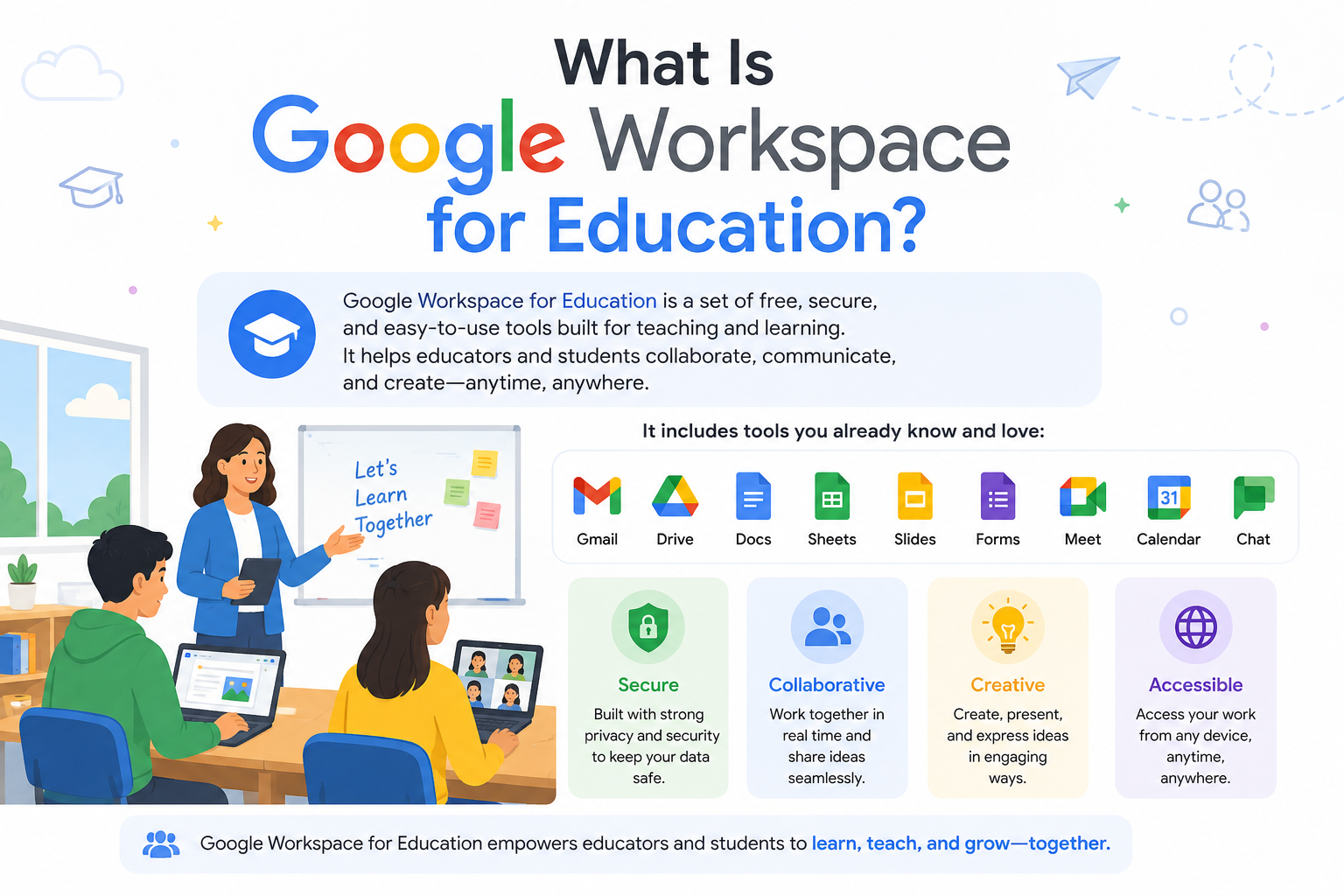
Google Workspace for Education is a digital platform designed specifically for schools, colleges, and universities. It provides tools for communication, learning, collaboration, and administration in one system.
Instead of using separate apps for email, file storage, online classes, and assignments, schools get everything under one managed environment.
Core tools include:
- Gmail for school email communication
- Google Classroom for assignments and learning
- Google Drive for file storage
- Google Docs, Sheets, and Slides for collaboration
- Google Meet for online classes and meetings
- Google Forms for exams and feedback
But the real value is not just the tools—it is the centralized control system where the school controls everything.
Why Schools in Pakistan Are Moving to Google Workspace
Many schools in Pakistan face the same operational challenges:
- Communication scattered across WhatsApp groups
- No official school email system
- Difficulty managing homework and assignments
- Lack of centralized student records
- Teachers using different tools without standardization
Google Workspace solves this by creating a structured system.
For administrators
- Full control over accounts
- Centralized management of staff and students
- Security policies for school data
- Easy onboarding and offboarding
For teachers
- Assign homework digitally
- Share learning material instantly
- Grade assignments online
- Organize classes in one place
For students
- One login for all school tools
- Easy access to assignments
- Better communication with teachers
- Organized learning materials
Google Workspace for Education Editions Explained
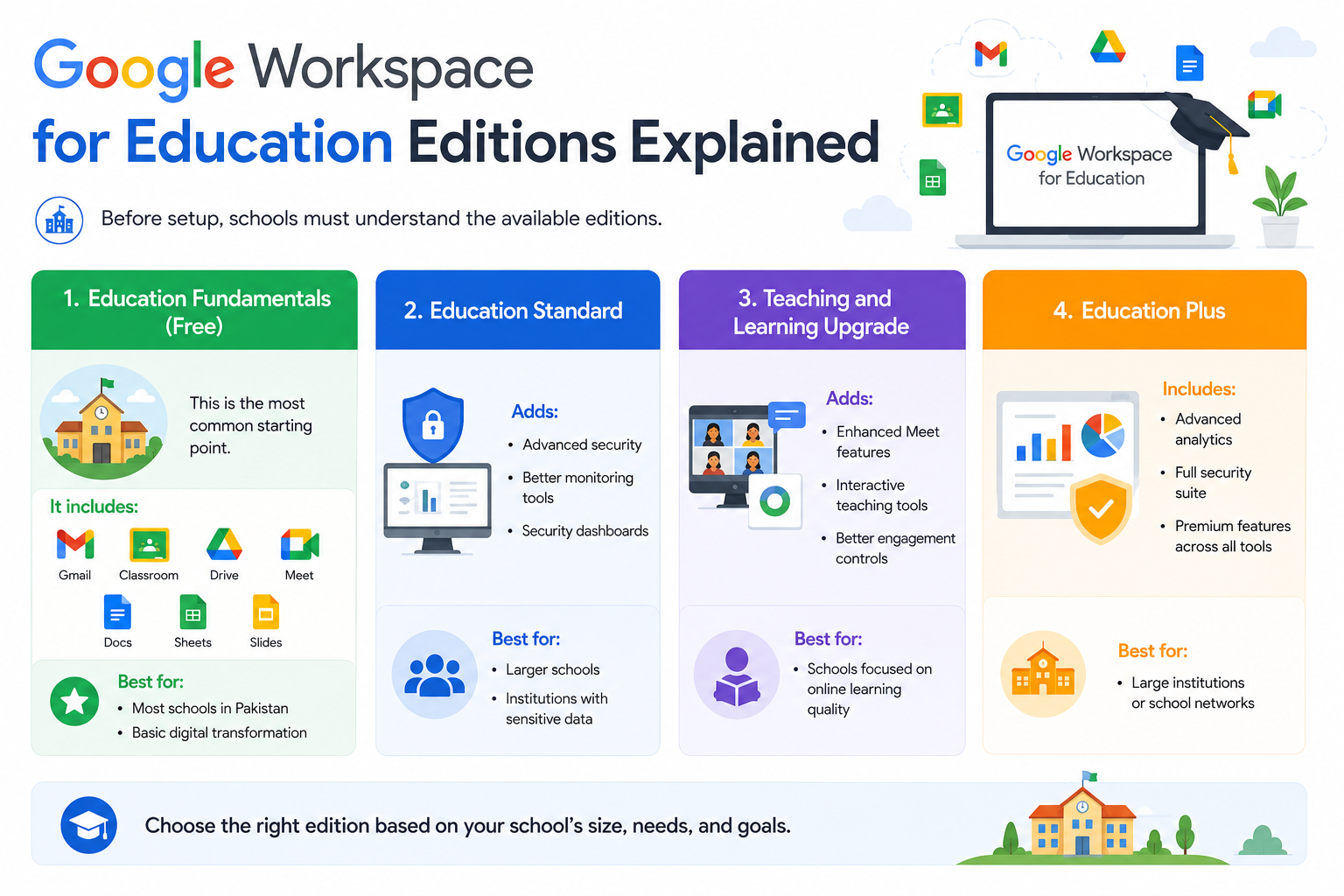
Before setup, schools must understand the available editions.
Education Fundamentals (Free)
This is the most common starting point.
It includes:
- Gmail
- Classroom
- Drive
- Meet
- Docs, Sheets, Slides
Best for:
- Most schools in Pakistan
- Basic digital transformation
Education Standard
Adds:
- Advanced security
- Better monitoring tools
- Security dashboards
Best for:
- Larger schools
- Institutions with sensitive data
Teaching and Learning Upgrade
Adds:
- Enhanced Meet features
- Interactive teaching tools
- Better engagement controls
Best for:
- Schools focused on online learning quality
Education Plus
Includes:
- Advanced analytics
- Full security suite
- Premium features across all tools
Best for:
- Large institutions or school networks
Eligibility Requirements for Schools in Pakistan
Not every organization can directly activate Google Workspace for Education.
Schools must provide:
Basic requirements
- Official school or college website
- Valid domain name (e.g., school.edu.pk)
- Educational institution registration proof
- Contact information
Domain requirement
A proper domain is mandatory. Free domains or social media pages are not accepted.
Verification process
Google reviews:
- Institution authenticity
- Website content
- Domain ownership
Approval is manual and may take time depending on documentation.
Pre-Setup Planning (Most Important Step)
Most schools make the mistake of rushing into setup without planning. This leads to confusion later.
1. School Structure Planning
Before creating accounts, define:
- Grades (1–12 or O/A Levels system)
- Departments (Science, Arts, Administration)
- Campus structure (if multiple branches exist)
This becomes the backbone of your digital system.
2. Account Naming Strategy
A strong naming system is critical.
Examples:
- teachers: [email protected]
- students: [email protected]
Without a naming system, account management becomes impossible later.
3. Role Planning
Define three major roles:
- Admin (IT + management control)
- Teachers (instructional control)
- Students (learning access only)
Each role must have different permissions.
Step 1: Domain Setup and Verification
The domain is the foundation of Google Workspace.
Steps:
- Purchase or use your school domain
- Add it to Google Workspace setup
- Verify ownership using DNS record
Google provides a verification record which must be added to your domain DNS panel.
Once verified, the domain becomes connected to Google systems.
Step 2: DNS and Email Configuration
After verification, email system setup begins.
MX Records Setup
These records activate Gmail for your domain.
Without MX records, email will not work.
Security Records
Schools should also configure:
- SPF (prevents email spoofing)
- DKIM (email authentication)
- DMARC (email protection policy)
These ensure school emails are trusted and not marked as spam.
Step 3: Google Admin Console Setup
The Admin Console is the control center of the entire system.
From here, administrators can:
- Create users
- Manage permissions
- Control security settings
- Enable or disable services
- Monitor usage
Think of it as the digital head office of the school.
Step 4: Organizational Units (OU) Structure
Organizational Units help divide users into groups with different rules.
Example structure:
- Administration
- Teachers
- Students
- Grade 1
- Grade 2
- Grade 3
- Grade 4–12
Why OUs matter
They allow:
- Different security rules
- Controlled access for students
- Teacher permissions for Classroom
- Administrative control at top level
Without OUs, all users behave the same, which creates risk.
Step 5: Creating Teacher Accounts
Teachers are the first operational users.
Best practice:
- Create accounts before students
- Assign correct OU
- Set strong passwords
- Enable recovery options
Teachers should immediately receive training on:
- Gmail usage
- Google Classroom
- Google Drive
- Google Meet
Step 6: Creating Student Accounts
Student accounts should follow a strict system.
Common formats:
Rules:
- Avoid random naming
- Keep structure consistent
- Use bulk upload (CSV) for large schools
Step 7: Google Classroom Deployment
Google Classroom is the core learning system.
Teachers can:
- Create subject-based classes
- Upload assignments
- Share materials
- Grade student work
Example in real school use:
A Grade 8 Math teacher can upload weekly assignments, receive student submissions, and give feedback without printing a single sheet.
Step 8: Google Drive School System
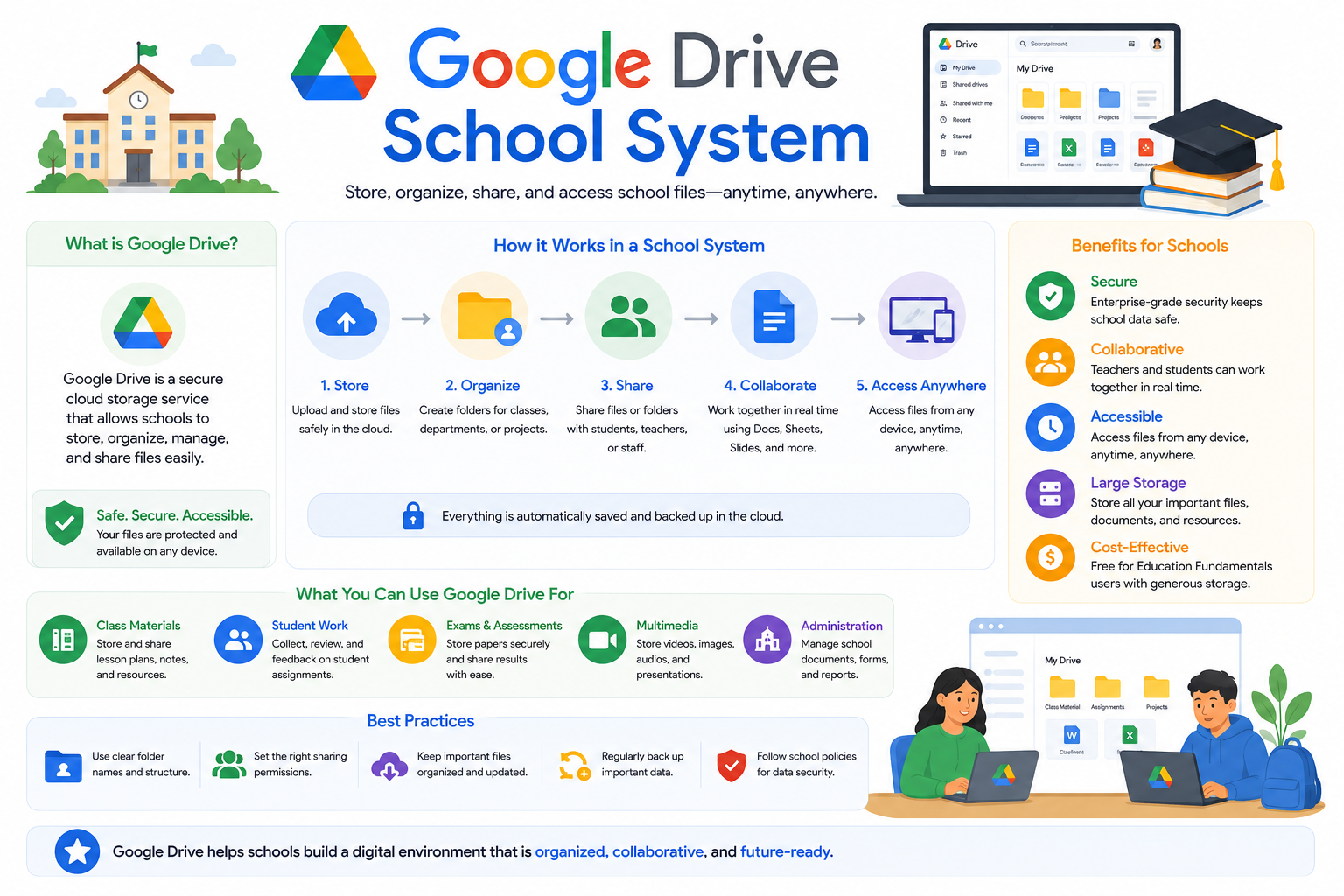
Google Drive becomes the school’s digital storage system.
Recommended structure:
Admin Drive
- Policies
- Reports
- Official documents
Teacher Drive
- Lesson plans
- Subject material
- Exam papers
Student Drive
- Assignments
- Projects
- Learning resources
This avoids confusion and keeps files organized.
Step 9: Google Meet Setup
Google Meet is used for:
- Online classes
- Parent meetings
- Teacher training sessions
Schools should configure:
- Attendance rules
- Recording permissions
- Meeting security settings
This ensures controlled learning environments.
Step 10: Google Forms for School Operations
Google Forms replaces many paper-based processes:
- Admissions
- Exams
- Feedback surveys
- Attendance tracking
It reduces manual workload significantly.
Step 11: Security and Data Protection
Security is critical in school systems.
Key controls:
- Strong password policies
- Two-step verification for staff
- Account recovery system
- Admin audit logs
Schools must protect student data and ensure safe usage.
Step 12: School Rollout Strategy
A phased rollout works best.
Phase 1: Admin setup
System configuration and testing
Phase 2: Teacher onboarding
Training and classroom setup
Phase 3: Student rollout
Account activation and usage
Phase 4: Parent communication
Introducing digital system
Phase 5: Full adoption
School-wide integration
Common Mistakes Schools Make
- No planning before setup
- Mixing student and teacher permissions
- Weak password policies
- No training for teachers
- Random account naming
These mistakes create long-term problems.
Troubleshooting Common Issues
Login problems
Check username and password accuracy.
Email not working
Verify MX records.
Classroom not visible
Enable Classroom service in Admin Console.
Domain errors
Recheck DNS configuration.
Frequently Asked Questions
