
Hey there! 👋
Ever finished your homework… and then couldn’t find the file when it was time to submit? Or maybe you sent the wrong version by mistake?
Yeah, we’ve all been there 😅
But guess what? When you use Google Drive with Classroom assignments, those problems almost disappear. Everything stays saved, organized, and ready to submit in just a few clicks.
In this guide, I’ll walk you through everything in a simple way—so whether you’re a student, teacher, or school admin, you’ll feel confident using it.
What Is Google Drive in Classroom?
Let’s start simple.
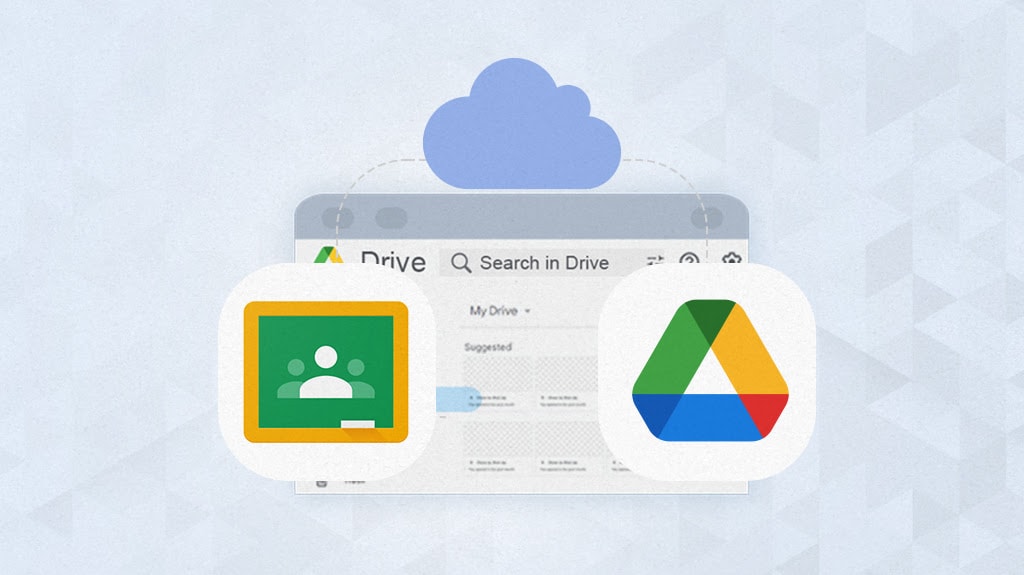
Google Drive in Classroom means your assignments are automatically stored, organized, and shared using cloud storage.
When you use Google Classroom together with Google Drive, you don’t need USBs, emails, or manual uploads.
👉 Everything happens automatically in the background.
How Google Drive Works with Classroom
Here’s the cool part.
When your teacher creates an assignment:
- Google automatically creates folders in your Drive
- Each class gets its own folder
- Each assignment gets its own space
Your folder structure looks like this:
Google Drive
→ Classroom
→ Class Name
→ Assignment Name
So instead of searching everywhere, your files are always where they should be.
What Happens When You Open an Assignment?
Let’s break this down clearly.
When you click an assignment in Classroom:
Depending on what the teacher chooses:
- View Only
- You can read it
- You cannot edit
- Students Can Edit File
- Everyone works on the same file
- Used for group tasks
- Make a Copy for Each Student (Most Common)
- You get your own private copy
- It is automatically saved in your Drive
👉 This is the most useful option because it avoids confusion.
Step-by-Step: How to Complete and Submit Assignments
Let’s go through it like real life.
Step 1: Open Classroom
Go to your class inside Google Classroom
Step 2: Click “Classwork”
Find your assignment
Step 3: Open the File
Click the attached file (Docs, Slides, etc.)
Step 4: Do Your Work
Start typing or editing
👉 No need to click “Save”—it saves automatically!
Step 5: Click “Turn In”
Once done, click the Turn In button
🎉 That’s it—you’re done!
What Happens After You Submit?
Good question!
After you click “Turn In”:
- Your teacher gets access to your file
- They can add comments or suggestions
- You may receive grades
- The file stays in your Drive
👉 You can always go back and review your work.
Real-Life Example (Simple & Clear)
Let’s say your name is Ayesha.
Your teacher gives you an English essay.
Here’s what happens:
- You open the assignment
- A copy is already in your Drive
- You write your essay
- It auto-saves
- You click “Turn In”
Done. No stress. No confusion.
Why Students Love Using Drive with Classroom
Let’s be honest—this system makes life easier.
Here’s why:
- No lost files
- Auto-save always ON
- Access from anywhere
- No email attachments needed
- One-click submission
Isn’t that neat? 😊
Common Mistakes Students Make (Avoid These!)
Even though it’s simple, some small mistakes can cause trouble.
Watch out for these:
- ❌ Forgetting to click Turn In
- ❌ Editing the wrong file
- ❌ Uploading a file instead of using the given one
- ❌ Renaming files incorrectly
- ❌ Waiting until the last minute
👉 Tip: Always double-check before submitting!
How to Find Missing Assignments in Drive
Can’t find your file? Don’t panic.
Try this:
- Use the search bar in Google Drive
- Go to Classroom folder → Class name
- Check “Recent files”
- Search using assignment name
👉 Your file is almost always there—you just need to look in the right place.
How to Organize Your Google Drive for School
Even though Drive organizes things for you, a little effort helps.
Try these tips:
- ⭐ Star important files
- 🗂 Rename files clearly
- 🎨 Use folder colors
- 🔍 Use search instead of scrolling
👉 Think of it like keeping your school bag tidy.
Tips for Teachers Using Drive with Classroom
If you’re a teacher, you can make things easier for your students too.
Helpful tips:
- Use “Make a copy for each student”
- Add clear instructions inside files
- Organize assignments by topic
- Use comments for feedback
- Set proper deadlines
👉 Small steps = smoother classroom experience
Why Schools Use Google Workspace for Classroom
Now let’s look at the bigger picture.
All of this works because of Google Workspace.
It connects everything:
- Google Drive
- Google Classroom
- Google Docs
- Gmail (for Business Emails)
- Google Meet
👉 Everything works together in one system.
That’s why many schools in Pakistan and the United Arab Emirates are now using Google Workspace.
Google Workspace in Pakistan and UAE (By CreativeON)
At CreativeON, we help schools and businesses set up Google Workspace in Pakistan and UAE easily.
Why choose CreativeON?
- ✔ Official Google Workspace partner & reseller
- ✔ Local support in Pakistan & UAE
- ✔ Lower pricing than market
- ✔ PKNIC Gold Partner
Why are our prices lower?
Simple—we keep our profit margin low so more people can use Google Workspace plans without worrying about cost.
Google Workspace Pricing in Pakistan and UAE
If you’re planning to use it for your school or business, here’s what you get:
- Professional Business Emails
- Secure cloud storage
- Easy file sharing
- Classroom and team tools
- Online meetings
👉 We can help you choose the best Google Workspace pricing in Pakistan and UAE based on your needs.
Real-Life Use Cases
Let’s see how people actually use this system.
🎓 Schools
- Assign homework
- Share notes
- Give feedback
🏫 Colleges
- Group projects
- Research sharing
- Online submissions
💼 Coaching Centers
- Assignments for students
- Study materials
- Online learning
🏢 Businesses (Yes!)
- Training documents
- Internal tasks
- File sharing