
Software development projects involve more than writing code. Teams must also prepare and maintain requirements, technical specifications, architecture documents, development plans, testing reports, meeting notes, and user guides.
When these documents are scattered across email attachments, personal computers, and different storage platforms, developers and project managers can struggle to find the latest information. Outdated documents can also create confusion during development.
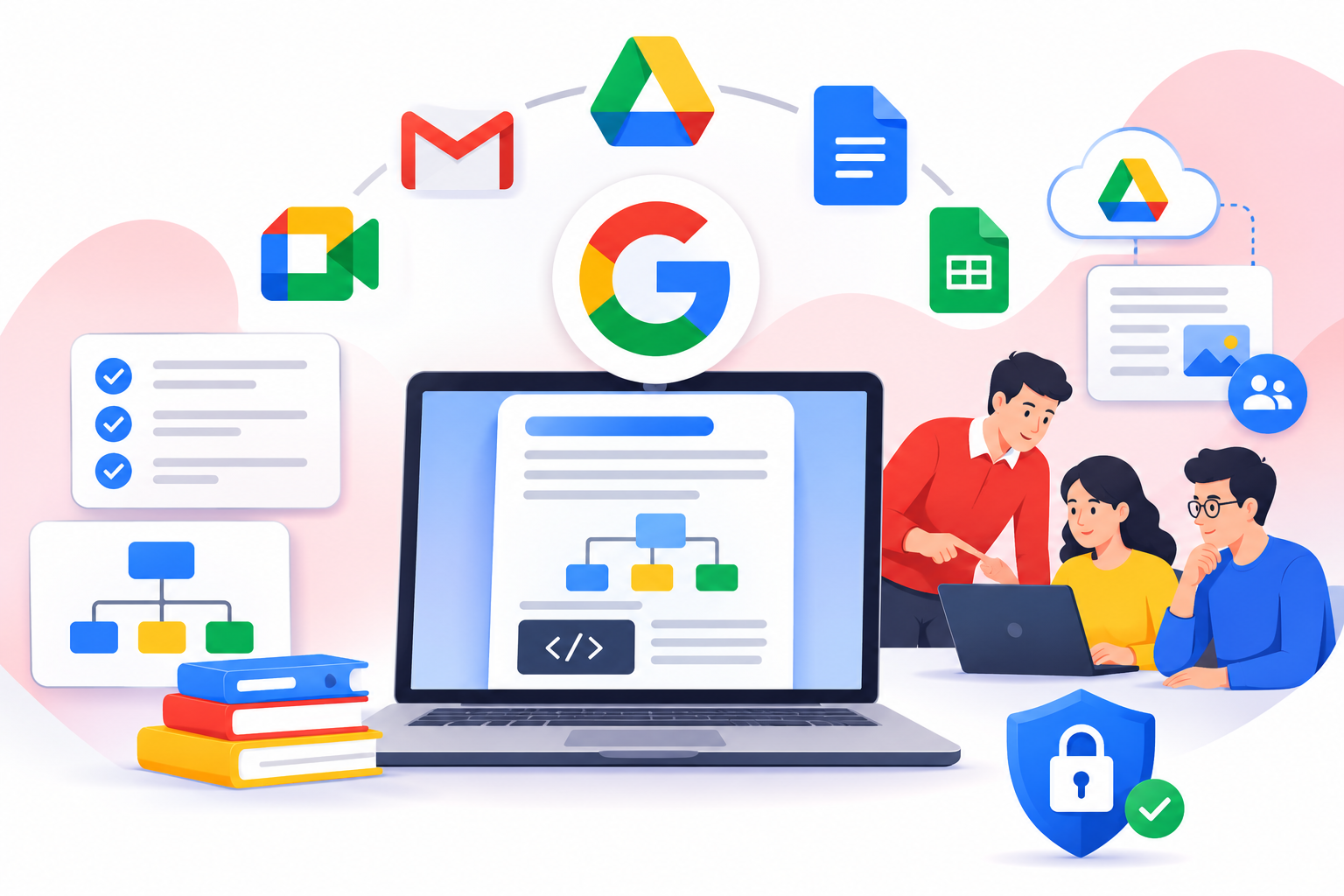
Google Workspace for software project documentation provides cloud-based tools that development teams can use to create, organize, share, review, and maintain project documents.
With applications such as Google Drive, Google Docs, Google Sheets, Gmail, and Google Meet, teams can establish a shared documentation process and make project information easier to manage.
However, effective documentation requires more than storing files online. Teams also need clear folder structures, document ownership, naming conventions, review procedures, and appropriate access permissions.
This guide explains how software development teams can use Google Workspace to manage project documentation throughout the software development lifecycle.
What Is Google Workspace for Software Project Documentation?
Google Workspace is a collection of cloud-based productivity and collaboration applications designed for businesses and teams.
For software development projects, these applications can support the management of non-code project documents, technical information, planning records, and team communication.
Teams can use Google Workspace to maintain:
- Software Requirement Specifications (SRS).
- Functional and non-functional requirements.
- Project plans and development schedules.
- Technical architecture documents.
- API documentation drafts.
- Meeting notes and decision records.
- Software testing reports.
- Project progress trackers.
- User manuals and installation guides.
Authorized team members can collaborate on shared files instead of exchanging multiple document copies through email.
Google Workspace does not replace Git, GitHub, GitLab, Jira, or specialist software development platforms. It complements these tools by providing an environment for project documentation and general collaboration.
How to Organize Software Project Documents in Google Drive
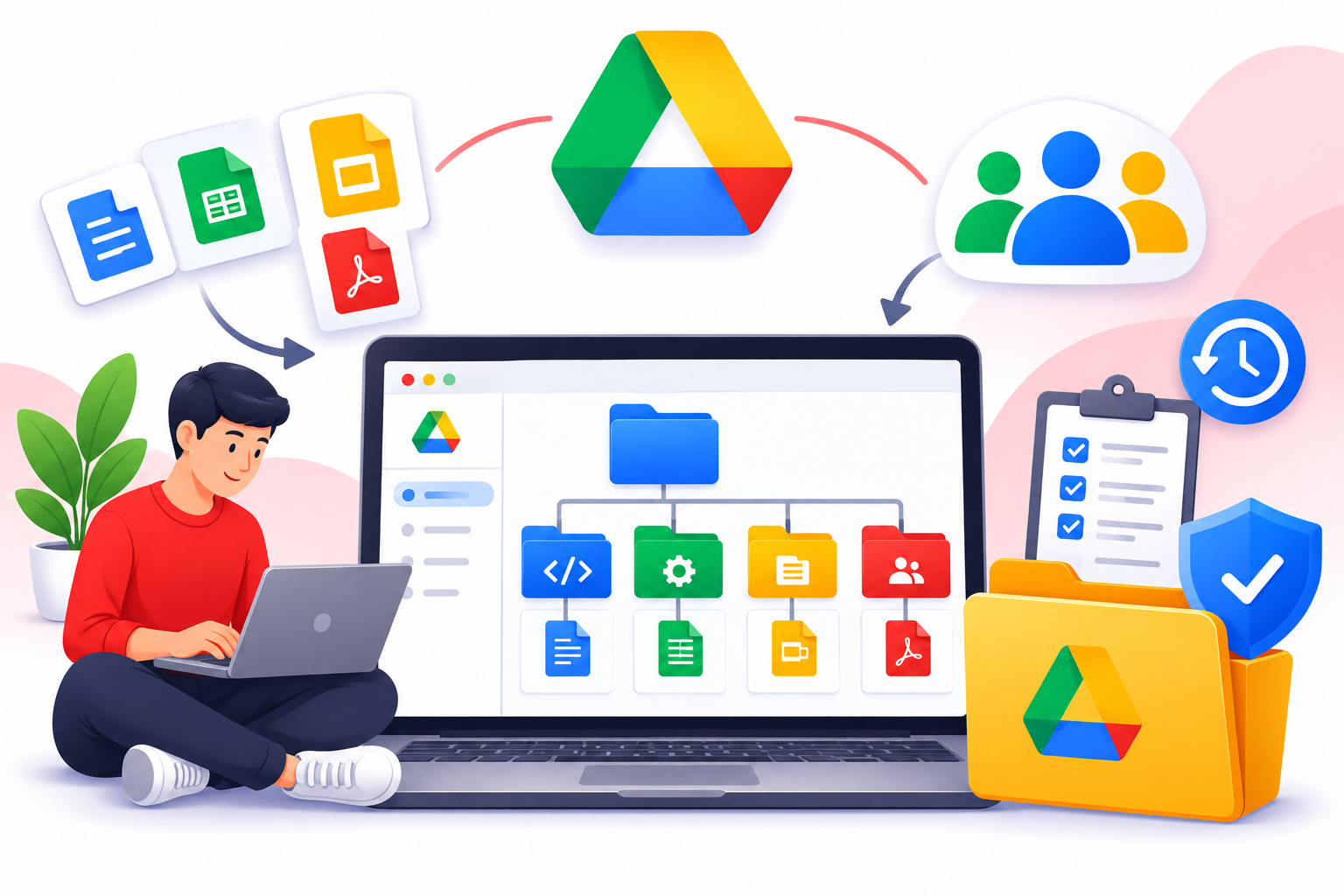
Google Drive can serve as the central storage location for project documentation.
Project managers can establish dedicated project folders or use Google Drive shared drives to organize documents for developers, designers, QA engineers, and other team members.
Recommended Software Project Folder Structure
For example, a software development team working on a customer management system could use this structure:
Software Project Alpha
- 01 – Project Overview
- Project Charter
- Project Scope
- 02 – Requirements
- Business Requirements
- Functional Requirements
- Non-Functional Requirements
- 03 – Design and Architecture
- System Architecture
- Database Design
- API Documentation
- 04 – Development
- Development Guidelines
- Technical Decisions
- 05 – Testing and QA
- Test Plans
- Test Cases
- Testing Reports
- 06 – Project Management
- Project Schedule
- Meeting Minutes
- Progress Reports
- 07 – User Documentation
- User Guides
- Installation Guides
- 08 – Release and Archive
- Release Notes
- Final Documentation
Teams can adjust this structure according to project size and documentation requirements.
Use Google Drive Shared Drives for Team Documents
Google Drive offers two relevant storage approaches: My Drive and shared drives.
My Drive is associated with an individual user’s account, while files in a shared drive belong to the organization rather than an individual employee.
Shared drives are useful for business projects because documents remain available when a team member leaves the organization.
Teams can use them to:
- Maintain project documents in a common location.
- Organize files by project or department.
- Manage team membership and access.
- Keep important documents available during staff changes.
Shared drive availability and administrative controls depend on the Google Workspace edition.
Create Requirements and Technical Specifications With Google Docs
Software projects need clear documentation before development begins.
Google Docs allows project managers, business analysts, software architects, and developers to prepare and collaborate on documents such as:
- Software Requirement Specifications (SRS).
- Functional and non-functional requirements.
- Technical specifications.
- System architecture descriptions.
- API documentation drafts.
- Development guidelines.
- Project scope documents.
For example, when developing a customer management system, a business analyst can prepare a requirements document describing customer records, user roles, reporting requirements, and expected system behavior.
Developers and software architects can review the document, add comments, and suggest changes.
Google Docs supports collaborative editing, comments, suggestions, and version history, helping teams review document changes and refer to earlier versions.
Practical recommendation: Create reusable Google Docs templates for requirements, technical specifications, and meeting notes. Include the document owner, creation date, last updated date, and approval status.
Manage Software Project Documentation Throughout Its Lifecycle
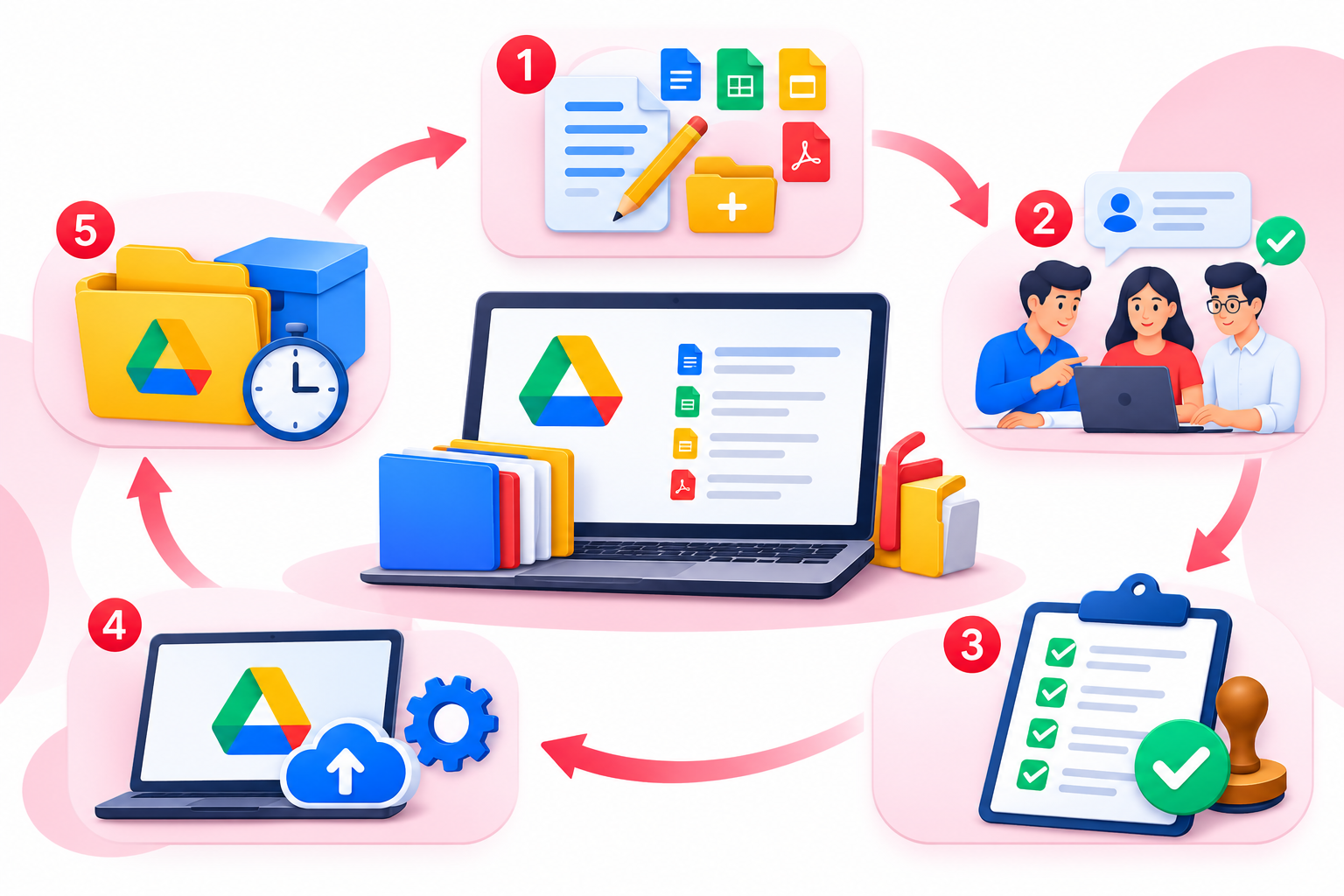
Creating documents is only one part of documentation management. Teams must also review, approve, maintain, and archive them.
A defined documentation lifecycle helps prevent outdated information from remaining in active project folders.
1. Document Creation
Prepare the required project documents during the relevant development stages, including requirements, technical specifications, architecture descriptions, and testing plans.
2. Document Review
Allow relevant team members to review documents before acceptance. Developers can review technical specifications, while project managers can check whether requirements match the agreed project scope.
Google Docs comments and suggestions can help collect feedback without creating multiple document copies.
3. Document Approval
Establish who can approve important documents. For example, a project manager may approve project plans, while a software architect reviews technical architecture documents.
Maintain a clear approval record. Ordinary document sharing does not automatically provide a formal approval workflow.
4. Document Publishing and Maintenance
After review and approval, place the accepted document in its designated project folder and provide appropriate access.
Update documents when project scope, system architecture, or technical requirements change. Record important changes so team members understand what was updated.
5. Document Archiving
After project completion, move final documentation into an appropriate archive location. Preserve important requirements, technical specifications, testing summaries, and release documents according to organizational retention policies.
Track Documentation Progress With Google Sheets
Google Sheets can help software development teams maintain structured project information and monitor documentation progress.
For example, a project manager can create a documentation tracker:
| Document | Responsible Person | Status |
| Project requirements | Business Analyst | Approved |
| System architecture | Software Architect | In Review |
| API documentation | Developer | In Progress |
| Test plan | QA Engineer | Pending |
| User guide | Technical Writer | Not Started |
The spreadsheet helps teams identify missing documents and outstanding work.
Google Sheets can also support:
- Development milestone tracking.
- Testing progress reports.
- Documentation completion status.
- Release preparation checklists.
- Meeting action items.
Multiple authorized team members can collaborate on the same spreadsheet.
However, Google Sheets is best suited to basic tracking and reporting. Advanced sprint planning, task dependencies, and issue management are better handled by dedicated project management platforms.
Maintain Document Versions and Approval Records
Software project documentation changes as requirements evolve and development decisions are made.
Google Docs and Sheets provide version history that allows authorized users to review earlier versions and restore them when necessary. Teams can also name significant versions to identify important milestones.
For example:
- Initial Requirements
- Requirements Reviewed
- Requirements Approved
- Final Requirements for Release
Establish Document Naming Conventions
Consistent file naming makes project documents easier to identify and search.
| Document | Suggested File Name |
| Requirements | ProjectAlpha_SRS |
| Architecture | ProjectAlpha_SystemArchitecture |
| Meeting notes | ProjectAlpha_Meeting_2026-11-14 |
| Testing report | ProjectAlpha_QA_Report_2026-11-20 |
| Release notes | ProjectAlpha_ReleaseNotes_v1.0 |
For important documents, record the document owner, last updated date, approval status, and related project or module.
For native Google Docs and Sheets, maintaining one controlled document with meaningful version history is often preferable to creating multiple copies for every revision. Dated or numbered copies can still be useful for formal exports and approved release documents.
Google Workspace Version History vs. Git Version Control
Google Workspace version history and Git serve different purposes.
Google Docs version history helps teams review changes to project documents. Git tracks changes to source code, including commits, branches, and merges.
For example:
- Google Docs maintains requirements and technical specifications.
- Google Sheets tracks documentation completion.
- GitHub or GitLab manages source code and code reviews.
Google Workspace should complement source-code version control, not replace it.
Assign Documentation Responsibilities to Team Members
A documentation process works better when every important document has a responsible owner.
Without clear ownership, teams may create duplicate documents, overlook updates, or assume someone else is maintaining the information.
A typical responsibility structure could look like this:
| Role | Documentation Responsibility |
| Project Manager | Project plans, meeting records, progress reports |
| Business Analyst | Business and functional requirements |
| Software Architect | Architecture and technical specifications |
| Developers | Technical notes and development documentation |
| QA Engineer | Test plans and testing reports |
| Technical Writer | User guides and installation documentation |
The exact responsibilities depend on the organization’s size and team structure. In smaller teams, one person may handle several documentation responsibilities.
Organize Testing Reports and Quality Assurance Documents
Software testing produces records that help development teams understand application behavior and identify issues.
Google Workspace can support quality assurance documentation through Google Docs, Sheets, and Drive.
QA engineers can maintain testing trackers containing:
- Test case ID and feature or module.
- Testing description and expected result.
- Actual result and testing status.
- Assigned tester and remarks.
Testing reports, screenshots, and supporting documents can be stored in the relevant Google Drive folders.
Google Docs can also be used to prepare testing summaries and quality assurance reports.
However, Google Workspace does not replace automated testing frameworks, dedicated test management platforms, or bug-tracking systems.
Use Gmail, Google Calendar, Meet, and Forms for Project Coordination
Project documentation also depends on clear communication between developers, project managers, clients, and other stakeholders.
Different Google Workspace applications can support this coordination:
- Gmail for Business: Communicate project updates, share review requests, and coordinate with clients and stakeholders.
- Google Calendar: Schedule project planning sessions, technical reviews, documentation deadlines, and release meetings.
- Google Meet: Conduct remote discussions with distributed development teams.
- Google Forms: Collect internal documentation feedback, training feedback, and basic development support requests.
For example, a software company with developers working in Lahore and Dubai can use shared calendars and online meetings to coordinate project reviews.
Important decisions made during meetings should still be recorded in the relevant project documents rather than relying only on email conversations.
Practical Example: Managing Documentation for a Software Development Project
Consider a software company developing a customer management system.
The team includes a project manager, business analyst, software architect, developers, and QA engineers.
The team can use Google Workspace as follows:
- Prepare requirements: The business analyst creates a Software Requirement Specification in Google Docs and stores it in the project’s requirements folder.
- Review technical specifications: The software architect prepares an architecture document, while developers review it and suggest changes.
- Organize project documents: The project manager maintains the shared drive and ensures files are stored in the correct folders.
- Track documentation: A Google Sheets tracker records document owners, review status, and outstanding work.
- Record decisions: Important technical meeting decisions are documented in Google Docs.
- Prepare testing and release documents: QA engineers maintain testing reports, while the team prepares final user guides and release notes.
This approach brings different Google Workspace applications together to support project documentation throughout development.
Security and Access Management for Project Documents
Software project documentation may contain confidential business information, technical designs, infrastructure details, and customer-related information.
Teams should establish appropriate safeguards before sharing these documents.
Recommended practices include:
- Give access only to authorized project members.
- Use appropriate Viewer, Commenter, and Editor permissions.
- Avoid public sharing links for confidential documents.
- Enforce two-step verification where appropriate.
- Review shared drive membership regularly.
- Establish rules for external sharing.
- Remove access when employees or contractors leave a project.
- Train employees to recognize phishing attempts and protect their accounts.
Shared drive membership and folder permissions should be planned carefully because access can be inherited through folder structures.
For confidential documents, consider separate folders with more restrictive access.
Administrators should review the Google Workspace edition, available security controls, and organizational requirements before deciding how sensitive project information will be stored and shared.
Benefits of Using Google Workspace for Software Project Documentation
When supported by clear documentation practices, Google Workspace can offer several benefits:
Centralized document storage: Project documents can be organized in shared locations rather than scattered across personal devices and email attachments.
Collaborative editing: Authorized team members can work on Google Docs and Sheets without repeatedly exchanging separate copies.
Document history: Version history helps users review previous changes and restore earlier versions when supported.
Clearer responsibilities: Documentation trackers help teams identify document owners and outstanding work.
Improved coordination: Shared calendars, documents, and communication tools help project teams stay informed.
Remote accessibility: Authorized team members can access project documents from different locations and supported devices.
These benefits depend on proper organization, access controls, staff participation, and suitable project processes. Google Workspace does not automatically guarantee accurate or complete documentation.
Is Google Workspace Enough for Managing Software Projects?
Google Workspace can provide a useful documentation and collaboration environment, but it does not replace every software development tool.
| Requirement | Suitable Tool |
| Project documentation | Google Docs |
| Shared document storage | Google Drive |
| Basic documentation tracking | Google Sheets |
| Team communication | Gmail and Google Meet |
| Project scheduling | Google Calendar |
| Source-code management | GitHub or GitLab |
| Advanced issue tracking | Jira or similar platforms |
| Automated testing | Dedicated testing tools |
Developers should use Git-based platforms to manage source code, branches, commits, and code reviews.
Google Workspace can complement these systems by storing project requirements, architecture documents, meeting notes, and other supporting information.
The right combination depends on project size, team structure, technical requirements, and existing development processes.
Frequently Asked Questions
