
Linux file permissions decide who can read, change, or run a file, and who can enter a directory. Every file has an owner, a group, and a set of read, write, and execute rules for three audiences: the owner, the group, and everyone else. You inspect permissions with ls -l, change them with chmod, change ownership with chown, and set defaults for new files with umask.
If you run a VPS or host websites, most permission problems come down to three questions. Which user is trying to access the file? Who owns it? Can that user reach it through every parent directory? This guide explains the model and shows how to answer those questions safely.
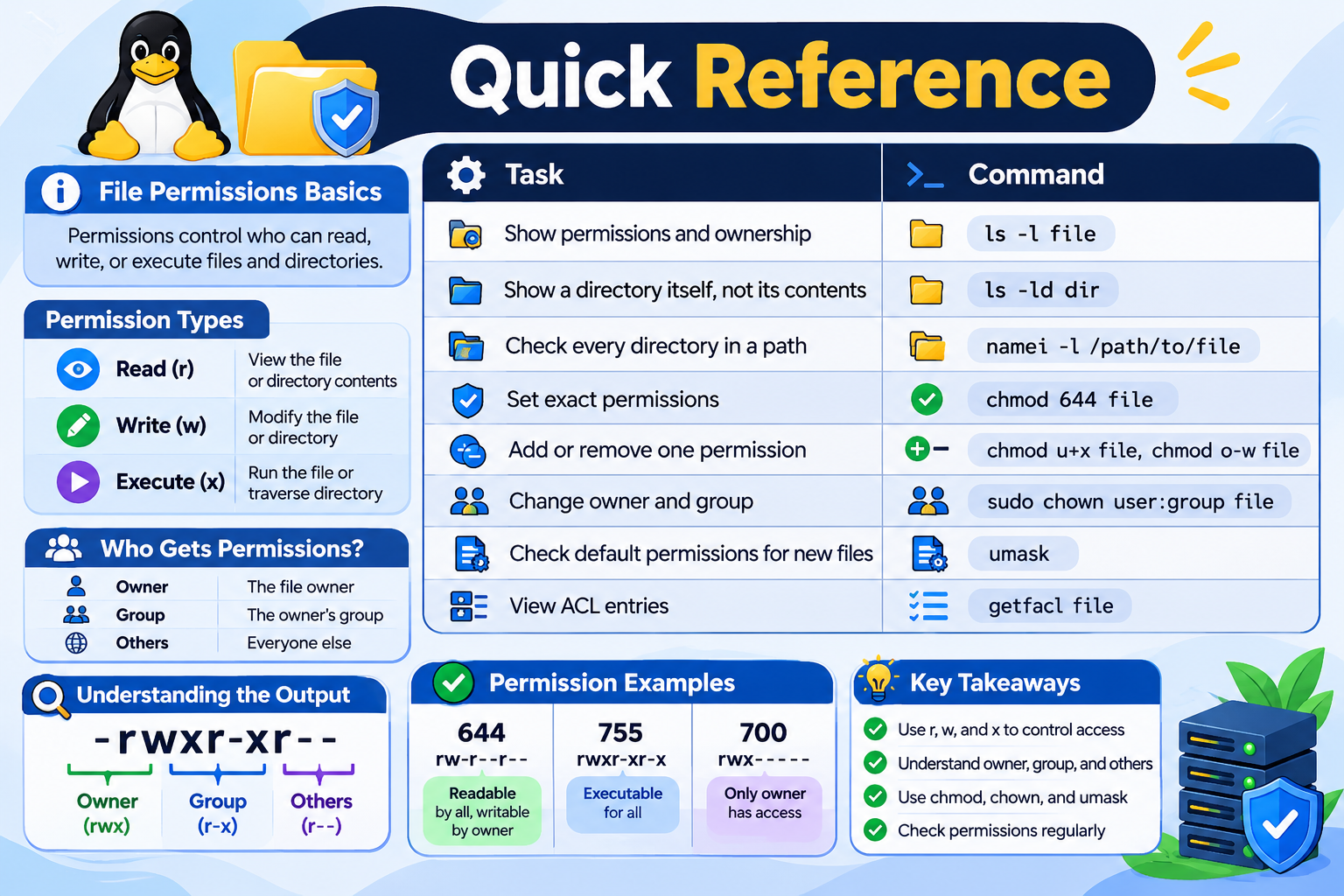
Quick reference
| Task | Command |
| Show permissions and ownership | ls -l file |
| Show a directory itself, not its contents | ls -ld dir |
| Check every directory in a path | namei -l /path/to/file |
| Set exact permissions | chmod 644 file |
| Add or remove one permission | chmod u+x file, chmod o-w file |
| Change owner and group | sudo chown user:group file |
| Check default permissions for new files | umask |
| View ACL entries | getfacl file |
1. What are Linux file permissions?
Linux file permissions are access rules attached to files and directories. Linux is a multi-user system where people, services, and background processes share the same filesystem, so it needs a way to control who can do what.
Every file and directory has three permission categories:
- Owner (user): the account that owns the object.
- Group: the group associated with the object.
- Others: everyone who is neither the owner nor a member of the group.
Each category can have different permissions. A configuration file, for example, might be readable and writable by its owner, readable by one service group, and invisible to everyone else.
Two points are easy to miss. First, the superuser (root) bypasses ordinary permission checks, so permissions mainly constrain everyone else. Second, the owner/group/others model is only the starting point: ACLs, mount options, and security modules such as SELinux and AppArmor can also allow or deny access.
2. The three basic permissions: read, write, execute
The same letters mean different things on files and directories.
| Permission | Regular file | Directory |
| Read (r) | View the contents | List the names inside |
| Write (w) | Modify the contents | Create, delete, or rename entries (also needs x) |
| Execute (x) | Run it as a program | Enter and traverse it (search permission) |
Two details matter in practice:
- Running a script directly (./backup.sh) needs execute permission. Running it through an interpreter (bash backup.sh) only needs read permission.
- Deleting a file is controlled by the directory’s write permission, not the file’s. The sticky bit (section 8) can restrict this further.
Why directory execute permission matters
Consider this directory:
drwxr–r– 2 admin admin 4096 Nov 6 10:30 private
The owner has full access. The group and others have read but not execute. Those users can list the names inside private, but they cannot open the files, and ls -l on its contents will report errors, because they cannot traverse the directory.
To reach a file, a user needs execute permission on every directory in the path, plus the right permission on the file itself.
3. How to check permissions with ls -l
ls -l
Example output:
-rw-r–r– 1 admin admin 2048 Nov 6 10:30 config.php
drwxr-xr-x 2 admin admin 4096 Nov 6 10:35 public_html
-rwxr-xr-x 1 admin admin 1024 Nov 6 10:40 backup.sh
Take the first line. The fields are: permissions and file type (-rw-r–r–), hard link count (1), owner (admin), group (admin), size in bytes (2048), modification time, and name.
The permission string splits into four parts:
– rw- r– r–
Type Owner Group Others
Here the owner can read and write, the group can only read, and others can only read. The first character is the file type:
| Character | Type |
| – | Regular file |
| d | Directory |
| l | Symbolic link |
| c / b | Character / block device |
| p | Named pipe |
| s | Unix domain socket |
Other useful inspection commands
ls -la # include hidden files
ls -ld public_html # the directory itself
stat config.php # detailed metadata, including octal mode
namei -l /var/www/example/config.php # permissions of every path component
namei -l is the fastest way to find which directory in a path is blocking access.
Symbolic links
A symbolic link always shows lrwxrwxrwx on Linux. Those bits are not used for access checks. Access is decided by the target file and the directories leading to it, so a link showing rwxrwxrwx does not make its target world-accessible.
4. Numeric (octal) permissions
Each permission has a value: read = 4, write = 2, execute = 1, none = 0. Add the values for each category to get one digit. Three digits give owner, group, and others.
- Read + write = 4 + 2 = 6
- Read + execute = 4 + 1 = 5
- Read + write + execute = 7
| Numeric | Symbolic | Meaning |
| 777 | rwxrwxrwx | Everyone has full access |
| 755 | rwxr-xr-x | Owner full; others read and execute |
| 750 | rwxr-x— | Owner full; group read and execute |
| 700 | rwx—— | Owner only |
| 644 | rw-r–r– | Owner read and write; others read |
| 640 | rw-r—– | Owner read and write; group read |
| 600 | rw——- | Owner read and write only |
| 444 | r–r–r– | Read-only for everyone |
chmod 755 script.sh gives -rwxr-xr-x. chmod 644 index.php gives -rw-r–r–.
These are common starting points, not universal rules. In general, 644 suits public content files, 755 suits directories and programs that others must traverse or run, 600 or 640 suits files holding credentials, and 777 should not be used as a fix for permission errors. The right value depends on who owns the file and which accounts need access.
5. Changing permissions with chmod
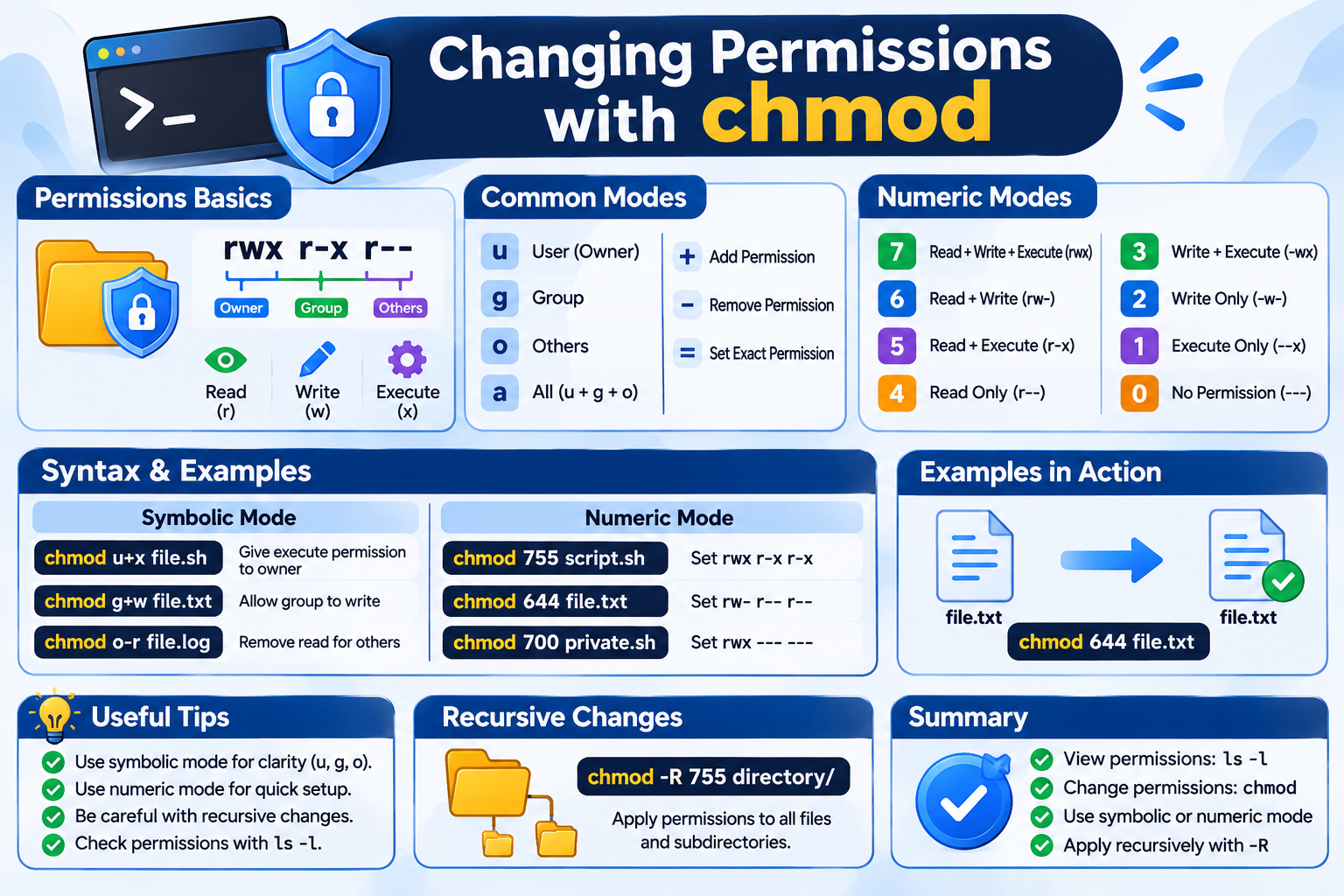
chmod [mode] [file]
Numeric mode
Use it when you want to set an exact result:
chmod 755 script.sh # owner full, others read/execute
chmod 600 private.txt # owner read/write only
chmod 700 private_folder # directory for the owner only
Symbolic mode
Use it to change one thing without touching the rest. The letters are u (owner), g (group), o (others), a (all), with + to add, – to remove, and = to set exactly.
chmod u+x script.sh # add execute for the owner
chmod o-w file.txt # remove write from others
chmod g+r file.txt # let the group read
chmod o= file.txt # remove all access from others
chmod u=rw,g=r,o= file.txt # set an exact combination
Uppercase X
Uppercase X adds execute only to directories, and to files that already have execute set for someone. It is useful on directory trees:
chmod -R a+rX /var/www/example
This makes everything readable and directories traversable without turning every ordinary file into an executable.
Recursive changes
chmod -R 755 applies the same mode to every file and directory below a path. That is usually wrong for websites, because files and directories need different modes. Handle them separately:
find /var/www/example -type d -exec chmod 755 {} \;
find /var/www/example -type f -exec chmod 644 {} \;
This is a baseline for a simple site, not a command to paste into production. Private configuration files, scripts, upload directories, and existing ACLs may need different treatment. Review the current state and take a backup first.
Note on setgid directories: GNU chmod preserves the setgid bit on directories when you use a numeric mode such as 755, and a numeric mode cannot clear it. To remove it, use symbolic mode: chmod g-s dir.
6. File ownership: chown and chgrp
Permissions say what each category may do. Ownership says who belongs to the owner and group categories.
-rw-r–r– 1 webuser webgroup 2048 Nov 6 10:30 index.php
Here webuser is the owner and webgroup is the group.
sudo chown admin config.php # change owner
sudo chown admin:developers config.php # change owner and group
sudo chgrp developers project.txt # change group only
sudo chown -R admin:developers /var/www/example # recursive: use carefully
Changing a file’s owner normally requires root. A file’s owner can change its group only to a group they belong to.
Before changing ownership, confirm the account exists:
whoami # current user
id username # a user’s groups
getent group # all groups
Afterwards, verify with ls -l or stat.
7. umask: default permissions for new files
umask defines which permission bits are removed from the mode a program requests when it creates a file or directory. Programs typically request 666 for files and 777 for directories.
umask # show current value, commonly 0022
umask -S # symbolic form
With a umask of 022:
Files: 666 with 022 removed = 644 (-rw-r–r–)
Directories: 777 with 022 removed = 755 (drwxr-xr-x)
Umask is a bit mask, not subtraction, and a program can request a different mode, so results are not always exactly 644 or 755.
| Umask | New files | New directories |
| 022 | 644 | 755 |
| 027 | 640 | 750 |
| 077 | 600 | 700 |
| 002 | 664 | 775 |
Running umask 027 changes only the current shell session. Making it persistent depends on your shell profile, login environment, or service configuration (for example, UMask= in a systemd unit).
If the parent directory has a default ACL, new files inherit from it and the umask is not applied the usual way, which is one reason real permissions can differ from your calculation.
8. Special permissions: setuid, setgid, and sticky bit
| Bit | Octal | Main effect |
| Setuid | 4 | Program runs with the file owner’s effective user ID |
| Setgid | 2 | Program runs with the file’s group; on directories, new files inherit the directory’s group |
| Sticky | 1 | Only a file’s owner, the directory’s owner, or root can delete or rename entries |
The special bit is the leading digit of a four-digit mode: 4755, 2775, 1777.
Setuid appears as s in the owner’s execute position (-rwsr-xr-x). It only grants root privileges if root owns the file. Linux ignores setuid on interpreted scripts, and mount options such as nosuid can disable it. A vulnerable setuid program is a privilege-escalation risk, so never add setuid to fix a permission error.
Setgid on a directory is the practical one for shared projects:
chmod 2775 shared # drwxrwsr-x
Files created inside inherit the directory’s group instead of the creator’s primary group.
Sticky bit is used on shared writable directories such as /tmp:
ls -ld /tmp # drwxrwxrwt
chmod 1777 shared_tmp
The trailing t marks the sticky bit.
9. Access Control Lists (ACLs)
ACLs let you give a specific user or group access without changing ownership or opening a file to everyone.
setfacl -m u:developer:r file.txt # read access for one user
setfacl -m g:developers:rw file.txt # read/write for one group
getfacl file.txt # view ACL entries
setfacl -x u:developer file.txt # remove one user’s entry
The ACL mask
The mask caps the effective permissions of named users, named groups, and the owning group. Example:
setfacl -m u:developer:rwx file.txt
setfacl -m m:r– file.txt
getfacl file.txt
user::rw-
user:developer:rwx #effective:r–
group::r–
mask::r–
other::—
The entry says rwx, but the effective permission is r–. When an extended ACL exists, the group field in ls -l shows the mask, not the owning group’s real entry. A + at the end of the permission string (-rw-r–r–+) indicates an ACL is present.
Default ACLs
setfacl -d -m g:developers:rwx shared
A default ACL applies to objects created afterwards in that directory. It does not change files that already exist. Use getfacl before changing permissions on anything that might have ACL entries.
10. Permissions for website hosting
A typical site:
/var/www/example/
├── index.php
├── config.php
├── public/
├── uploads/
└── logs/
| Component | Typical starting point | Consideration |
| Public files (HTML, CSS, JS, images, PHP) | 644 | Must be readable by the web server or PHP process |
| Directories | 755 | Must allow traversal |
| Private config files | 600 or 640 | Depends on the owner and the service group |
| Upload directories | Application-specific | Grant write access only where needed |
Know which user runs your code
The account that uploads files is often not the account that runs the application:
- Apache with mod_php: PHP runs as the Apache worker user.
- Apache or Nginx with PHP-FPM: PHP runs as the user and group set in the PHP-FPM pool; Nginx only serves static files.
- Shared hosting: each account usually has its own user, with isolation depending on the provider.
- VPS: you choose the users, groups, and process identities.
Verify the actual account (for example with ps aux | grep php-fpm or your pool configuration) rather than assuming www-data.
A safer ownership pattern
Where possible, make code owned by a deployment user and not writable by the web process. Give the web process write access only to directories that need it, such as uploads or cache. If PHP can rewrite its own source files, a single vulnerable plugin can become a full site compromise. Also keep credentials outside the public web root, and block script execution inside upload directories through your web server configuration.
Why not 777?
chmod -R 777 /var/www/example # do not do this
This lets any local user or compromised process modify or replace your files, plant malicious code, or delete content. If uploads fail, find the account running the application and grant access to that one directory.
11. Diagnosing “Permission denied” errors
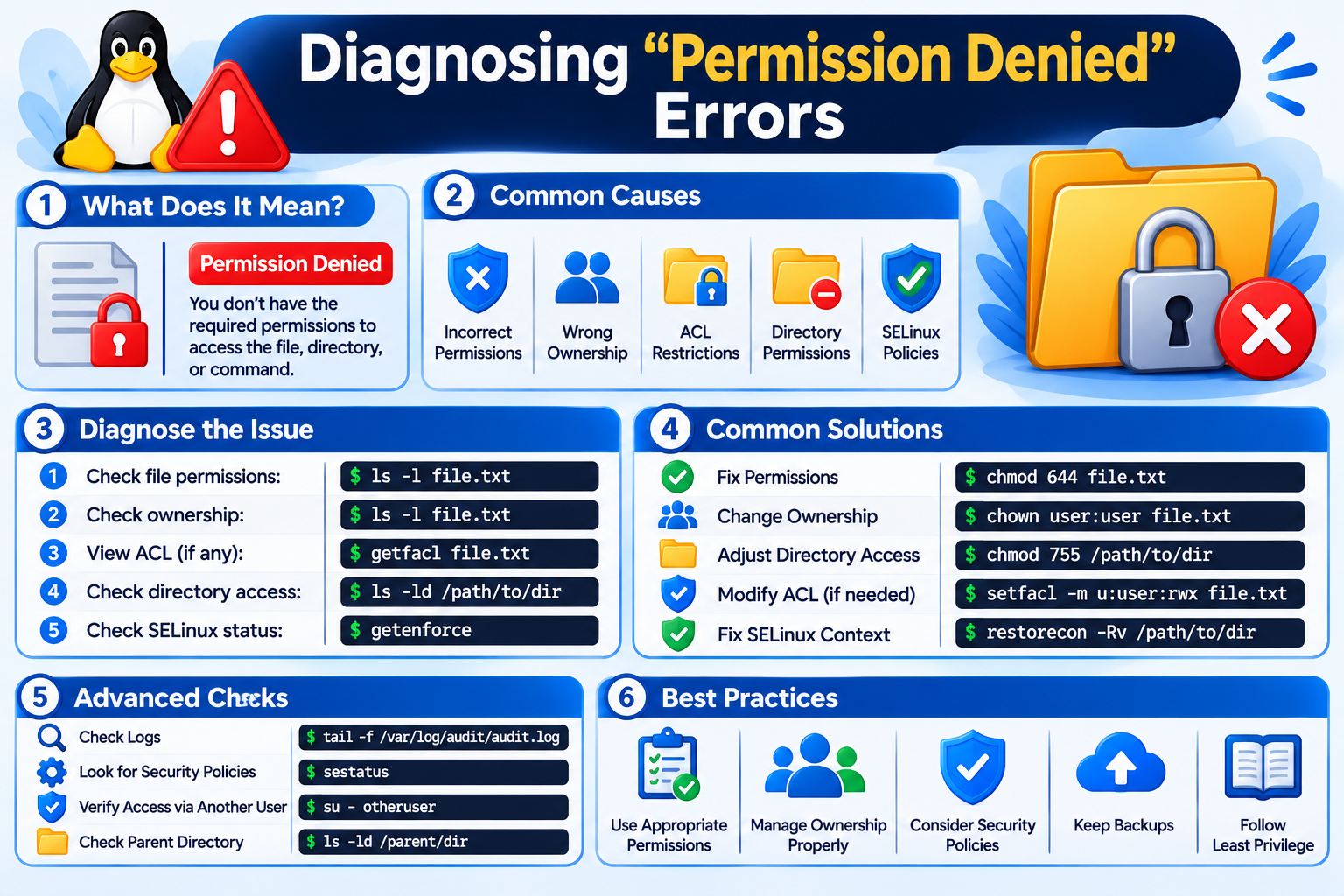
Repeatedly running chmod without diagnosing the cause is how insecure servers happen. Work through the access path in order:
- Path: namei -l /full/path/to/file shows owner, group, and mode of every component. Look for a missing x on a directory.
- Who: confirm which user the process runs as, and check its groups with id username.
- ACLs: getfacl file (a + in ls -l is the hint).
- Mount options: findmnt -no OPTIONS –target /path/to/file (look for noexec, nosuid, ro).
- Attributes: lsattr file (an immutable flag, i, blocks changes even for root).
- Security modules: getenforce for SELinux, sudo aa-status for AppArmor.
A related note: Permission denied and Operation not permitted are different errors. The second often points to something permissions alone cannot fix, such as using chown without root, an immutable attribute, or a filesystem (such as FAT or NTFS mounts) that does not support Unix permissions.
Scenario 1: script will not run
bash: ./backup.sh: Permission denied
ls -l backup.sh
chmod u+x backup.sh
./backup.sh
If it still fails, check the interpreter line (#!/bin/bash), the noexec mount option, execute permission on parent directories, and security policy.
Scenario 2: cannot enter a directory
ls -ld /var/www/example
namei -l /var/www/example
Fix only the specific component that blocks access. On shared setups where a site lives under /home/user/, the web server may need execute permission on the home directory itself, which is better granted narrowly with an ACL than by opening the whole directory.
Scenario 3: website cannot upload files
Check the directory, then test as the verified application user (here assumed to be www-data):
ls -ld /var/www/example/uploads
sudo -u www-data test -w /var/www/example/uploads && echo Writable || echo Not writable
If the directory should be owned by webuser and writable by the www-data group, one working setup is:
sudo chown webuser:www-data /var/www/example/uploads
sudo chmod 2770 /var/www/example/uploads
This gives owner and group full access, blocks others, and makes new files inherit the group. Use it only if it matches your real ownership model, then verify with ls -ld.
Scenario 4: cannot edit a root-owned file
If the change is legitimate, use sudo, for example sudo nano /etc/ssh/sshd_config. Do not reach for sudo or chown automatically: first decide whether the file should be edited with elevated privileges at all.
Scenario 5: wrong ownership after a deploy or upload
Files copied by FTP, SSH, or deployment tools may end up under the wrong account. Correct them with the intended owner and group, and run recursive chown -R only after confirming everything under the path should belong to that account.
12. Security best practices
- Grant the least access each user and application needs.
- Never use 777 as a general fix.
- Check ownership (ls -l, stat) before changing modes.
- Restrict files holding passwords and API keys to 600 or 640, with the right owner and group.
- Use groups, not world access, for shared work.
- Review chmod -R and chown -R commands before running them, and back up first.
- Inspect ACLs with getfacl when permissions look inconsistent.
- Audit setuid and setgid files periodically, for example with find / -xdev -perm /6000 -type f.
- Verify every change afterwards instead of assuming it worked.
Frequently asked questions
